Upload Contacts in Bulk
Last updated: June 7, 2026
Overview
You can upload contacts to First Bite using the Upload button on the Contacts page.
The upload process supports .csv files with up to 200 contacts per file. If you need to import more than 200 contacts, you can either repeat the upload process in batches or reach out to your First Bite team for assistance with a larger import.
Bulk Upload contacts into First Bite
Navigate to Contacts page > Click
Upload Contacts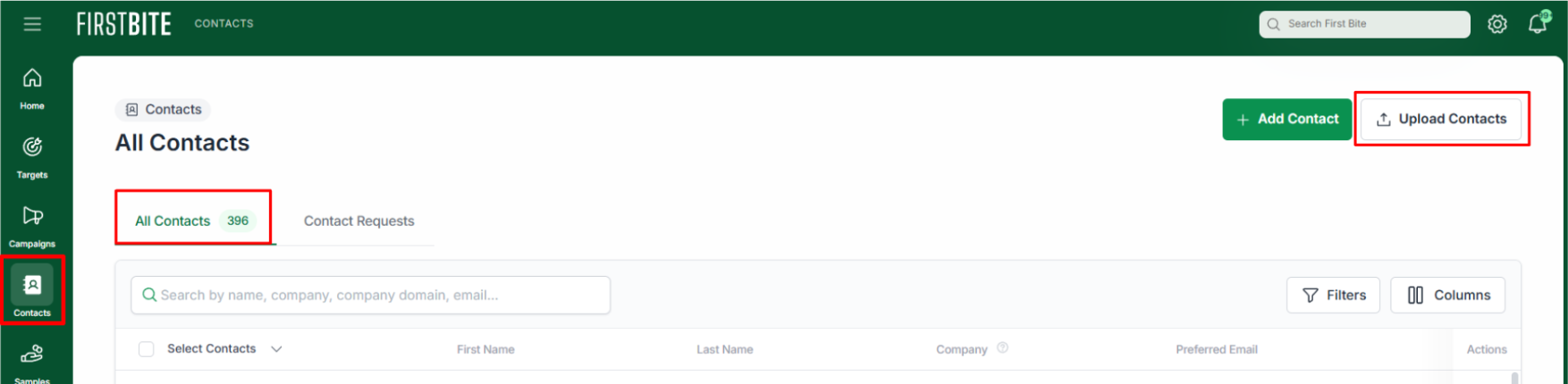
Select the file of contacts you want to upload (Drag & Drop or Browse) and click
Continue.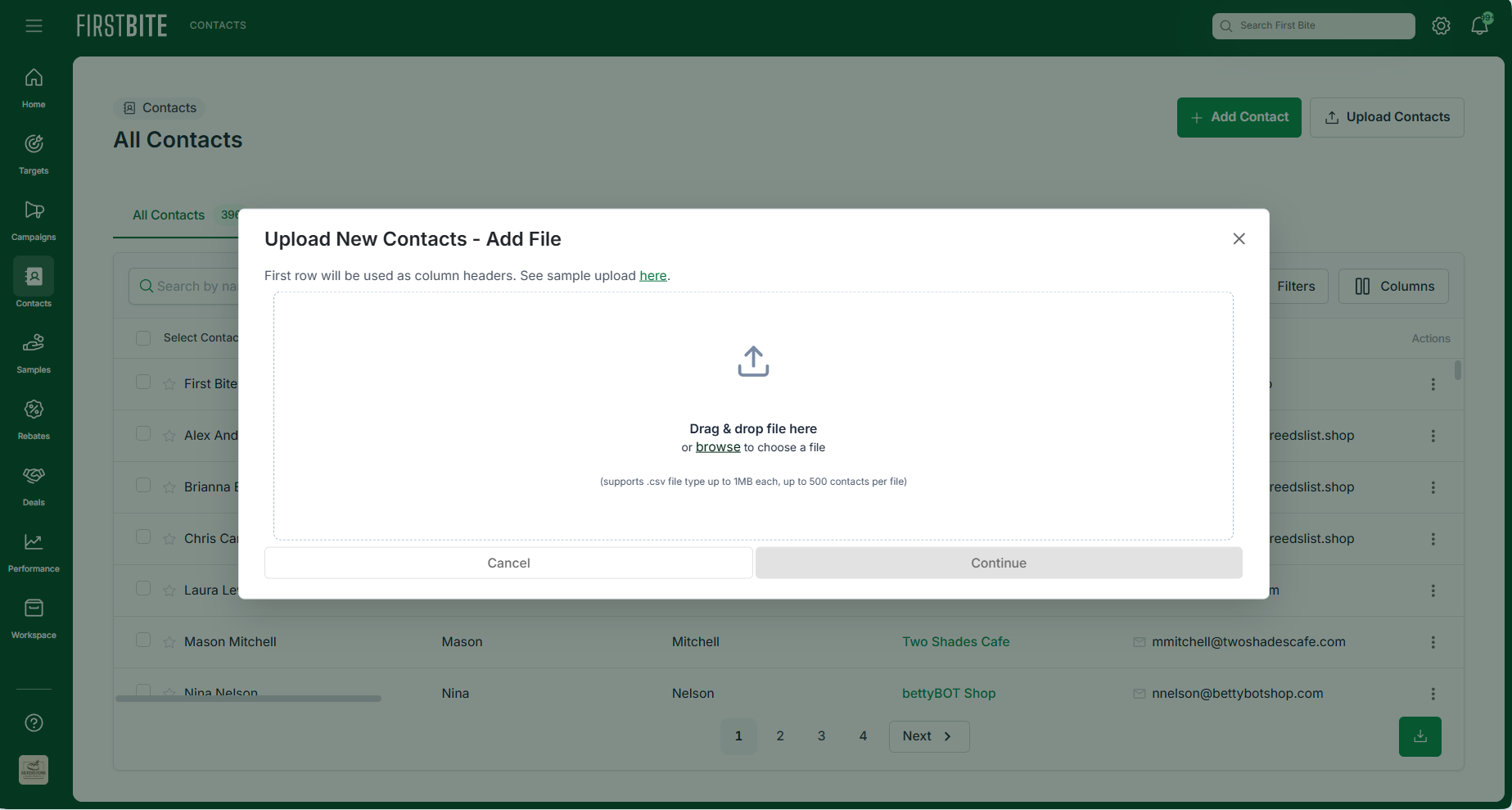
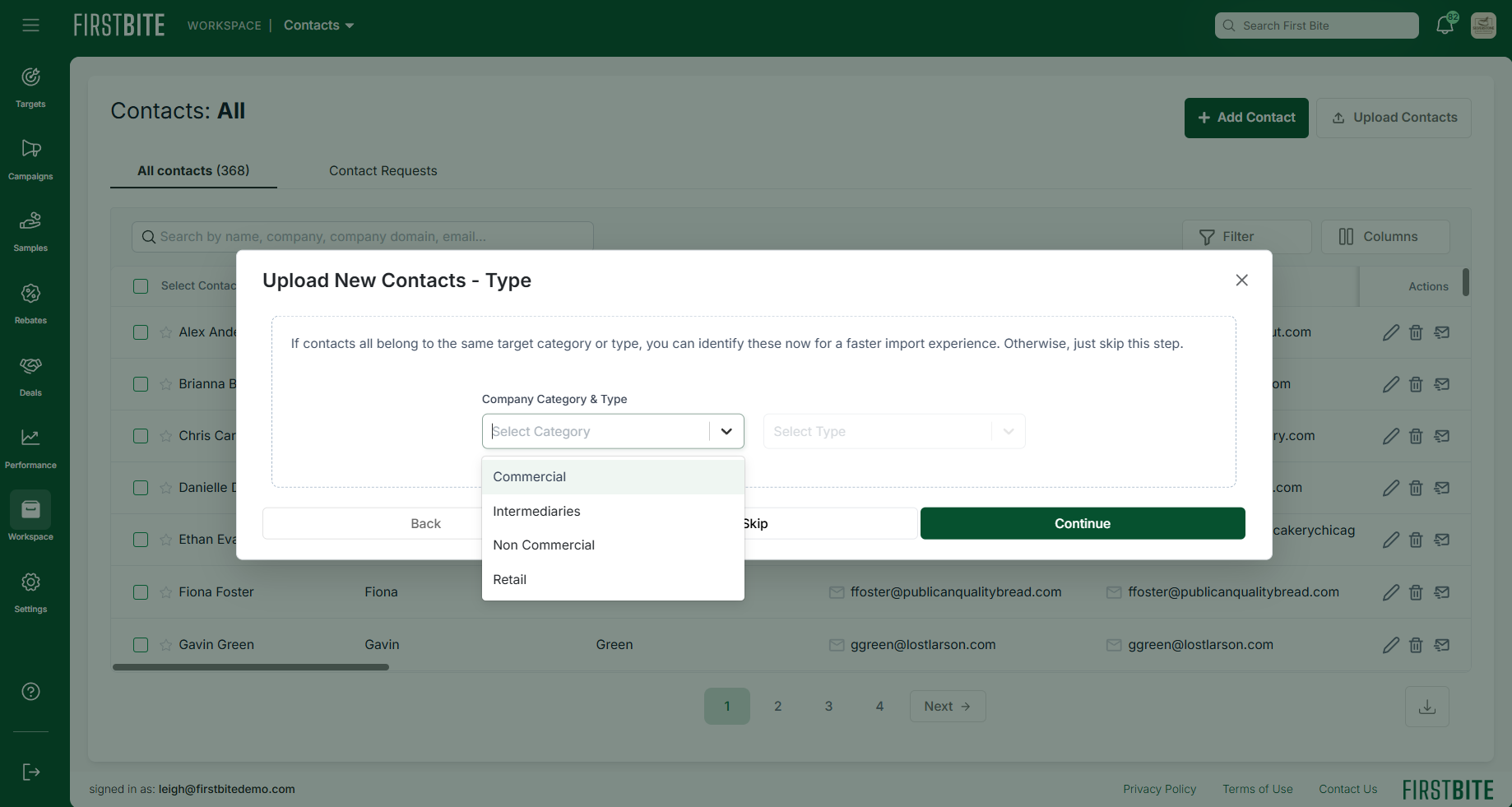
If all contacts belong to the same target type, select the corresponding Category and Target Type from the dropdowns.
If the contacts are from varying target types, skip this step.
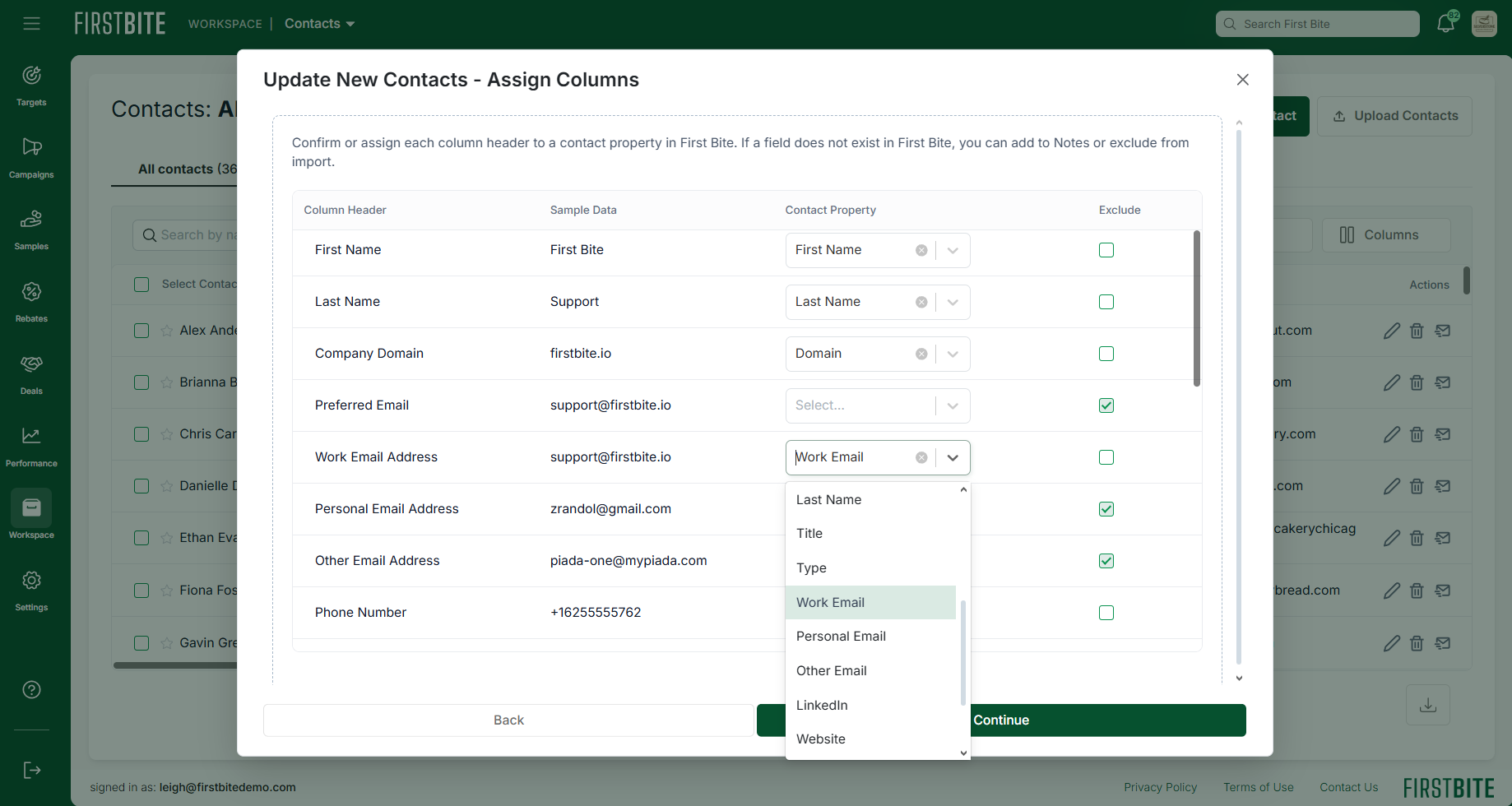
Assign columns:
Use the dropdowns to select which Contact Property that data should map to in First Bite.
Check ‘Exclude’ for data that you don’t want to import.
All Columns should be mapped to a First Bite Contact Property or check-marked as ‘Excluded’.
Click
Continue.Use the dropdowns to match the listed company to the appropriate Company in First Bite, or check ‘Exclude’.
‘Excluding’ will create a contact without a company.
After evaluating each contact/company pairing, click
Continue.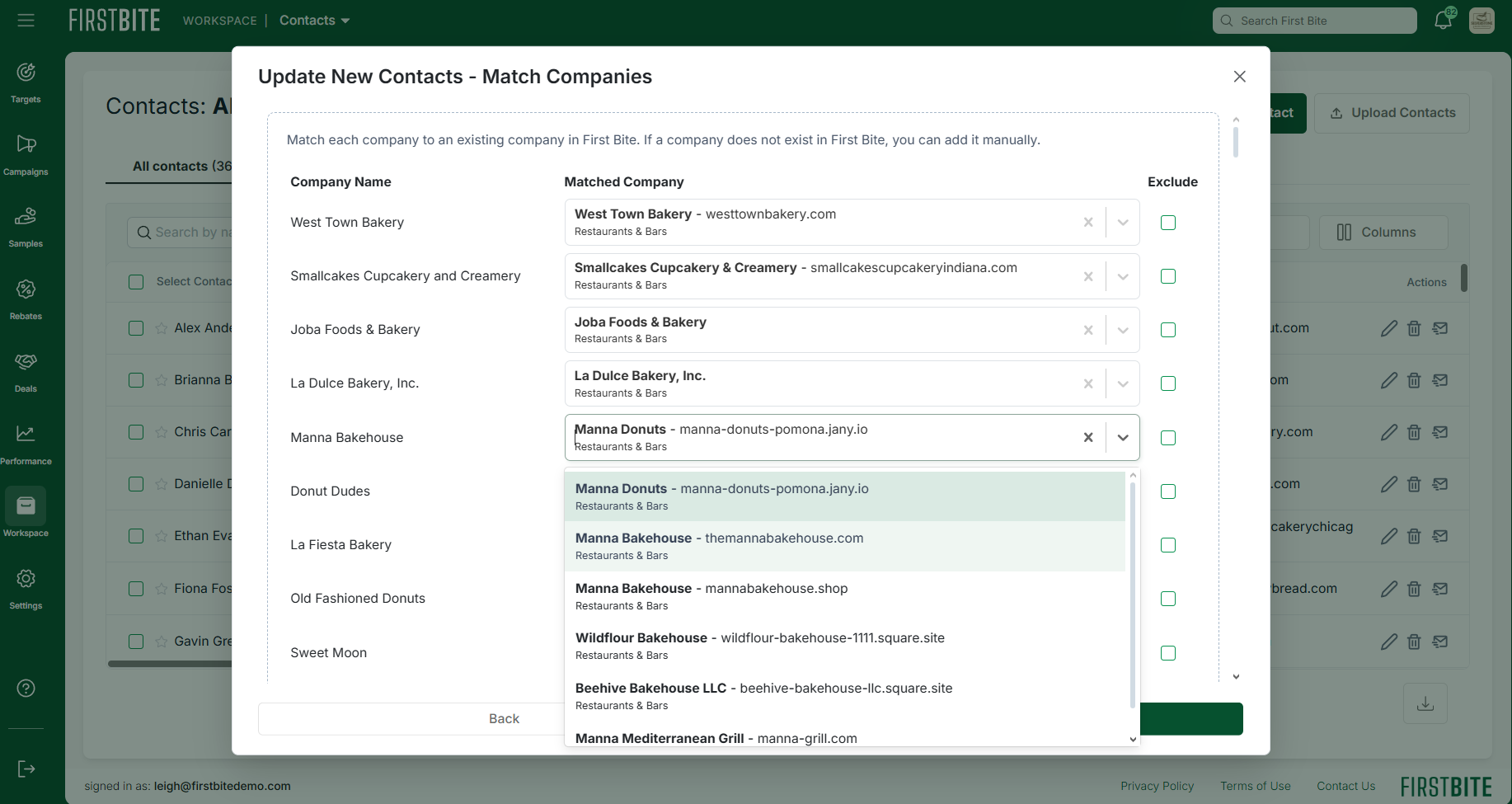
Review the list of imported contacts to ensure all data is appropriately mapped. If all is correct, click
Complete.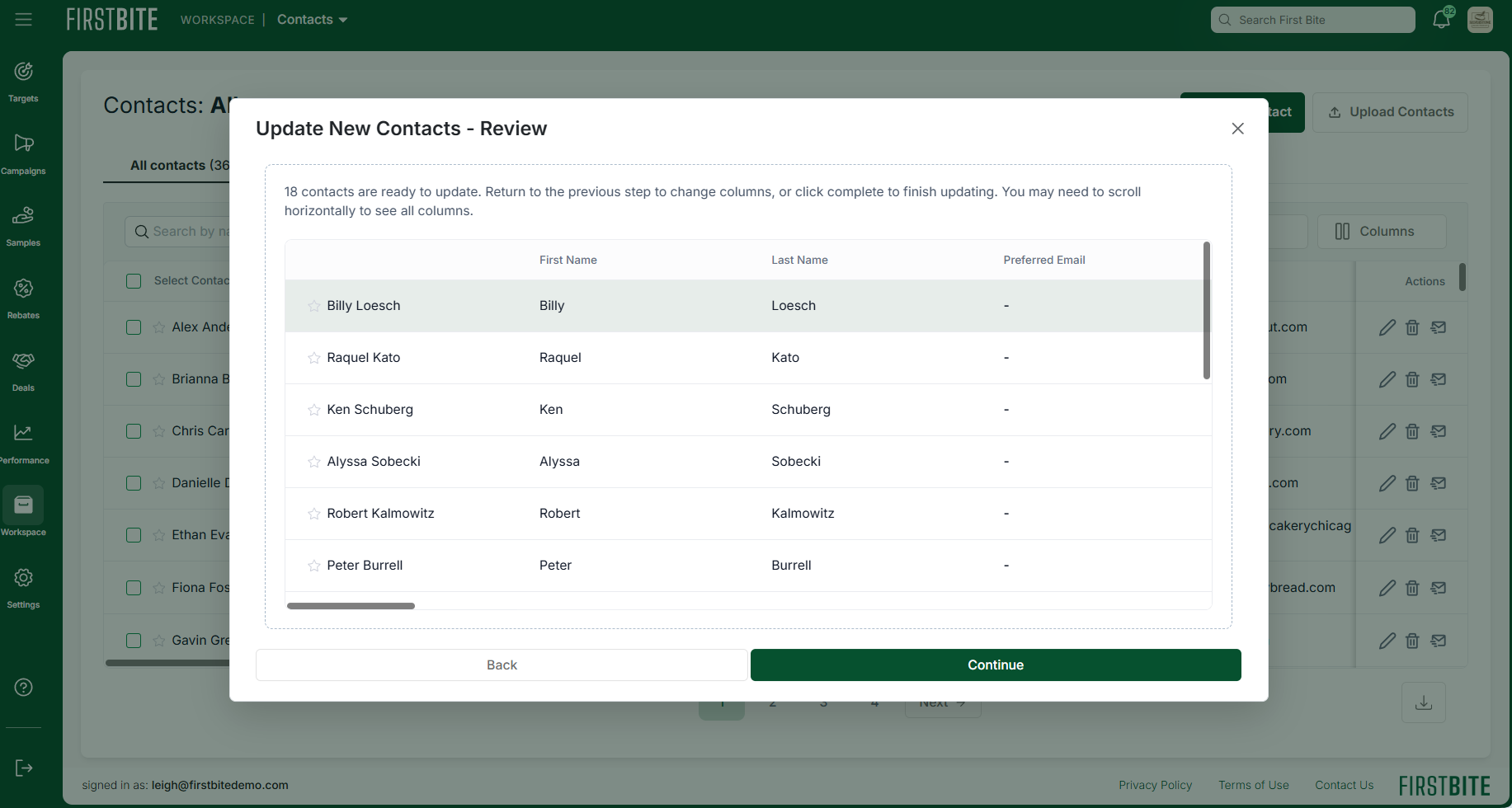
Finally, you have two options (not required):
Add a Contact Label to the imported contacts
Add the associated companies (and their contacts) to a campaign.
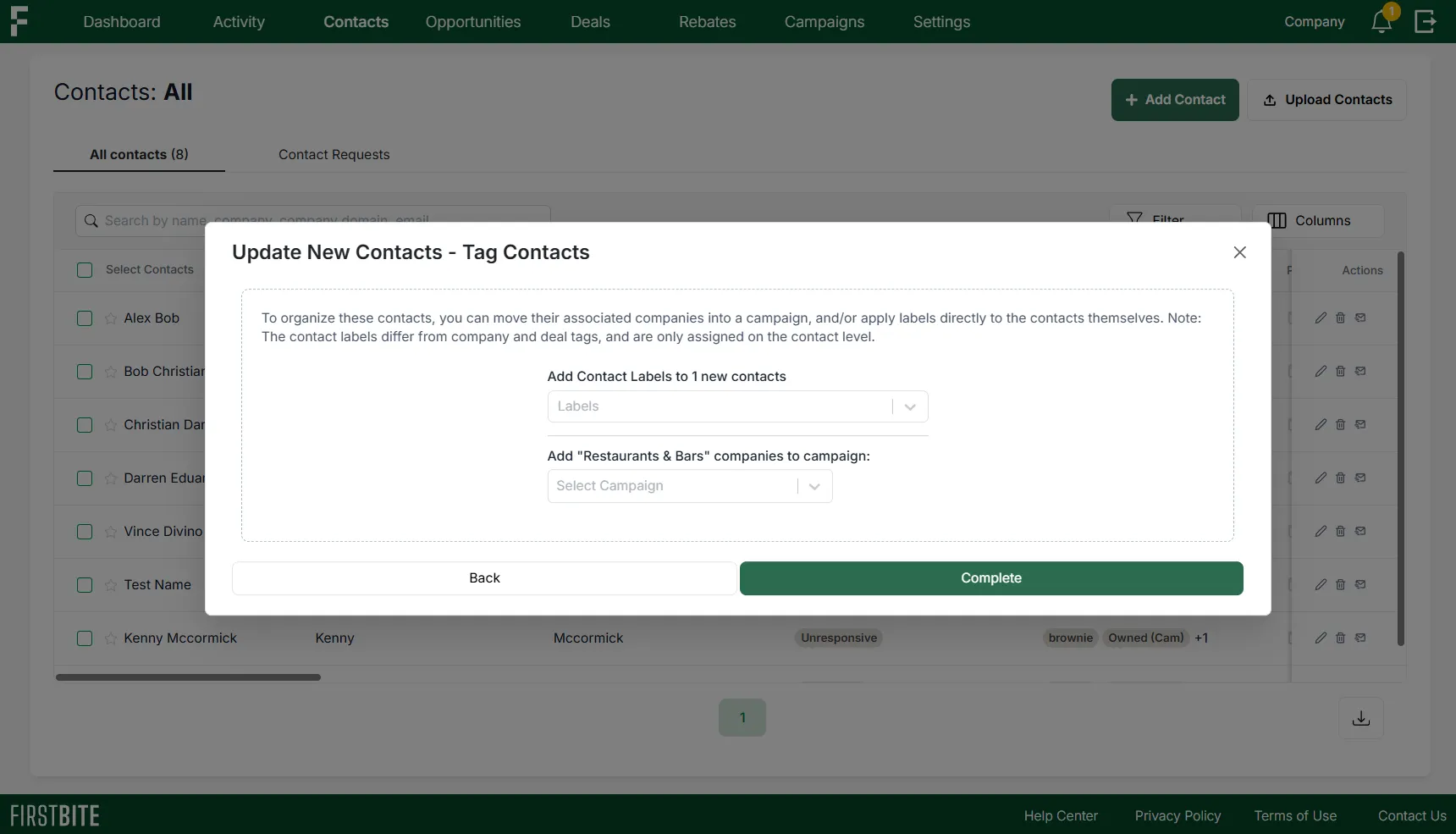
Click
Complete.
Strategy to consider when uploading contacts
Choose which contacts are imported together
At the end of the import process, you’ll have the option to apply a tag to all imported contacts or to send companies with associated contacts directly into a campaign.
If you plan to tag a group of contacts or enroll them in a campaign, we recommend importing them together. This allows you to efficiently apply tags or initiate campaign actions in bulk during the final step of the upload process.
Use a downloaded contact list to format your upload
If you're unsure how to format your upload and already have contacts in First Bite, consider downloading a few existing records. This will provide a reference for proper formatting and show you which Contact Properties are available.
You can either:
Copy and paste the column headers into your own upload document to ensure consistency, or
Replace the downloaded contact data with the new contacts you'd like to upload, removing any unnecessary columns in the process.