Creating Sample Requests in First Bite
Last updated: March 10, 2026
Creating sample requests in First Bite is quick and streamlined, whether you’re sending items to a new prospect or supporting an existing customer. This article walks you through where to submit a request, how to complete each step of the workflow, and how to review past submissions.
Where You can Request Samples
There are two ways to request samples:
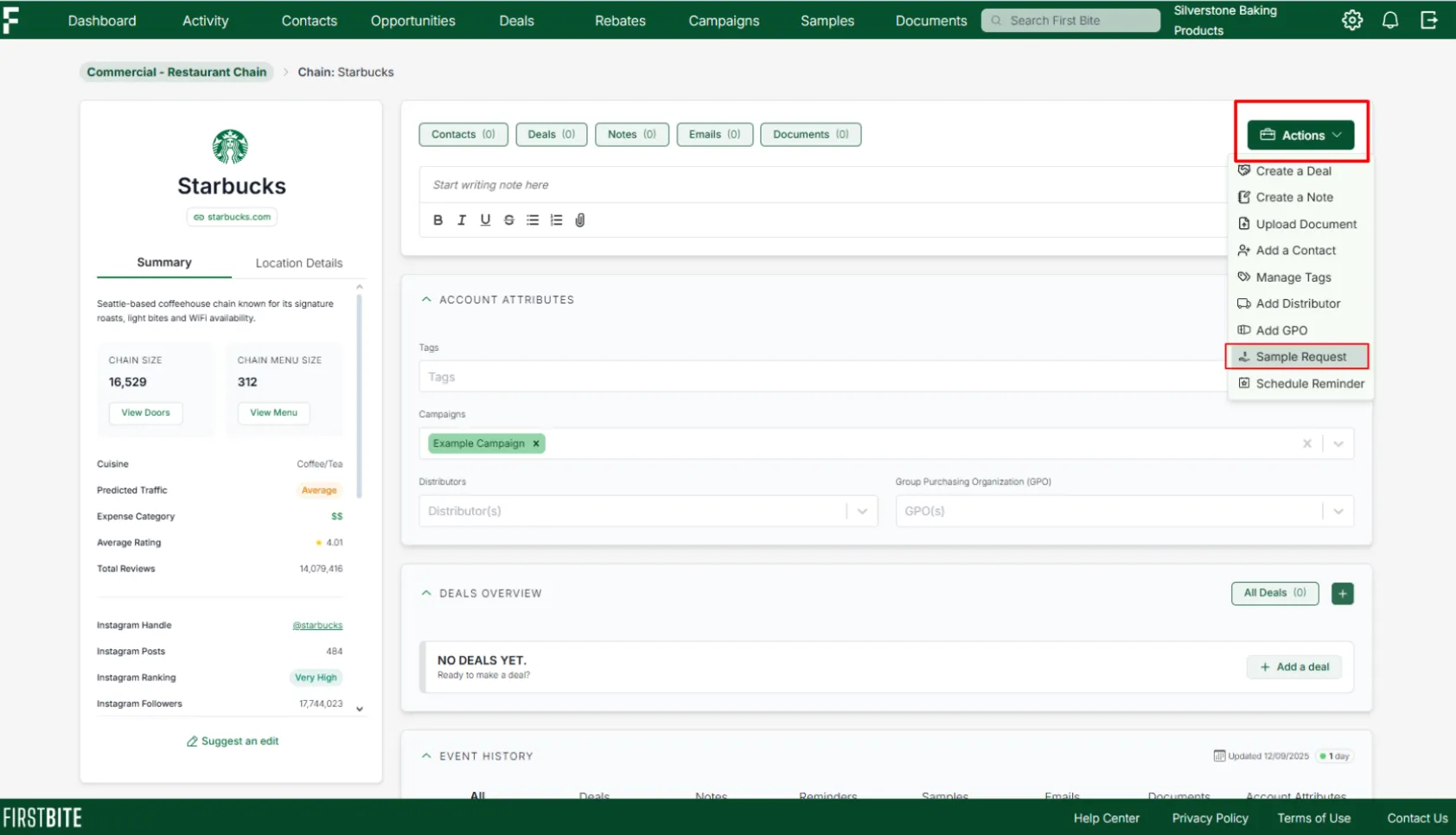
Within the company page, select
Actions→ Request Samples
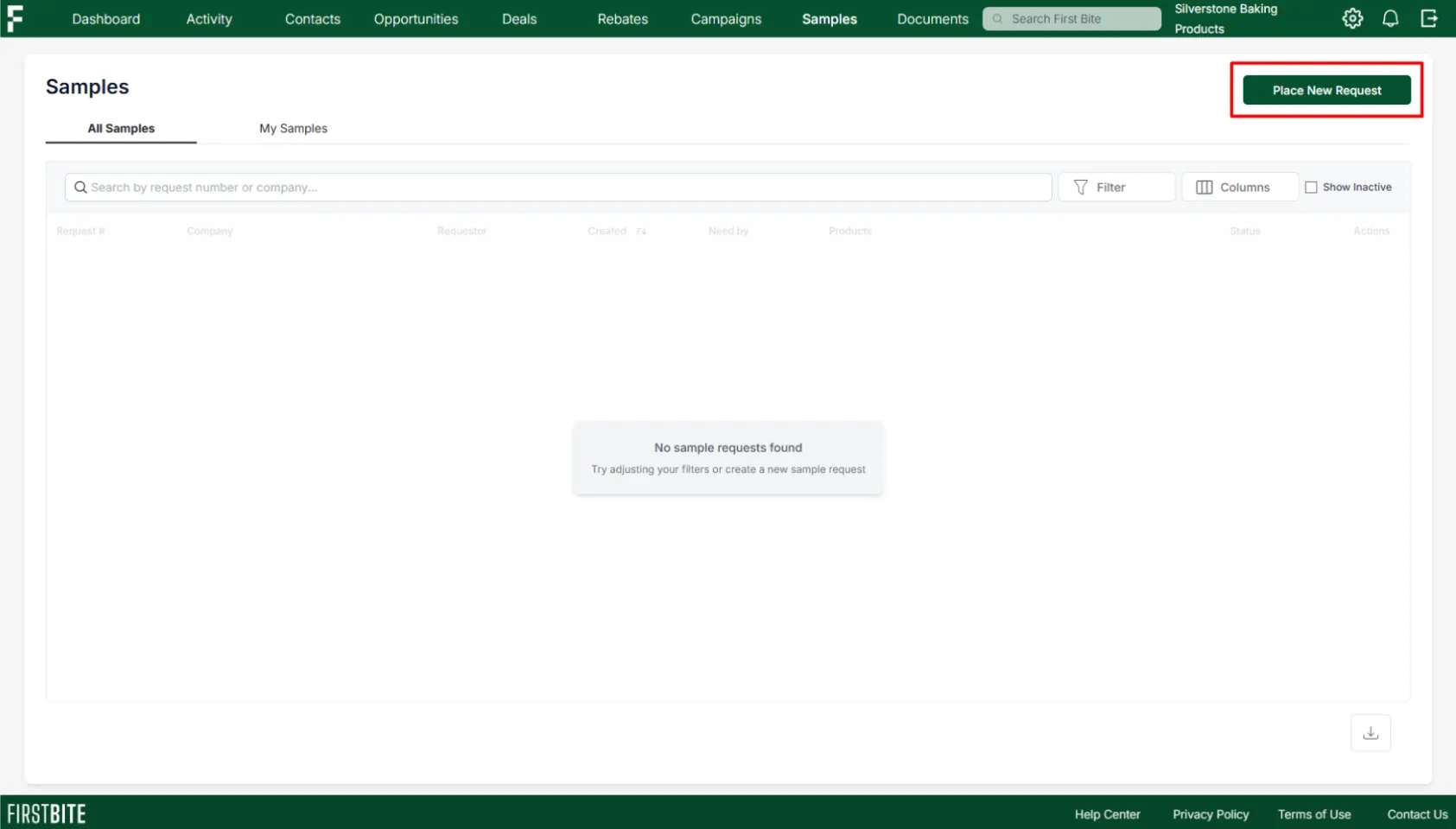
From the Samples page, select
Place New Requestin the top right corner.
Requesting Workflow
When you click to place a new sample request in First Bite, the workflow will take you through four steps.
Step 1 - Who is the sample for?
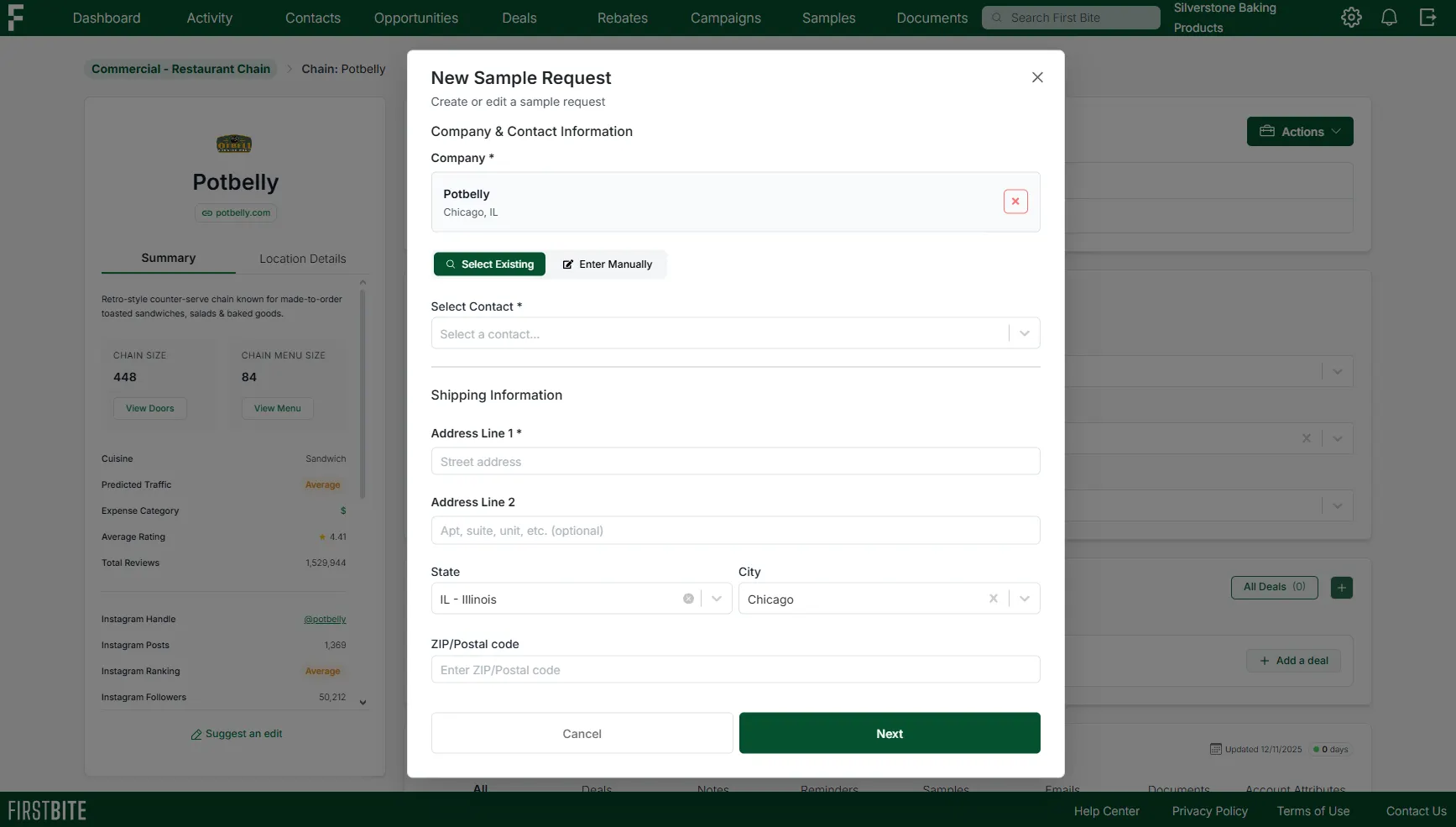
On page 1 you’ll fill in details about who the sample is going to and where they’re located:
Company: If you’re requesting from the company page, this will pre-populate. If you’re requesting from the Samples page, you’ll need to search and select the company receiving samples. Choosing a specific door during the search will auto populate the door’s address.
Select Existing + Select Contact: If the contact receiving samples already exists in First Bite, select them from the dropdown.
Enter Manually: If your contact has not yet been entered into First Bite, choosing to “Enter Manually” will allow you to enter the contact into First Bite, including First/Last Name, email, and phone number.
Address: Enter the location you’d like to send the sample to. The city + state of the company headquarters will prepopulate but can be changed as needed.
Step 2 - Additional context
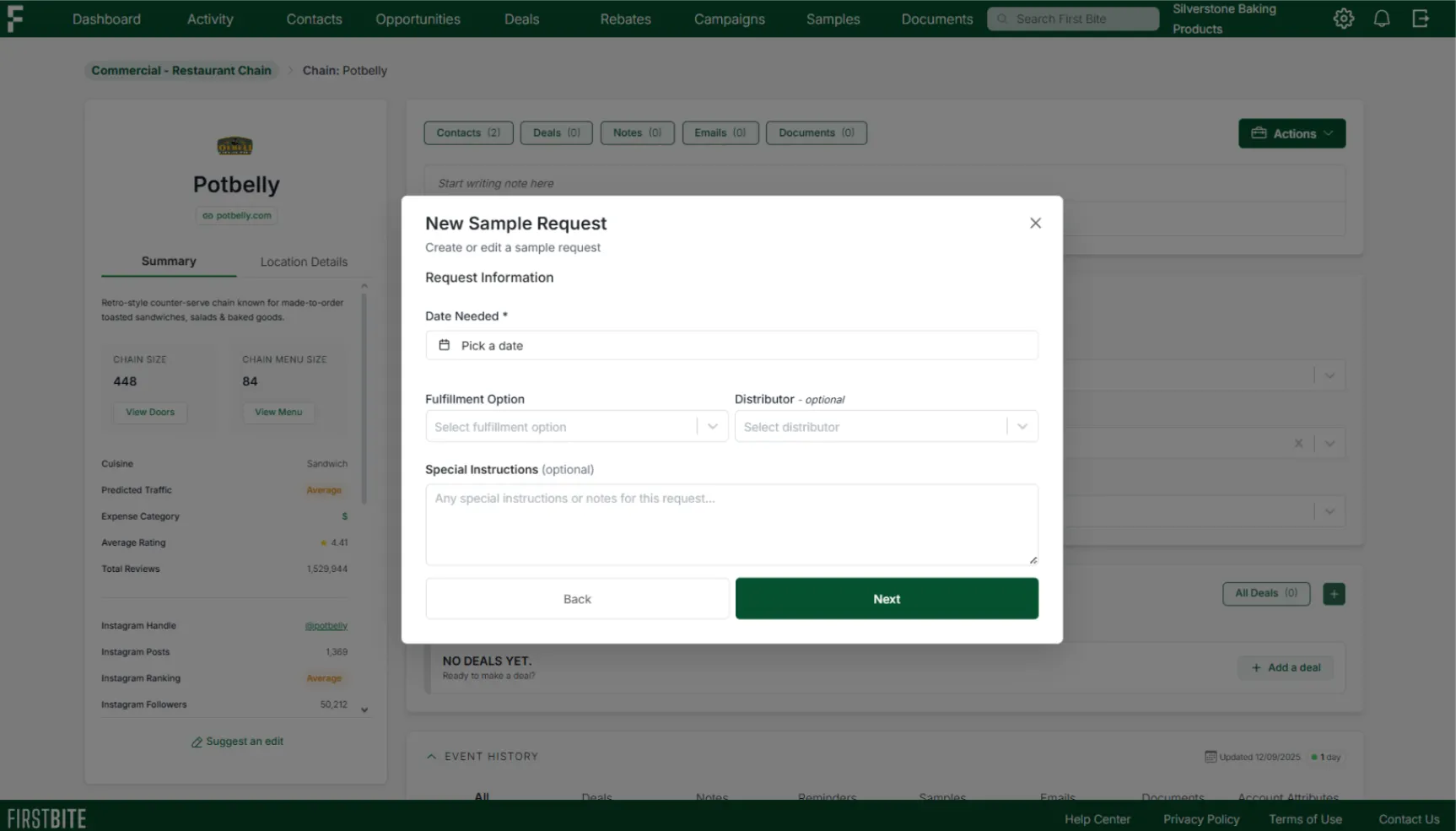
Here, you’ll focus on timing and any additional information needed to get the sample into the operator’s hands, including:
Date Needed: This can represent the operator’s “need by” date or your own “ship by” deadline. Either approach works, just make sure your team is aligned on how you’re using it.
Fulfillment Option: Determines how the sample will be received. Will it be shipped straight to the address, picked up by someone, or sent with another request.
Distributor (optional): Is there a distributor involved in the sample delivery? If not, leave it blank.
Special Instructions (optional): Add context or additional information for your team as needed.
Step 3 - What will be sampled?
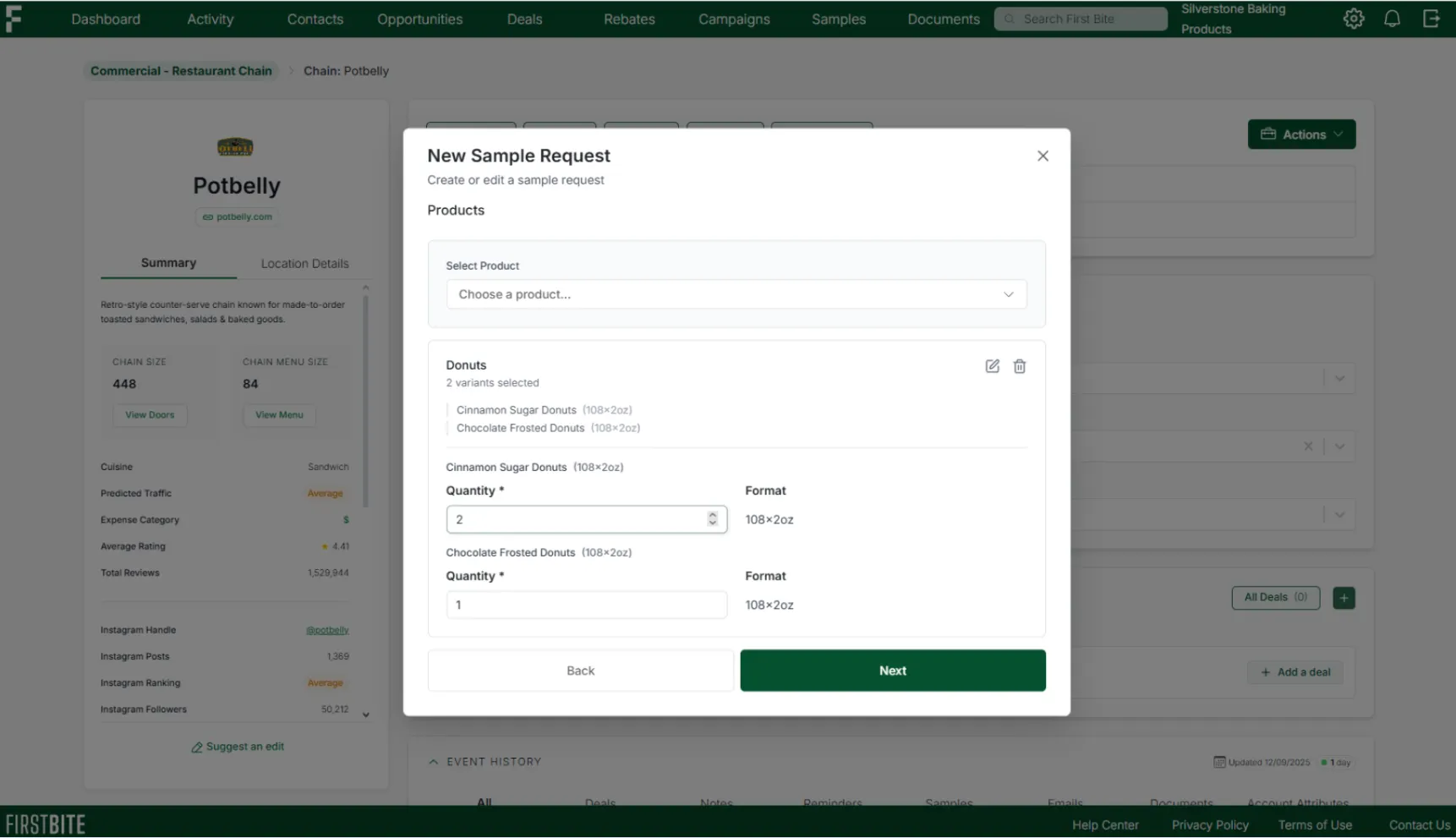
Page 3 will identify which samples (and how many) will be shipped.
Choose a Product: Use the dropdown to select the product/s being shipped.
Variants (optional): Select specific variants of the product by checking the box next to the variant name to indicate which variants will be included in the shipped sample.
Quantity: How many of each variant is needed? In the example above, 2 cases of the cinnamon sugar donuts are being sent along with 1 case of the chocolate frosted donuts.
Step 4 - Review
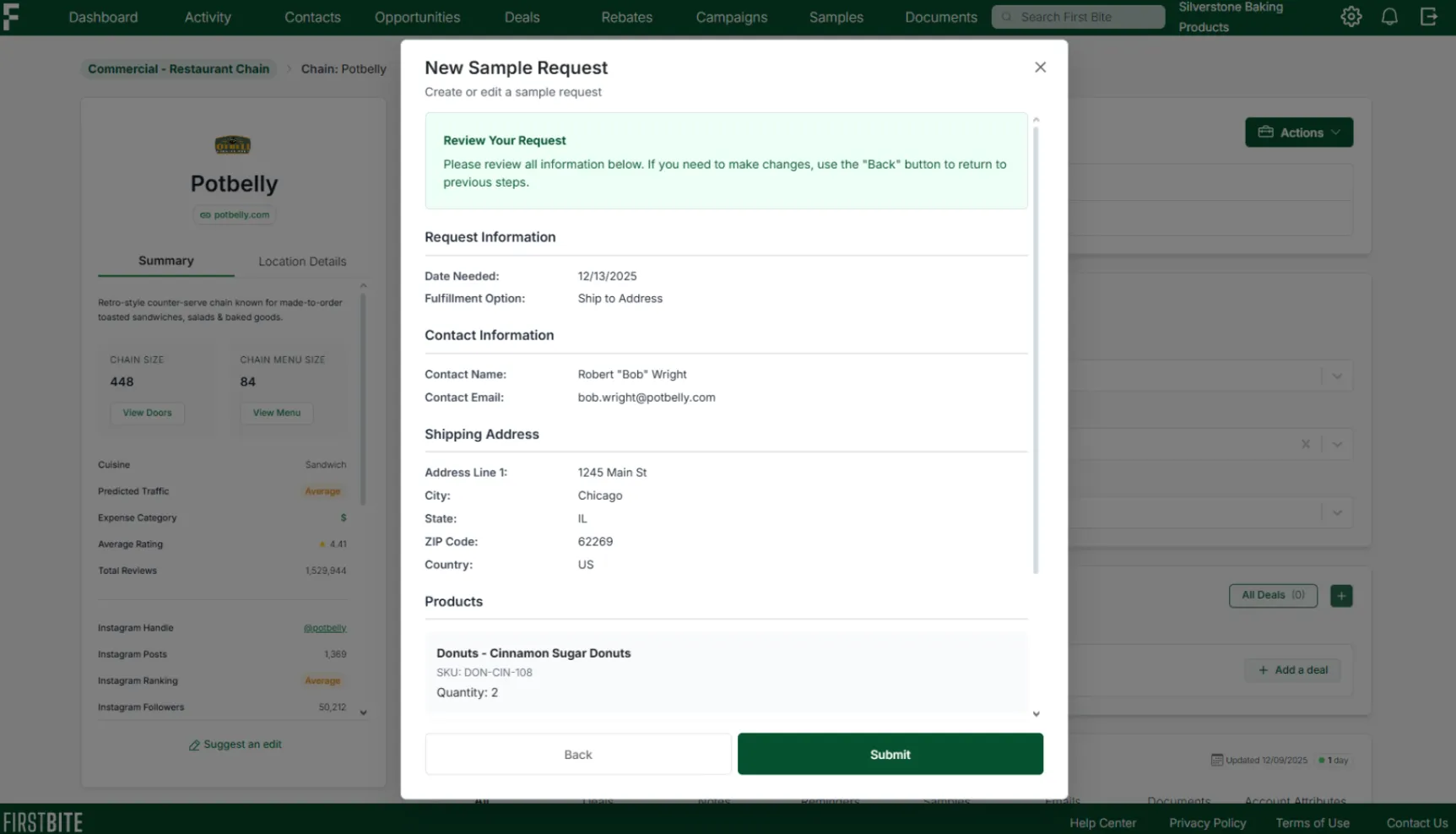
Finally, you need to review and submit your request information.
You can return to previous pages to correct information if needed.
Note: If you selected to ship with an existing request, you will not see the Shipping Address information on your review page.
Once submitted, the request will appear on the Samples page.
Viewing and Cancelling Sample Requests
Sample requests can be viewed and deleted from the Samples page, or within the company page.
From the Samples page:
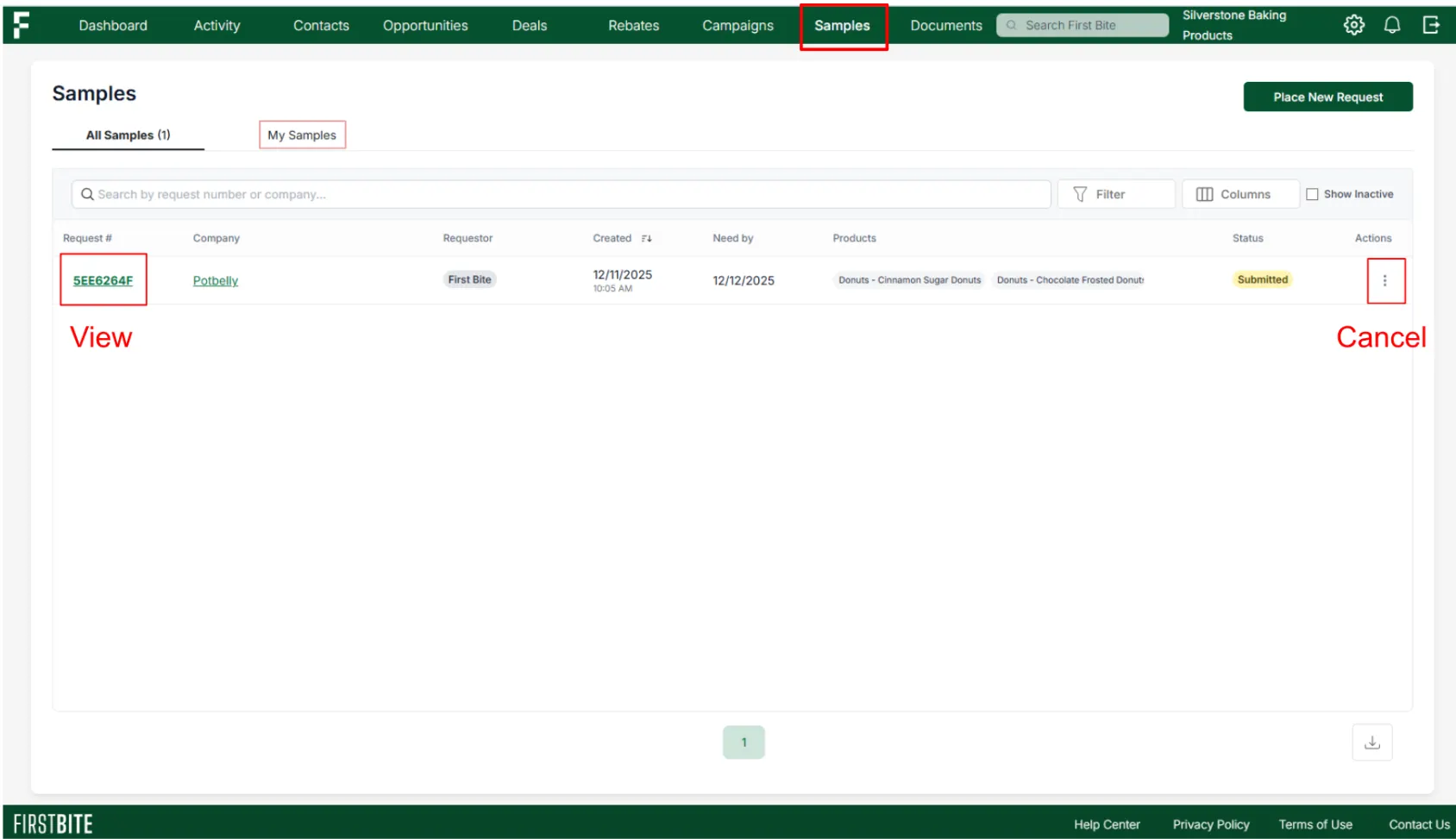
Click on the sample request number to view your request. From here you can also cancel the sample request.
To cancel/delete from the list view, click on the 3 dots under the Actions column.
You can view all sample requests or just your submissions by toggling to the “My Samples” tab.
From the Company Page:
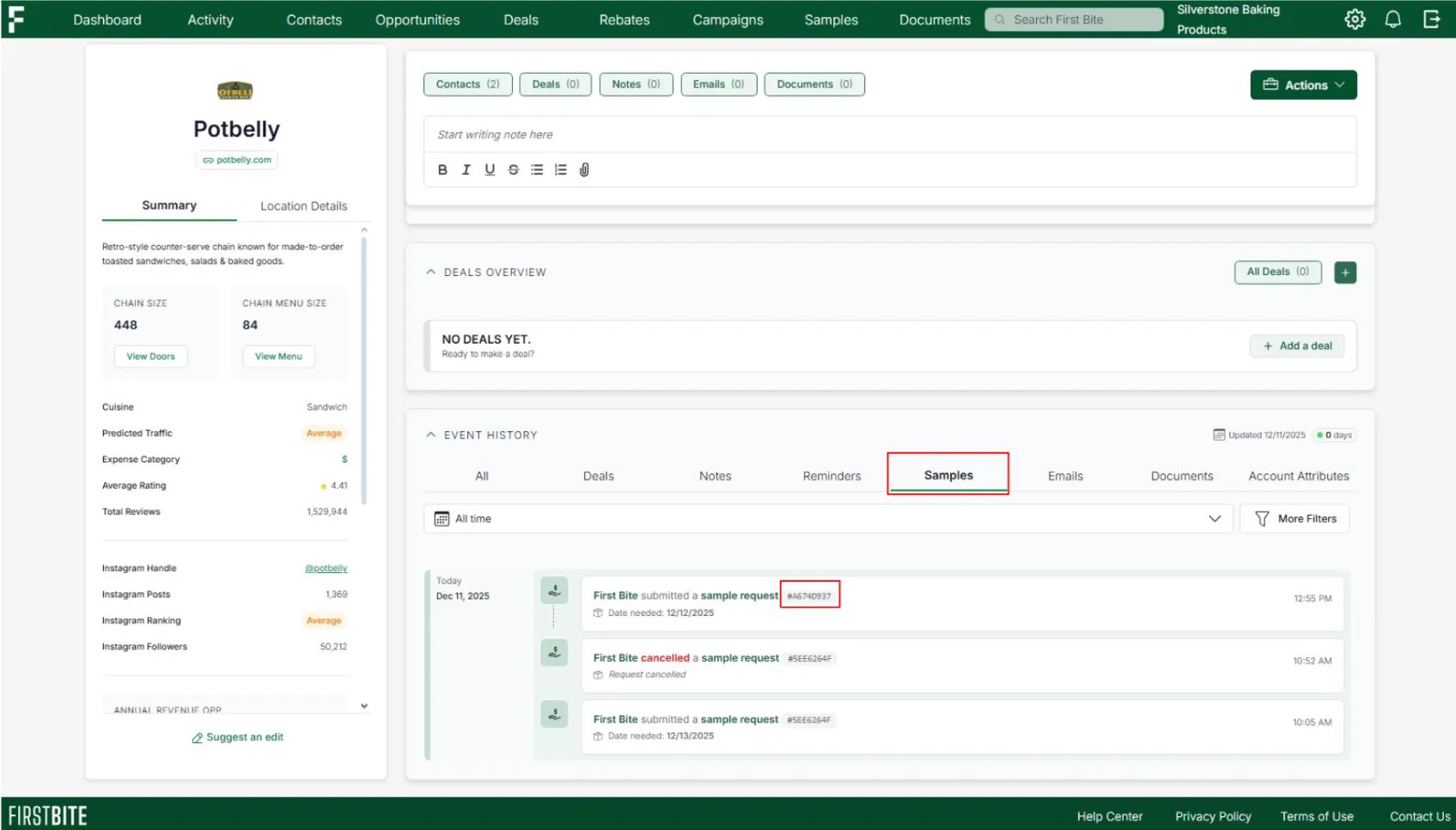
Navigate to the bottom of the page. Locate Event History → Samples view.
From here you can click on the sample request number to view or cancel the request.
Sample Request Notifications
A copy of the sample request will be sent to your company’s “Sample Customer Service Email” upon submission. Here’s an example of what this looks like:
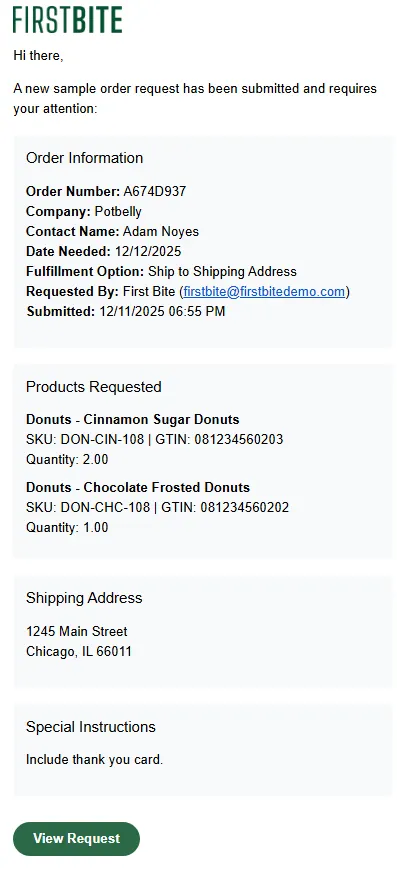
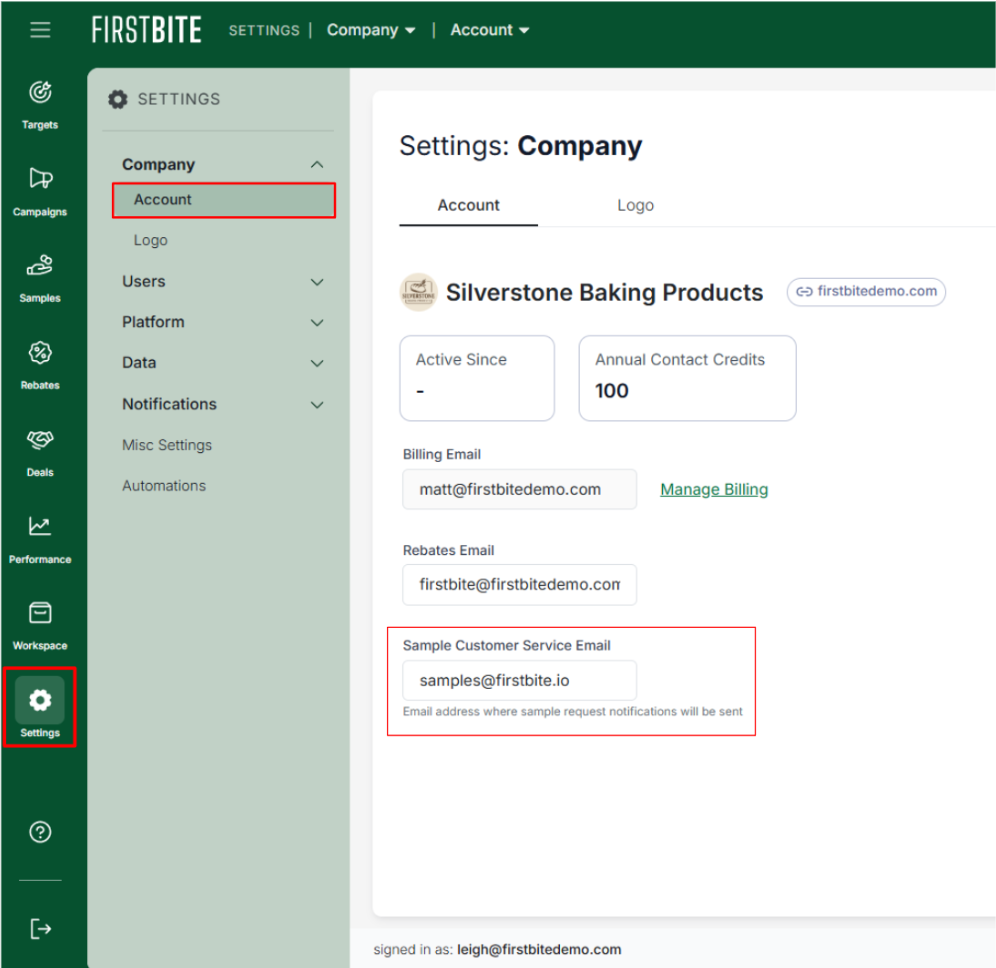
To set this email address, navigate to Settings → Company → Account → Sample Customer Service Email and add the email address to receive the email notification.