Target Page Overview
Last updated: March 10, 2026
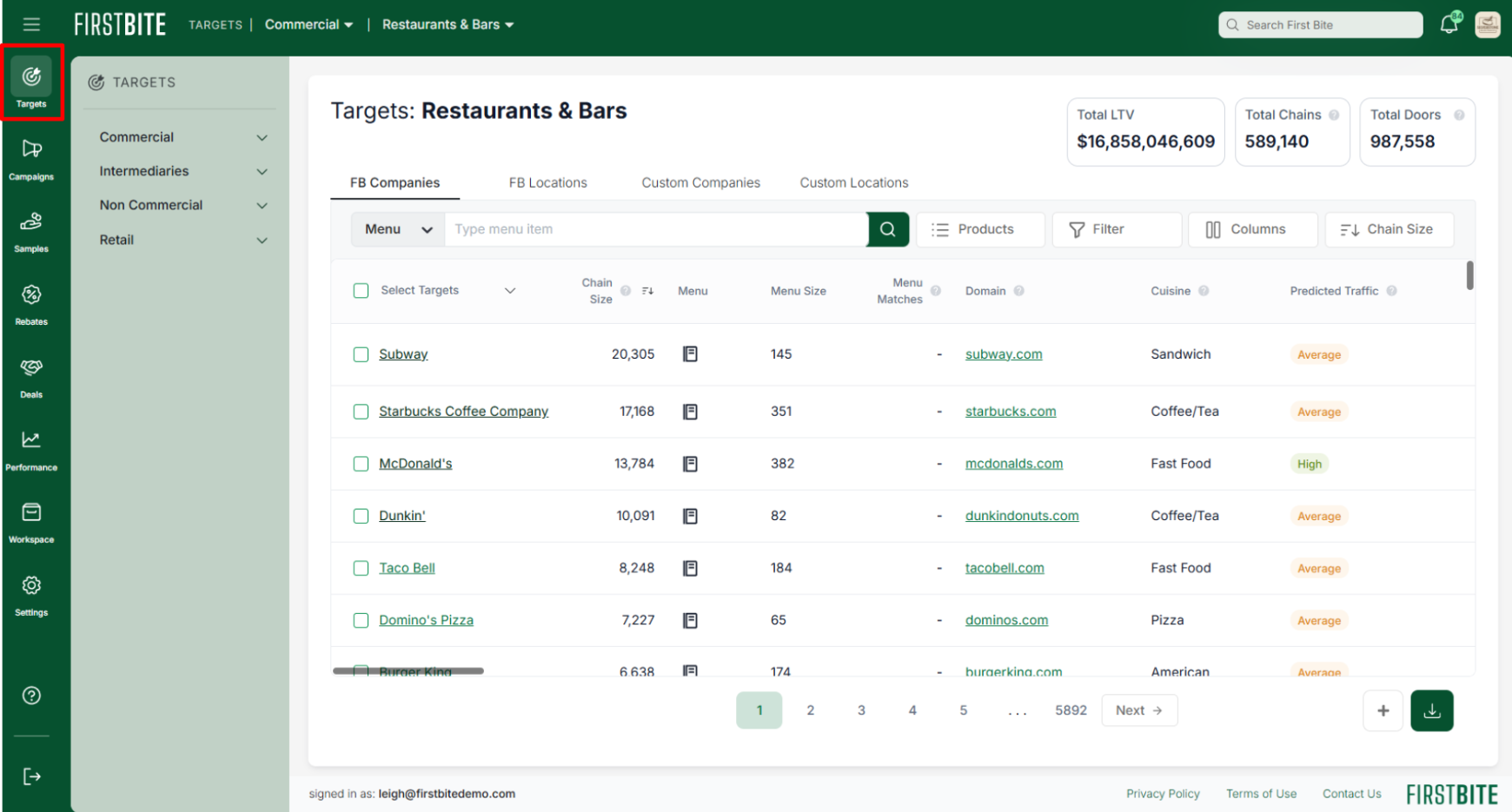
In First Bite, each company is considered a Target.
The Targets section is your main prospecting hub in First Bite, where you can explore commercial and non-commercial companies, forecast LTVs for your products, and take key actions like adding contacts and creating deals.
Here you can:
Search and Filter to Prospect Targets
Segment Your Market and Build Campaigns
Upload or Download Your Targets
Use Lifetime Total Value (LTV) for Forecasting
Check out our guides on Searching and Filtering, Building Campaigns, or Segmenting to deepen your strategy.
💡Pro Tip: Targets are updated regularly— be sure to check back for the latest additions!
Search and Filter to Prospect Opportunities
Choose from several Target Types:
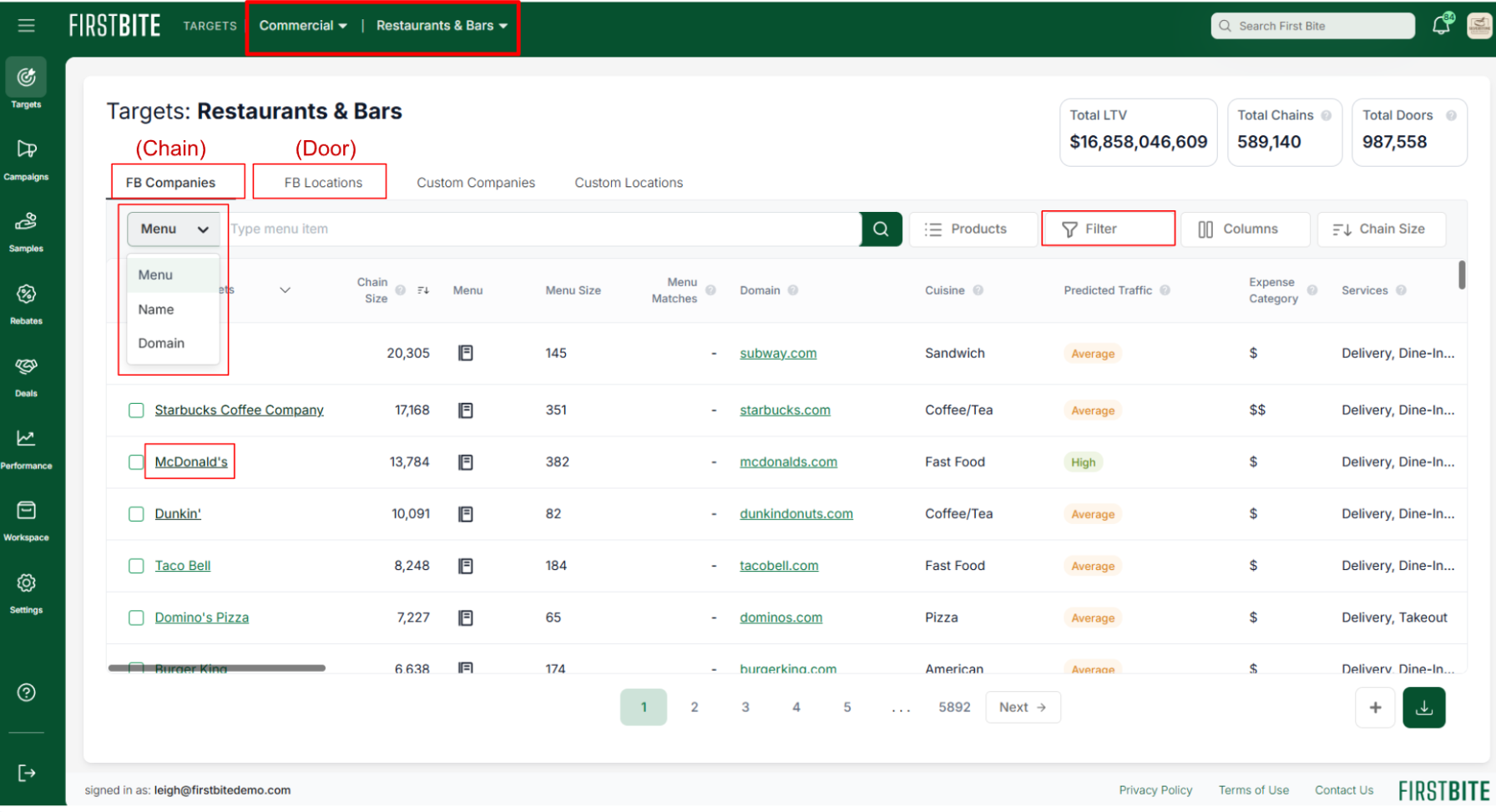
Commercial: Lodging, Restaurants & Bars
Non-Commercial: K-12, Colleges & Universities, Hospitals, Nursing Homes, Convenience Stores
Choose whether you want to search chains or doors.
Search by Menu, Company Name, or Domain
Filter using the many data sets available
Click on a Company Name to visit its profile, where you can:
Explore their data
Edit tags and make notes
Add contacts and track email activity
Search menus and view Instagram data
View all associated locations (doors)
Segment Your Market and Build Campaigns
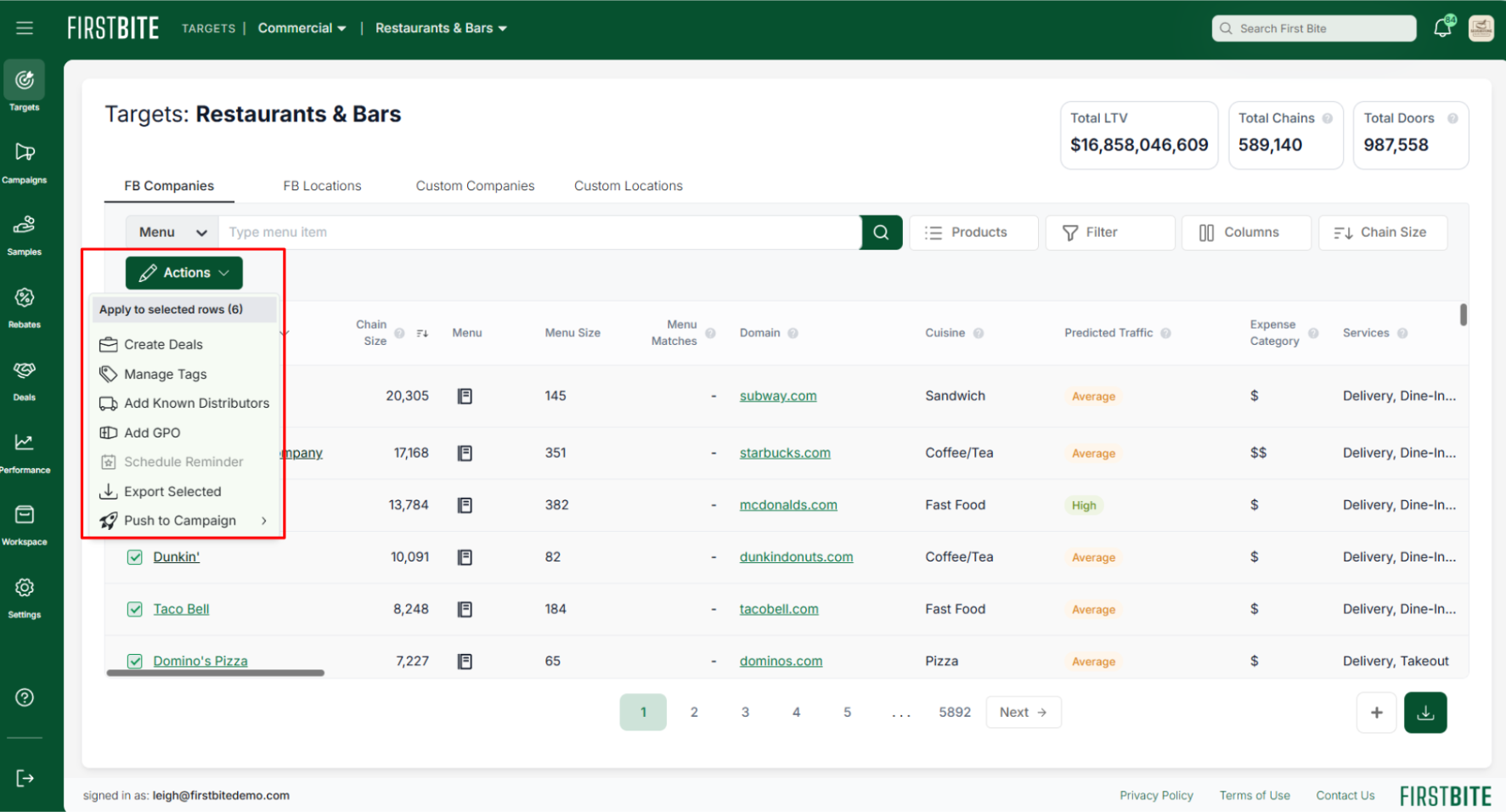
Pick your Target Type then search + filter to narrow your targets.
Tag your targets, create deals for them, or direct them into a campaign for outreach.
Upload or Download Your Targets
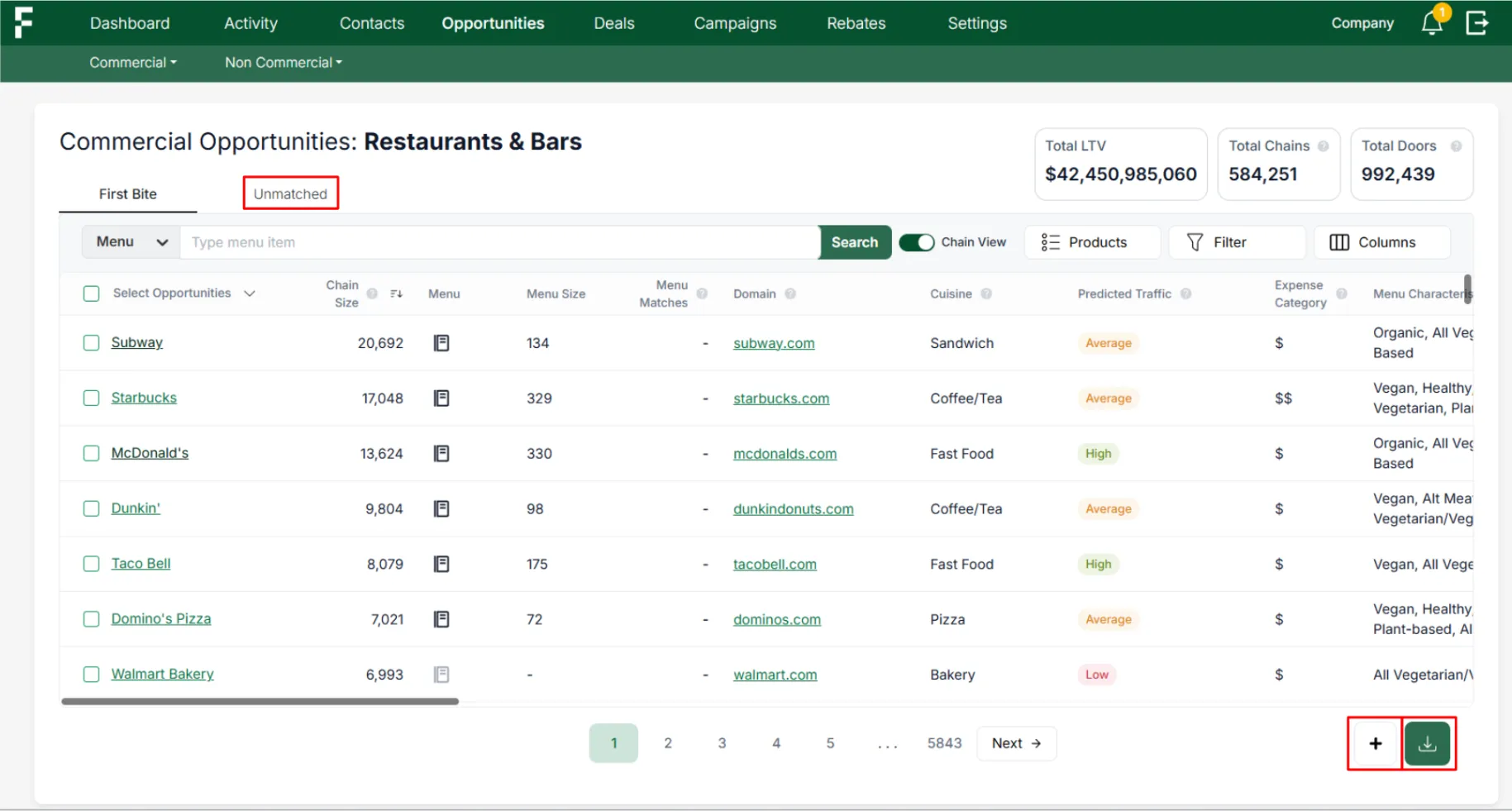
If a company isn’t in First Bite’s database, you can manually add it using the plus ‘+’ icon. This will add a company to the Unmatched Table and ensure your CRM remains complete.
Filter and download a specific grouping of Targets to a CSV or XLSX file.
Use Lifetime Total Value (LTV) for Forecasting
The Targets page includes LTV calculations for Restaurants and Bars that estimate a company’s value based on factors like chain size and category fit.
To personalize LTV:
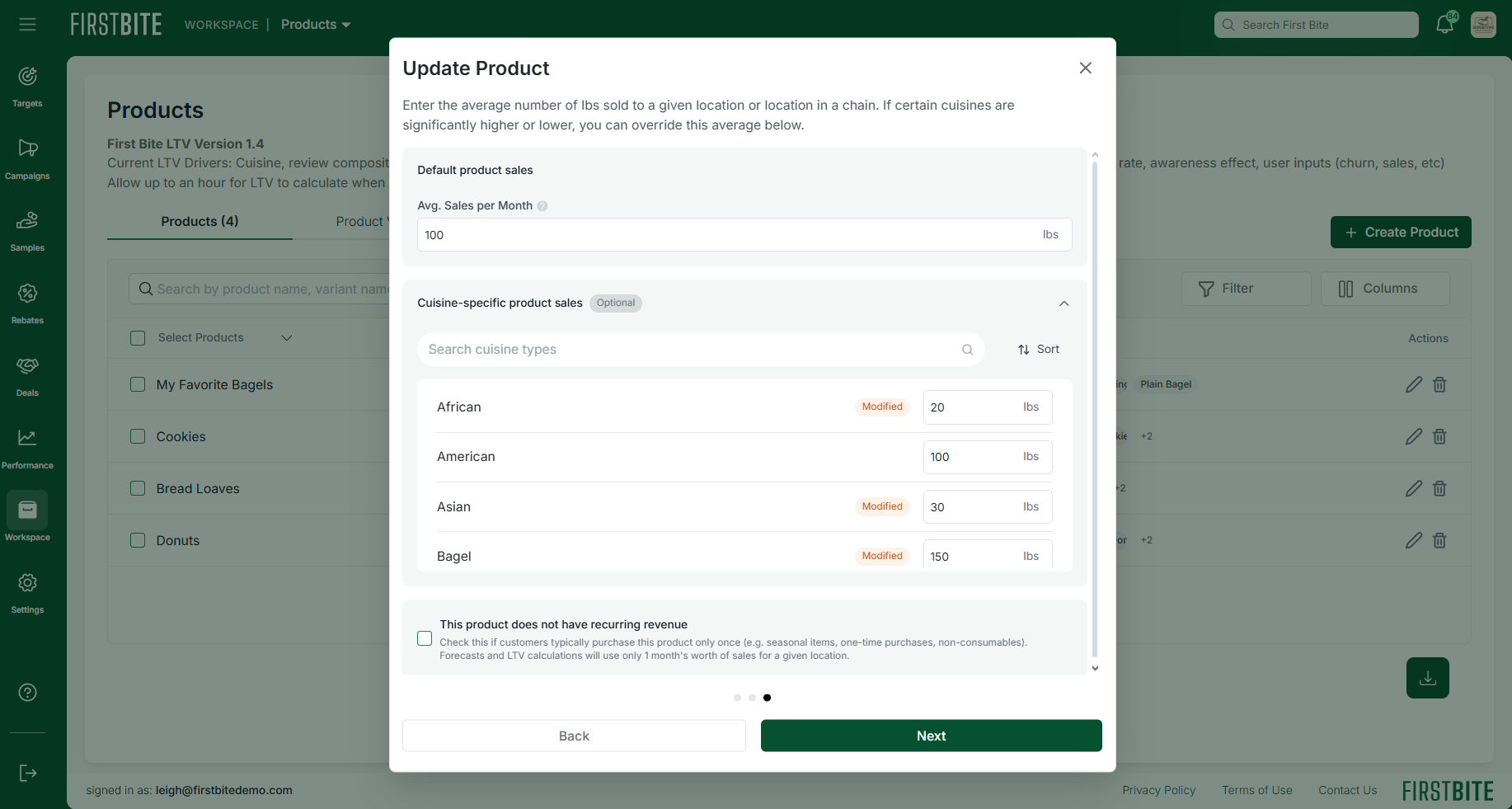
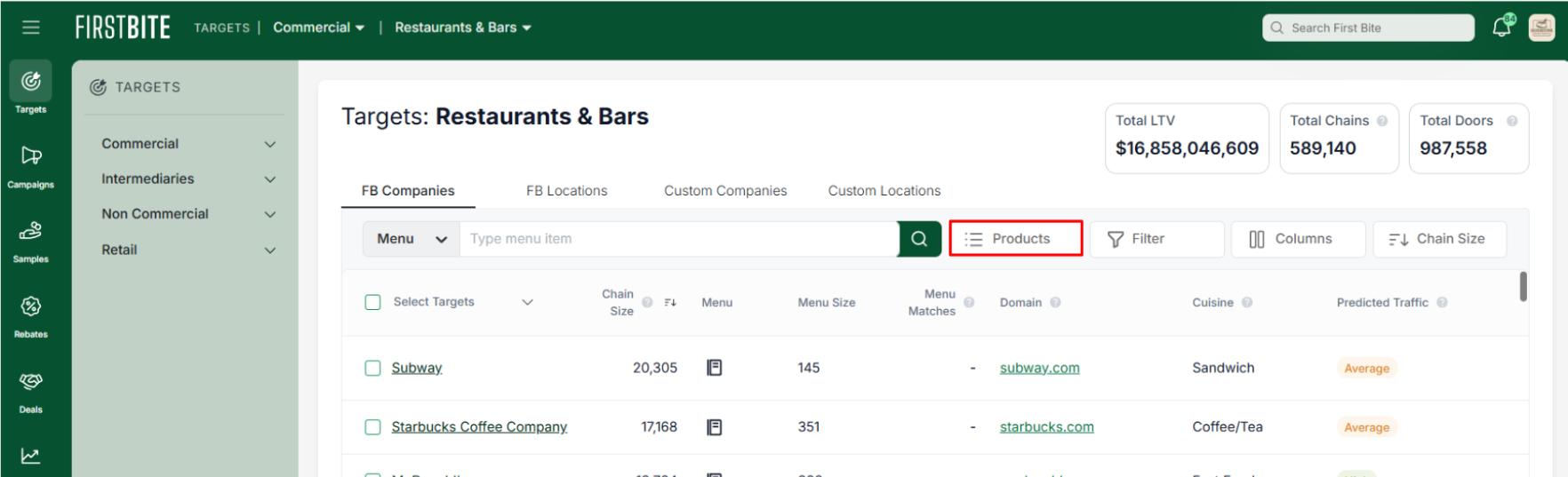
Go to Workspace > Products and add your product(s), where you can define how well your product performs across segments (e.g., Bakery vs. Asian)
Select a Product in the Restaurant and Bars Targets table to apply that context to LTV scores
Example: Selecting a hamburger product will likely result in higher LTVs for companies with American menus. This assumes you've specified cuisine-specific product sales in your product setup.
Product setup for cuisine-specific product sales