Searching & Filtering in First Bite
Last updated: February 9, 2026
How the search and filter functions work for First Bite tables
Overview
Managing large amounts of data can quickly become overwhelming. That’s why mastering the search and filter tools in First Bite is essential for getting the most out of the platform.
The search bar and filter are separate functions that can be used in any order:
Filter first, then search within those results
Search first, then apply filters to narrow down further
Your active search and filter criteria will remain in place until you modify or clear them.
Searching
How the Search Bar Functions
All search bars in First Bite use traditional Boolean operators to build search terms.
Here is an example when searching Menus in the Opportunities page.
Boolean Terms | Search Term | Results |
Using quotation marks to combine words " " | “Taco Bell” | Results will only show instances where the two words appear right next to each other on the menu. |
AND | “Burger” AND “Sandwich” | Results only show instances where the two words are found on the same menu but don’t have to be right next to each other. If ‘BBQ burger’ and ‘the best sandwich’ both appear on the menu, that restaurant will be listed as a target. |
OR | “Burger” OR “Sandwich” | Results show instances where one word OR the other appears on the menu. Any derivation of “burger” will be listed as an opportunity. (Ex: ‘cheeseburger’, ‘turkey burger’, etc). Any derivation of “sandwich” will also be listed as a target (Ex: ‘club sandwich’, ‘chicken salad sandwich’, etc). |
NOT | “Burger” NOT “Sandwich” | Results will only show instances where “Burger” appears on the menu without the word “Sandwich” appearing on the menu. If ‘BBQ burger’ and ‘the best sandwich’ both appear in the menu/description, the menu item will NOT be listed as an target. |
You can string these terms together and build stronger searches with more specific wording.
Searching the Targets Table
Factors to consider in your search
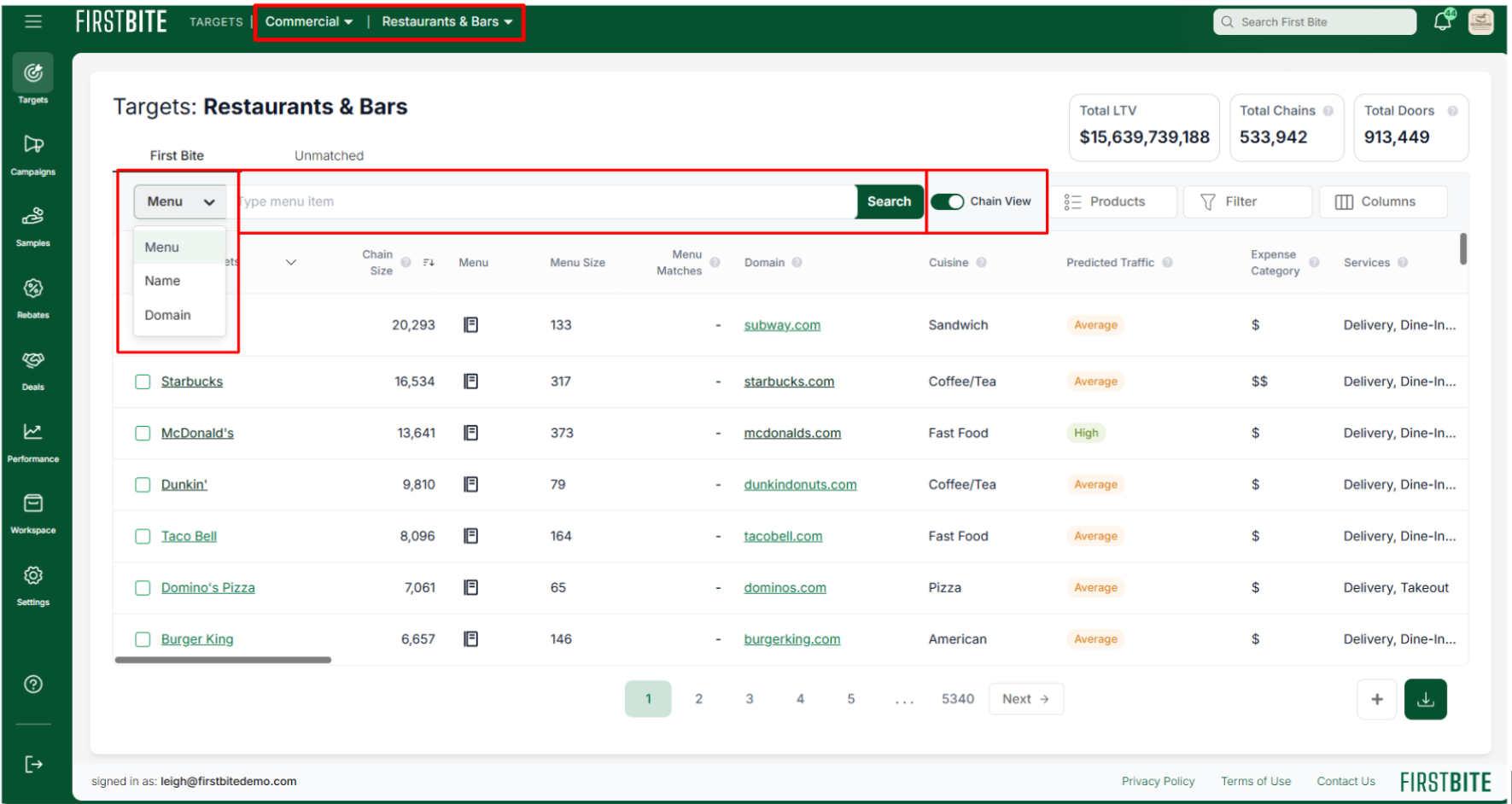
Which Target Type you’d like to search (commercial vs non-commercial).
Choose in the dropdown whether to search the Menu/Description, Restaurant/Chain name, or Domain.
Searching “burger”…
Returns…
in the Menu
A list of items with “burger” in the Menu item name or on the Menu item description.
In the Name
A list with “burger” in the Restaurant name (like Hamburger Mary’s)
in the Domain
A list with “burger” in the domain (like http://www.hamburgermarys.com)
Select whether you want to see the Chain View or Door View.
Chain View shows Subway as a single option/line item.
Door View shows each subway location as an individual line item.
Enter your Search term in the Search Bar.
To learn more about Door View, check out this article.
Once these factors have been considered, click Search!
From here, First Bite will take a minute to populate. Once done, you can begin your company selection process in the table or continue filtering the results.
Filtering
What is a filter?
A filter is a tool that helps you narrow down data by selecting only the information that meets specific criteria, excluding anything that does not. Given the volume of data available in First Bite, filters allow you to focus on what matters most.
If a column appears in the table or is available in the column settings, it can likely be used as a filter.
Once you've defined your filtering criteria, you can save the filter for quick access in the future.
How to Filter

To add filters, click on the filter button.
Actions you can take to filter First Bite’s data:
Apply a previously saved filter (optional)
Use quick filters, which automatically apply the stated criteria.
Scroll through the options and handpick your filters by filling in the requested information for the filters of your choice.
Use the dropdown at the bottom to match ALL, ONE, or NONE of the filters identified. The NONE option allows you the opportunity to filter out what you don’t want, leaving only what you do.
Using the dropdown applies to ALL filtering criteria, so make sure you want to exclude all chosen criteria.
Example:
Select every state except your state of interest and then choose “None” to filter out every restaurant that has a location outside of your designated state. If you've also chosen "Chains >5", restaurants fitting this criteria will also be excluded.
Once you’re ready, click Apply.

Next Steps
Once you’ve completed your search and filter functions, there are four actions you can take:
Continue to refine your search and filter criteria
Save your filter
Look at menu matches (Opportunities table only)
Select results for mass action.
Continue to refine: You can continue refining the search or filter values for as long as it takes to get the results you’re looking for. The search and filter information does not reset until you manually remove or change the filter, or click
Clear Allon the right side of the page (near your filter list).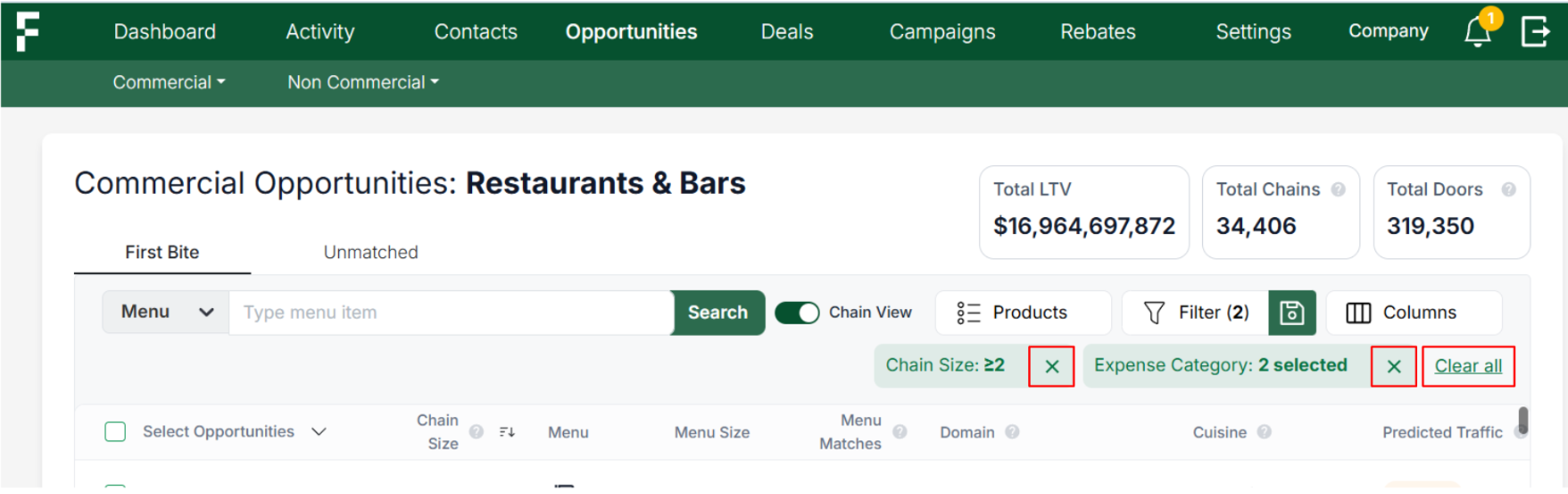
Save your filter: Click the green save icon next to the Filter icon to save your filter. This will save all filter selections and search terms.
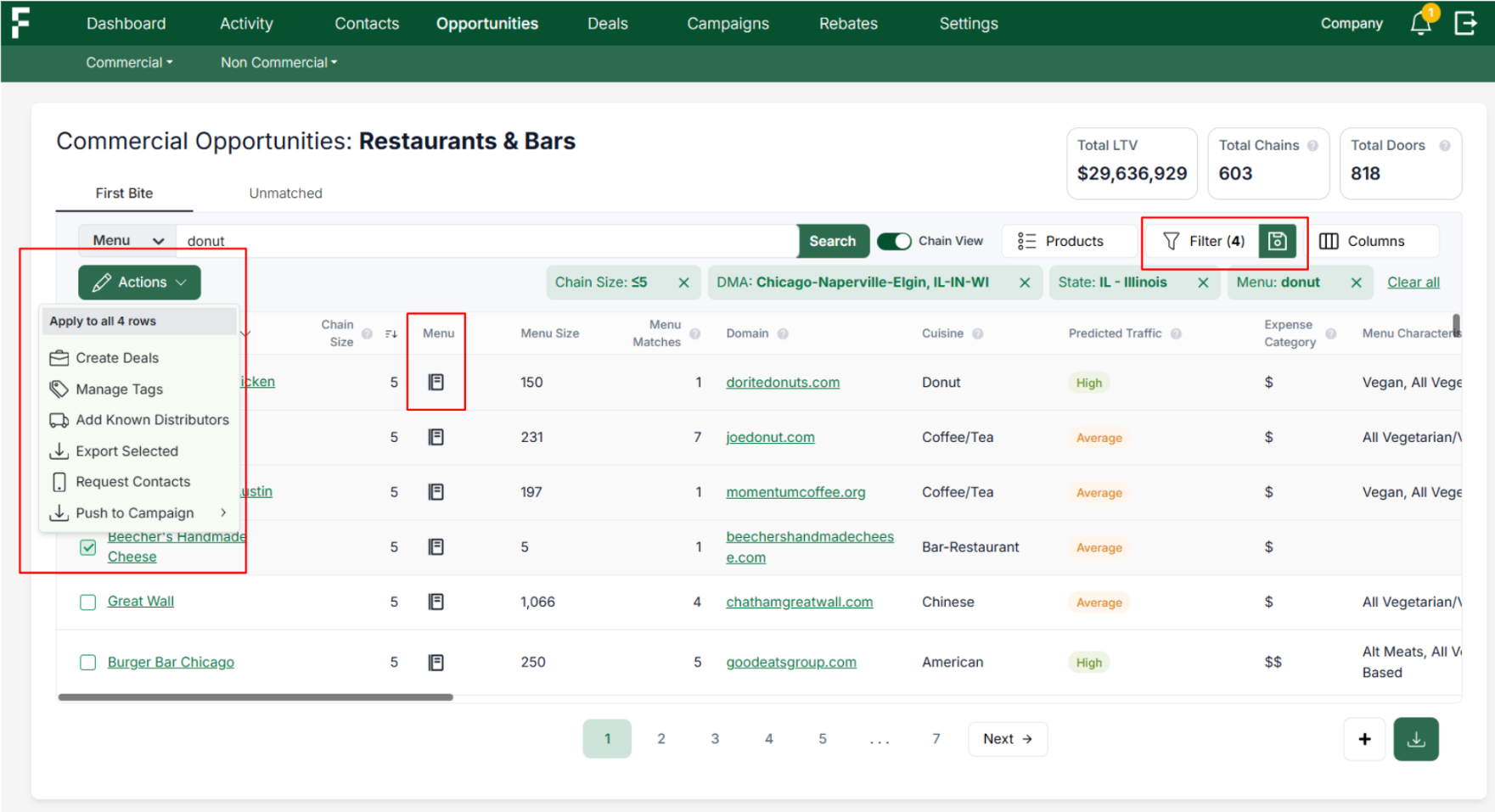
If at any point you want to delete your filter, go to Settings > Filters > Delete.
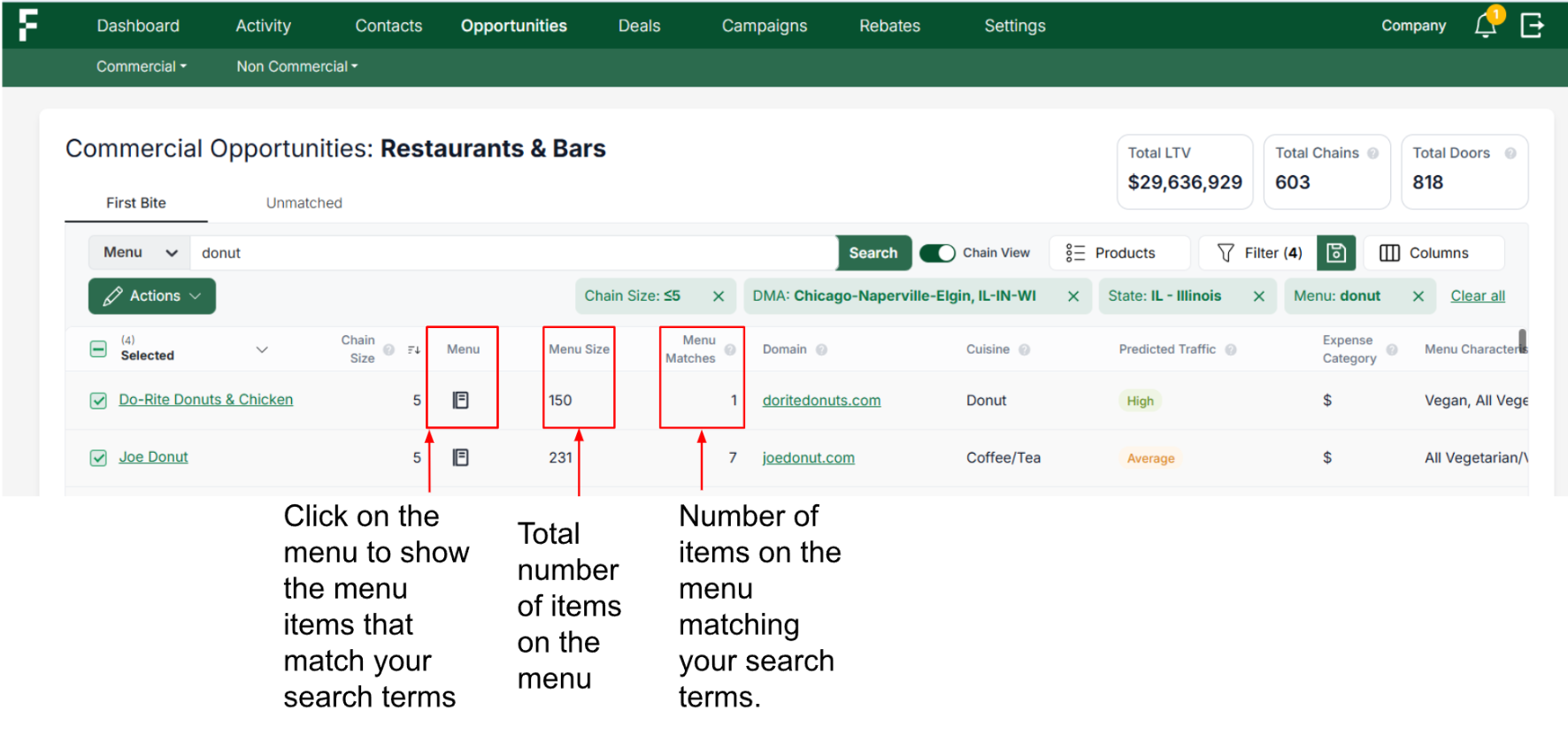
Menu information: (Specific to Opportunities table) Click on the menu icon to see what is listed on the Company’s menu. If you searched the menu, the menu icon will show which items match your search (click into the company to see the full menu).
Mass Action: Select the result/s and click on the green
Actionsbutton to tag your companies, add them to a campaign, or create deals for them.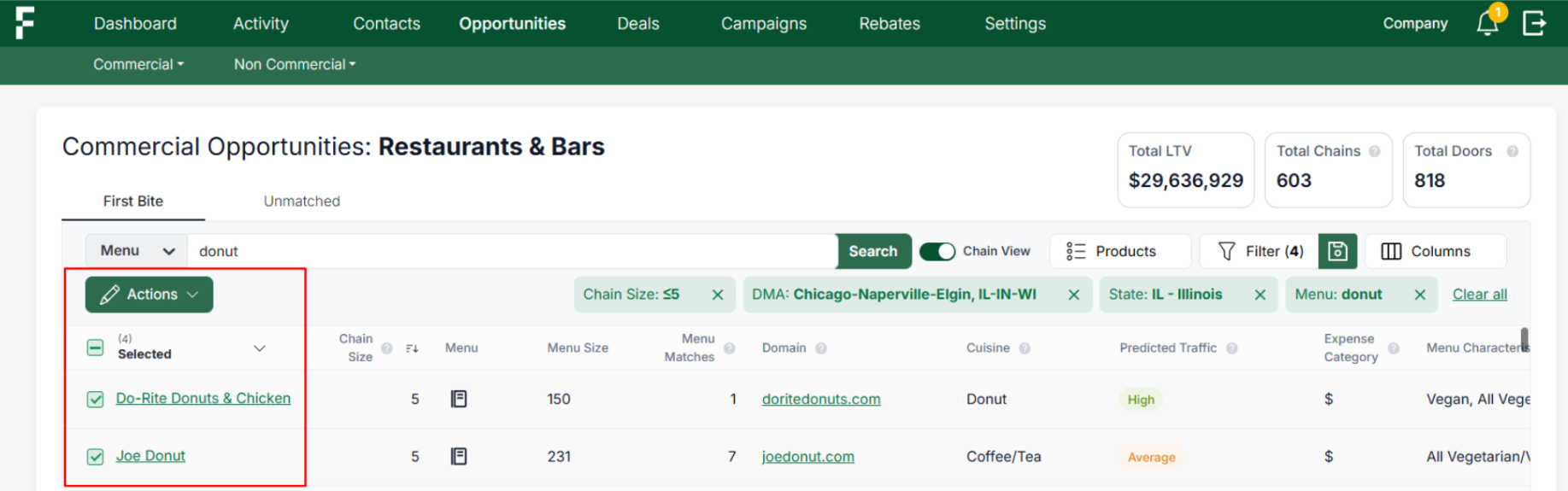
Best Practices for Searching and Filtering
Tips for Searching and Filtering Effectively
Here are a few practical suggestions to help you get started with searching and filtering in First Bite:
Start Specific: Use precise search terms and narrow filter settings at first. You can always broaden your criteria to include more Opportunities later.
Useful Beginner Filters:
Chain Size – e.g., limit to chains with fewer than 50 locations
Predicted Traffic – exclude locations marked as Low Traffic
Location – filter by ZIP code, city, state, or DMA
Name Filters Clearly: Choose descriptive names so filters are easy to identify. To view or manage your saved filters, go to Settings > Filters.
Ask the Right Questions While Searching the Menu:
How would the product I’m selling appear on a menu?
Are there similar terms I should include or exclude from my search?
Iterate: Once you’ve searched, take a look at your menu results. Is it giving you what you want? If not, why not? Factor that into your search.
For example: If a consistent phrase or food is included in the menu listing that you don’t want, consider adding a ‘NOT “x”’ search term to filter it out.
Menu Search: Vegan Soup OR "plant based soup" OR "vegetable soup" OR "veggie soup" NOT "Not vegan”
Customize Based on Your Goals: Filtering and searching can be tailored to your product strategy and outreach approach. For guidance, we recommend scheduling a strategy session with a Sales or Success Manager to explore how to best use the platform’s capabilities.
Learn More
For more on breaking down your market, check out this article on: What is segmenting? (Hint: it’s how you slice and dice the entire foodservice market into manageable, actionable chunks).