How can I share information with my team in First Bite?
Last updated: September 25, 2025
Sharing information reduces the risk of duplicating or overlooking outreach, promotes transparency and accountability, and helps align the team around common priorities.
There are several ways you can share information with your teammates in First Bite:
Sharing Filters
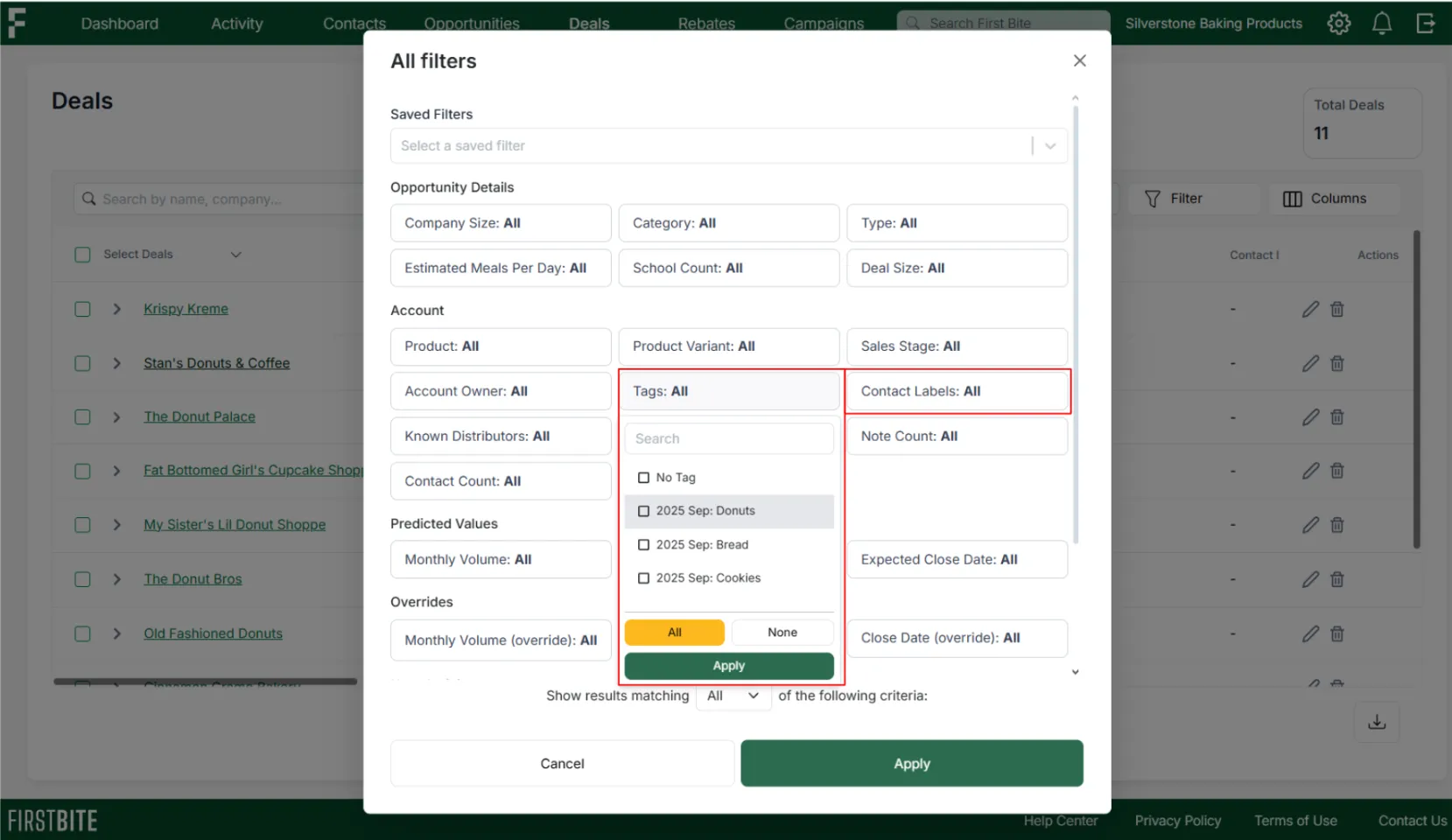
Using Tags
Creating Campaigns
Deal Assignment
You can learn more about the difference between tags and filters here.
Sharing Filters
Saving filters so your team can select them is a great way to pass information to your team. However, you can also share a filter if it has not been saved. You do this by sharing the URL.
Save the Filter
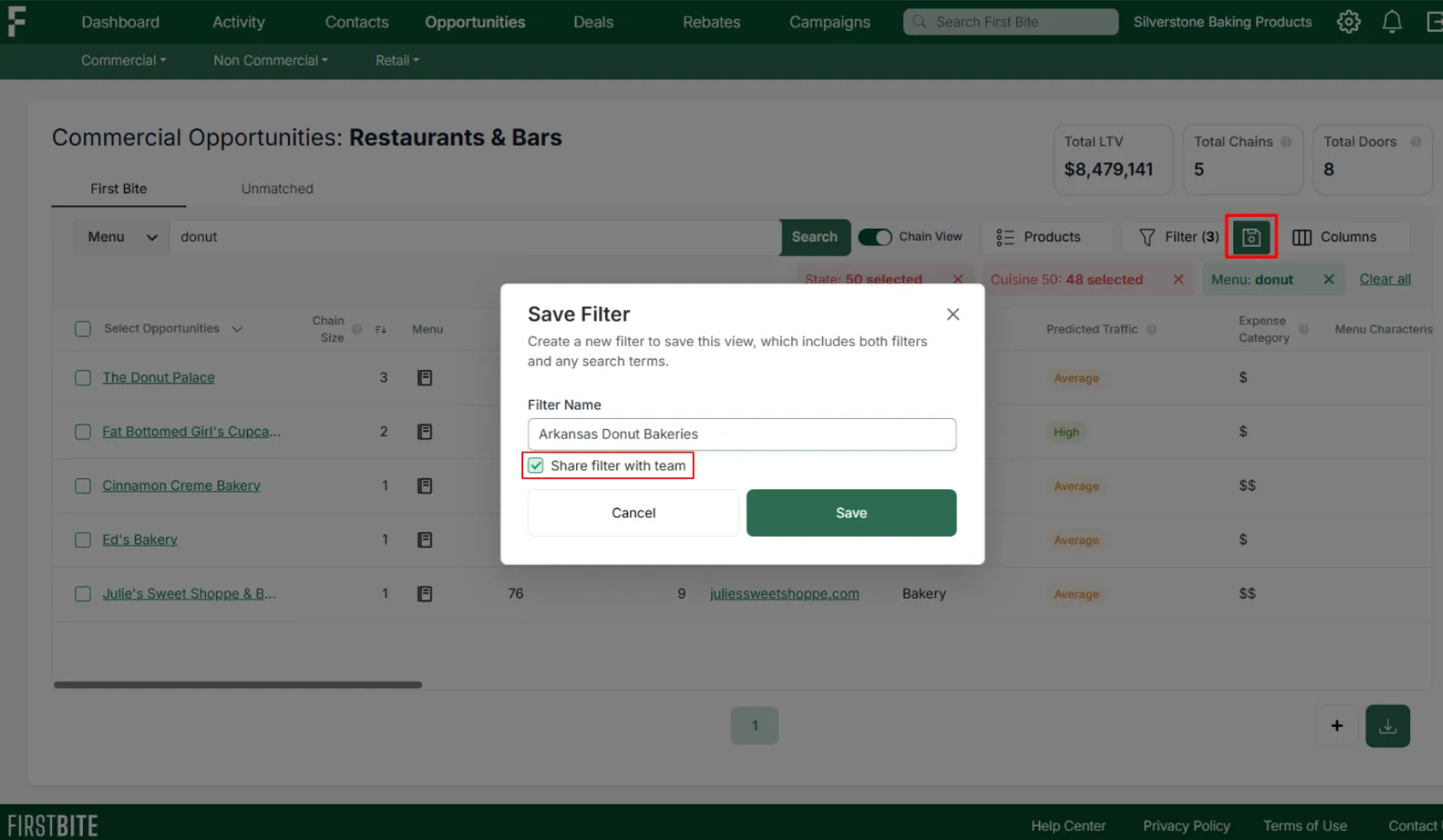
Another way to share this filter is by saving the filter into the platform. Clicking “Share filter with team” allows others to select that filter in the same table it was created in.
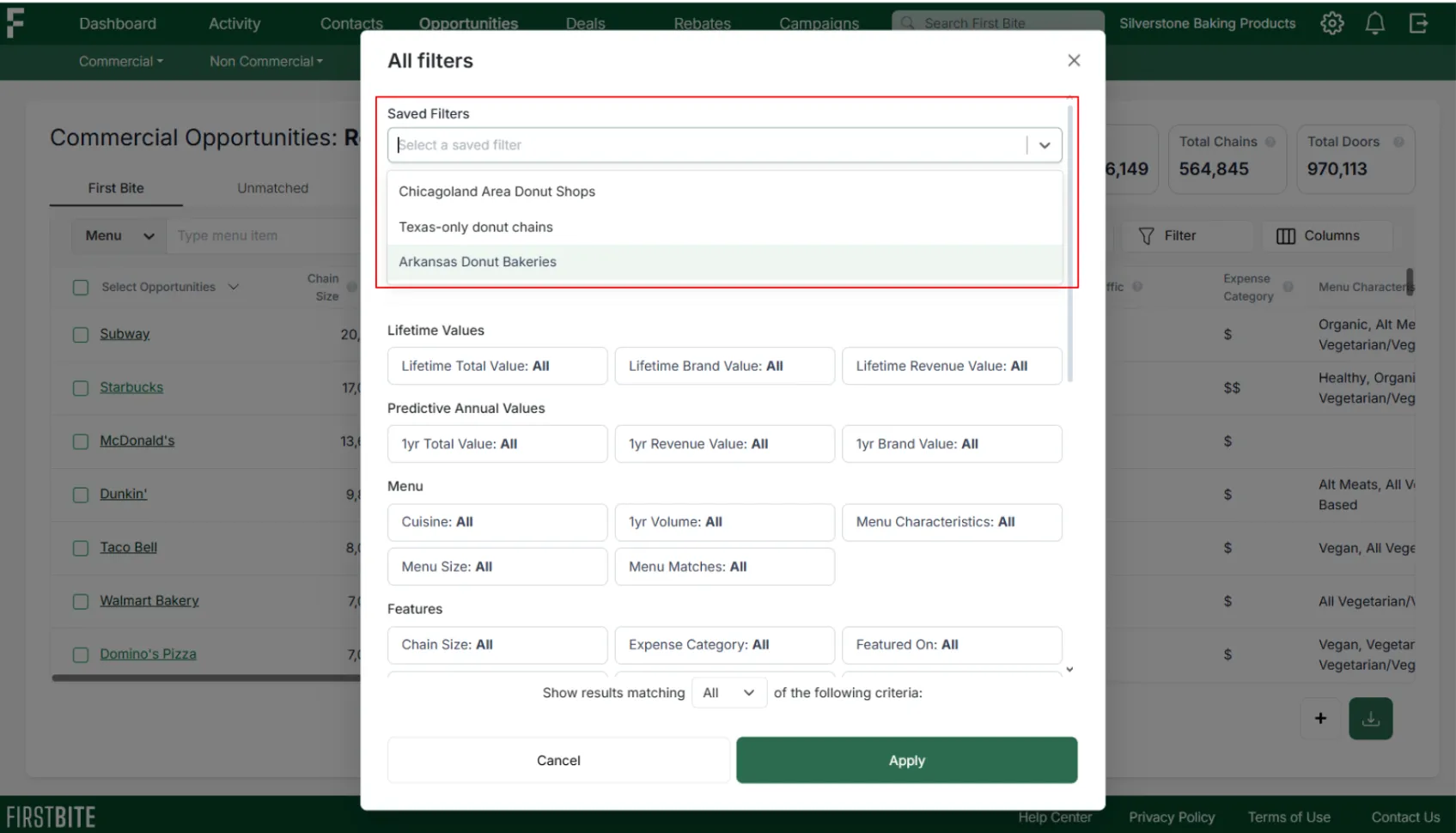
Team members can then go into the table (where the filter was originally created) and select it as a saved filter.
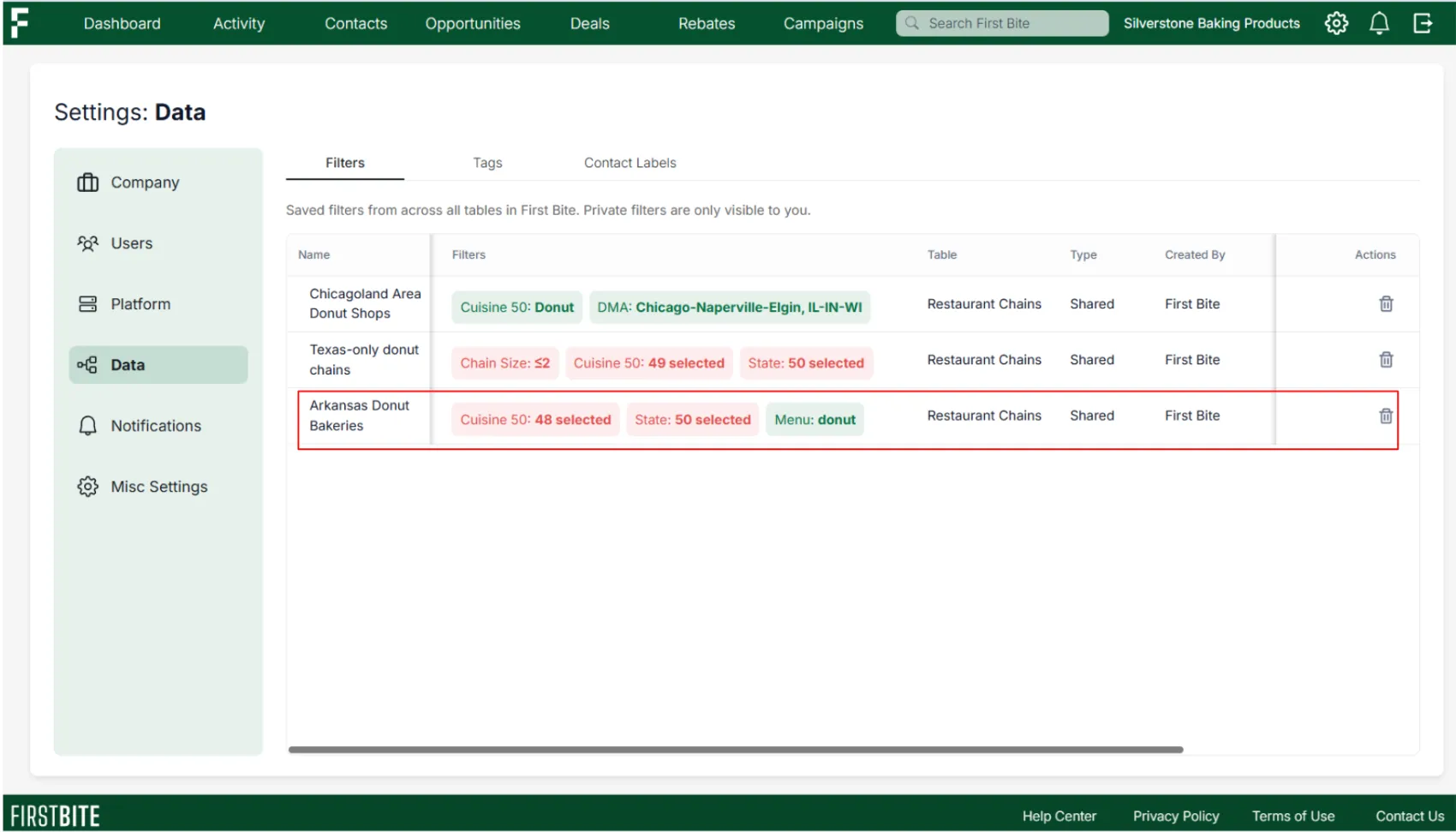
They can also view this saved filter in the Settings>Data>Filters list, where it can be deleted if it is no longer needed.
Share the URL
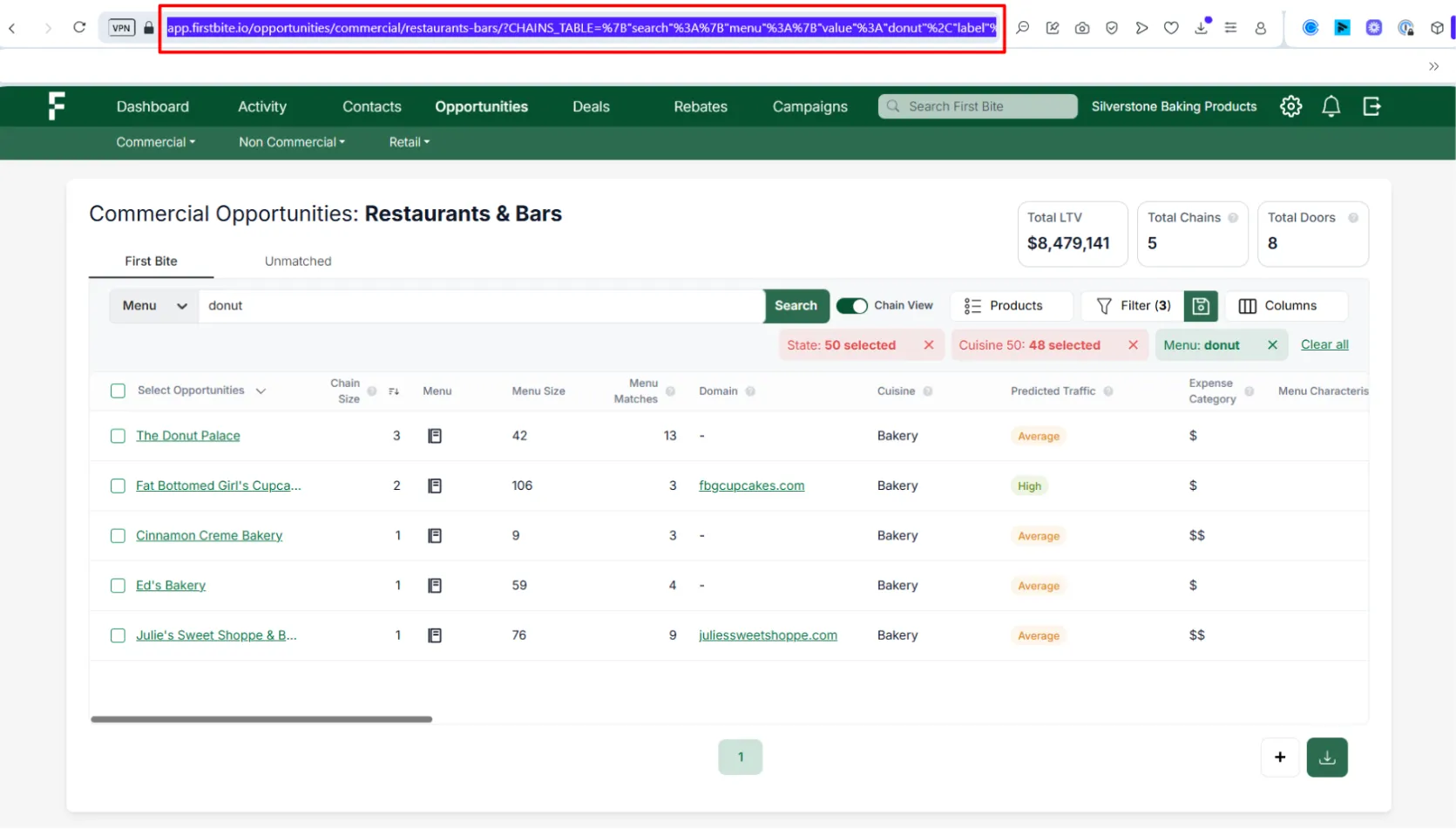
If you filter a table, you can share that filter (and the results) by copying the URL at the top of the page.
To do this, you’ll first want to set up the filter you want to share. Then, click into the navigation bar at the top of your screen and copy the URL.
Quick Copy: hold CTRL+C (for Windows) or CMD+C (for Mac)
Then navigate to the place you want to share the link.
Quick Paste: hold CTRL+V (for Windows) or CMD+V (for Mac)
Using Tags & Contact Labels
Tags can be applied to companies.
Contact labels can be applied to contacts.
Both tags and labels function similarly and can be used in a variety of ways.
Discover best practices for tags and contact labels here.
Once a tag or label is created, it is visible to your team members. Anyone in your team can now filter tables using your tag or label.
Creating Campaigns
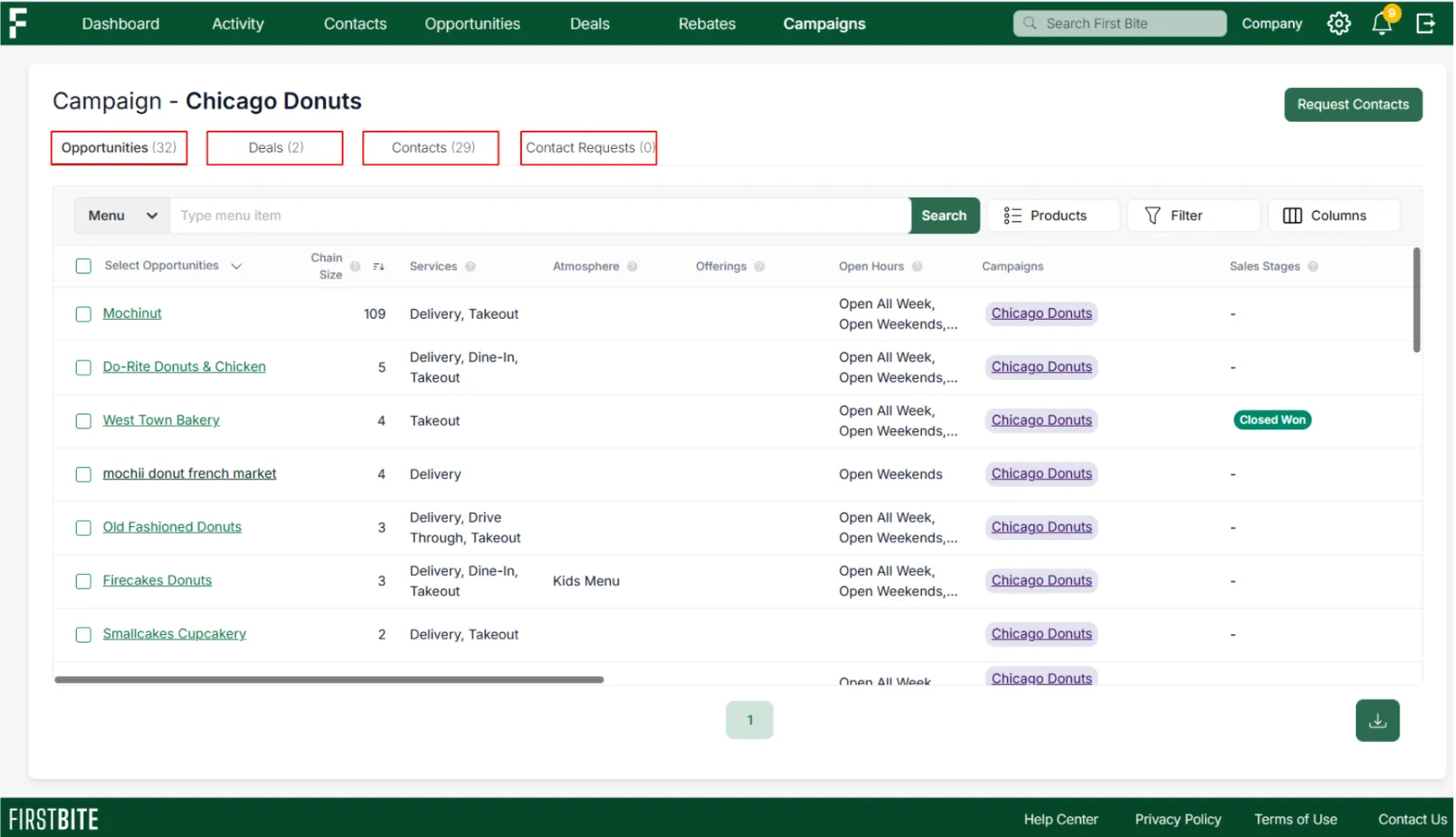
In First Bite, Campaigns are structured outreach programs designed to help you engage operators at scale. Pushing opportunities to a campaign is another way you can pass a list or grouping to a team member.
Learn how to create campaigns here.
If you assign a company to a campaign, you’ll also be able to see the associated deals and contacts of that company from the campaign’s page. This makes campaign creation an easy way to open, view, and interact with data groupings that are easily sharable.
Deal Assignment
You can assign ownership of deals as a method of team coordination.
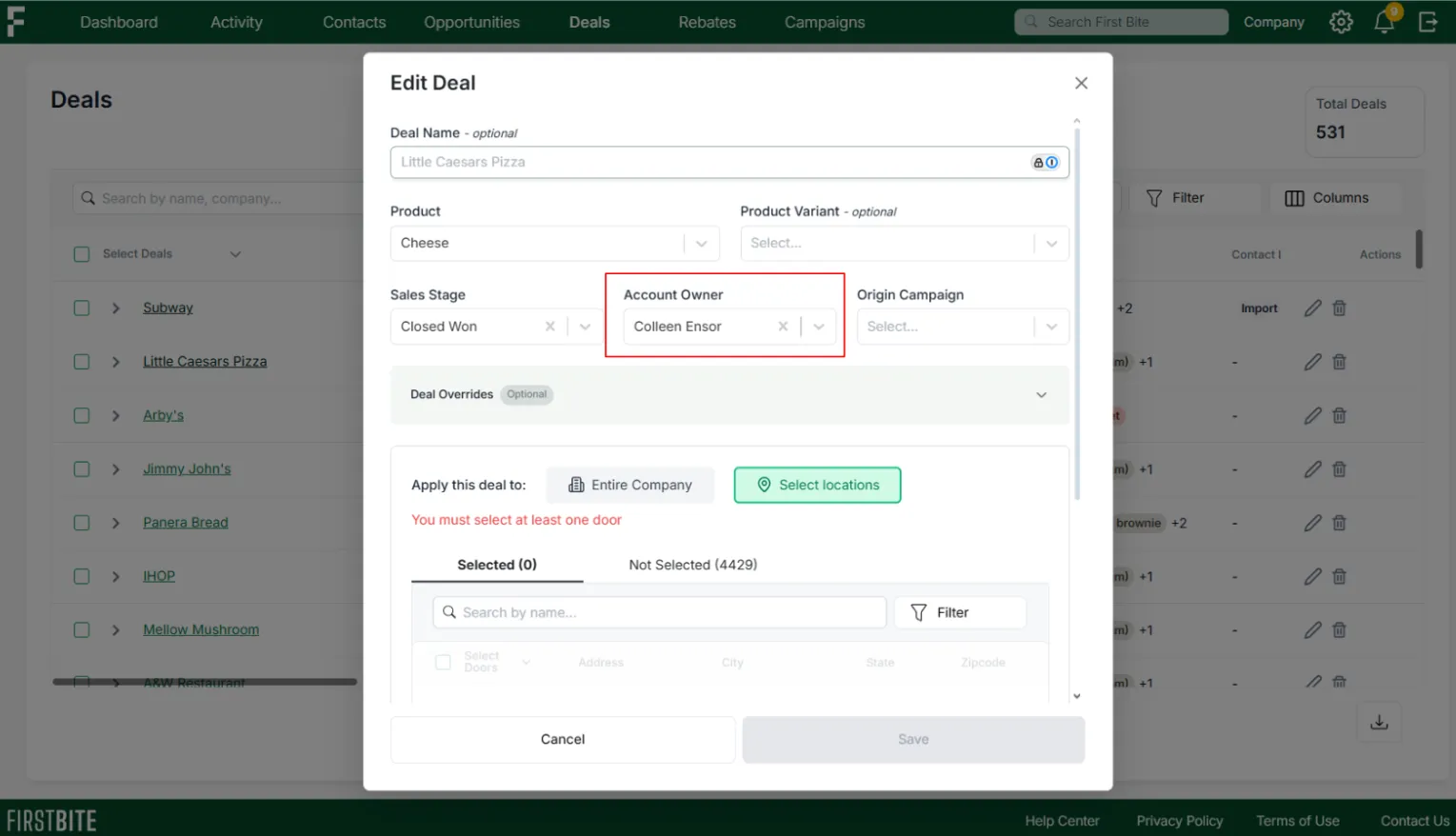
Once the deal is assigned the new owner will be notified via email or in app depending on their deal setting notifications (Settings>Notifications>Deals).
Filtering the deals table for items you own will allow you to work with the assigned deals as part of normal workflow.
Note: Bulk Actions
Keep in mind that First Bite tables allow for bulk actions by selecting multiple items.
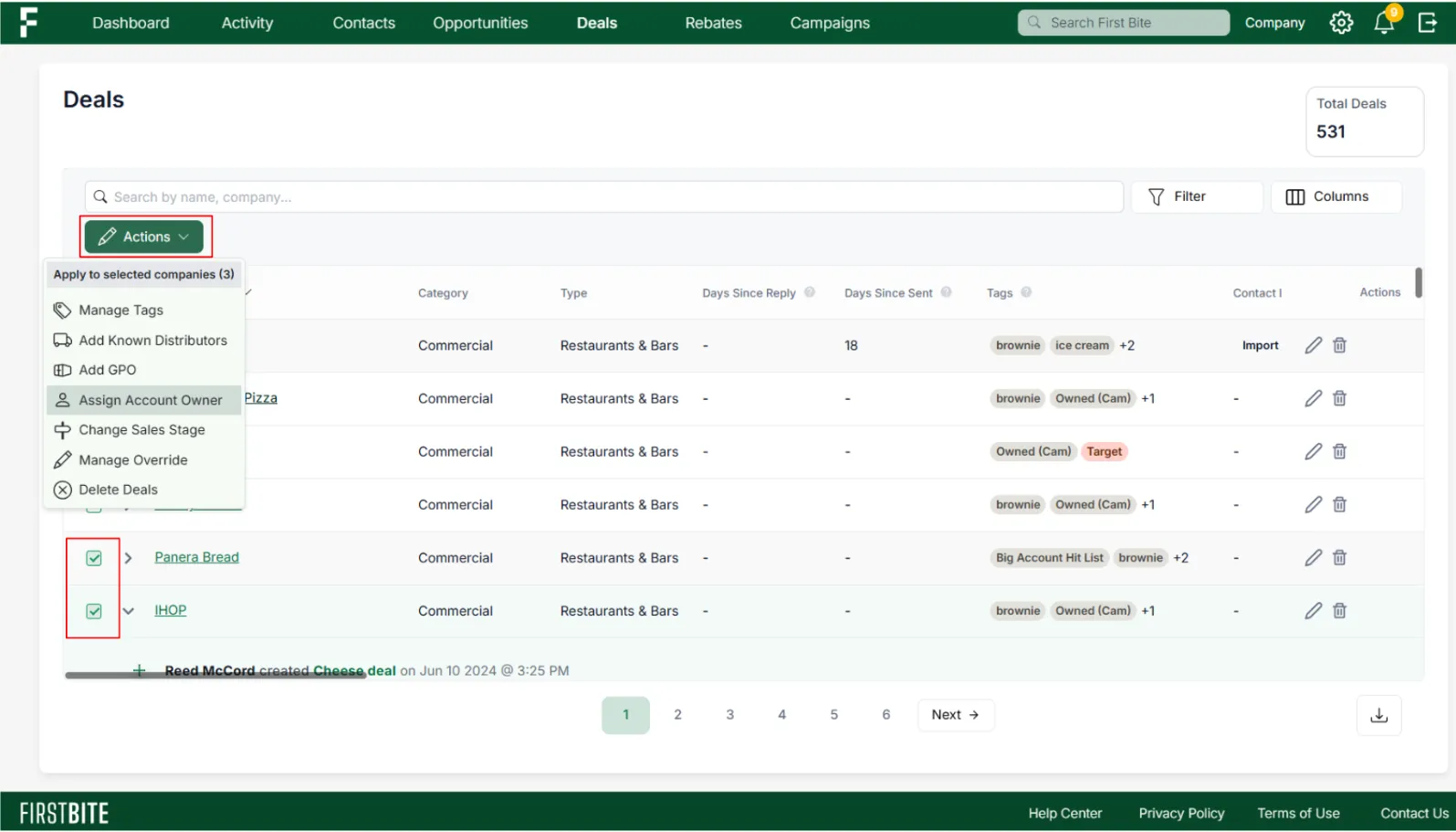
You can select multiple items to tag, assign, or send to a campaign depending on which table you’re working in.