Create, Manage, and Delete Tags
Last updated: June 3, 2026
Create and manage tags to better organize your data in First Bite.
Overview
Tags in First Bite add structure and context to your data. Whether you're segmenting target accounts, tracking outreach efforts, or organizing campaign groups, tags offer a flexible system to classify companies beyond the default data fields.
This guide walks through what tags are, where they appear in First Bite, and how to create, apply, and manage them—both from within your tables and the Settings panel.
For more on tags, check out this article on Best Practices for using tags and contact labels.
What is a tag?
A tag is customizable and can be applied to a company (chain or individual door) in First Bite to help organize, categorize, or add context beyond the existing First Bite data. Think of tags like sticky notes or colored flags that help you quickly identify shared traits across records.
You can filter almost any table in First Bite to isolate tagged items. Notable exceptions where you cannot filter by tag include the Activity and Rebates page.
Door tags within First Bite are commonly used in the Targets table and the Door pages, while Company (chain) tags are more common throughout First Bite.
In Settings, door tags and company tags are stored in the same list.
Where to Create Tags
Tags can be created…
In Tables: You can create a tag in any First Bite table that allows tag application. From the table you can then apply the tags directly.
On Company Pages: Similar to tables, you can create and apply tags on any company page.
In Settings: In Settings, you can create the tags, manage the tags, and delete the tags, but you cannot apply the tags. Application occurs at the table or directly on the record.
Creating & Applying Tags within First Bite Tables
Tags can be created, applied, and deleted from tables. Modifications (like tag name or color) are performed in Settings > Data > Tags.
In the Targets tables, for example, use the checkbox to select the items you want to tag.
Note: Creating tags on the Companies table (chains) will create company tags. Creating tags on the Locations table (doors) will create door tags.
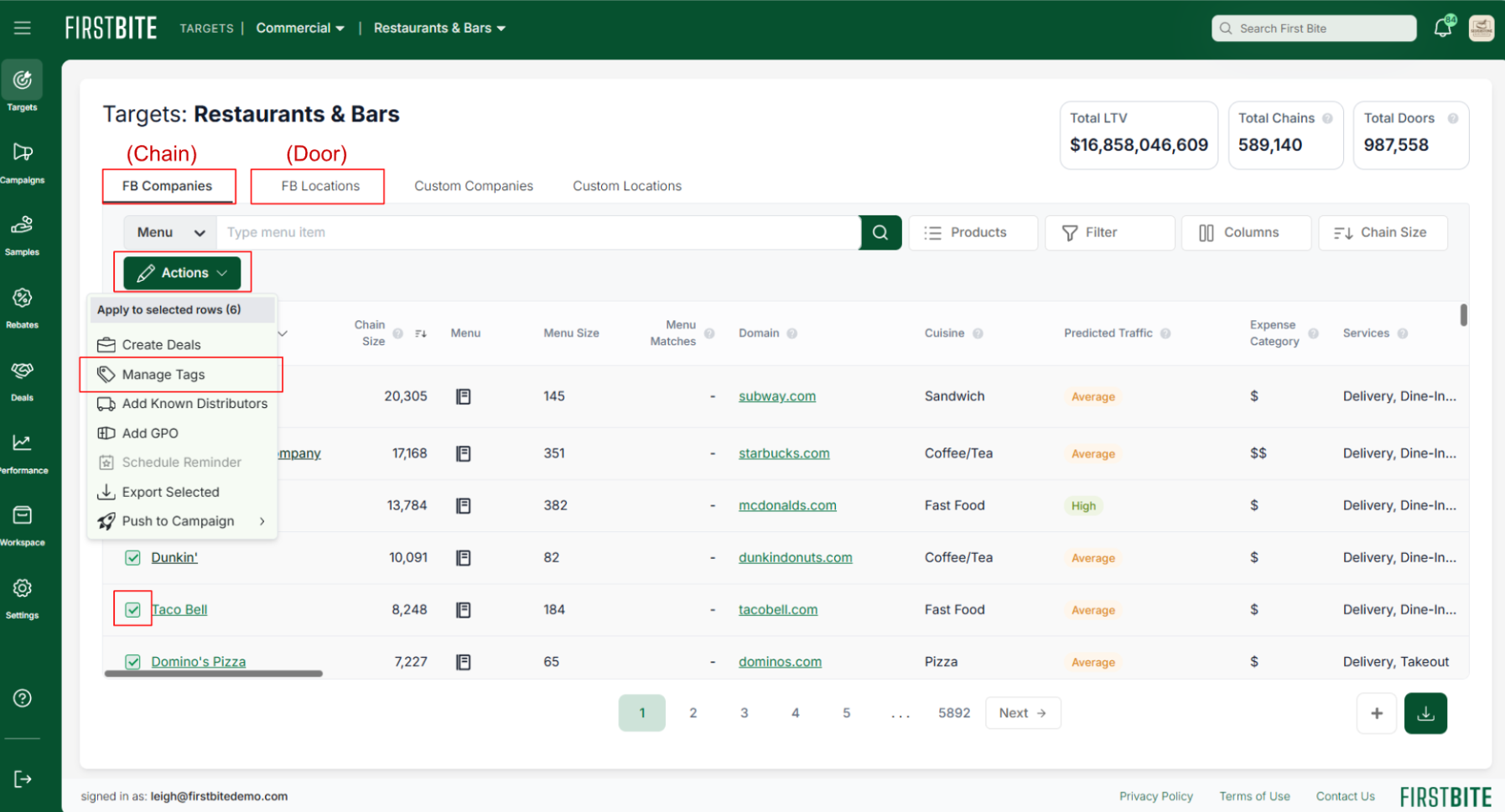
Click the green
Actionsbutton that appears > Select Manage Tags.If you need to create a tag, name the tag you want to create at the bottom > Click the
Green Check Mark.This creates your tag so that it appears in the list with the other tags.
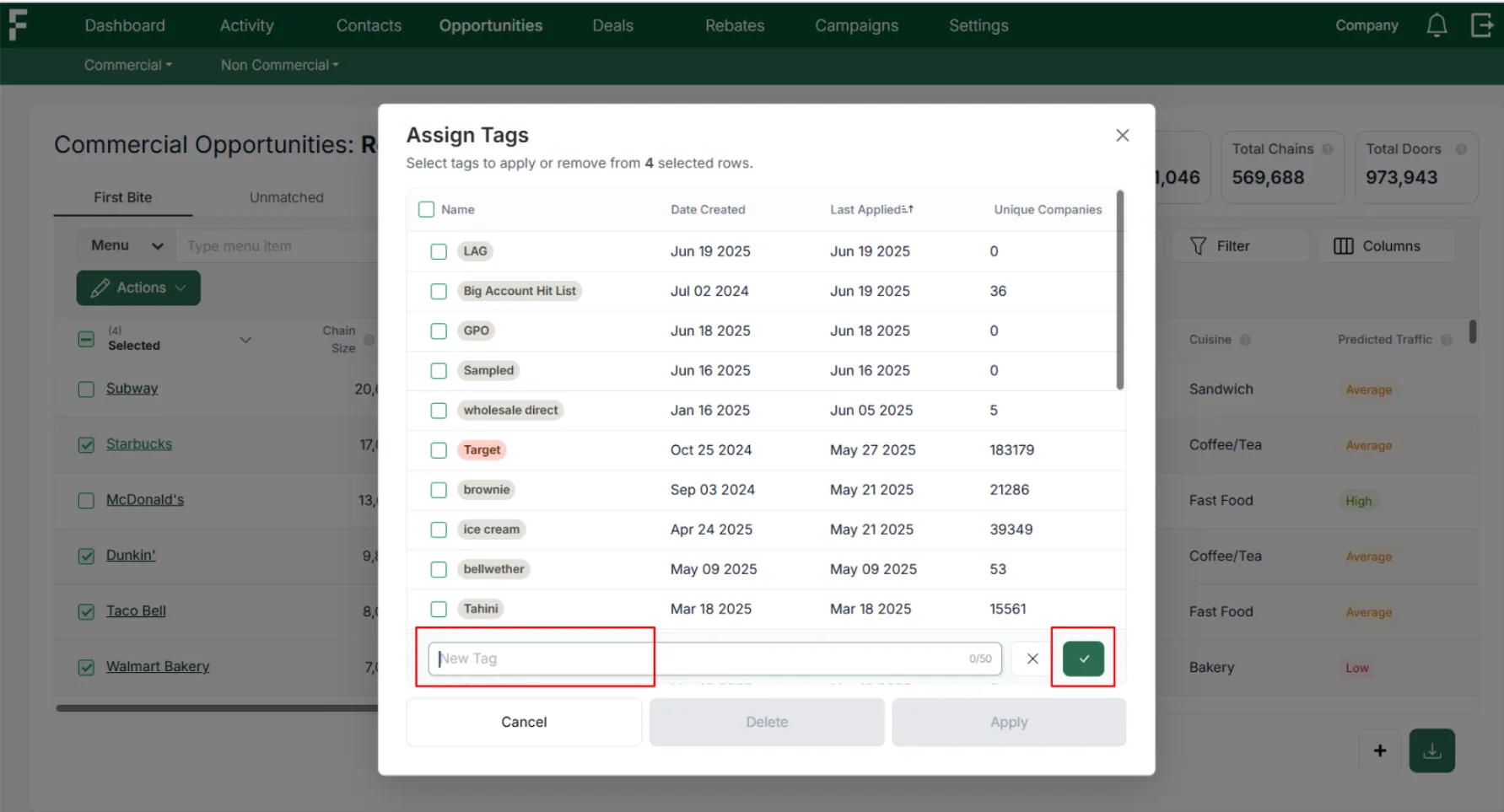
To apply the tag/s to your table selections, choose your tag/s from the table and click
Apply.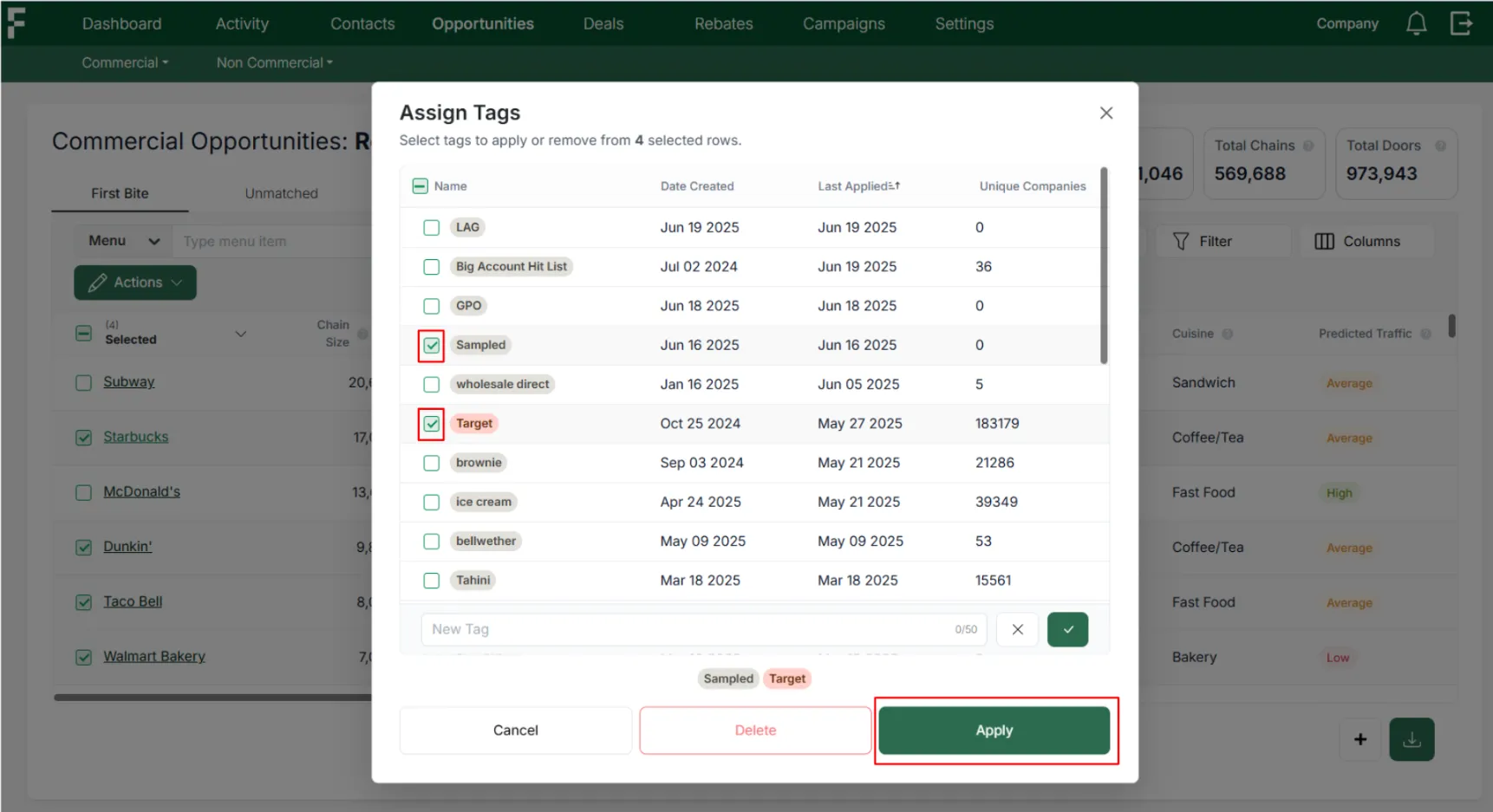
You’ll now see your tags listed in the table and throughout First Bite.
Company Tags will appear under the Tags column.
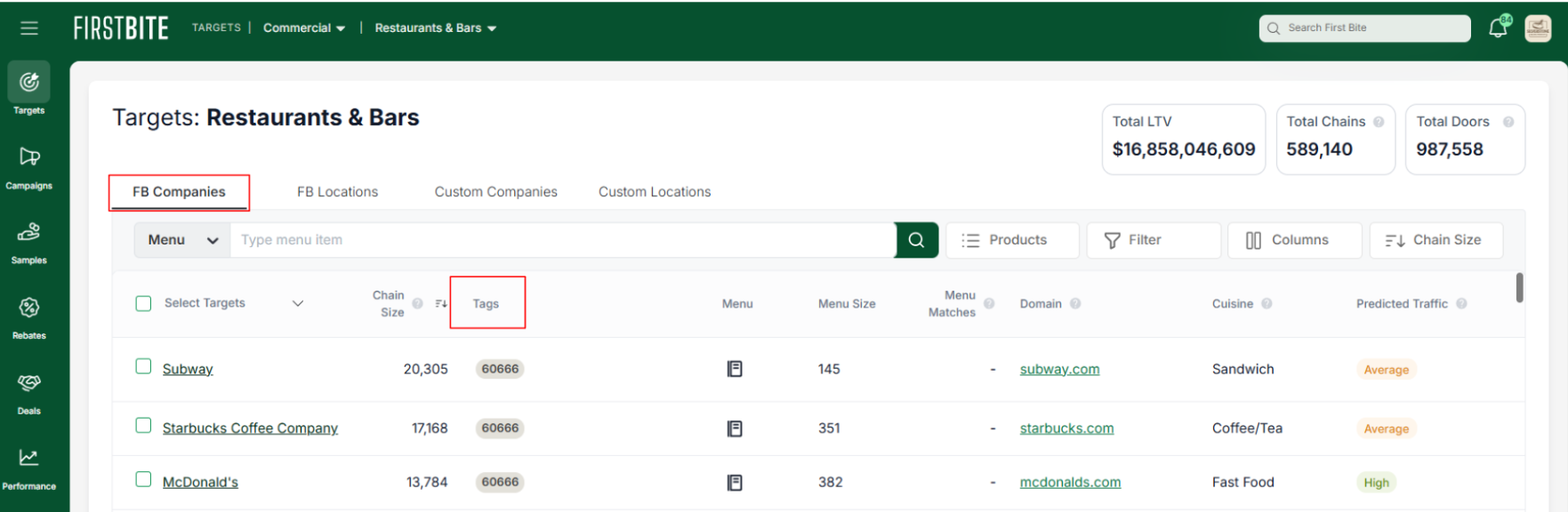
Door Tags will appear under the Door Tags column.
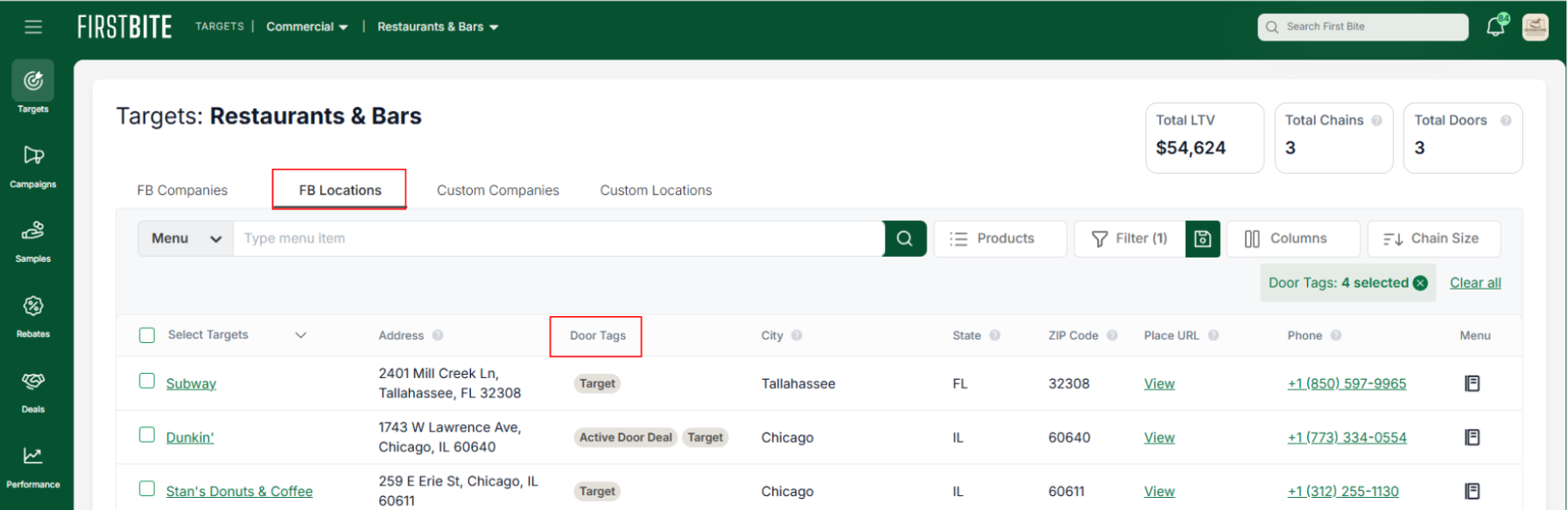
If you added the tag in error:
Reselect the company >
Actions> Manage Tags > Select tag for removal >Delete. Alternatively you can navigate to the company page to remove the tag.
Creating & Applying Tags on Company Pages
Navigate to the Company (or Door) page you'd like to apply your tag to.
Click the
+icon on the tags box.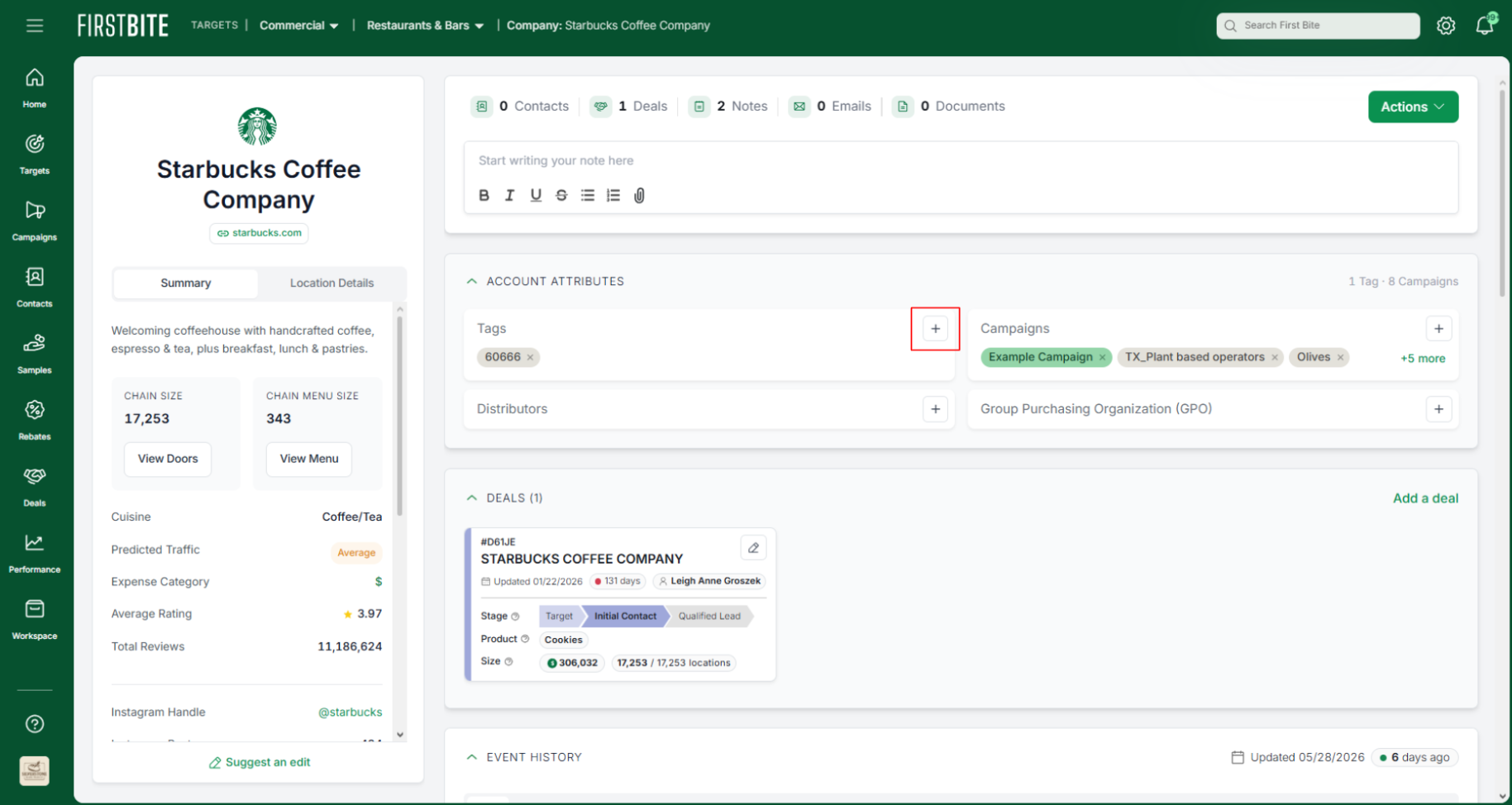
You can:
Search the tag list: Begin typing to search, then select a tag from the list.
Create a new tag: Type the tag name on the line and select "Create [tag]" from the list.
Scroll the list and select a tag.
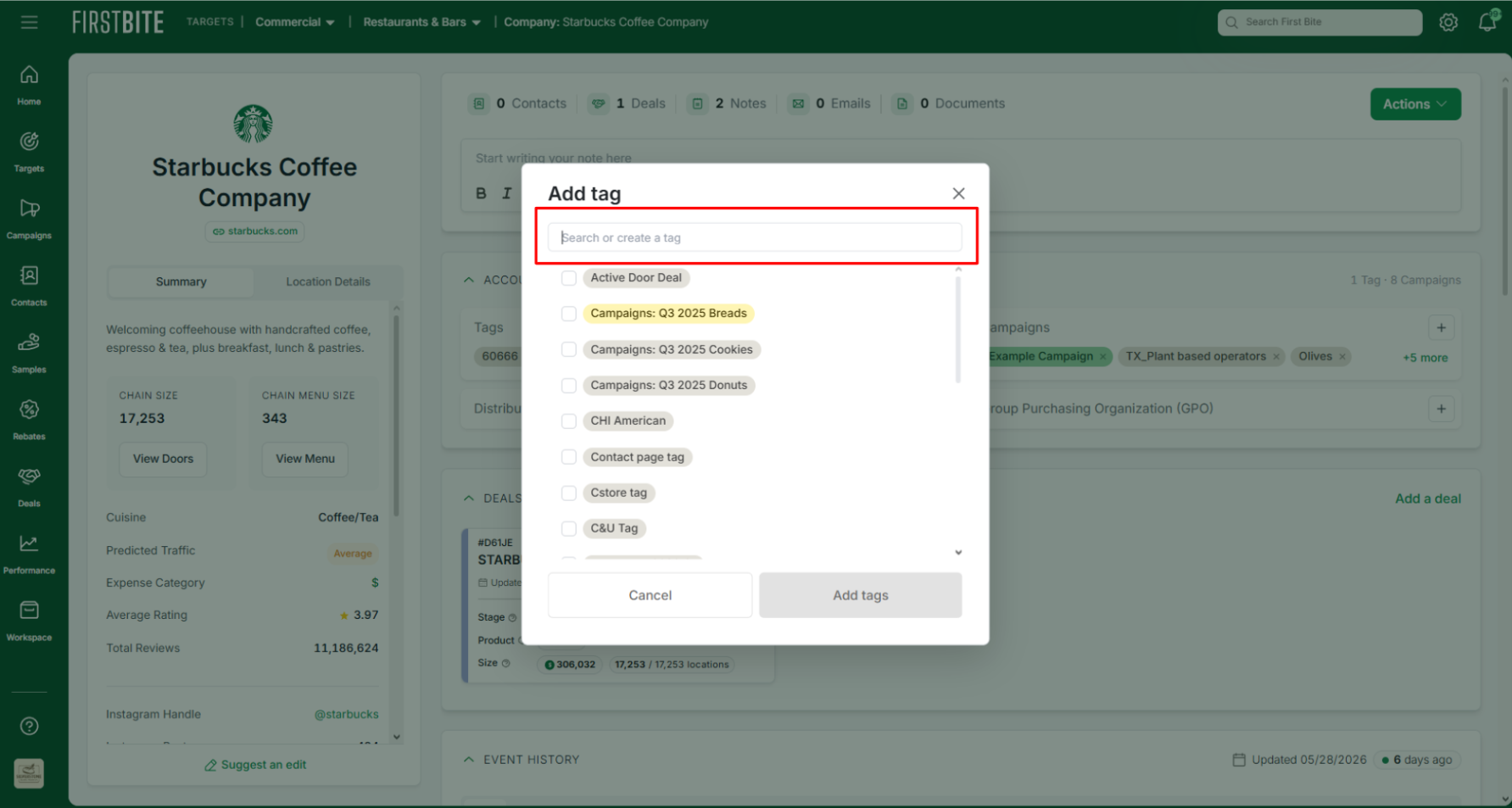
Choose as many tags as needed.
Check the box next to the tag you want to add to your company.
Click
Add tagsto complete.
Creating, Managing, & Deleting Tags in Settings
Navigate to: Settings > Data > Tags
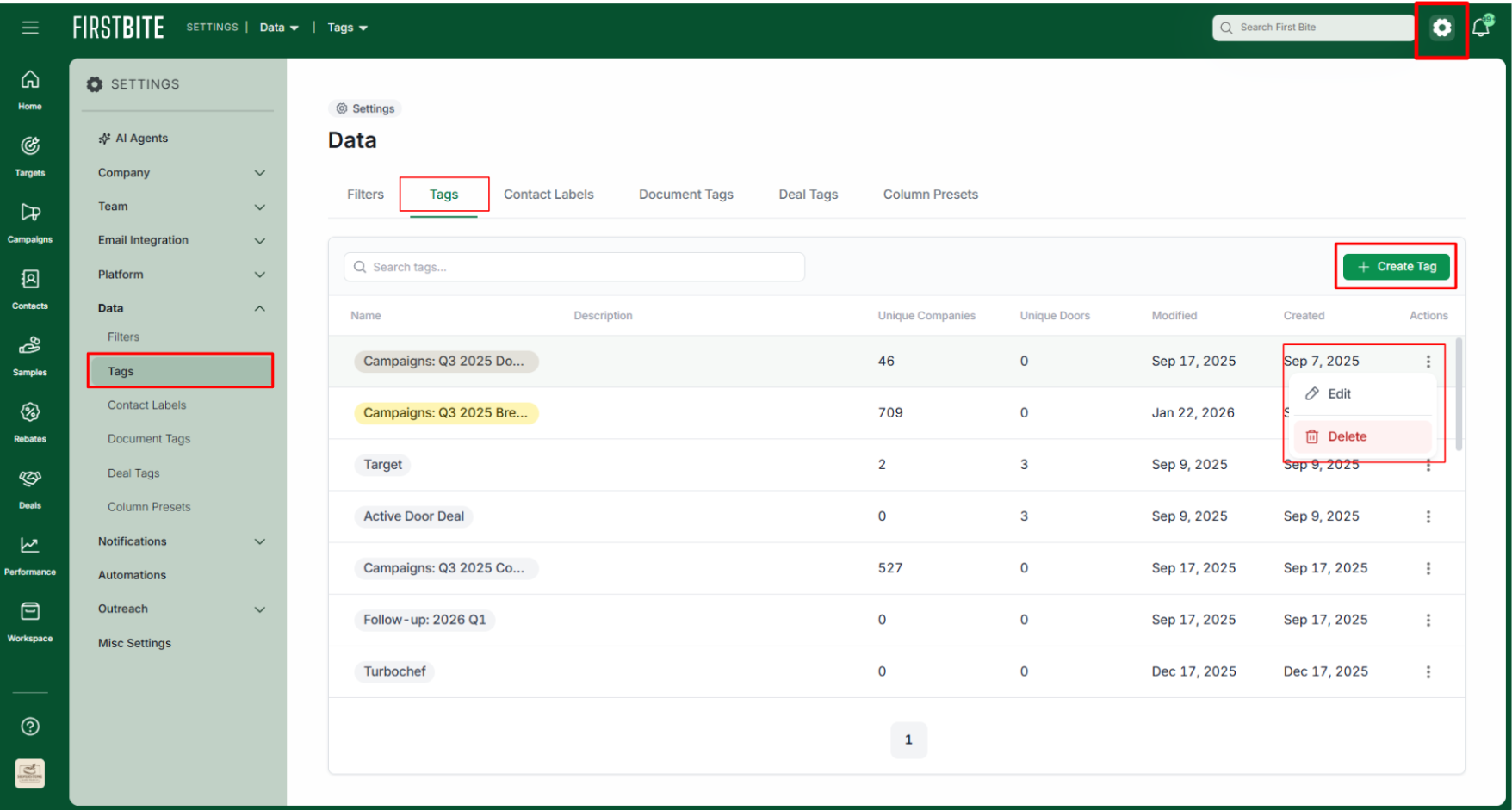
There you can
Create Tags,Edit(pencil), orDelete(trash).To Create a Tag:
Give your tag a Name, Description, and Color.
💡 When adding the description, include information for applicable search filters.
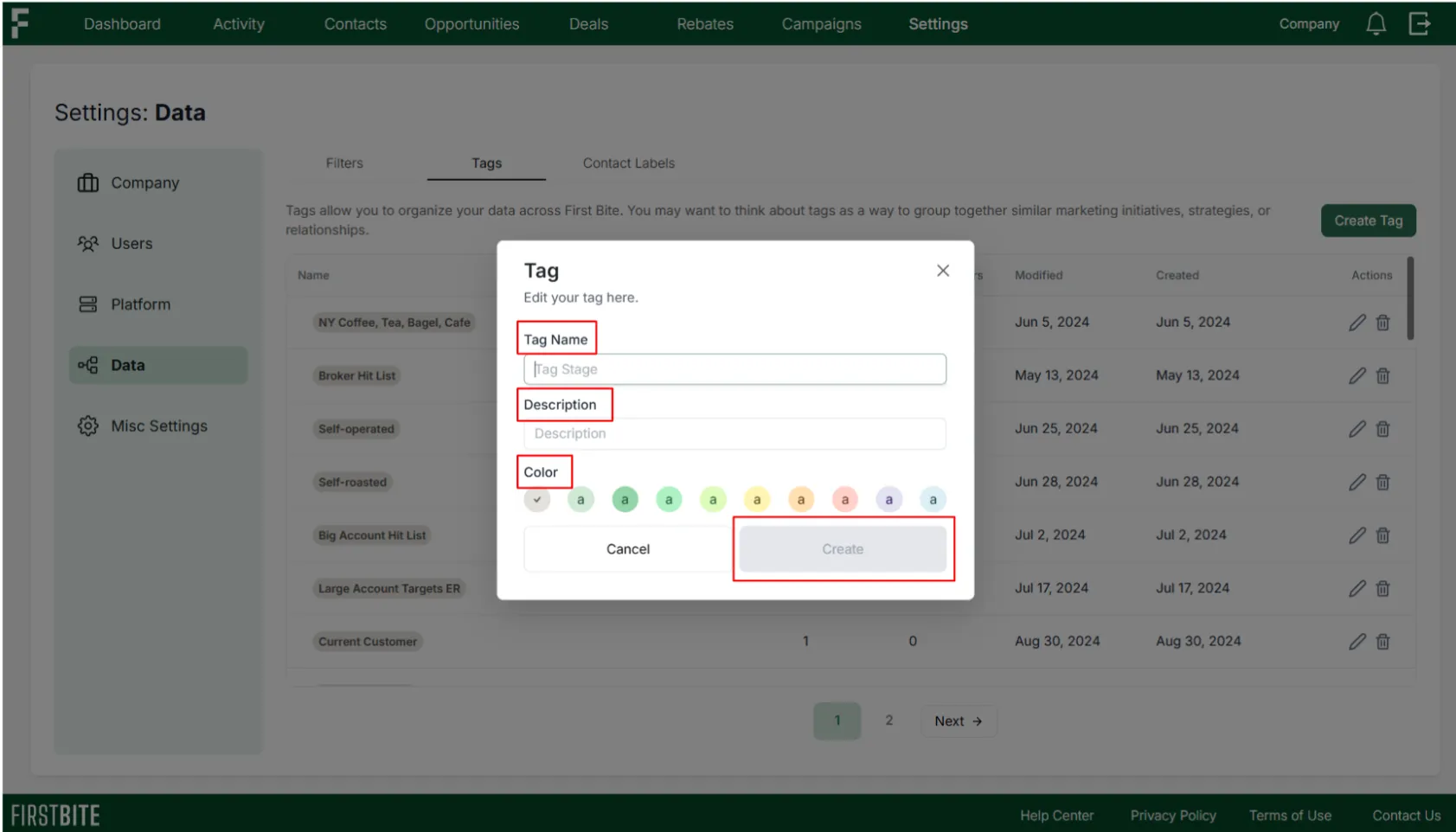
Click
Create.
If you decide to change this tag information at any point, you can choose to edit any tag for revision in the settings area.