How to: Notifications
Last updated: June 3, 2026
Notifications in First Bite
Notifications help you stay informed about activity across your account, from new deals and contact updates to campaign progress and team actions.
They’re designed to keep your workflow moving by surfacing key updates in real time, whether you’re in the app or checking your email. Each notification includes a direct link to the related record so you can take action immediately.
You can use notifications to:
Track updates on your assigned deals and contacts
Review notes, mentions, and activity from your team
Receive alerts when something requires your attention
Where to find them:
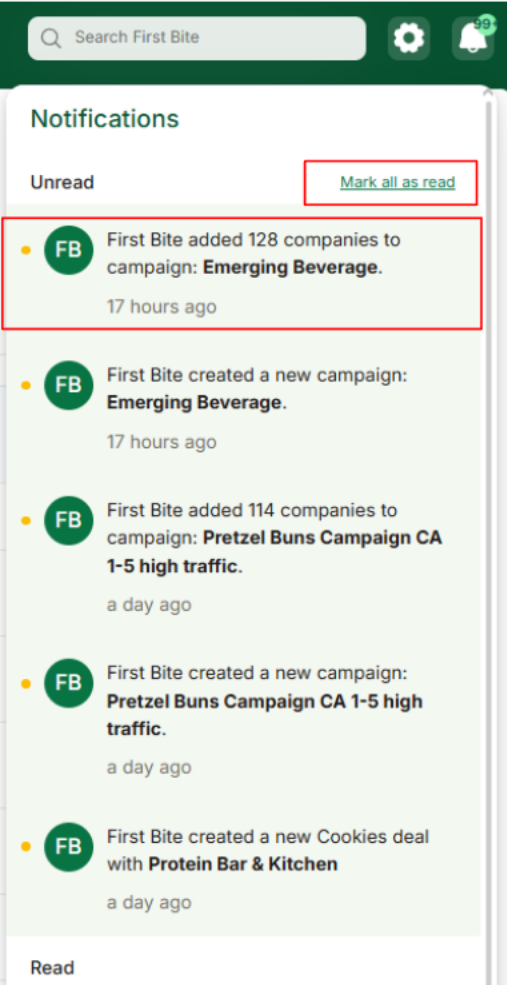
Click the 🔔 bell icon in the top navigation bar to view recent updates. You can also manage your notification preferences in your account settings.
How to Adjust Your Notifications
Navigate to Settings > Notifications via gear in the top right corner.
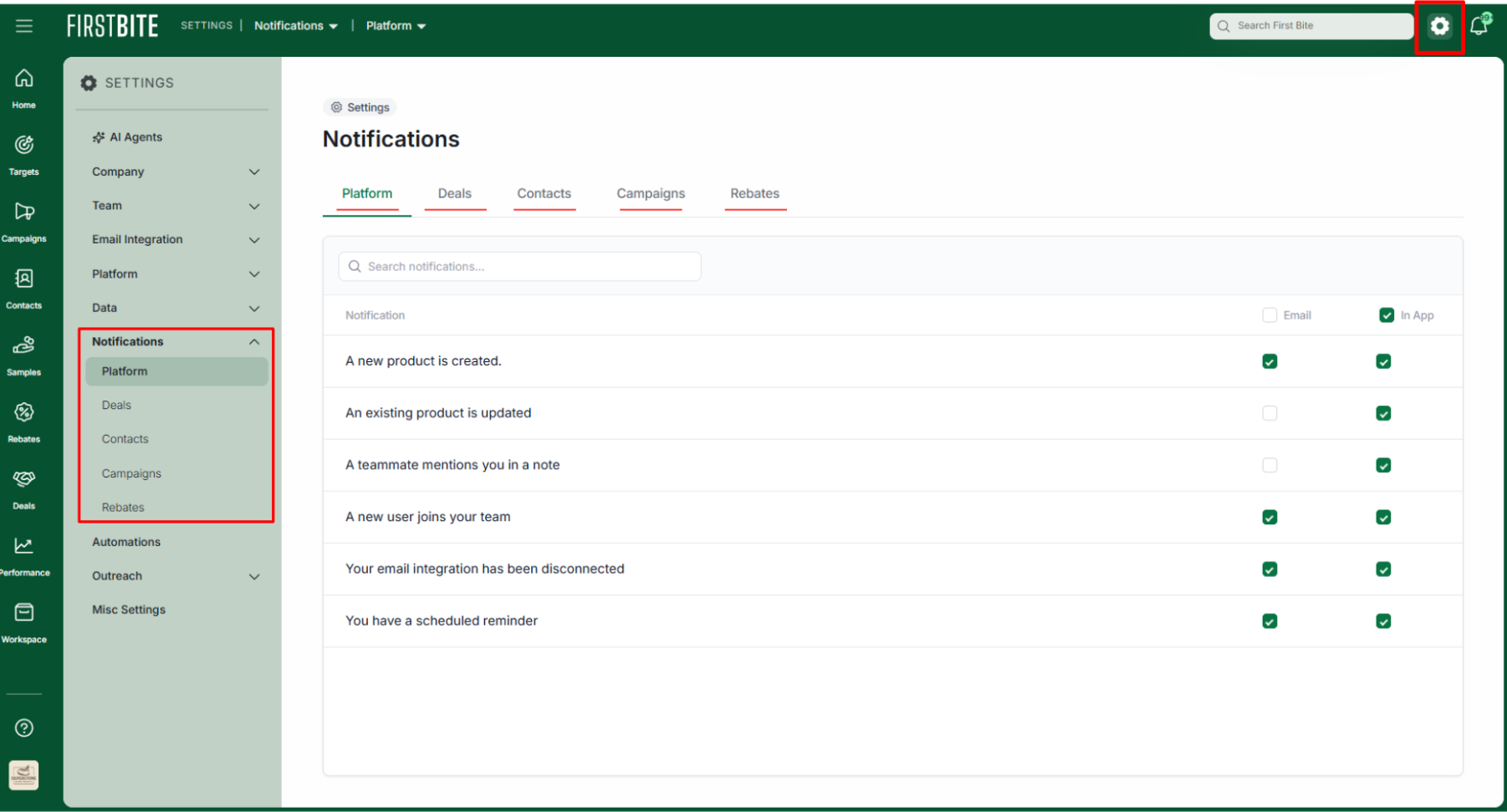
You can then choose from 5 notification categories by selecting the corresponding tab. (Platform, Deals, Contacts, Campaigns, or Rebates)
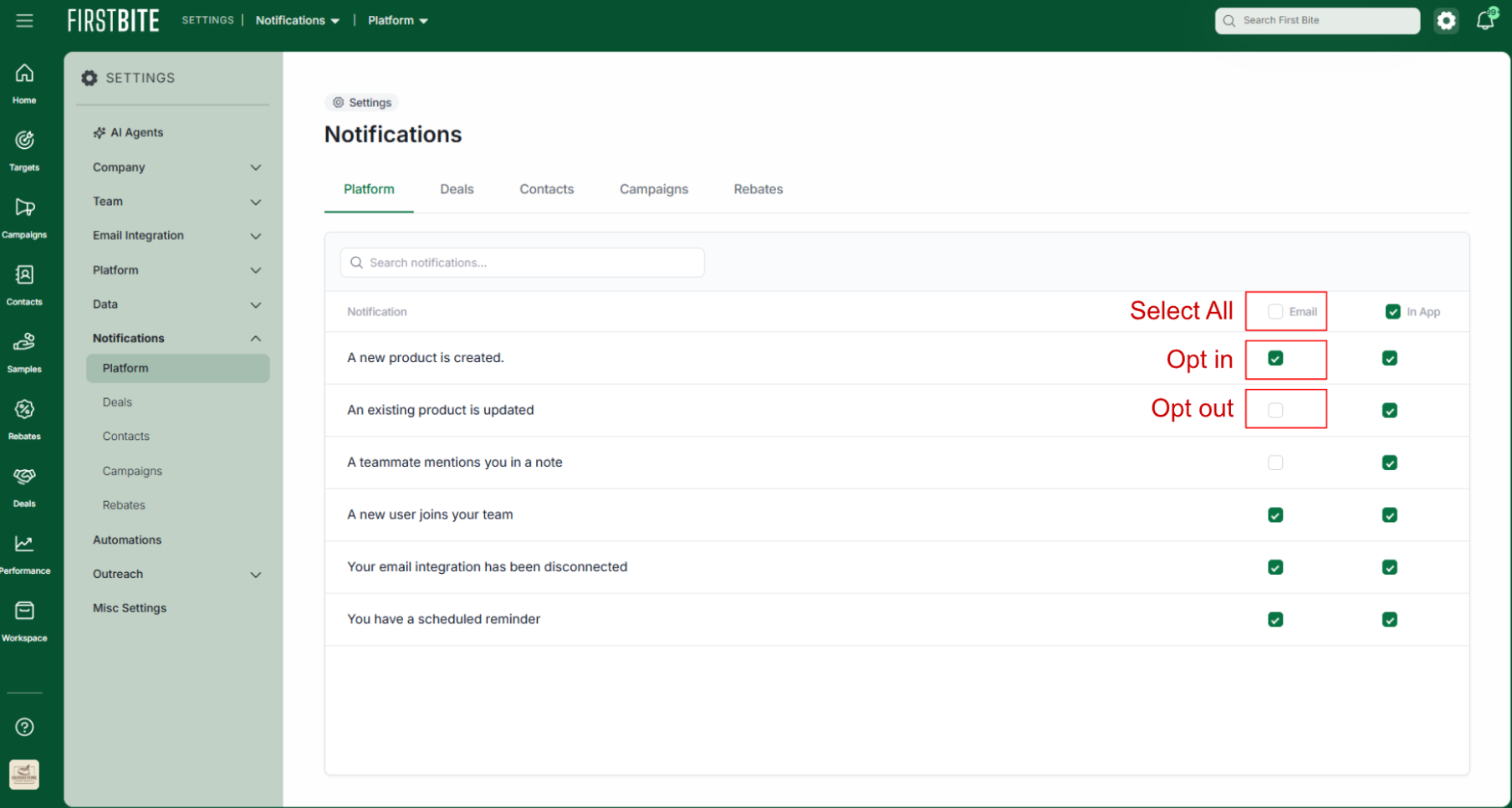
Choose whether you want to receive In App or Email notifications by checking the corresponding boxes.
If you’d prefer not to be notified, uncheck the box.
To select all, click on the box at the top of the column.
What Notifications Look Like
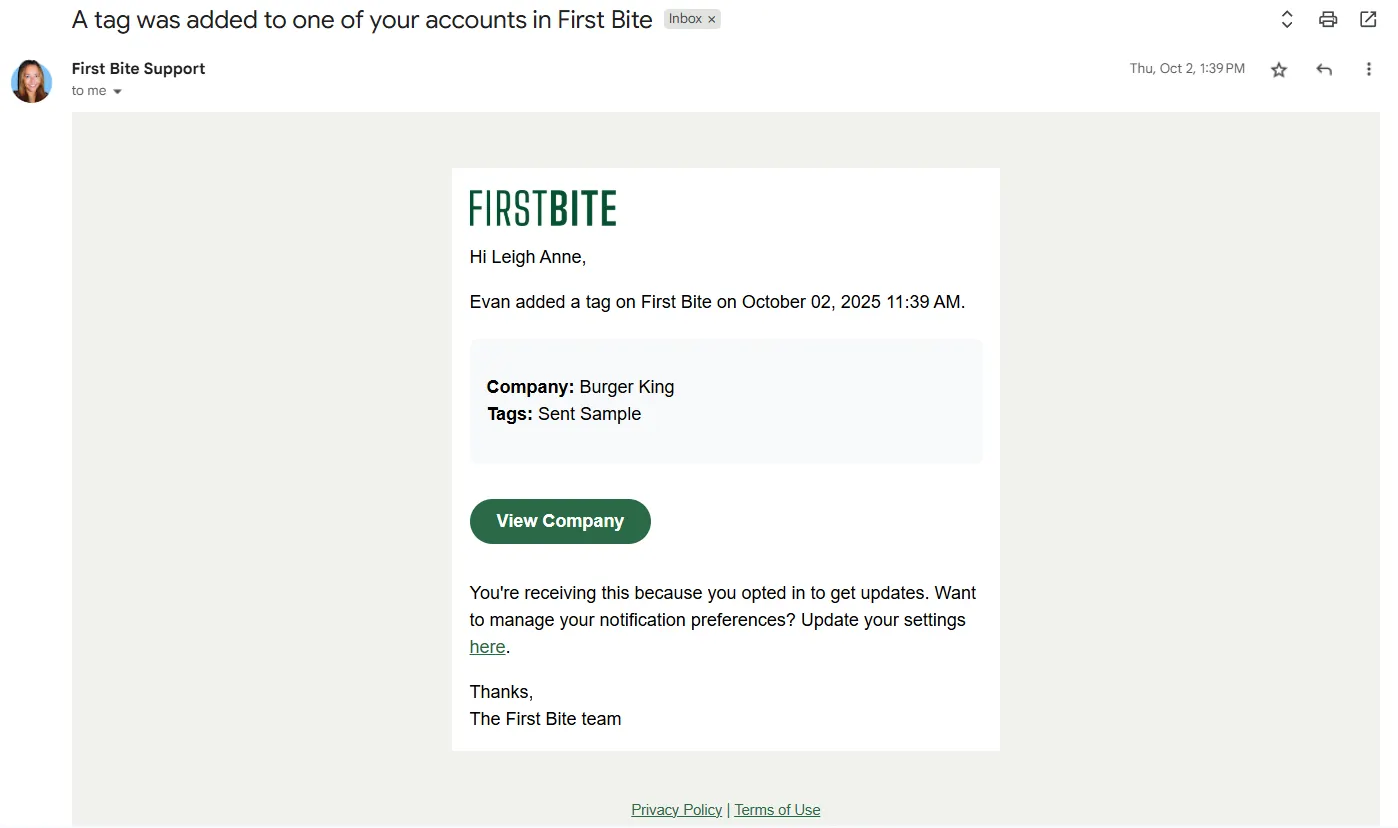
Notifications are triggered when an action occurs in First Bite and you’ve opted to receive the notification for that activity. You can receive notifications via email or within the First Bite App.
Emails will appear in your inbox from First Bite’s support team.
In App
Navigate to the bell to see your notifications.
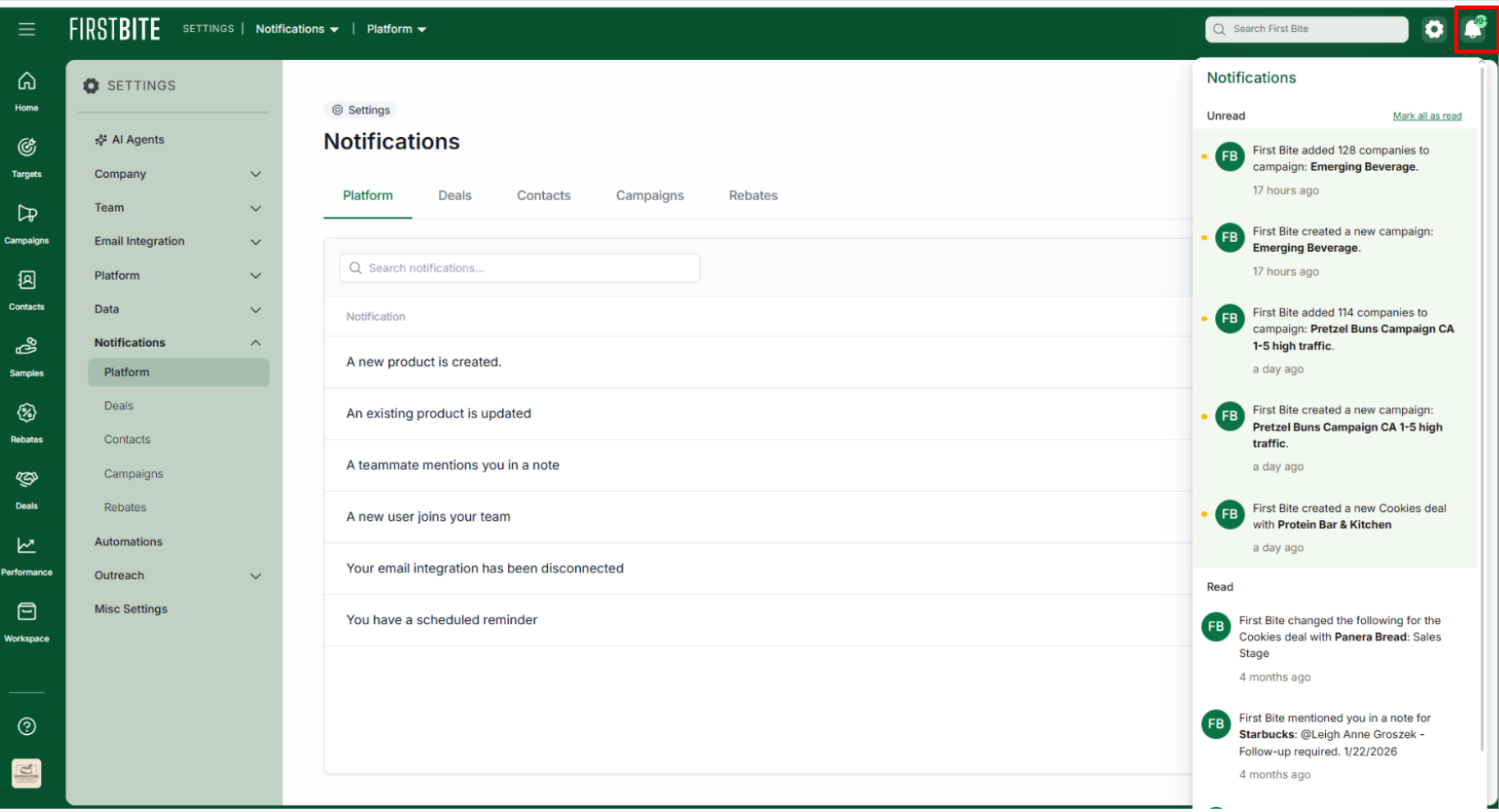
To remove the notification, click on the line item or click “Mark all as read”.