How to: Email Integration
Last updated: June 7, 2026
First Bite lets you connect your Google or Outlook email account to the platform, syncing only messages exchanged with contacts that are in your First Bite workspace. These emails can be viewed directly from the corresponding company page, allowing you to keep a clear record of communication with those contacts.
Here we’ll discuss adding your email to First Bite and the email integration functionality.
Add Your Email to First Bite
Navigate to Settings > Email Integration > Connections > Click
+ Add Account.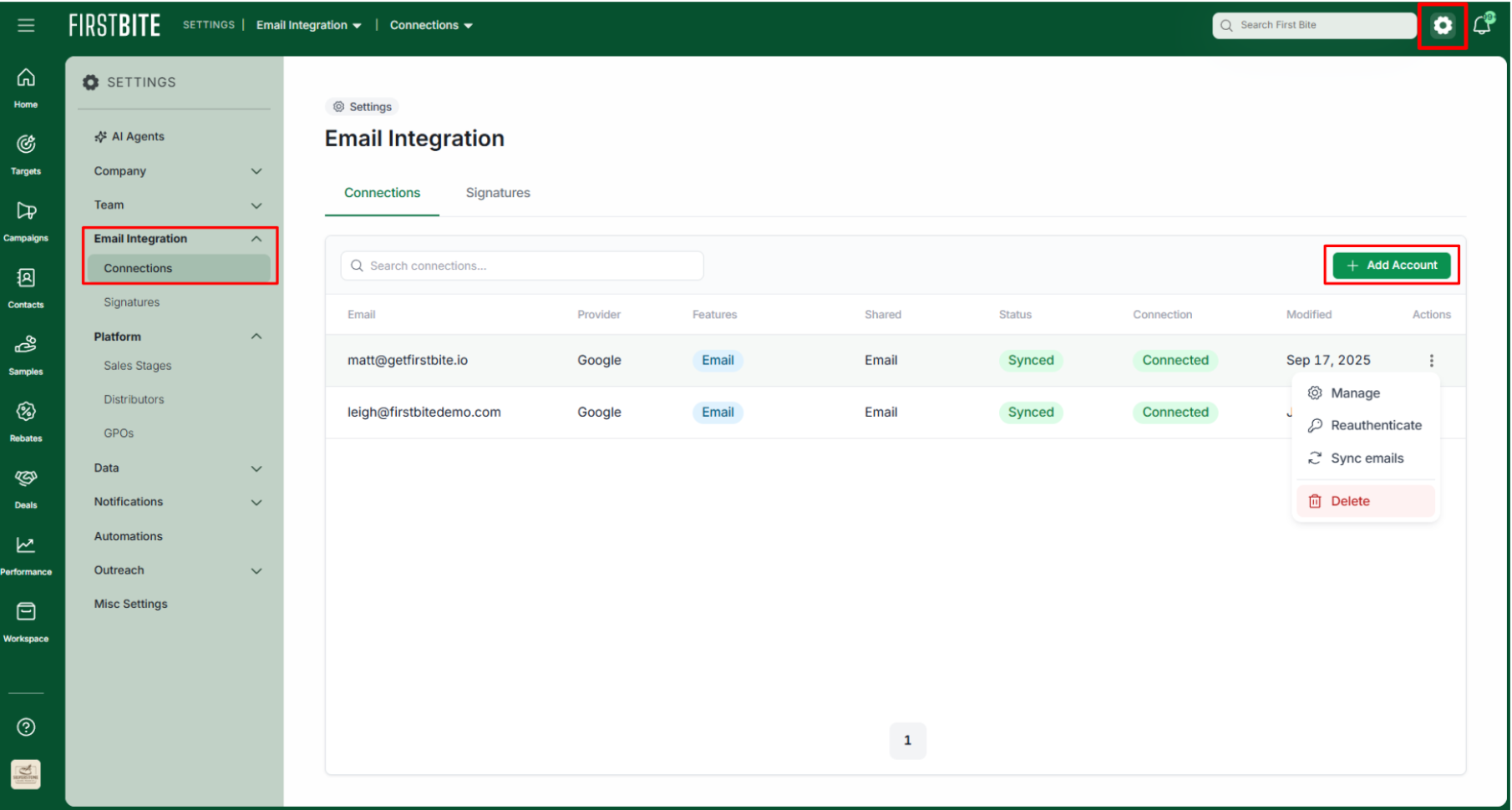
Choose whether to link a Google or Outlook account.
Sharing is enabled by default so your coworkers can view your email interactions. If you prefer to keep these emails private, simply deselect this option. You can always change this later.
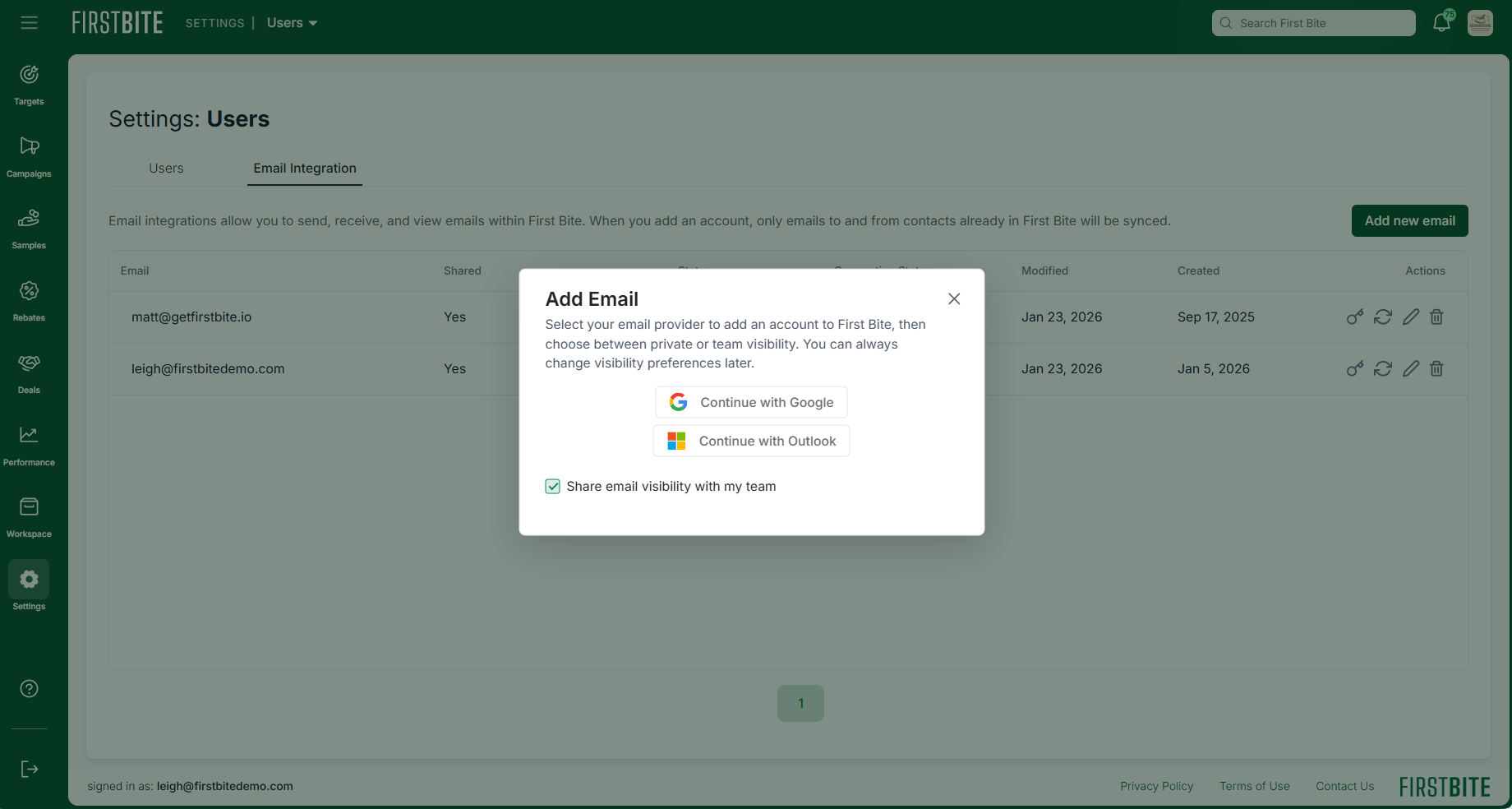
Select the account you want to integrate with First Bite and follow the onscreen instructions to connect your account. You'll need to:
Give First Bite access to your account.
Allow First Bite permissions.
Click
Closeto complete the process.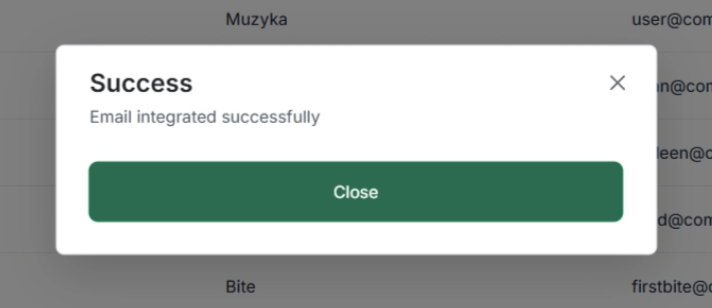
Initially, First Bite will set the status of your email to “Syncing”.
You’ll receive a notification in the top right corner (bell icon) when your email sync is complete.
Email Visibility in First Bite
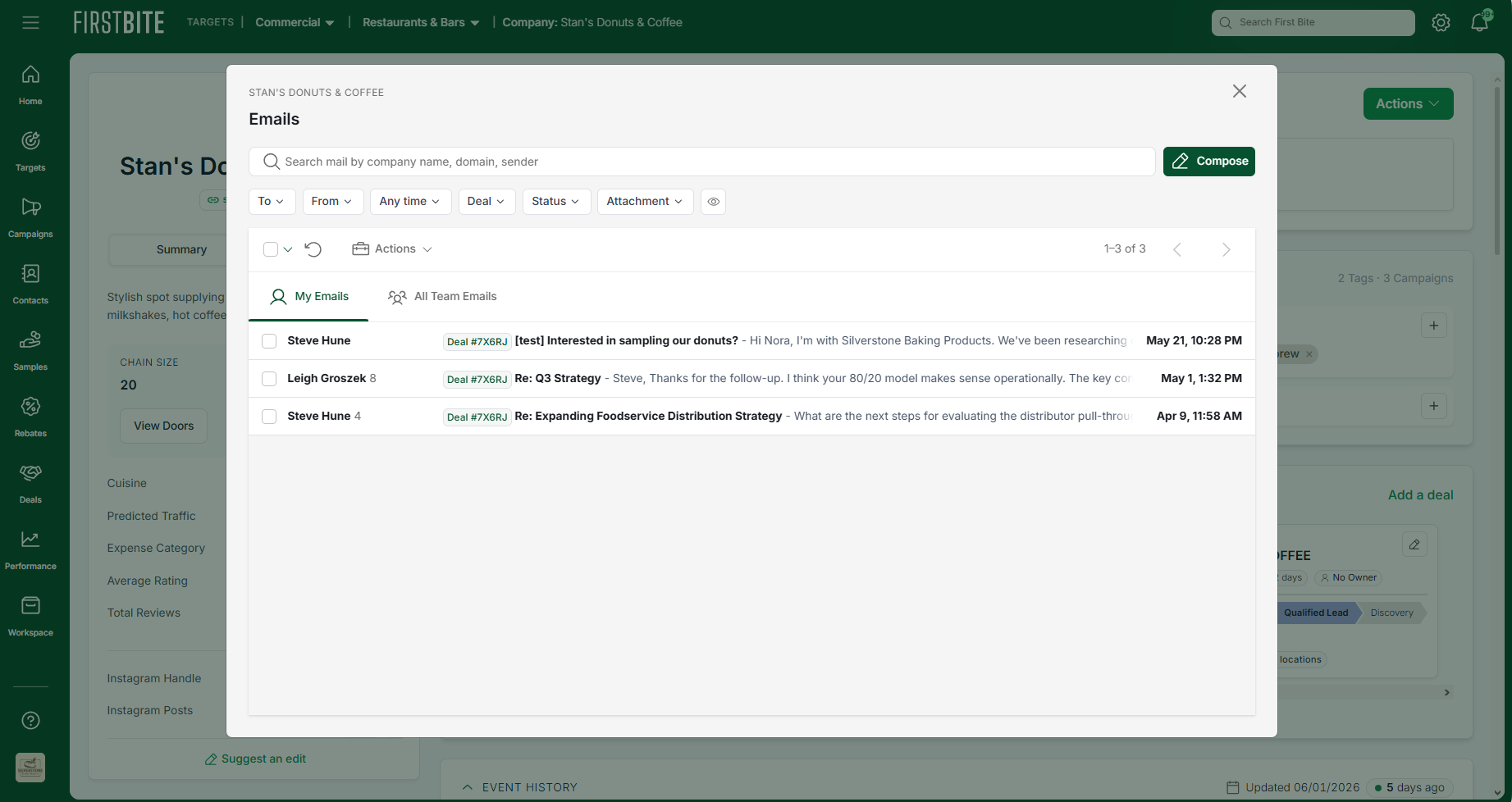
Your emails will be visible in the contact’s associated company page under Emails and can be expanded for viewing by hovering over the message or clicking the double arrow action icon.
Manage, Reauthenticate, Resync, and Delete Your Email Account
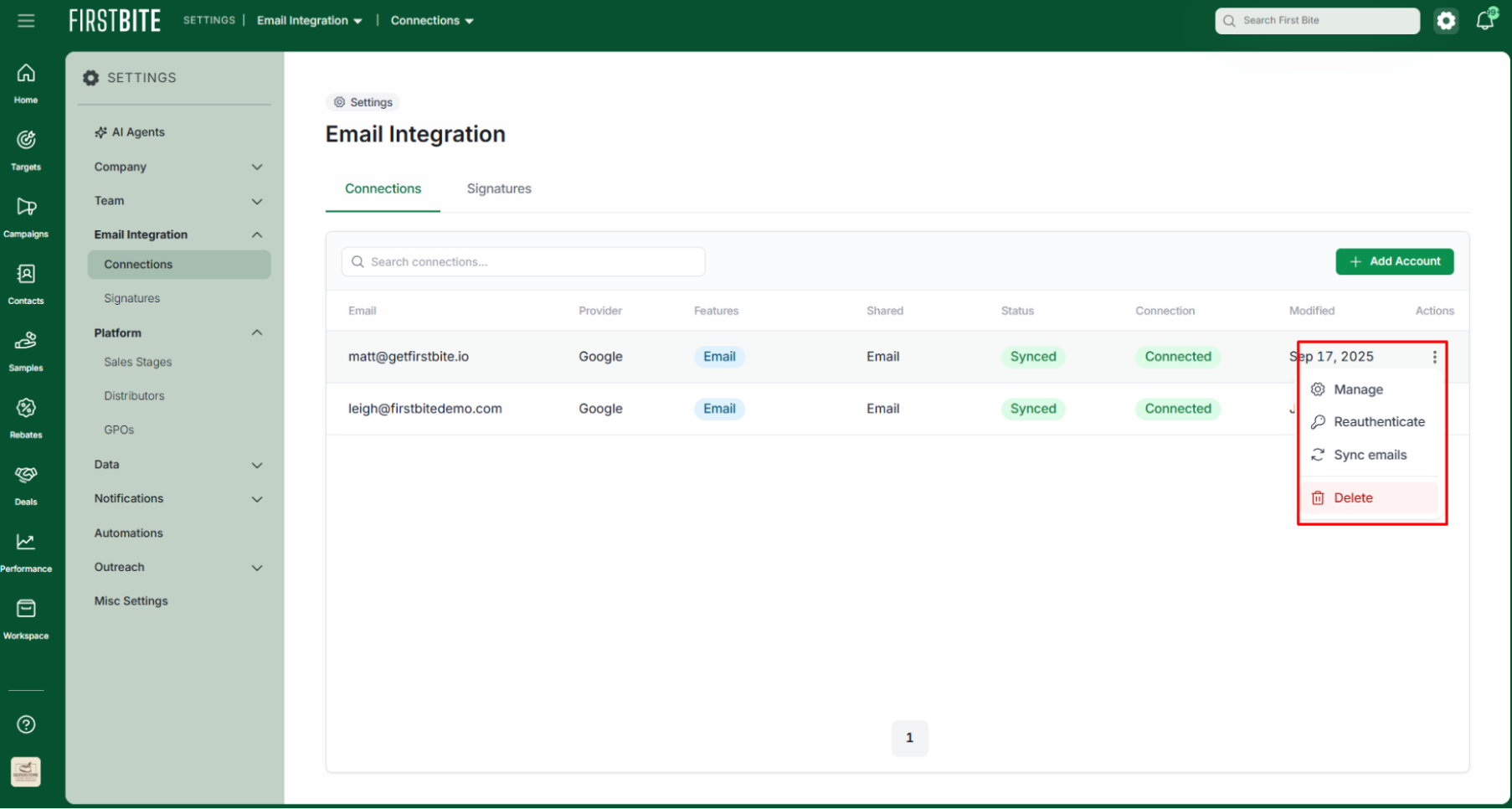
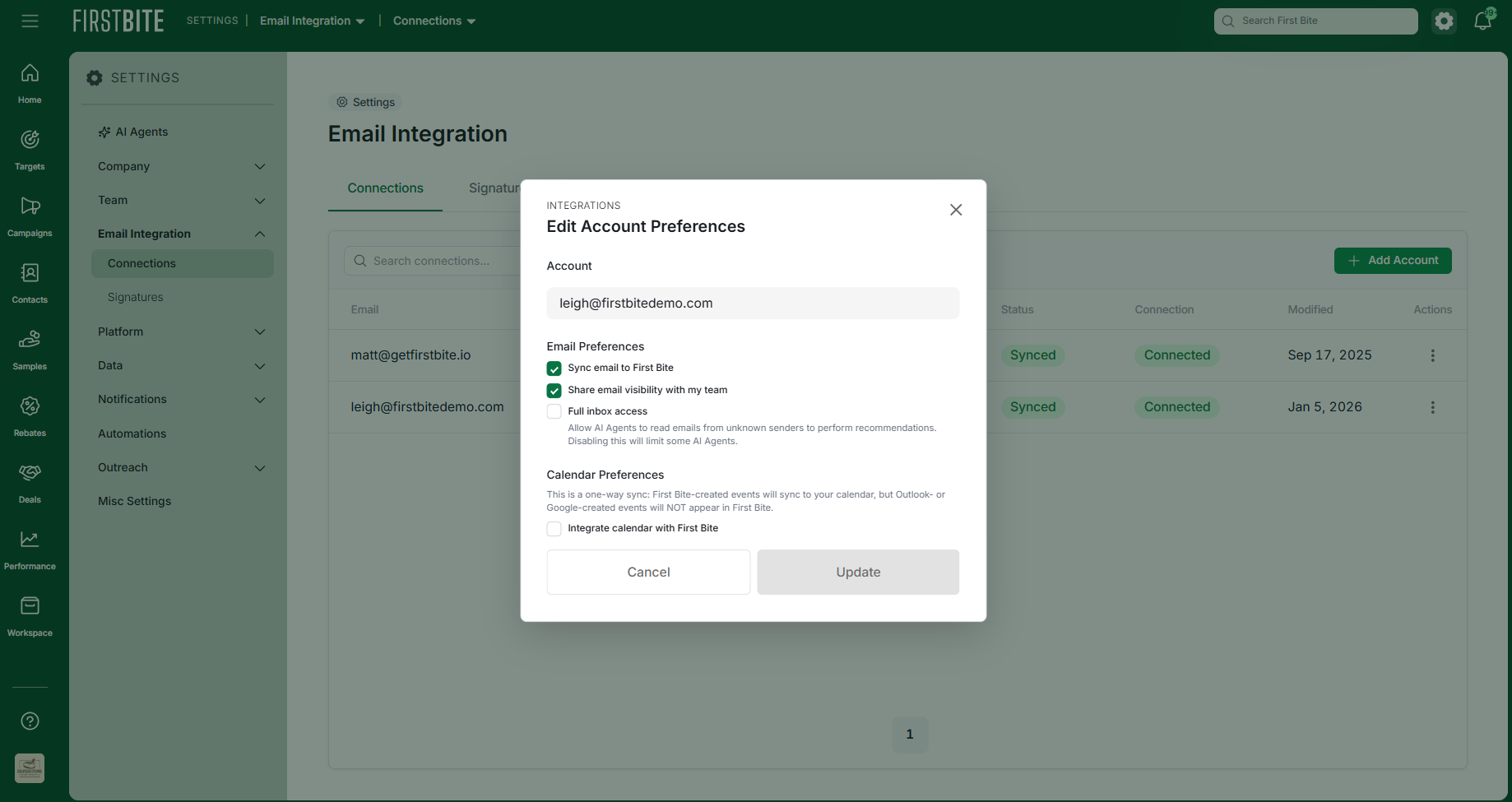
Manage: Choose whether you want your team to see your emails or alter permissions.
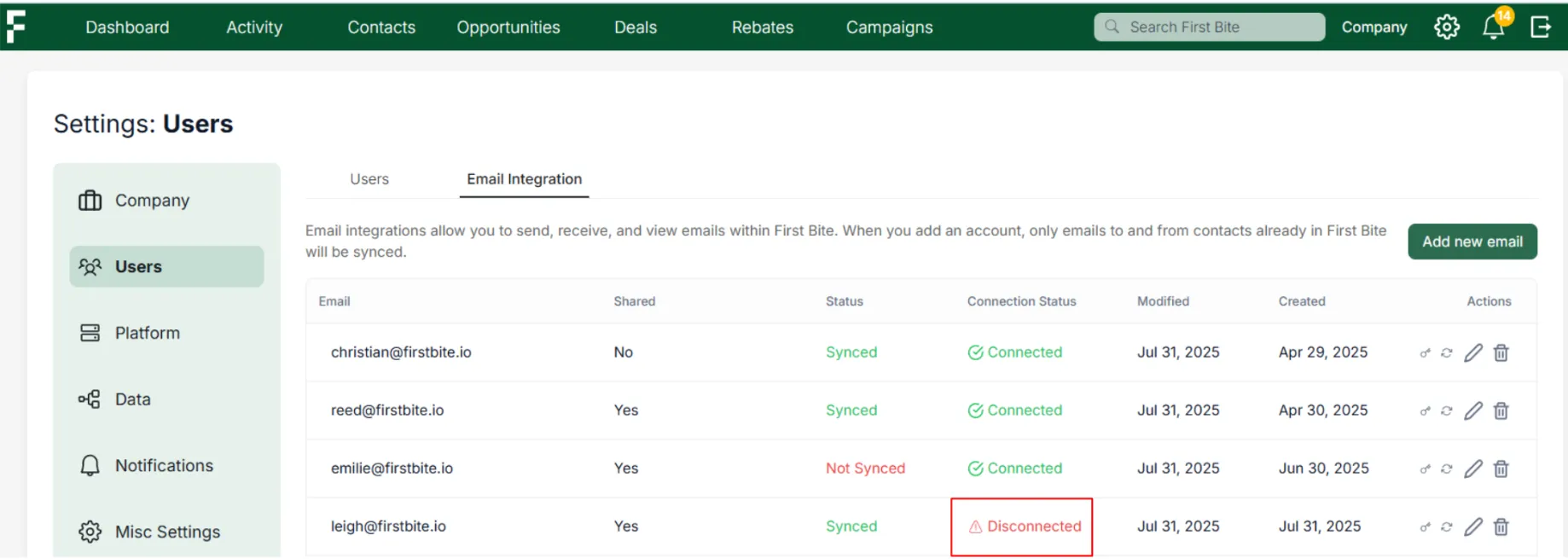
Reauthenticate: If your email’s Connection Status with First Bite is “Disconnected”, click the key to reauthenticate. This is a normal email security measure.
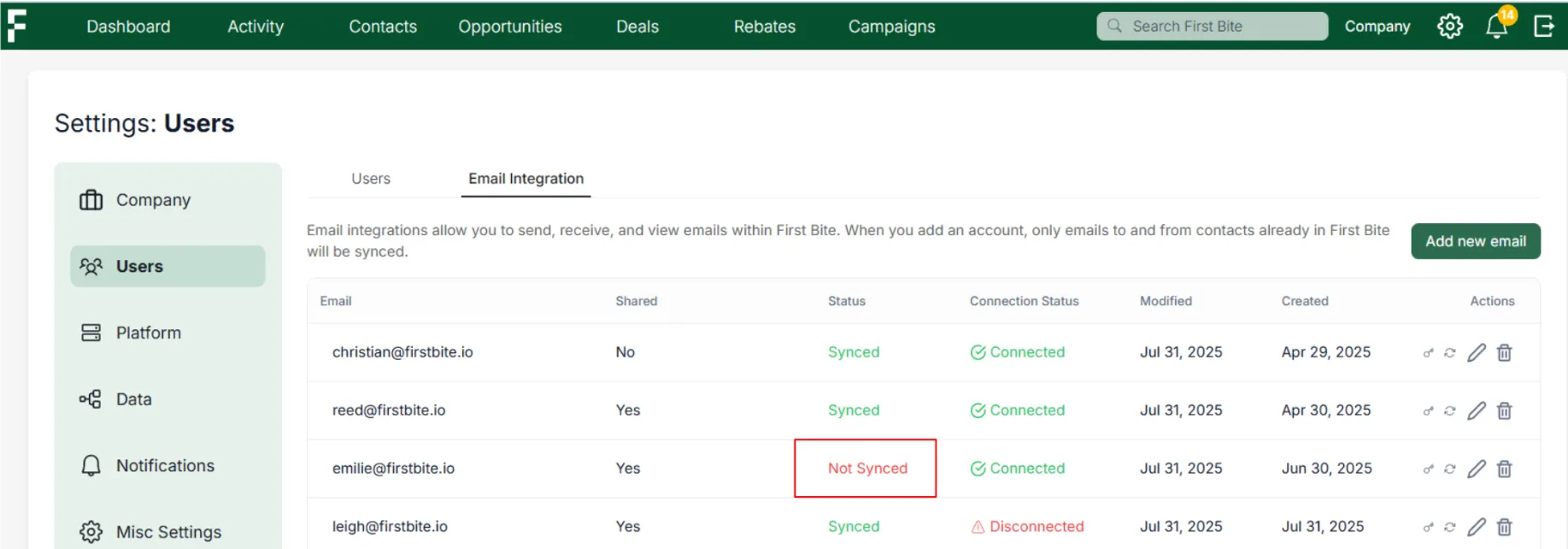
Resync: If your email status does not sync, the status will be marked “Not Synced” (rare). In this event, click the Resync icon to connect your email inbox.
Delete: Remove your email from integration with First Bite.
Why Would I Need to Re-authenticate My Email Integration?
From time to time, you may be asked to re-authenticate your email integration. This is a normal security step to ensure your email account remains securely connected to our platform. Re-authentication simply means confirming your credentials again—usually by logging back into your email provider and granting the necessary permissions. This might be required if:
Your email password was changed
Your email provider updated its security policies
The integration token expired (many tokens are only valid for a limited time)
You manually removed the app's access from your email settings
Check if your integration needs to be re-authenticated by looking at your Connection Status. If there’s an issue, you can re-authenticate by clicking the key icon. Once completed, your email syncing will resume as normal.