Create, Manage, & Delete Contact Labels
Last updated: June 7, 2026
Overview
In First Bite, contact labels and tags work together to help you organize and track your outreach.
While both tools add structure to your data, they serve different purposes based on where they’re applied:
Tags are used at the Company level
Contact labels are used at the Contact level.
This guide focuses on Contact Labels—how to create, apply, and manage them—so you can classify and segment your contacts more effectively throughout your outreach workflow.
If you’re looking for ways to fit tags and labels into your workflow, check out this article on best practices for tags and contact labels.
Contact labels can be added when adding or editing a contact.
Here’s more on how to create, edit, or delete a contact.
Contact Label Actions
In Tables
Contact Labels can be created and applied within the tables holding contacts. Label management in tables allows you to identify and organize contacts based on specific characteristics or outreach needs.
In Settings
Contact Labels can be be created, edited, and deleted in Settings (but not applied). Label management in Settings supports higher-level organization by defining which labels are available for use across your workspace.
Create & Apply In Tables
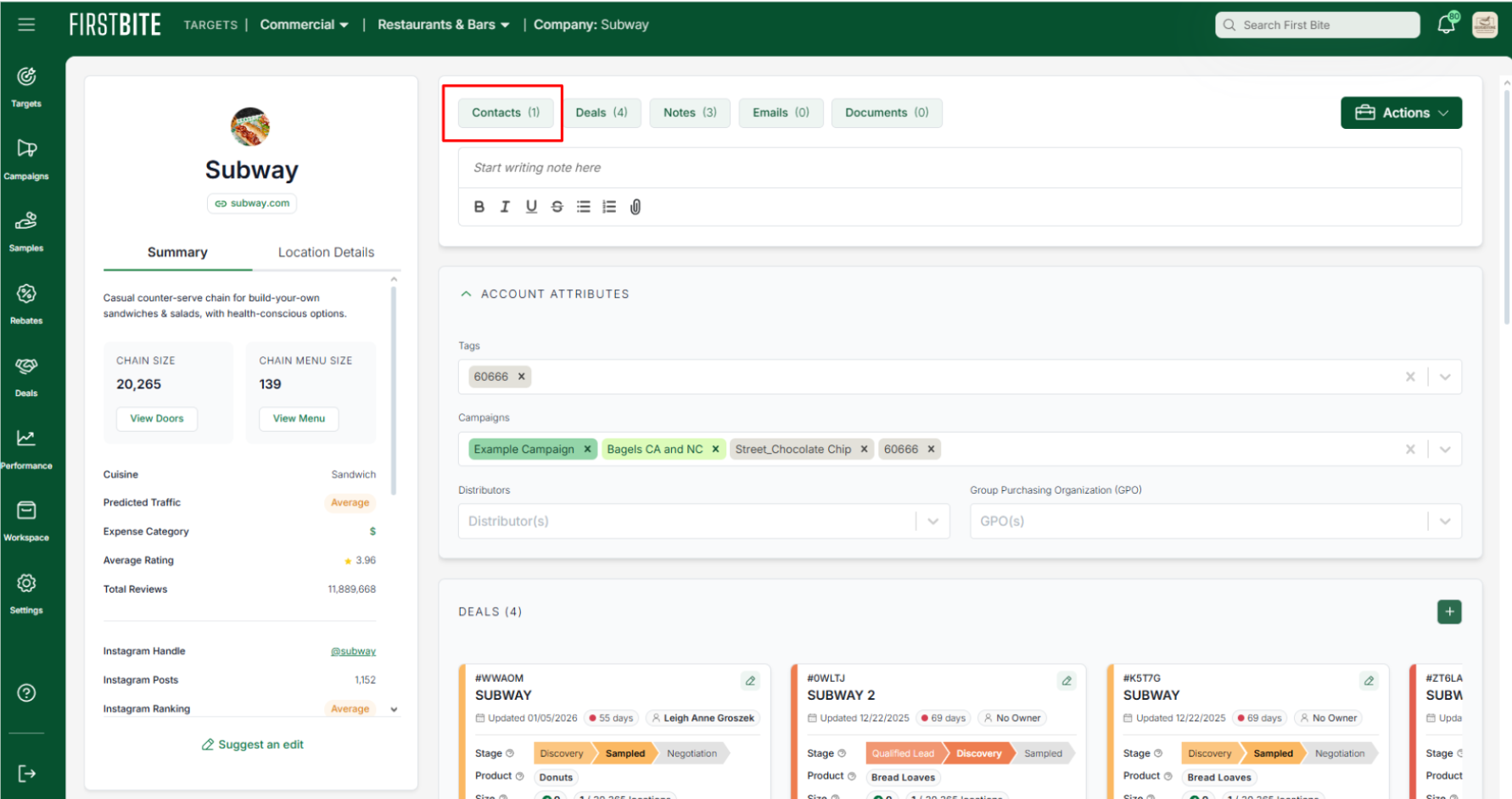
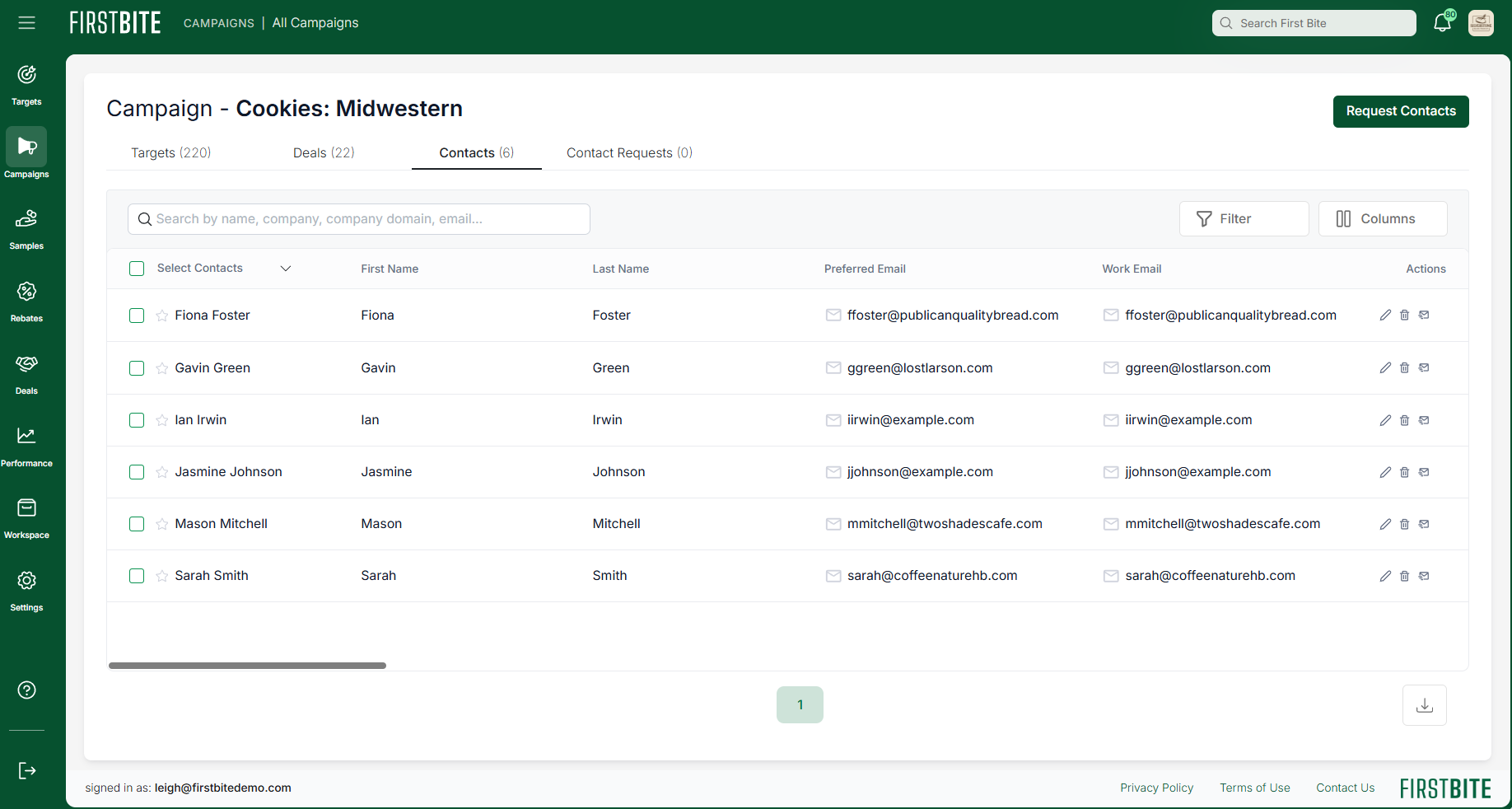
Contact Labels are tied to contacts, so you can apply labels in the same tables that allow you to create or edit a contact. This includes:
Contacts page
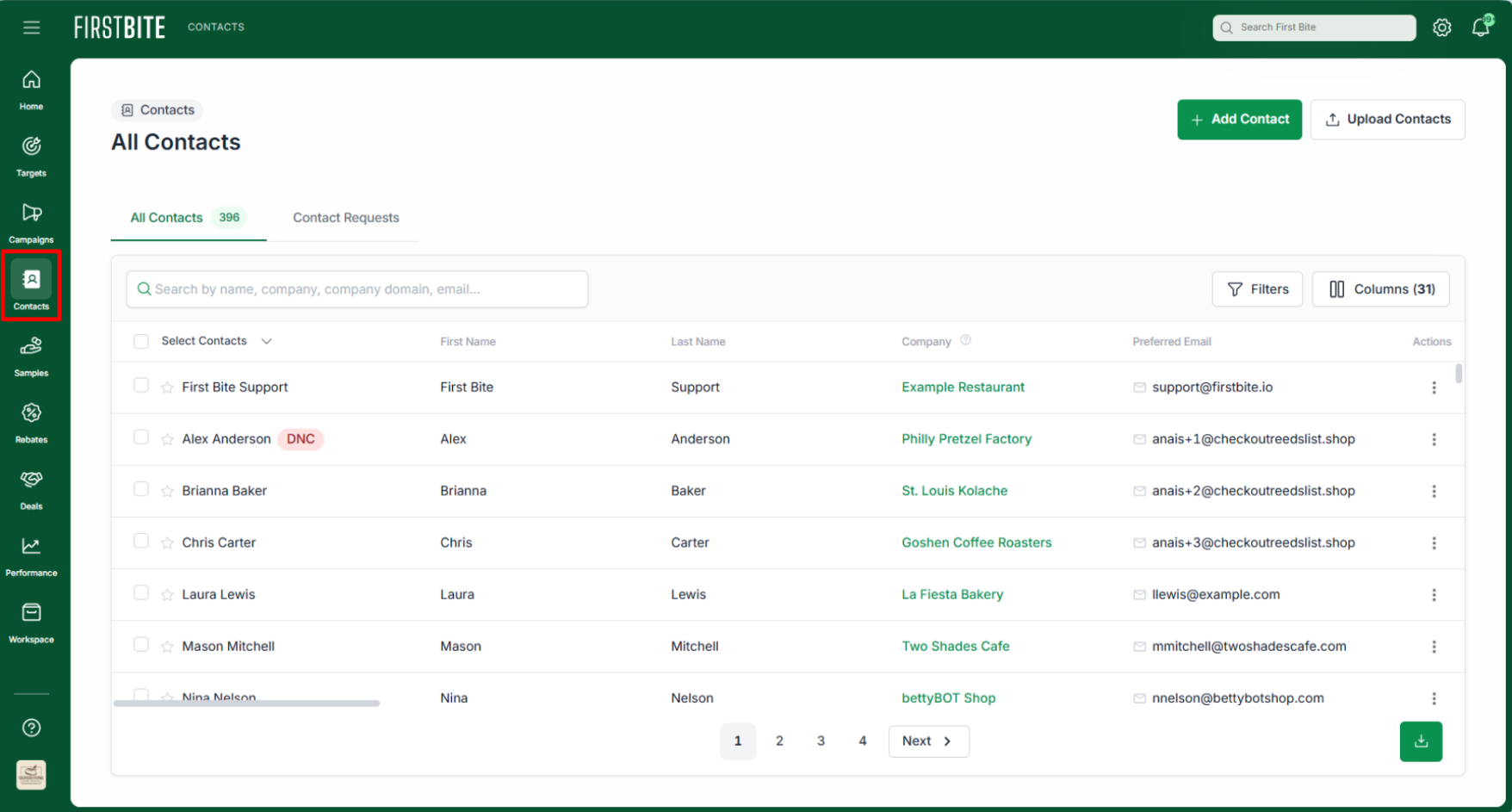
Company page, where you can edit contacts (and therefore contact labels)(example screenshot from the McDonalds page)
Specific Campaign (via the Campaigns page) > Contacts tab.
To apply a label to a contact in a table
Use the
+ Add Contactbutton to add a new contact or the 3 dots under the Actions column to edit an existing contact.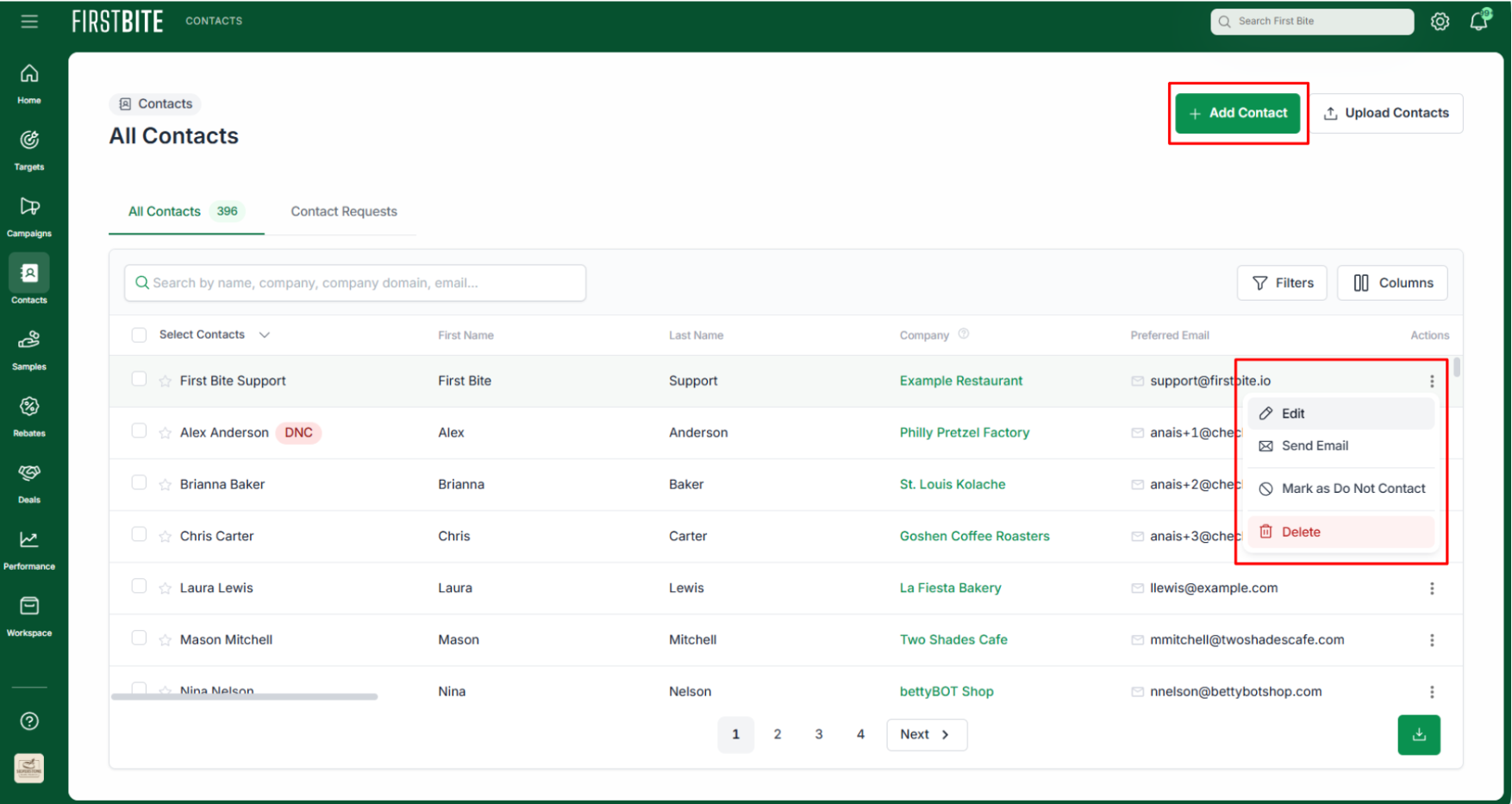
Use the labels dropdown to type in or select a label > click
Next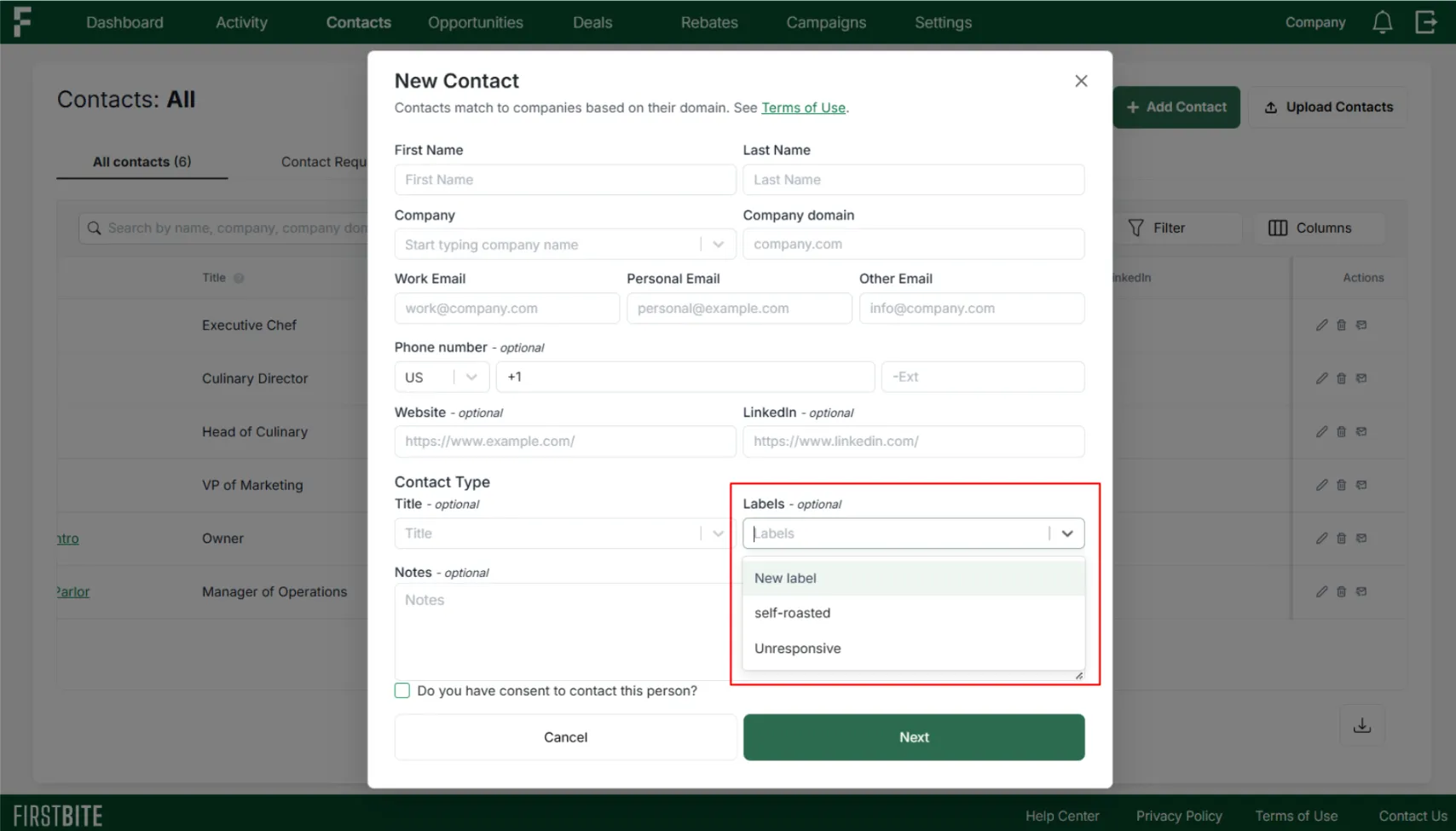
Choose whether this contact is being applied to the entire company or a specific location.
Adjusting this will change where the contact appears in First Bite (Company vs Door pages).
Click
Create(for added contacts) orUpdate(for edited contacts).
Apply in Bulk
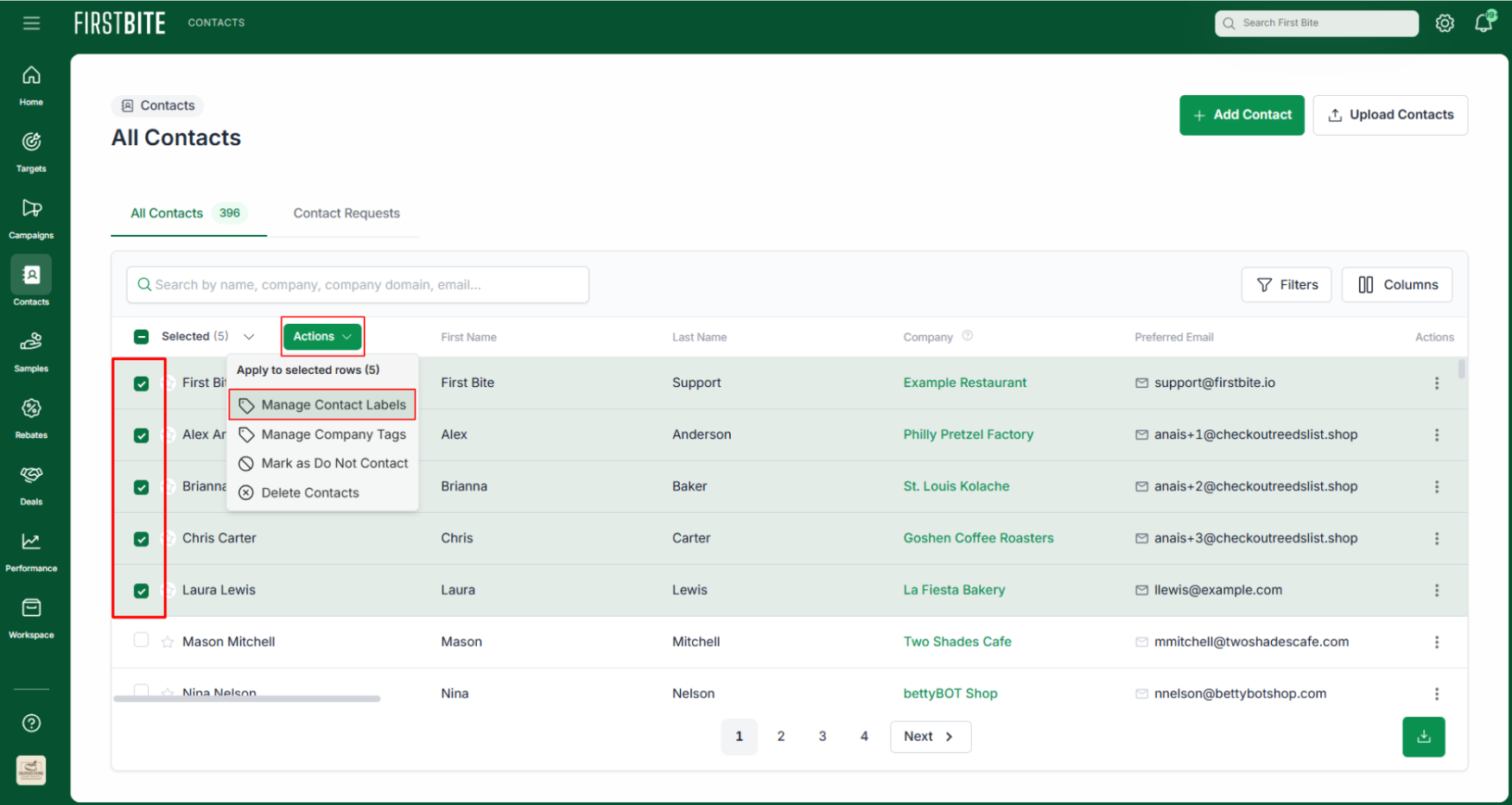
On the Contacts page: Manage and apply tags in bulk by selecting specific contacts and using the Actions button > Manage Contact Labels.
Create, Edit, & Delete In Settings
In Settings, you can create, edit, and delete labels, but you cannot apply labels.
Application occurs when working within the contact information.
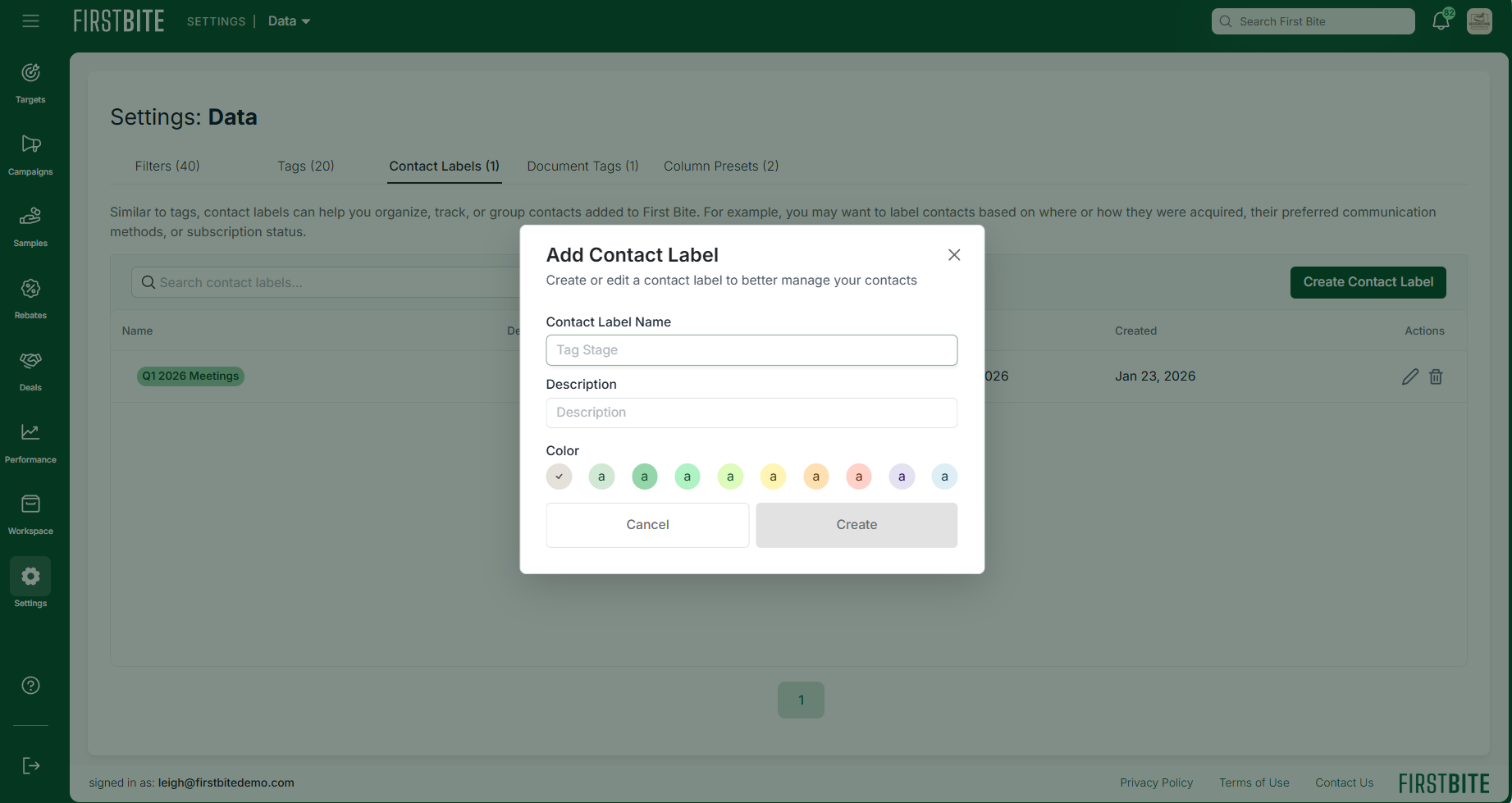
Navigate to Settings > Data > Contact Labels

Create a contact label or use the 3 dots under the Actions column to edit or delete a label.
You can create or edit the following label details:
Label Name
Label Description
Label Color
Edits can be made to the label at any time. If it is no longer needed, you can delete it from the list, which will remove its application throughout First Bite.