Create, Edit, & Delete Contacts
Last updated: June 7, 2026
Add and manage your contact information within First Bite
Create Contacts
During your onboarding, we assist you with getting your contact database into First Bite. Going forward, there are three ways to gain additional contacts in First Bite.
Add contacts manually
Refer to the links for requesting contacts and uploading contacts for more details on those processes. This guide focuses on manually adding, editing, and deleting contacts in First Bite.
Add Contacts Manually
Contacts Page: Add, edit, and delete contacts
Company Page: Add, edit, and delete contacts
Your specific Campaign (via the Campaigns section): Edit and delete contacts.
To streamline this process, you can navigate to the relevant Company or Door page and add a contact directly onto the page. Doing so will automatically populate the Company and Domain fields, which eliminates the need to search and select this information.
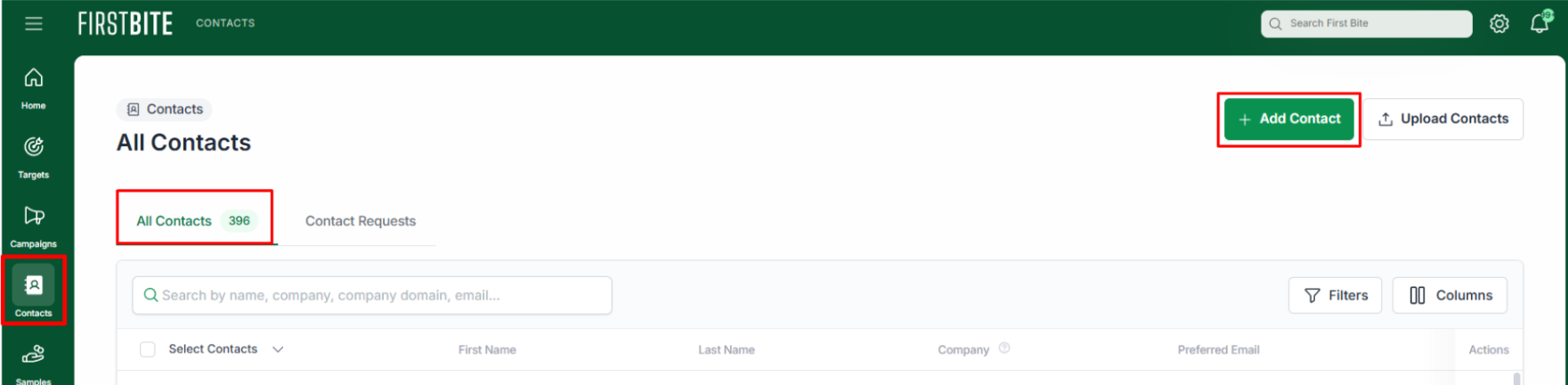
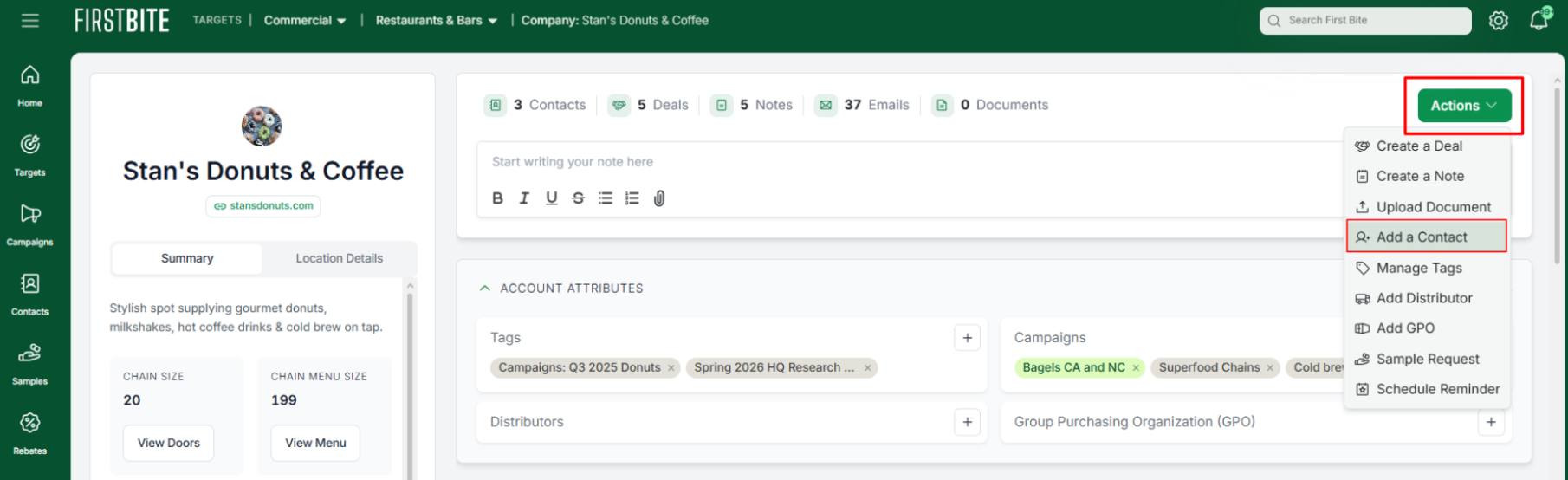
From the Contacts or Company page:
Click the
Add Contactbutton (top right corner of the page / section)Contacts Page
Company Page
Fill in details for your contact:
Name: First & Last
Company: Ties your contact to the Opportunity in First Bite
Company Domain: The company’s website (e.g., subway.com). Use only lower case and omit the 'www'.
Email address
Do you have consent to contact this person: Check for yes.
(consent is required to continue)
You can optionally add:
Phone Number
Associated Websites or LinkedIn
Job Title
Labels or Notes (Notes coming soon!)
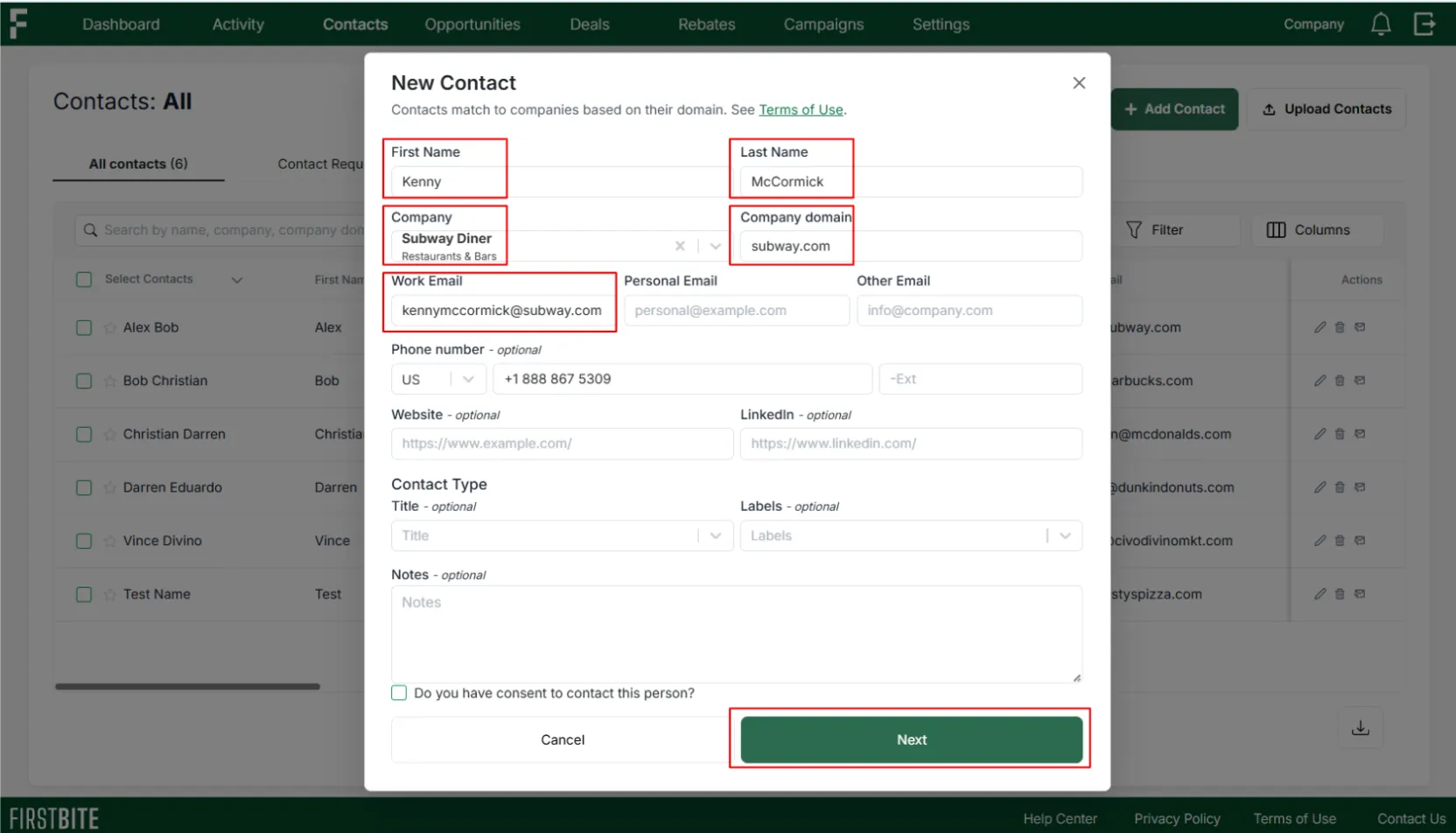
Click
Next.Choose whether this contact applies to an entire chain or a single door. This will determine whether the contact is visible on an individual Door page as well as the Company (Chain) page.
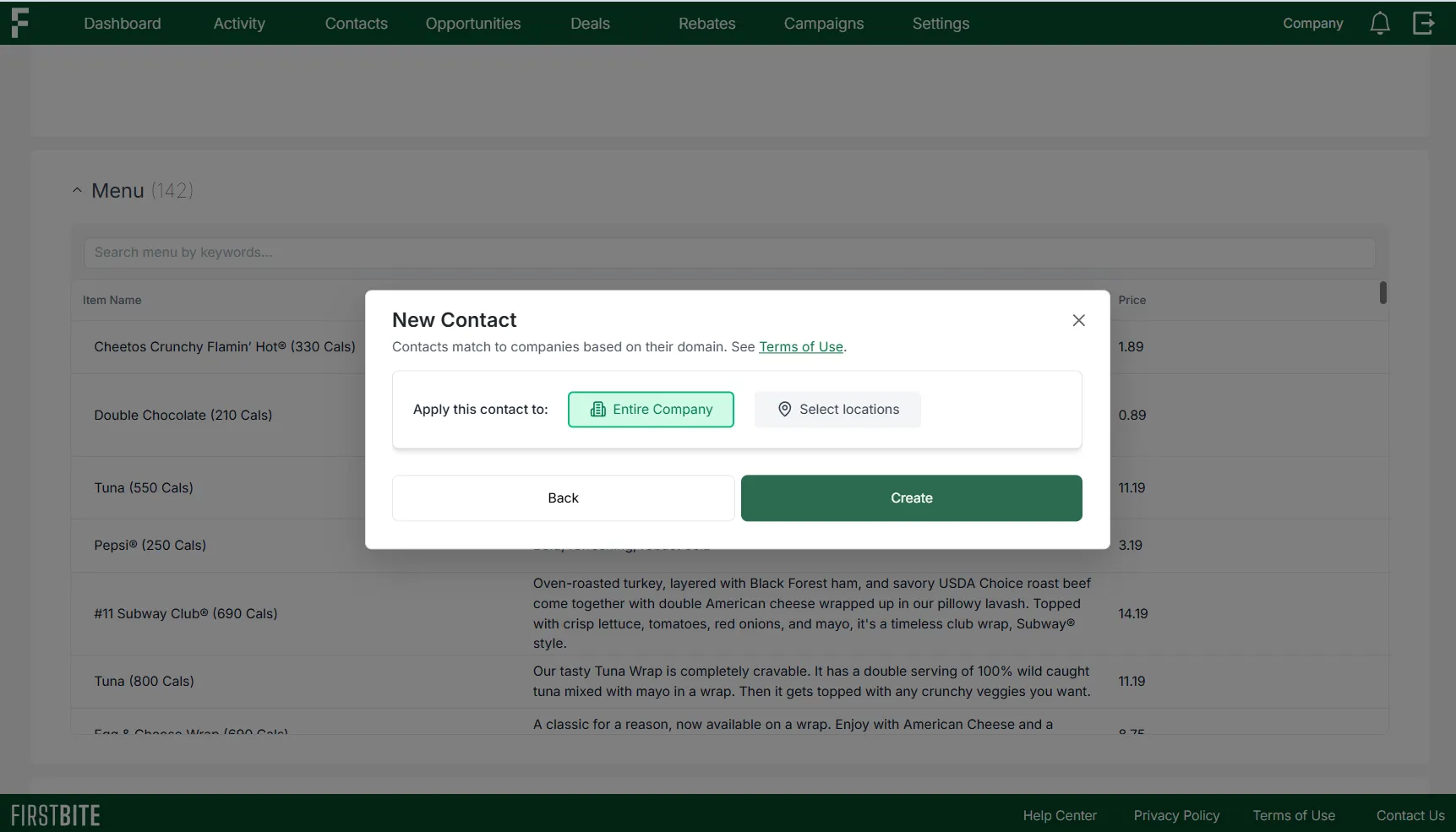
Click
Createto add to the entire company, or continue to the next step to select a specific location.If adding to an individual location, click on
Select locations>Not Selected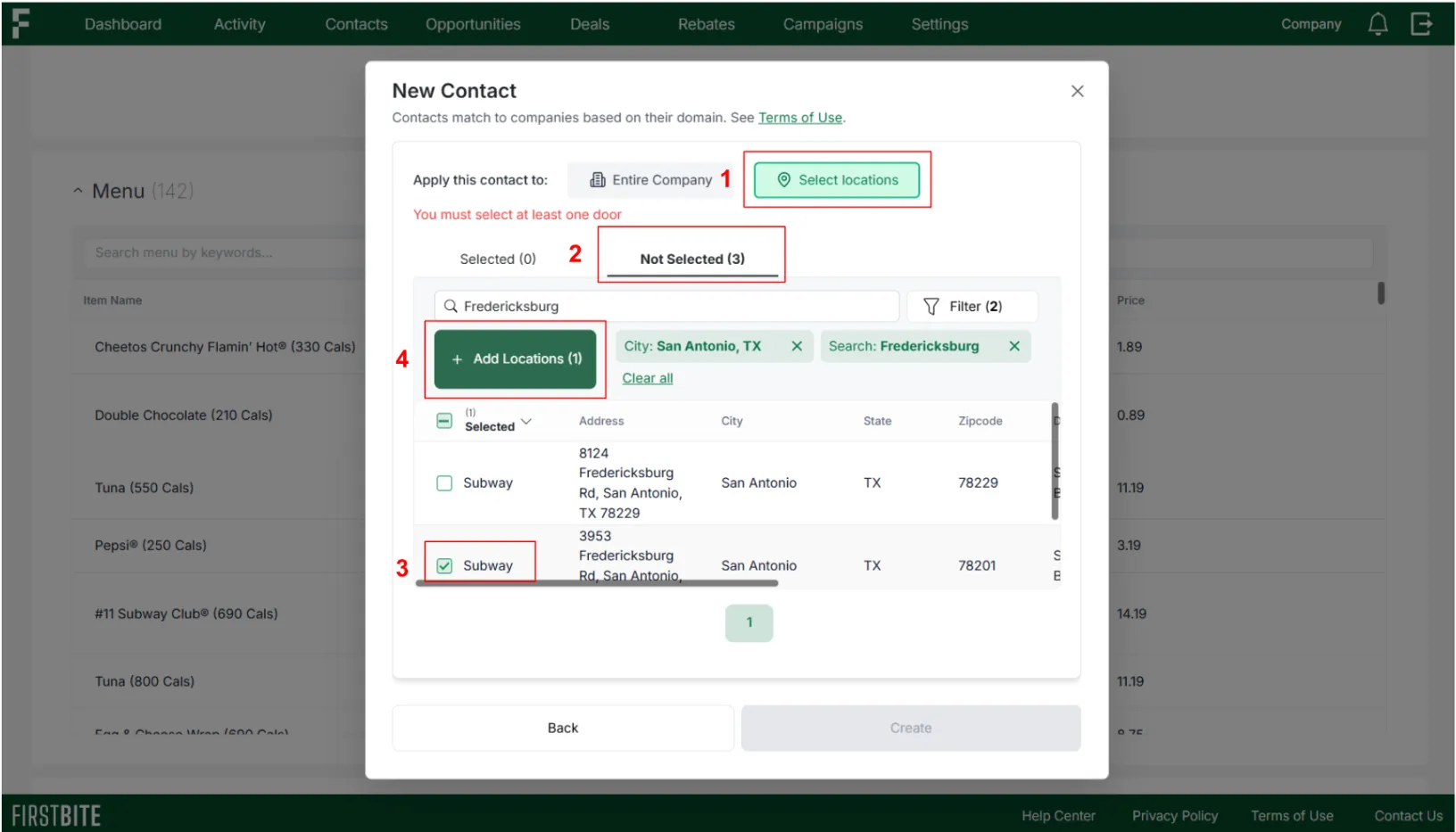
Search and Filter: If there are many on the list, use filters (Ex: City) and the search bar (ex: street name) to find the location you’d like to add this contact to.
Select the checkbox next to the location of interest.
Search and select any other locations (if needed).
Click
Add Locations.Click
Selected.You should now see your item listed.
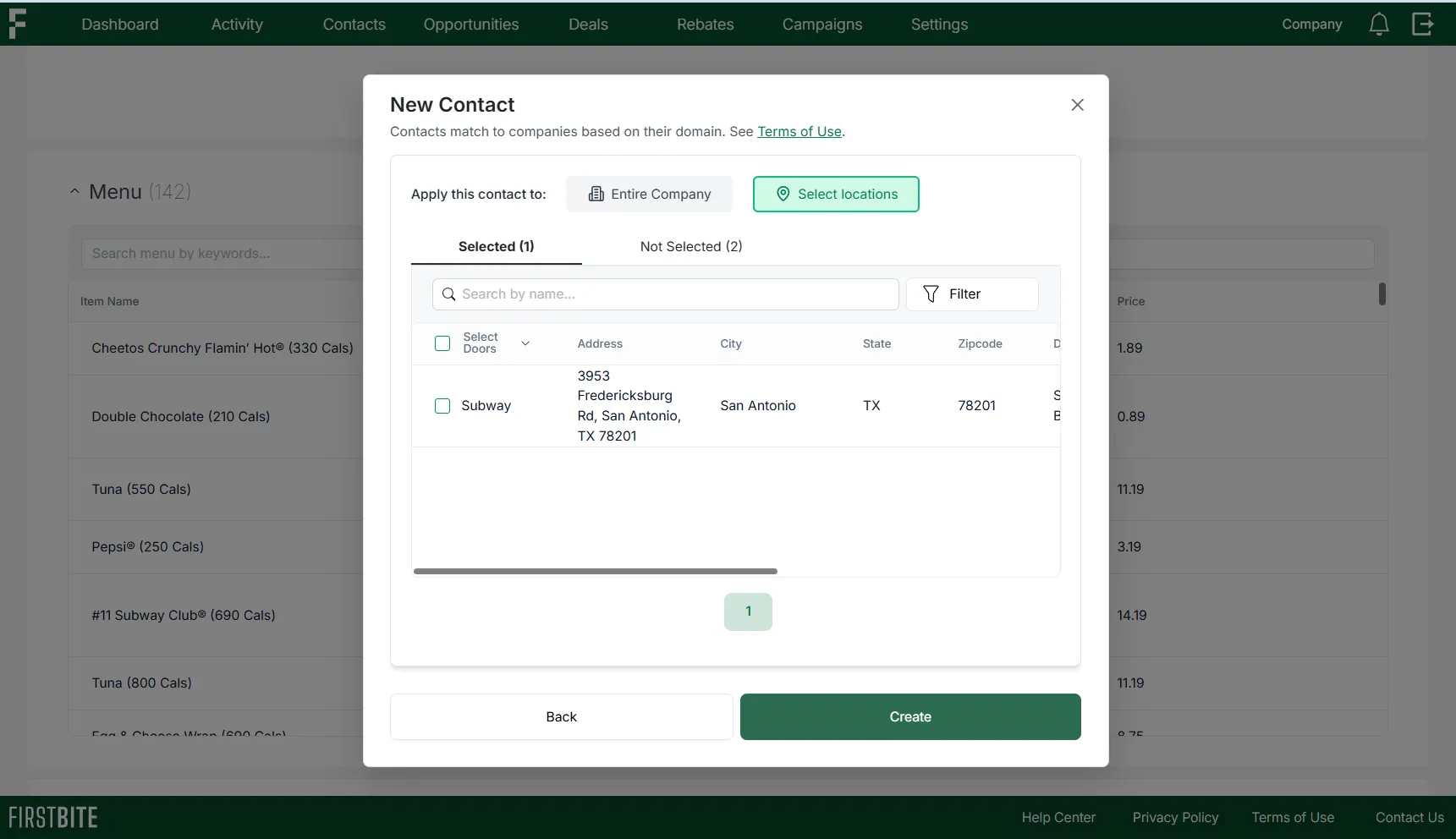
Check the box to select your location.
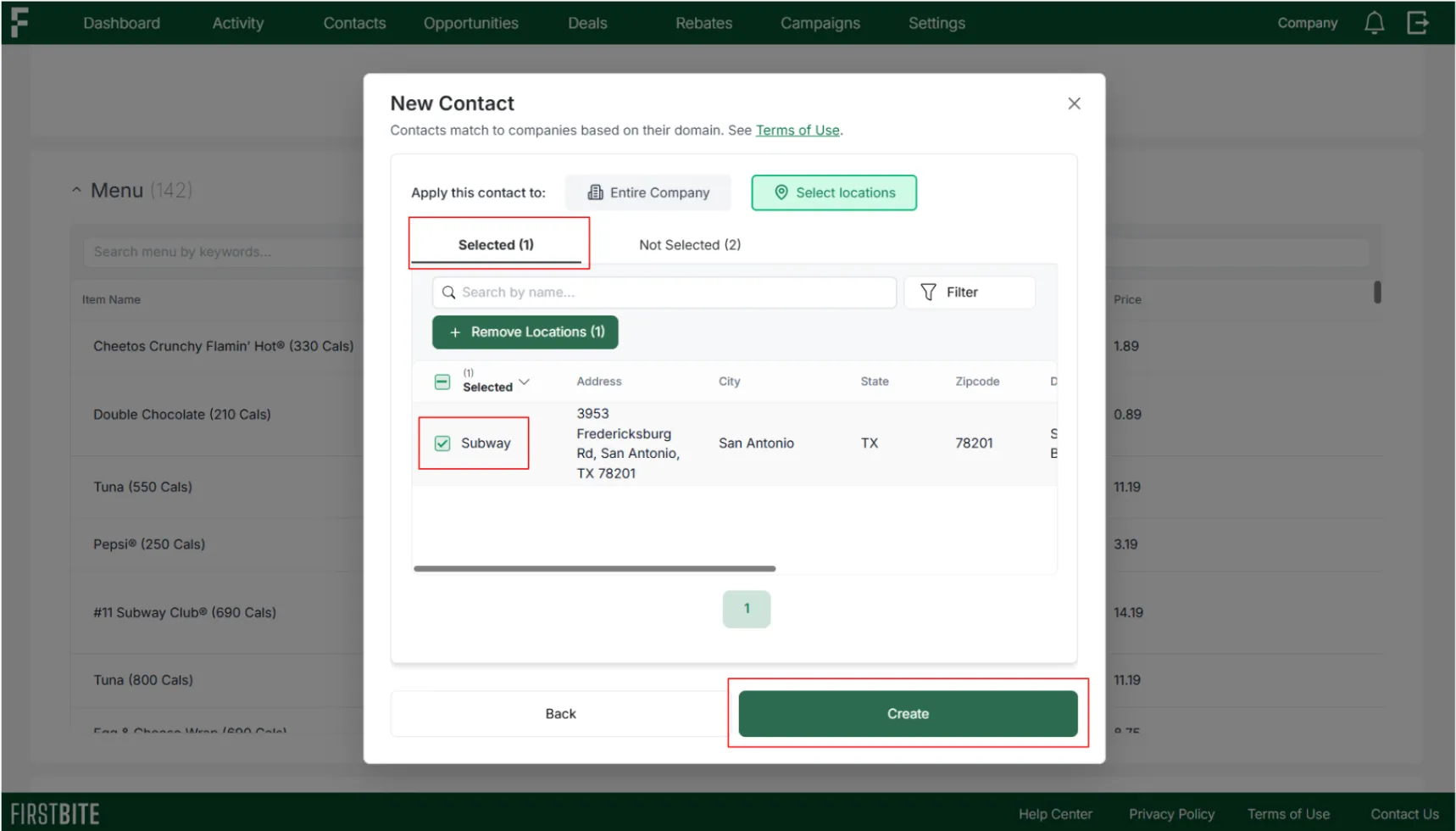
Click
Createto complete the process.
The contact is now visible on both the Company and specific Door page as well as within the table on the Contacts page.
Edit & Delete Contacts
Contacts can be edited or deleted at any time via the Contacts page, Company/Door page, or within a Specific Campaign.
Use the action icon (3 dots) to edit or delete the contact.
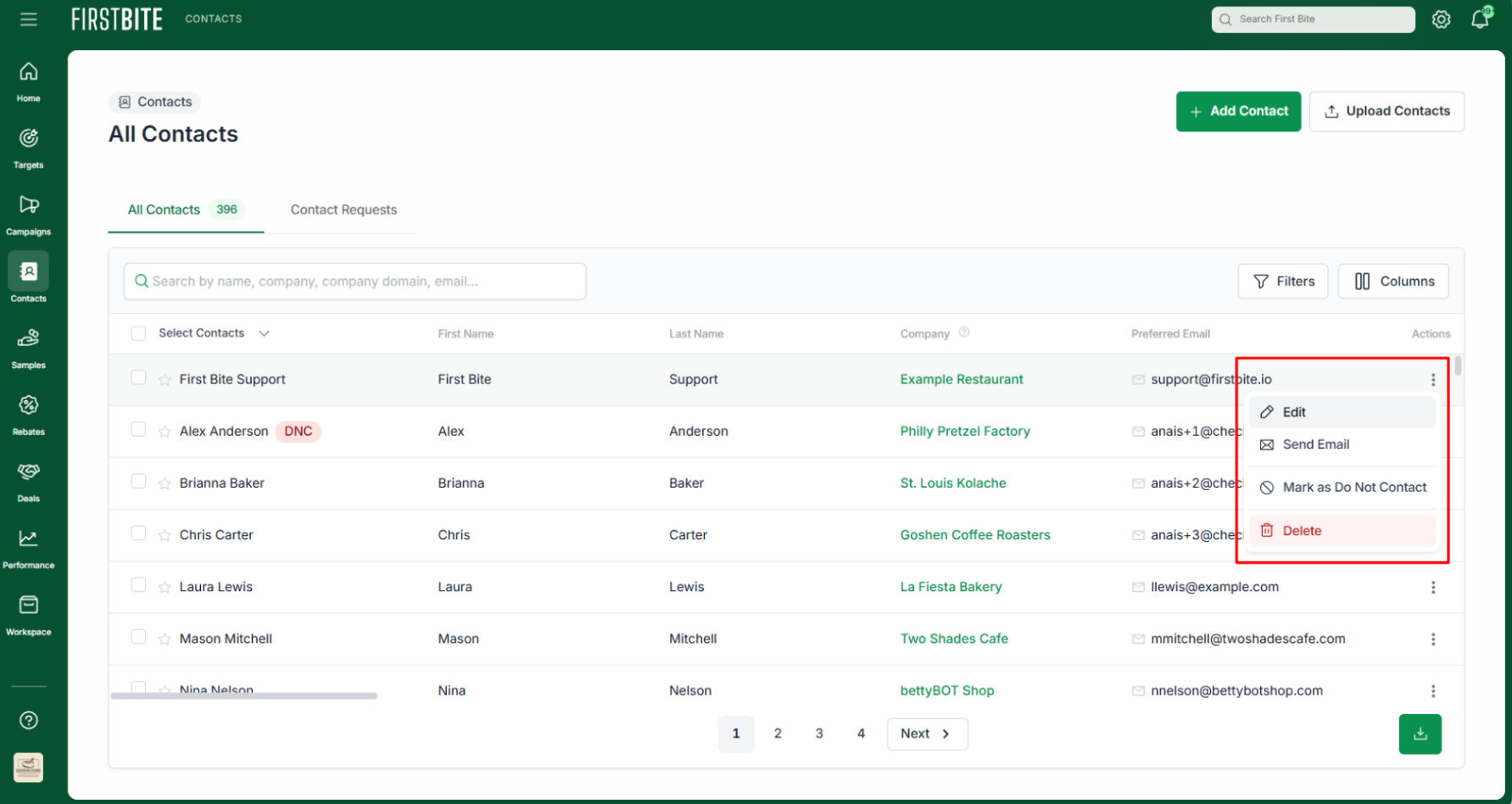
Change the contact’s associated company, add notes, or add a label to stay updated.
Tip: If changing the contact’s company, you’ll want to be in the Contacts table — this information is not editable in the Company or Door page to protect the Company’s data integrity.
Check out these articles on labeling contacts to learn more about managing labels in First Bite:
Creating, Managing, and Deleting Contact Labels (link coming soon!)