How to: Create, Edit, & Delete Products
Last updated: February 9, 2026
Overview
Products drive key features in First Bite:
Deals – every deal requires a product
Revenue forecasts – powered by your product data to generate custom volume and revenue forecasts for every restaurant, cafe, & bar in the U.S.
Rebate setup – eligibility and thresholds depend on product variants
Products vs. Variants
When creating products, it helps to have your product sheet, price list, and sales data on hand. First Bite includes a sample product (e.g., “Cheese”, “Product Placeholder”) to help you get started.
Product: A major product line or brand family that groups similar SKUs.
Product Variant: A specific format or pricing option, tied to its own SKU.
Variants are especially important for rebate offers because we use these details to validate rebate claims.
Learn more about products and product variants here.
Editing products
At any time, you can:
Update product details
Add or edit variants
Allow up to 15 minutes for revenue estimates to be updated across First Bite after creating or editing a product.
This guide will show you how to create products (and their variants) as well as how this setup supports accurate forecasting and smooth rebate tracking.
Create a Product in First Bite
To create your own product:
Navigate to Workspace > Products > Products >
Create Product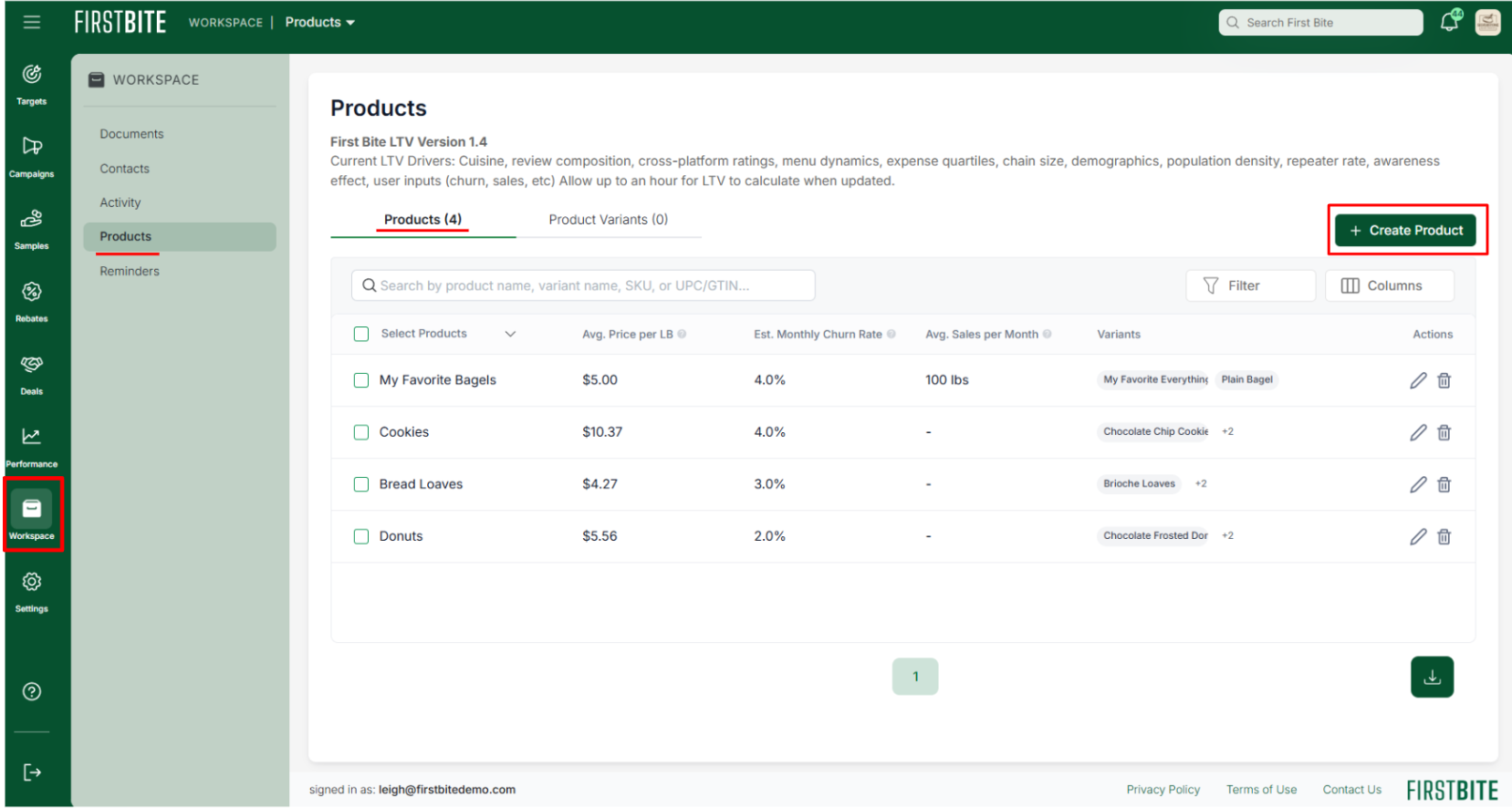
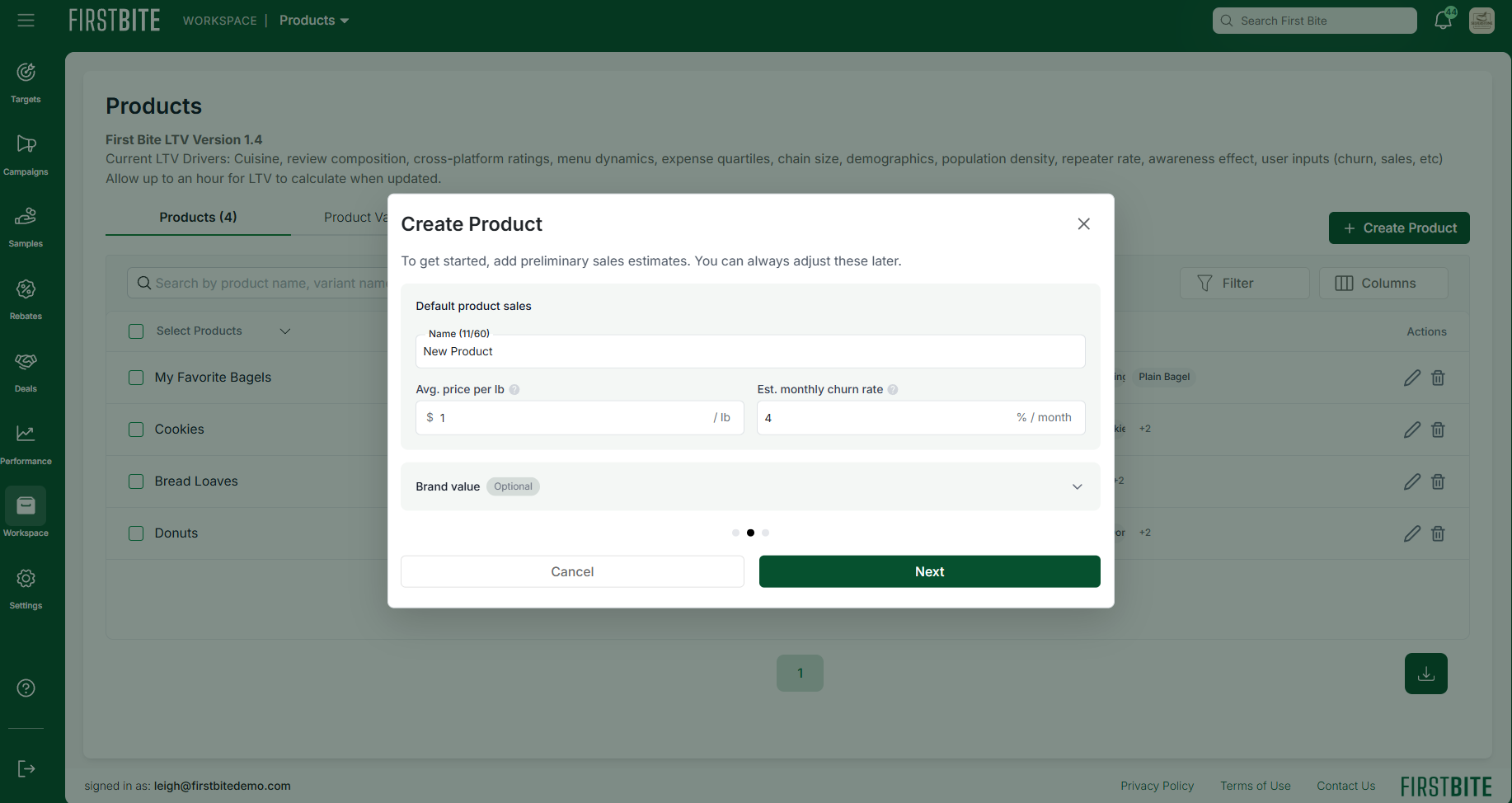
Enter in your product information, including:
Product Name - how your product will appear in First Bite. This should be easily recognizable by your team.
Avg Revenue - This defaults to Avg price per lb. You can change this default by navigating to Settings > Misc Settings.
Estimated monthly churn rate - The percent of your purchasing operators that churn per month (average 2-4%).
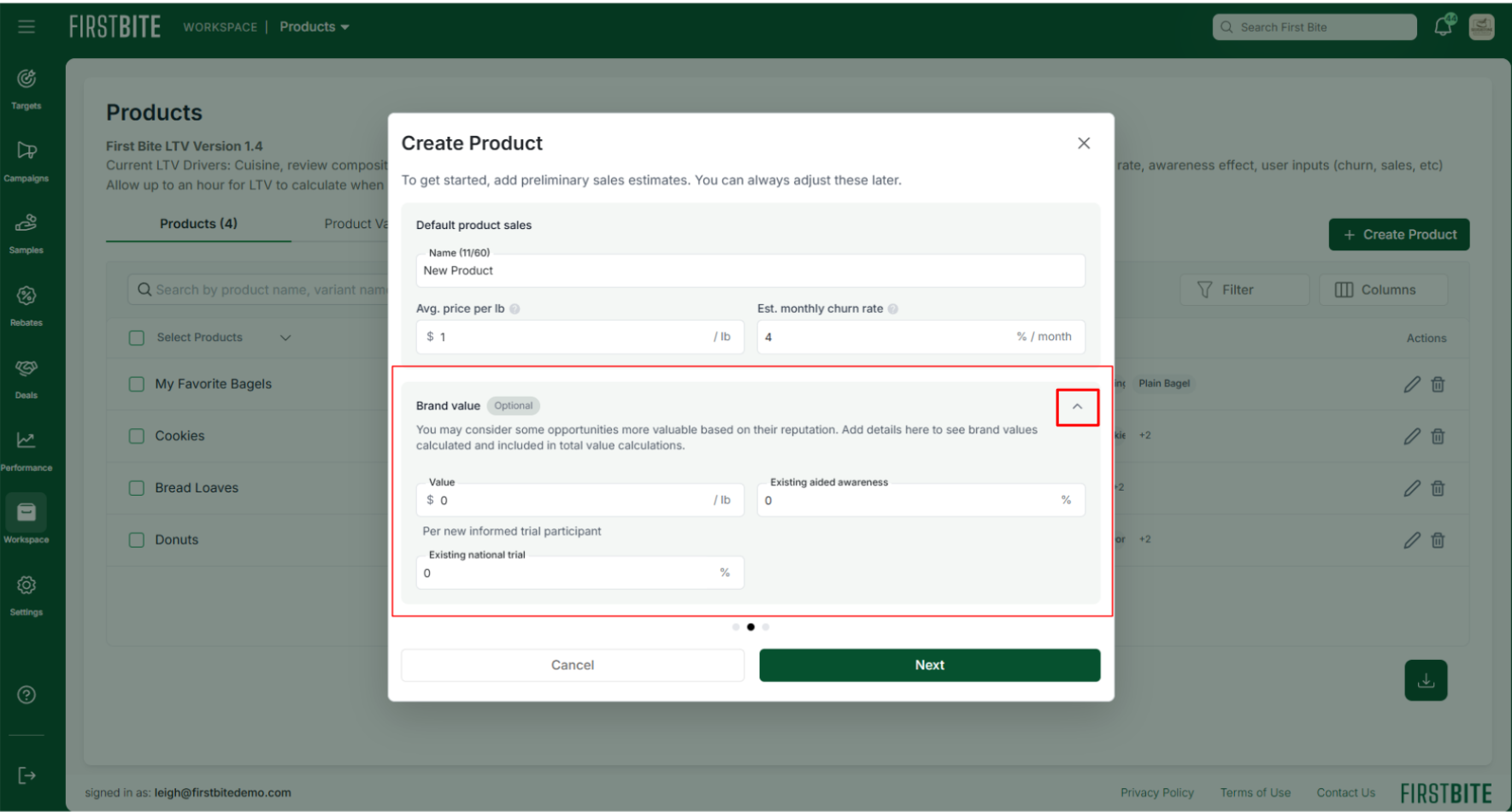
Using a toggle, you can choose to add Brand Value data (optional).
Brand Value - How much you’d pay per new informed trial participant (ie: a new customer trying your product).
Existing aided awareness - percent of the national target audience already aware of the product
Existing national trial - percent of the national target audience that has already tried the product
Once all default product information is entered, click
Nextto continue.Add your monthly product sales. (Reminder: can be updated any time)
Average Units Sold per Month - How many units do you sell to each customer per month (on average)?
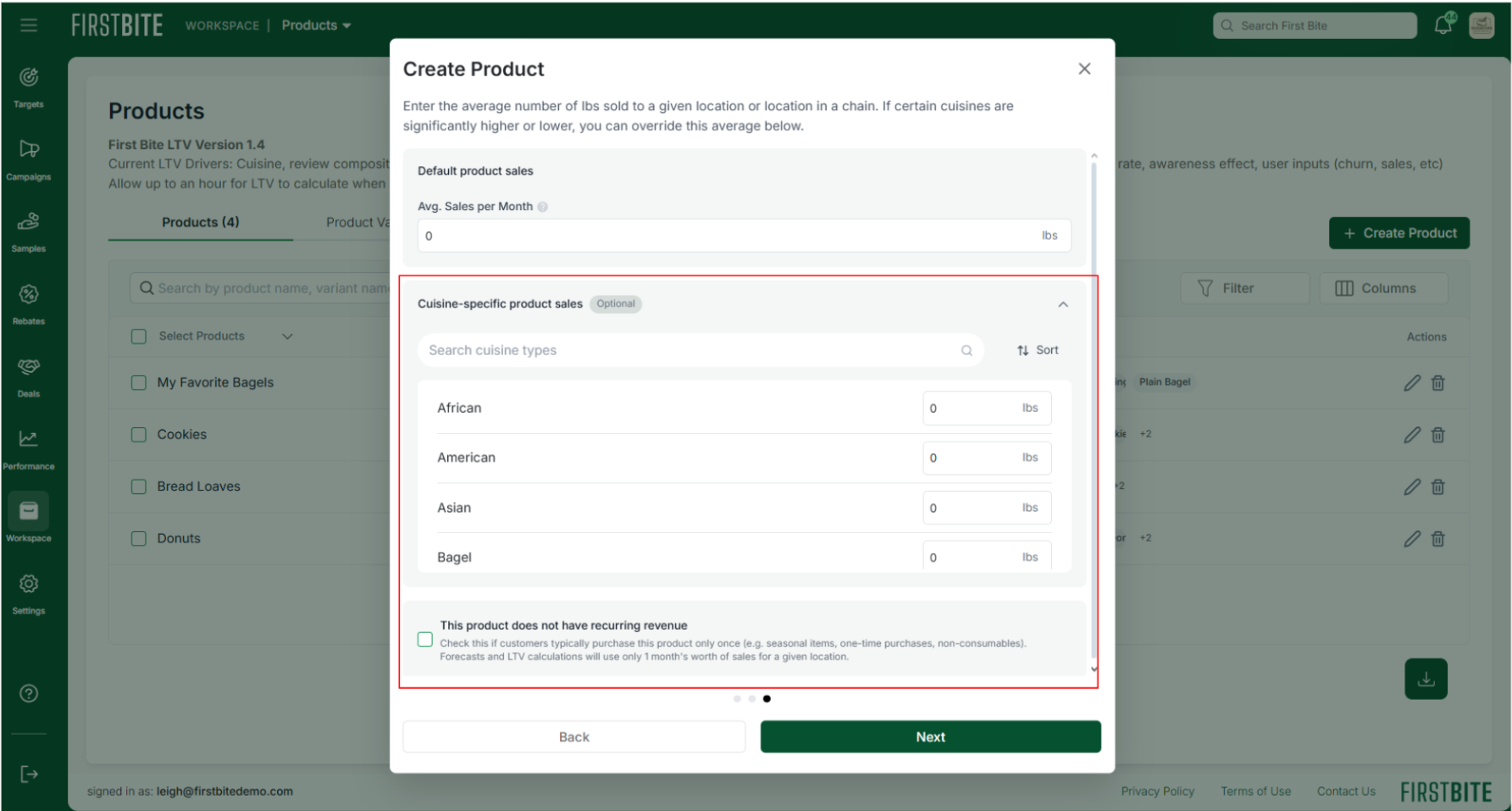
Once you enter a value, the cuisines below will auto-fill. This data is used to calculate LTV and forecasts, but you can adjust the Cuisine-Specific Product Sales as needed
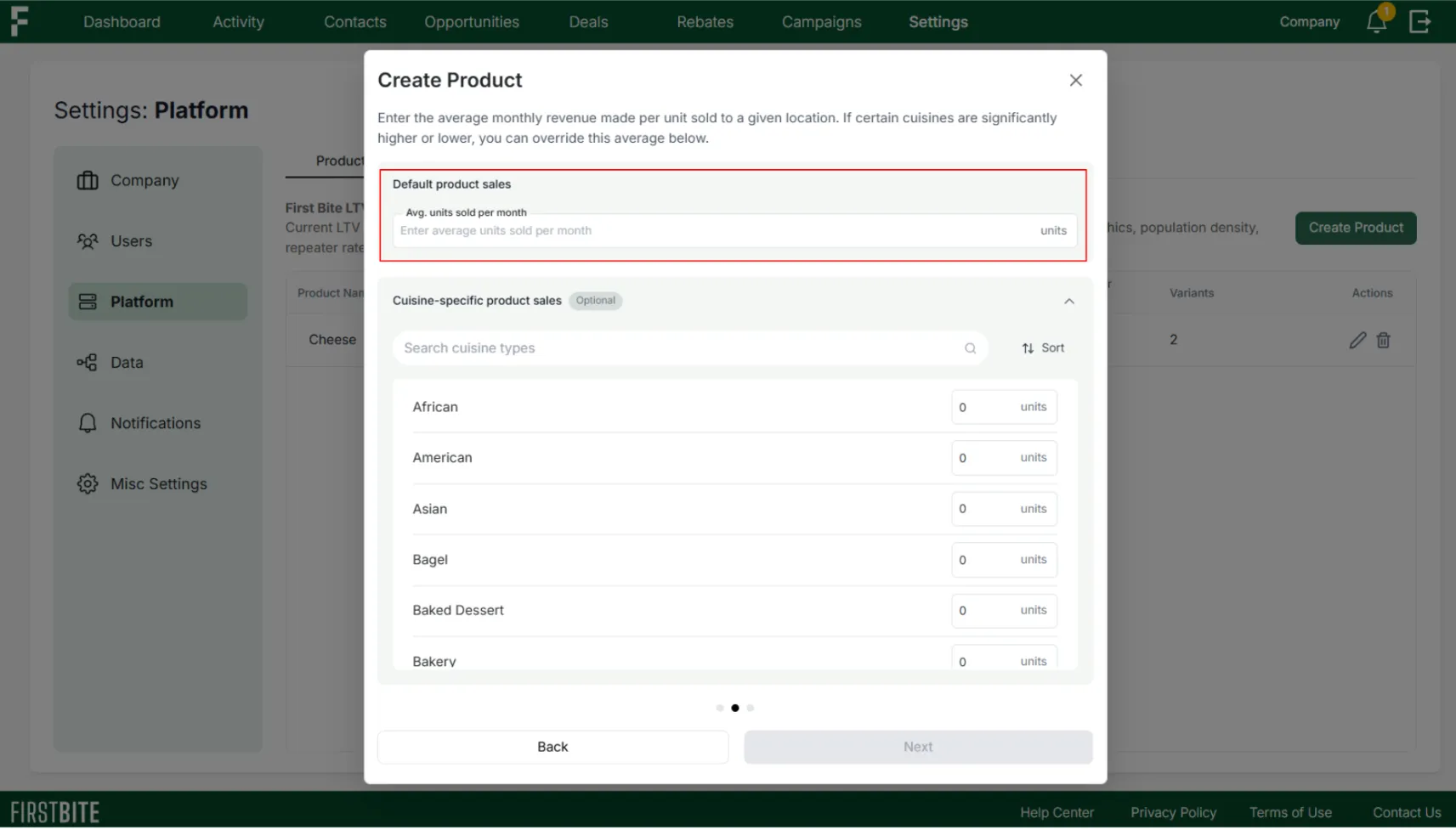
(Optional) Cuisine-Specific Product Sales - If you sell more or less of your product in certain cuisines than your stated average, update the number on that cuisine’s line to override the default.
💡Example override: If you sell meat, you might override the ice cream / yogurt cuisine to 0.
If you choose to add your own data or estimates for each cuisine, it will improve forecasting data, including the LTVs in the Opportunities table.
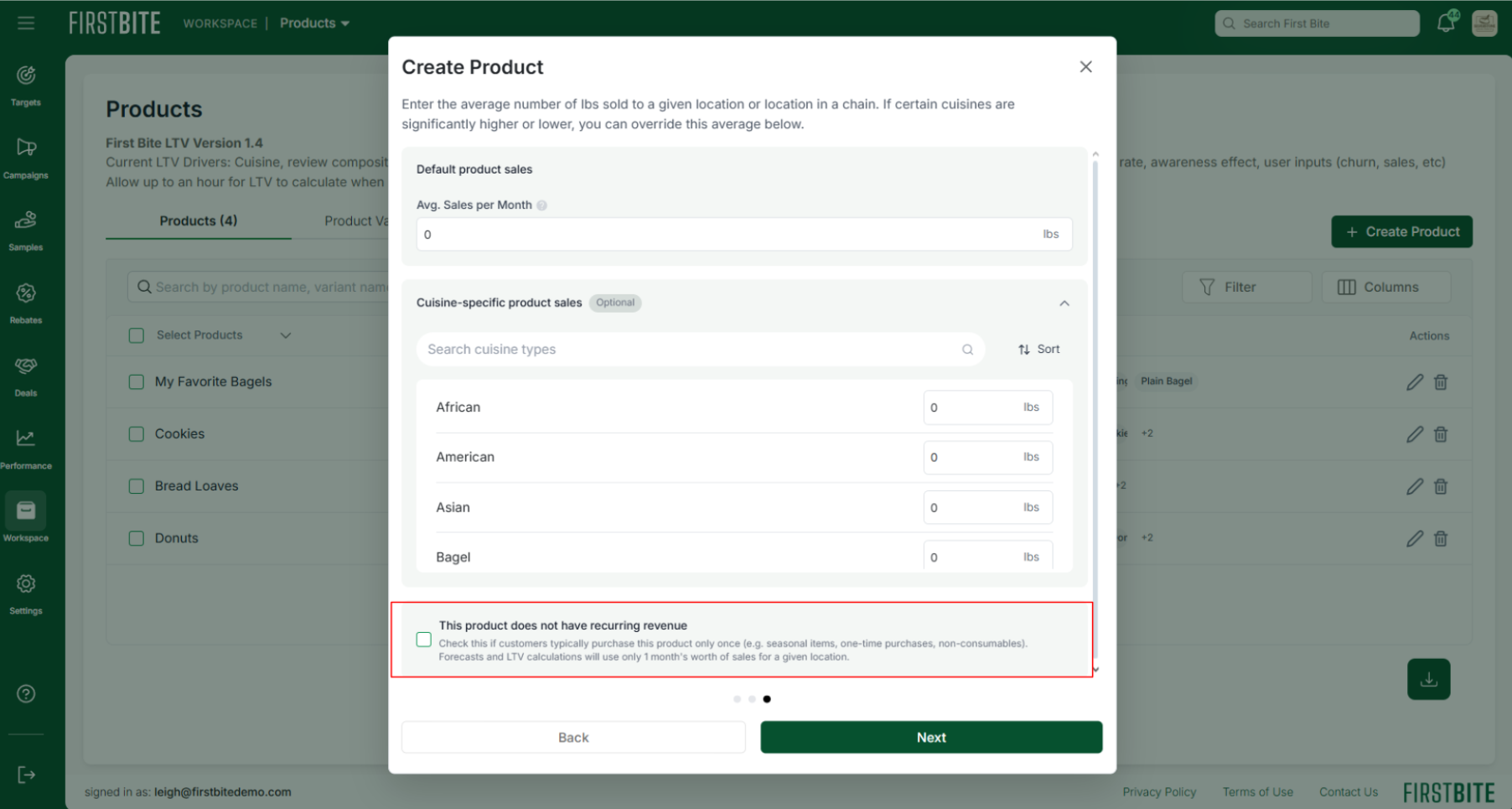
This product does not have recurring revenue: If your product is a one-time sale, check the box below the cuisine list to indicate this. This will adjust your churn value to 100%.
Click
Nextto move to the final product creation page.Click
Create Variantto add an optional product variant for this product (assumes similar price structure). (e.g., different flavors of the product).Here’s more information on the difference between products and variants.
If no product variants are needed at this time then complete product creation by clicking
Save.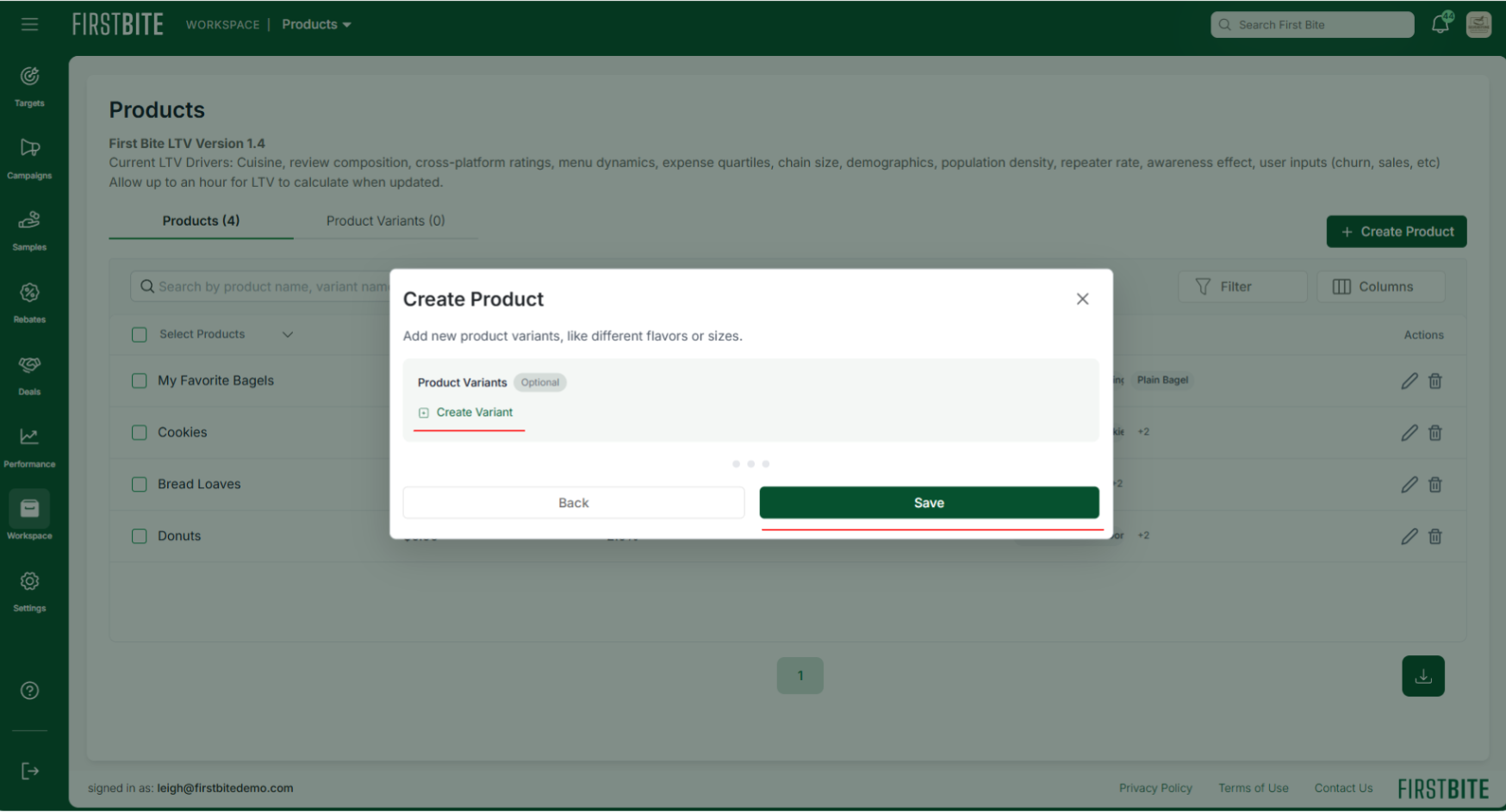
(Optional) To
Create a Variant, fill in the following details:Variant Name - This will be visible to any rebates customers.
Description - Visible only to you.
GTIN (Global Trade Item Number) - Globally recognized unique identifier for trade items.
Internal Item Number / SKU - Your company’s unique identifier for tracking inventory and sales.
Format / Pack Size - The format of your product variant. (e.g., “20 x 3 oz patties” or “10 lb bag”)
Variant formats appear on the operator-facing rebate page—make sure it's readable and recognizable to your customers.
If you have distributor information, click
Add Distributor Code.Distributor Name - Your distributor’s name
Distributor Code - That distributor’s code for your product variant.
Optional: You can add multiple distributor names/codes but this information is currently only internal (not visible to operators). Adding this information helps First Bite verify rebates claims.
Product Variant Fields Required For Rebates
Product Variant Field | Required for Rebates? |
Variant Name | ✅ Yes. |
Description | ❌ No. |
GTIN | ✅ Yes. |
Internal Item Number / SKU | ❌ No, but recommended. |
Format / Pack Size | ✅ Yes. |
Distributor Name | ❌ No, but recommended. |
Distributor Code | ❌ No, but recommended. |
Once variant details have been added, click
Saveto save the variant.You can now click to add another variant or
Saveto close this product creation window.
Your product can now be used within First Bite. Allow up to 15 minutes for revenue estimates to be updated.
Edit & Delete Products
Edit and Delete your products in your First Bite Workspace:
Workspace > Products > Products
To edit the product: click on the pencil icon for that product line item. Editing will open the same pages you used to create your product. Change monthly cuisine sales or add/edit variants at any time.
To delete the product: click on the trash icon. ⚠This cannot be undone.
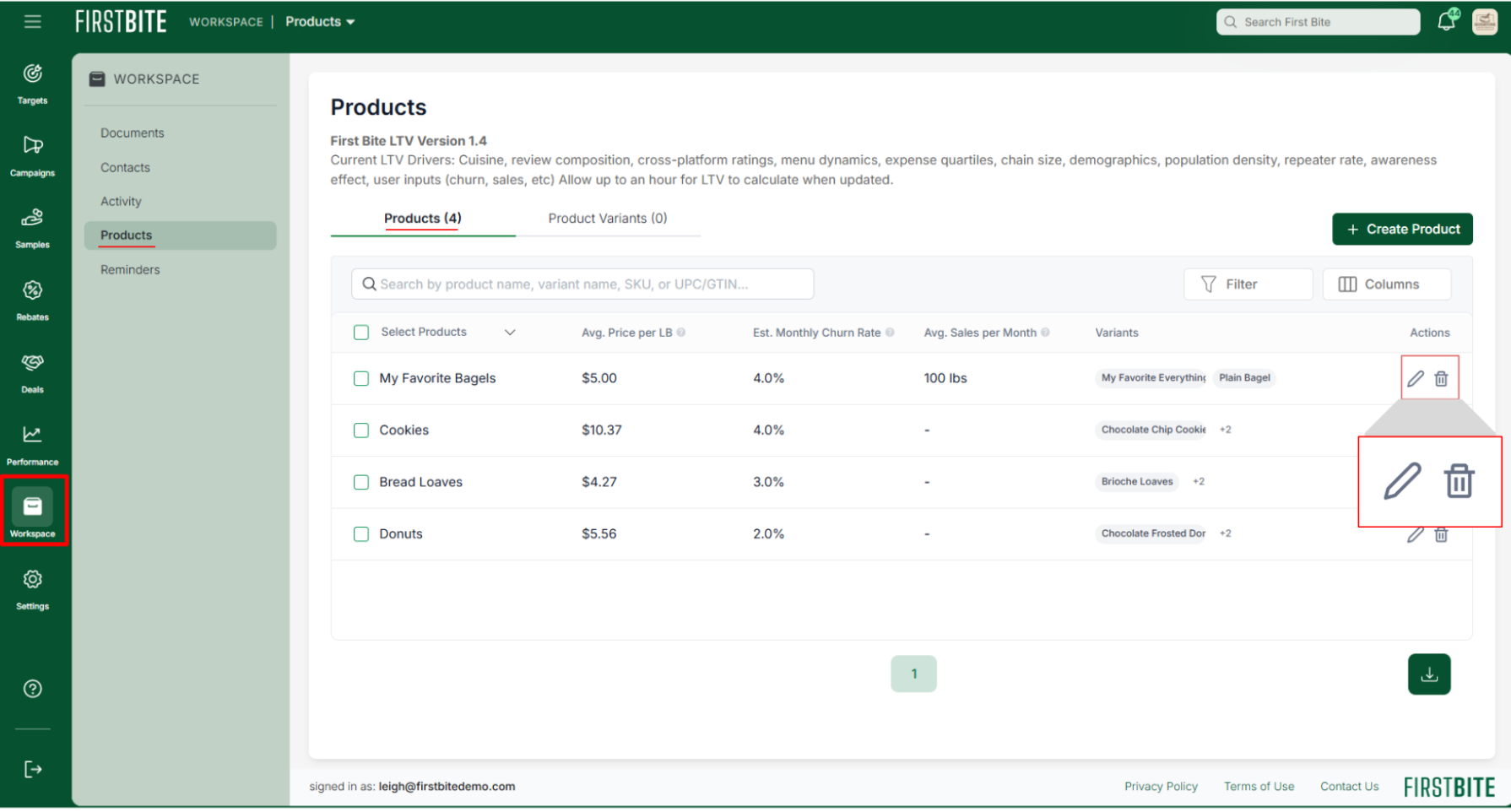
You can delete variants from within the product itself or via the Product Variants tab.