Campaigns Page Overview
Last updated: July 15, 2026
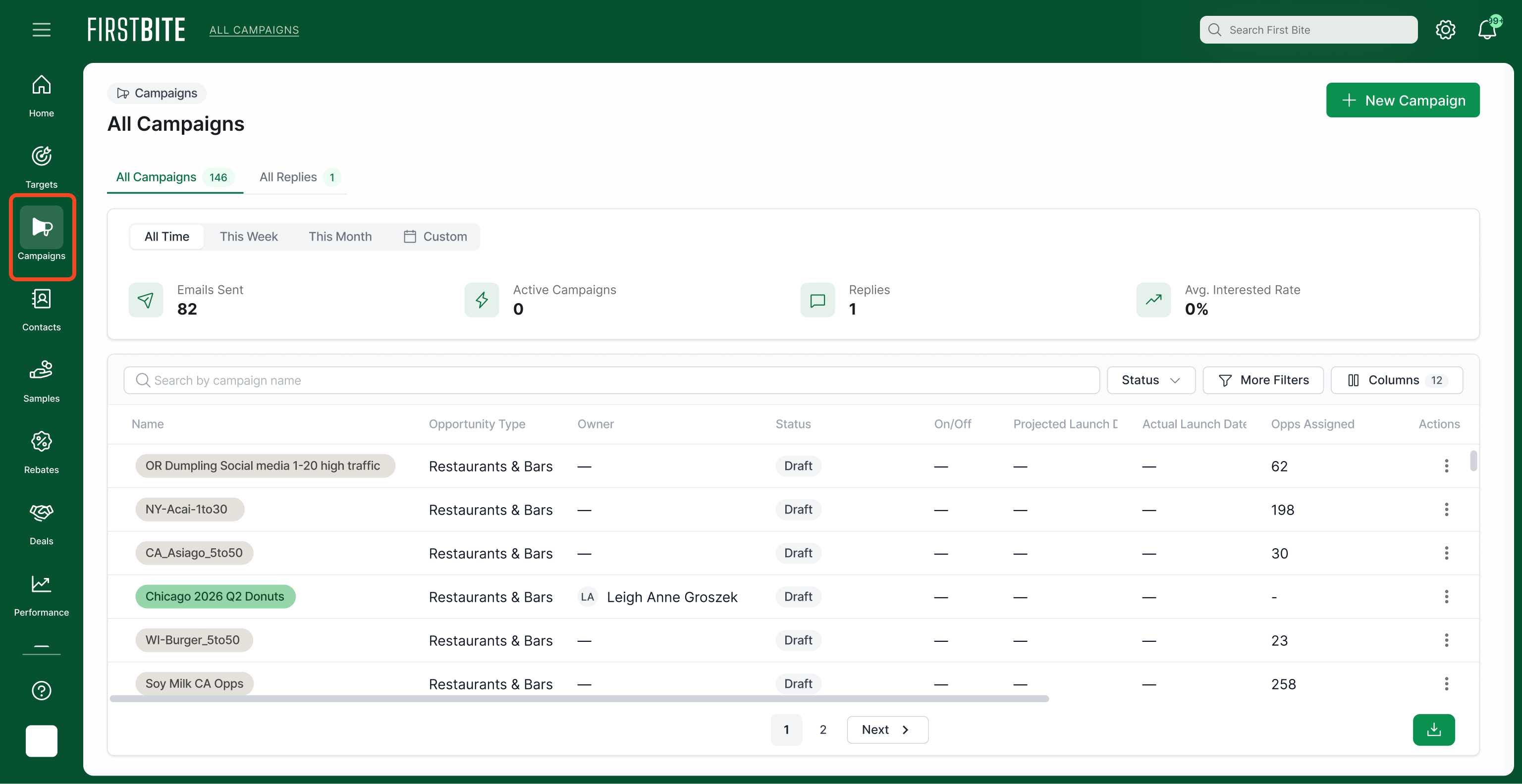
The Campaigns page lets you create, organize, and manage all team campaigns—track associated targets, deals, contacts, and contact requests.
The Campaign table lists all campaigns your team has created.
Here you can:
Create and organize your campaigns
Manage campaign details
Create and Organize your Campaigns
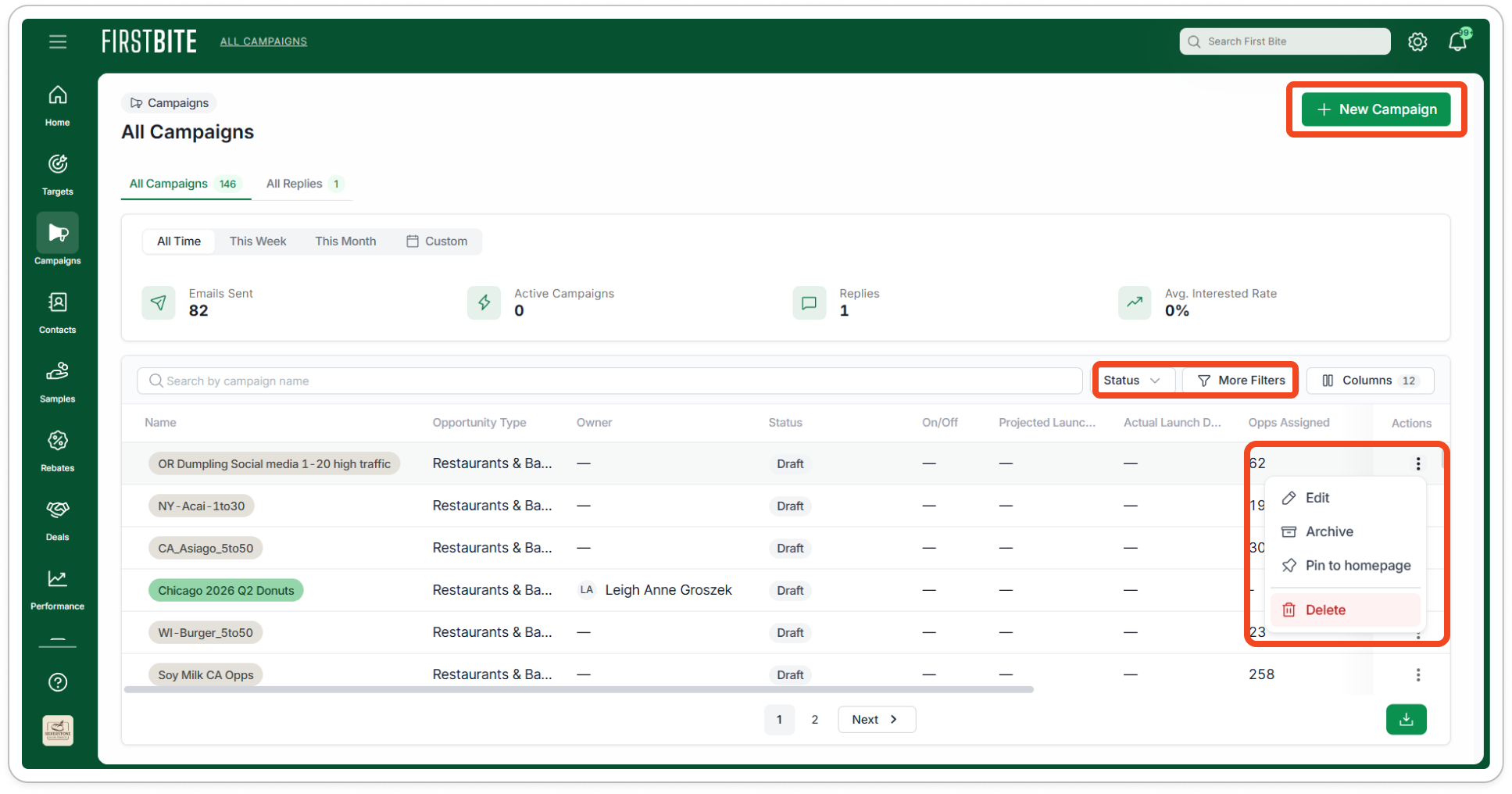
Use the button in the top right corner to create a
New Campaign.
Use the action icon (3 dots) to eit basic campaign information, such as Campaign name, Target Type, or color code. You can also pin a campaign to your homepage.
Create filters to focus on current campaigns, your personal campaigns, or the largest campaigns.
Note: To add Targets to a campaign you must be in the Targets section.
Manage Campaign Details
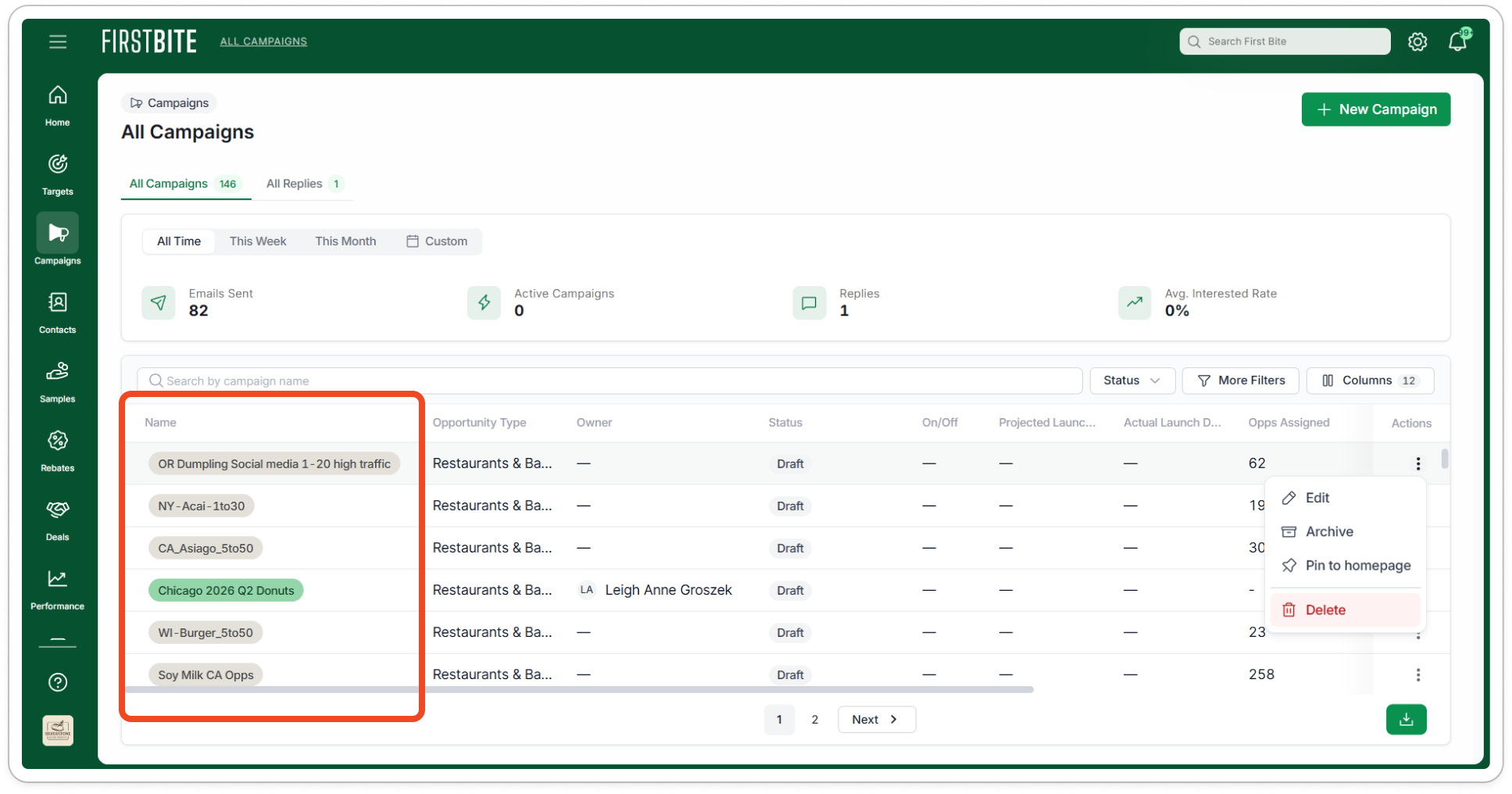
Select the name of your campaign on the main Campaign page to open the Campaign’s details.
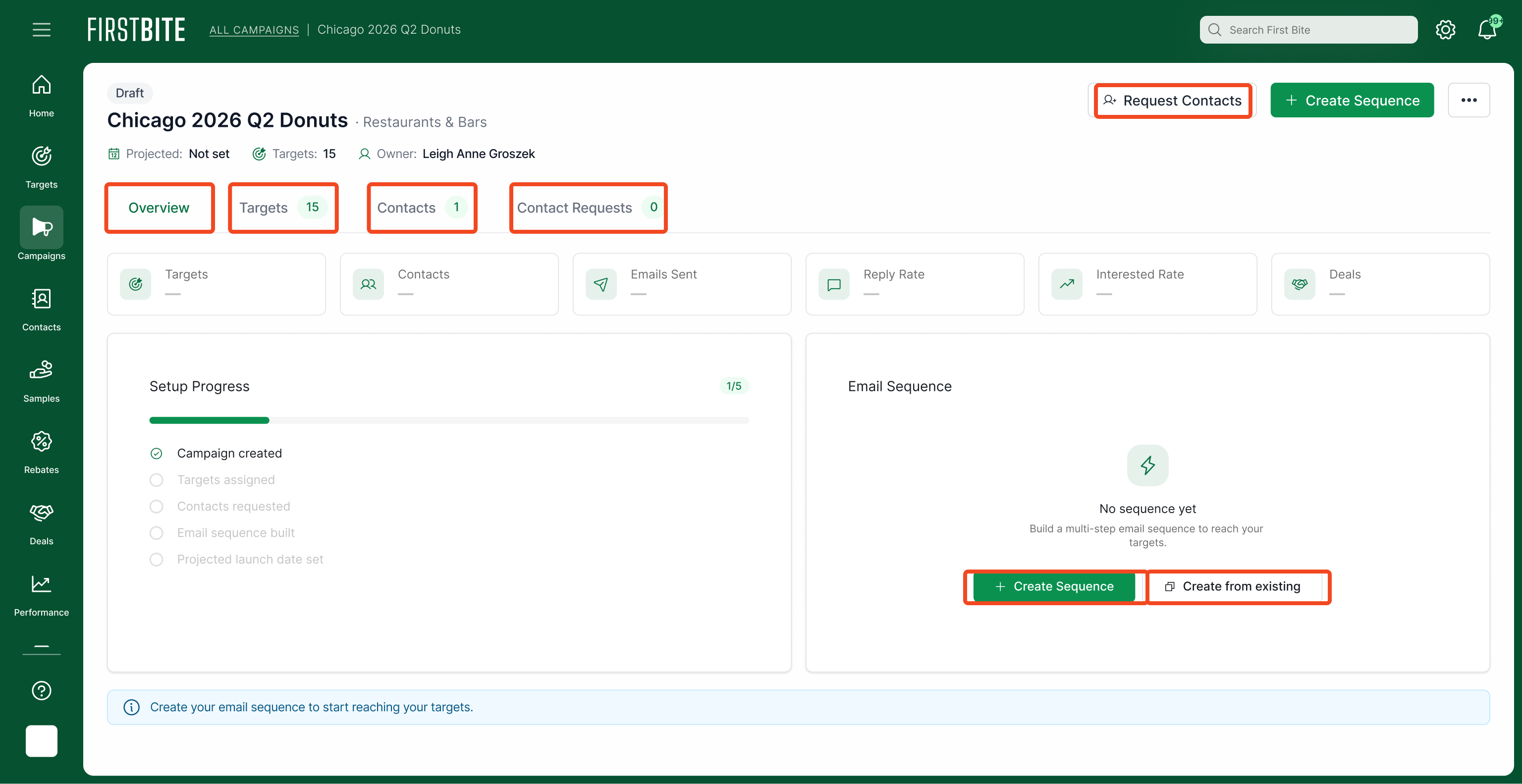
Within the Campaign Details page, you can:
Request Contactsvia the button at the top right cornerReturned contacts will later be visible in the Contacts tab here, via the Company’s page, or on the dedicated Contacts page.
Track Targets that have been added to the campaign
Access contacts associated with the targets already added to this campaign
Review the status of any Contact Requests related to that campaign.
Create email sequences or use email sequence templates from an existing campaign.
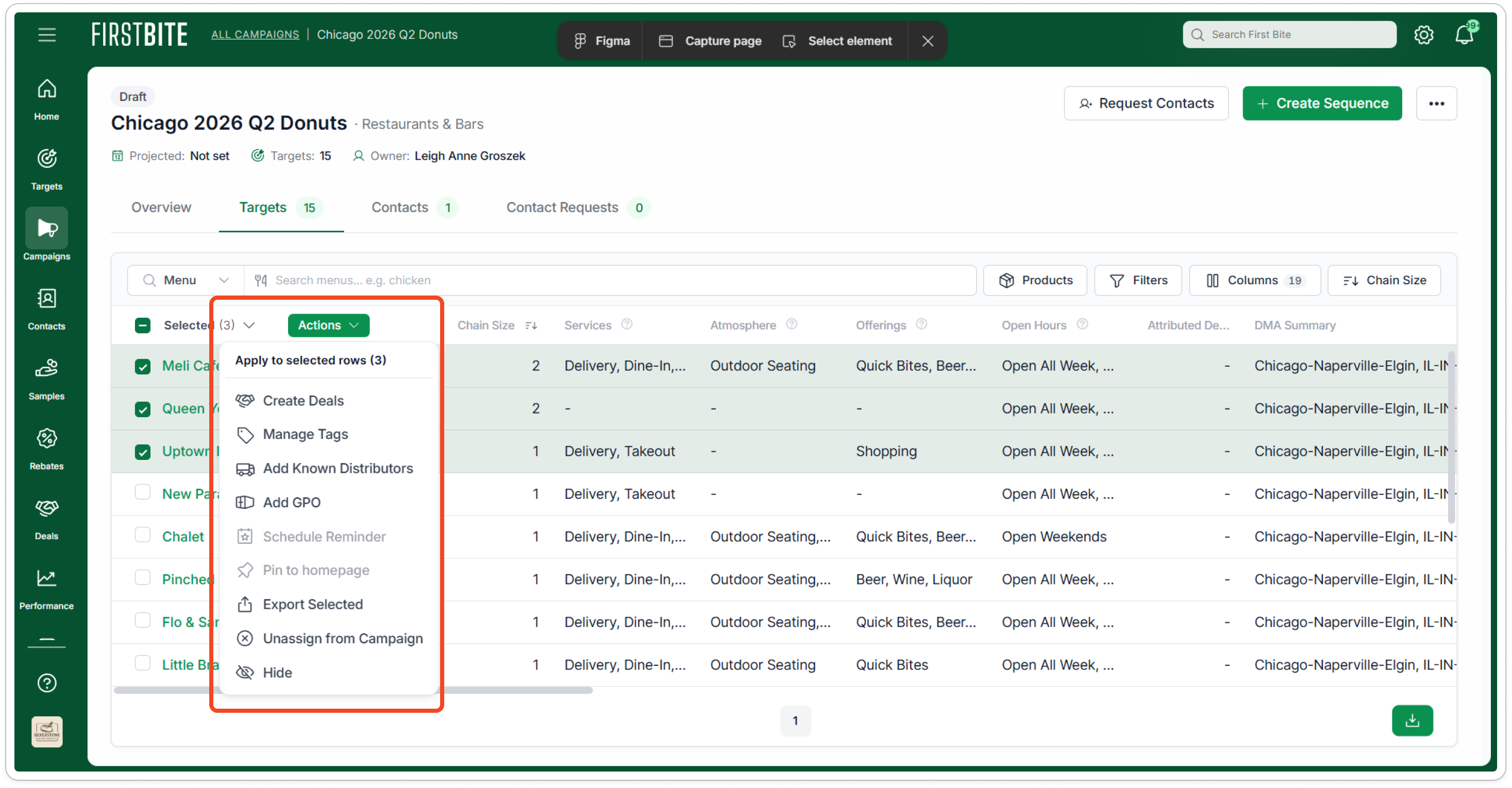
From within your campaign target list you can also create deals, manage tags, or unassign targets from a campaign.