How do I target doors that are only located in one geographic area?
Last updated: March 10, 2026
Targeting Single States or Regions
There isn’t a one-step solution for this request just yet (though it’s on our roadmap!). In the meantime, here are some effective workarounds.
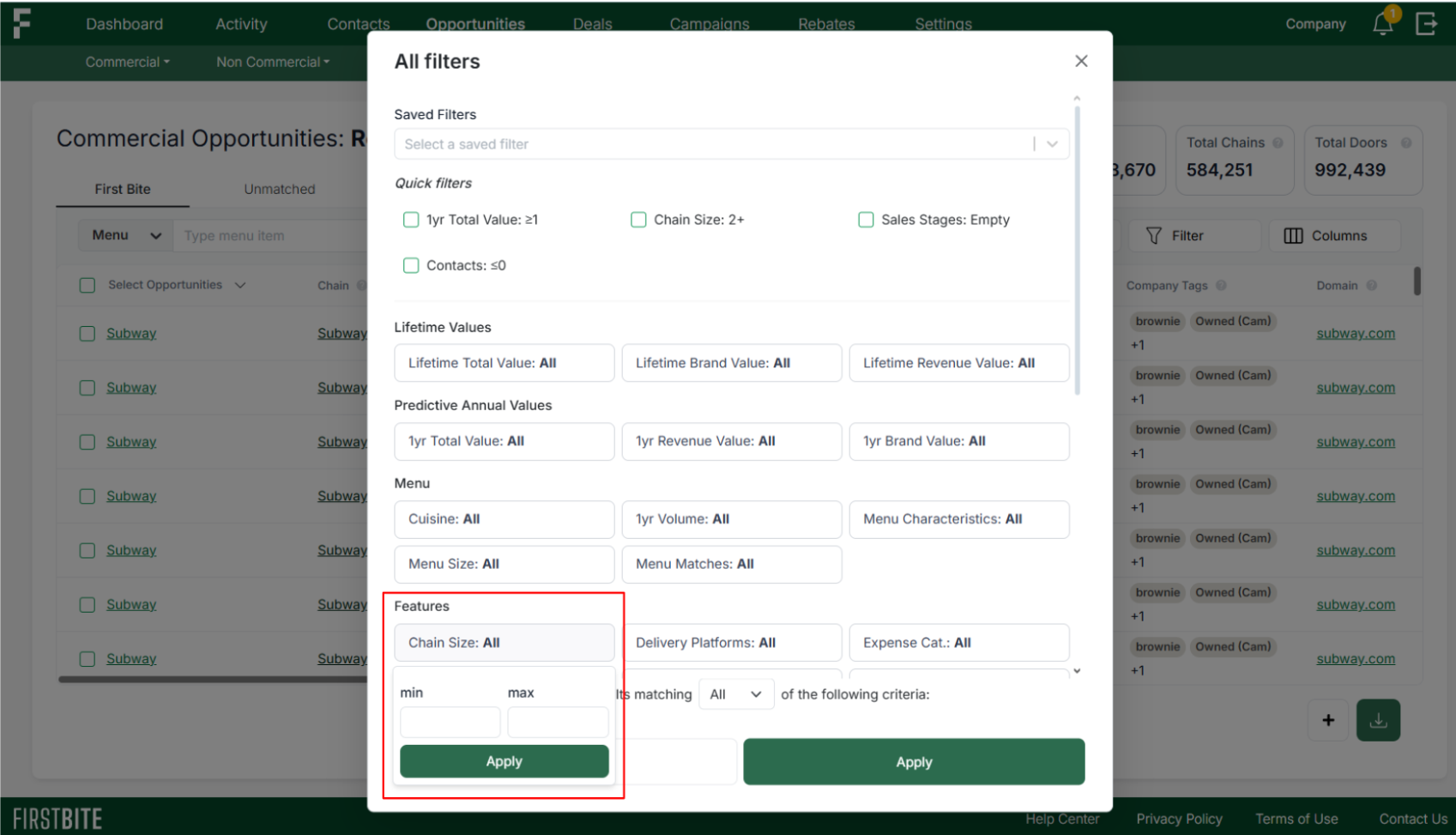
Option 1: Search for Smaller Chains
Chains with fewer locations (e.g., 5–10) are less likely to have doors outside your target state.
Option 2: Use Tags Strategically
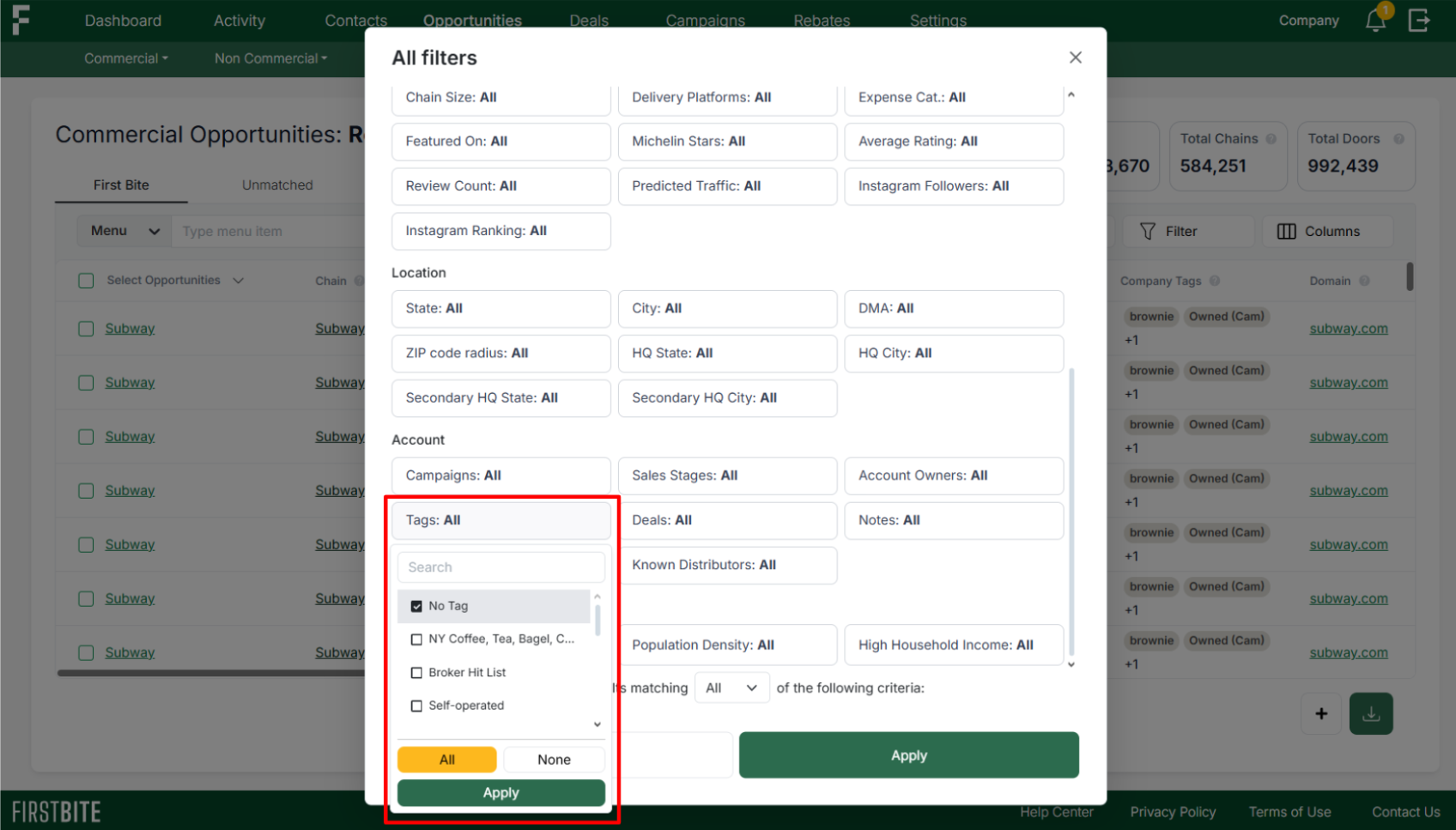
Apply a filter for every location except your desired area. (e.g., select all states except your state of interest).
Tag those results (e.g., “Outside Location”).
Then re-run your search with your target location only and add a filter for “No Tags.”
Option 3: Create a Campaign, Then Filter
First, add all potential targets to a campaign.
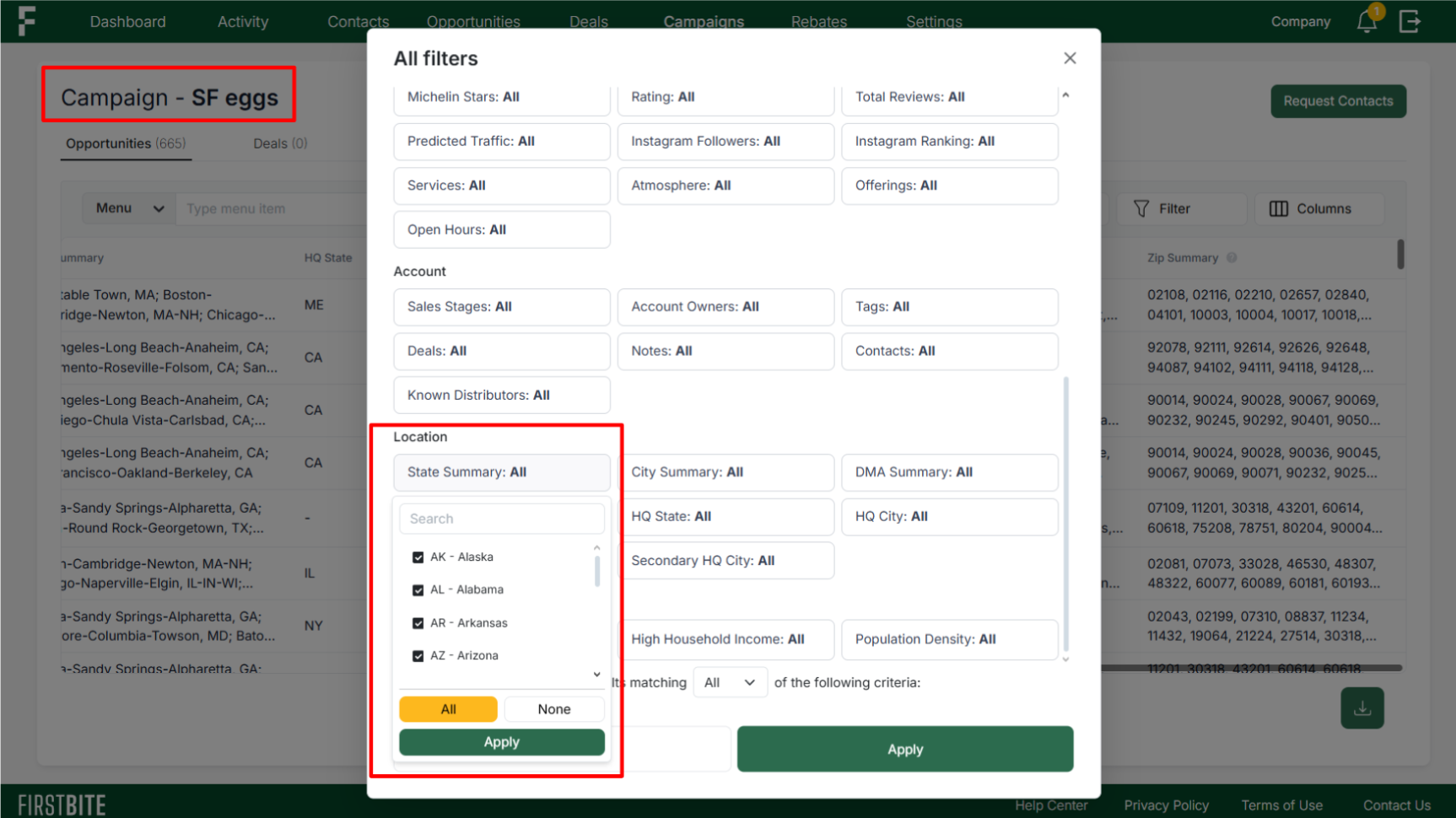
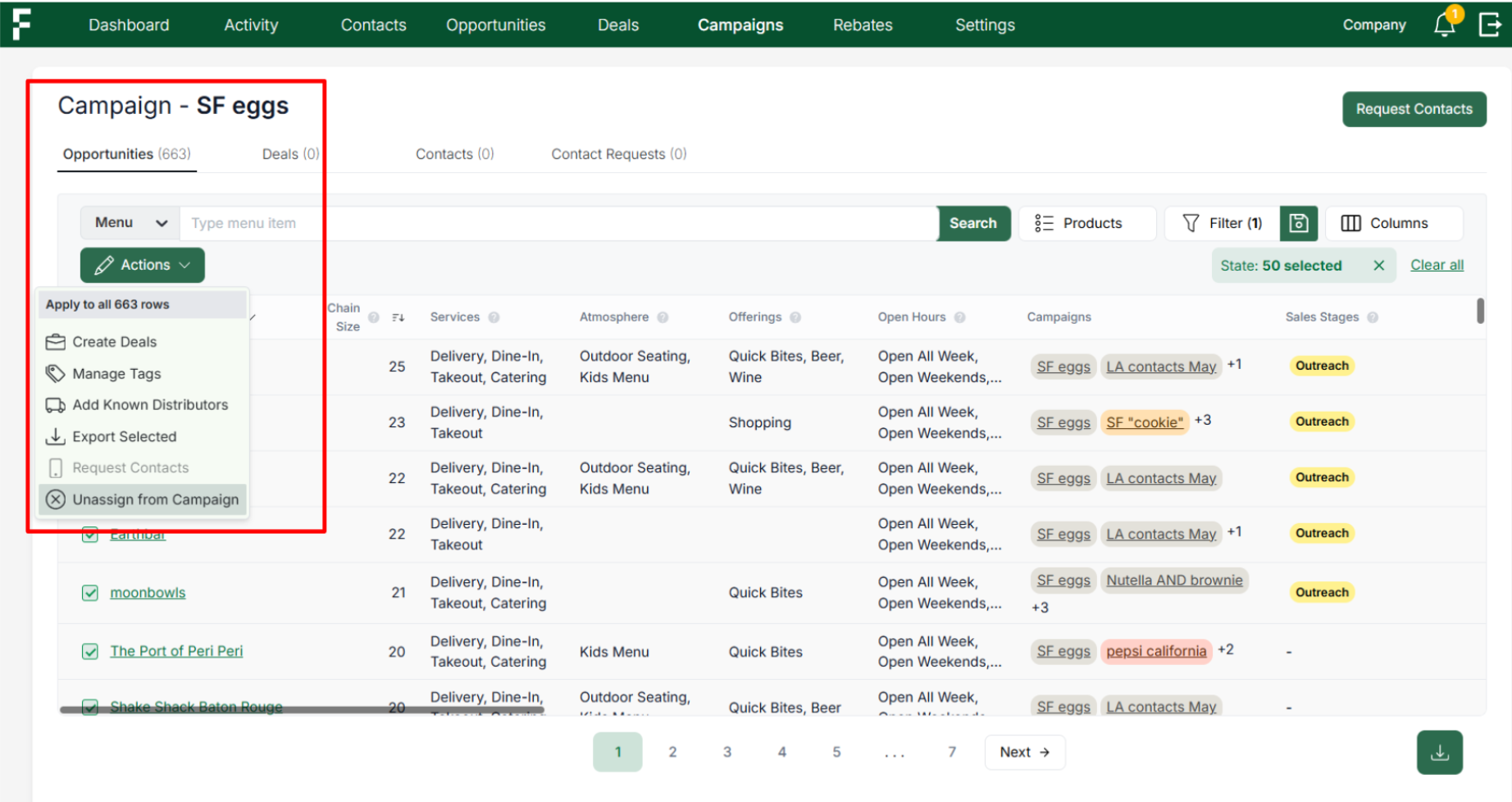
Then use campaign-level filters (via the Campaign’s page) to exclude unwanted states or regions by first selecting all locations except your desired area, and then removing them from the campaign.
Option 4: Filter “None” in the Targets Table
This approach requires selecting all of the filter options you don't want listed in your campaign.
In the Filter options, select every state except your desired state.
Add in any filter options that you want to be sure are excluded from your campaign.
Choose “None” of the following criteria at the bottom of the Filter options to filter out every restaurant that has a location outside of your designated state.
Please note that selecting “None” applies to all filters so make sure you want to exclude all of the chosen filters when taking this route.
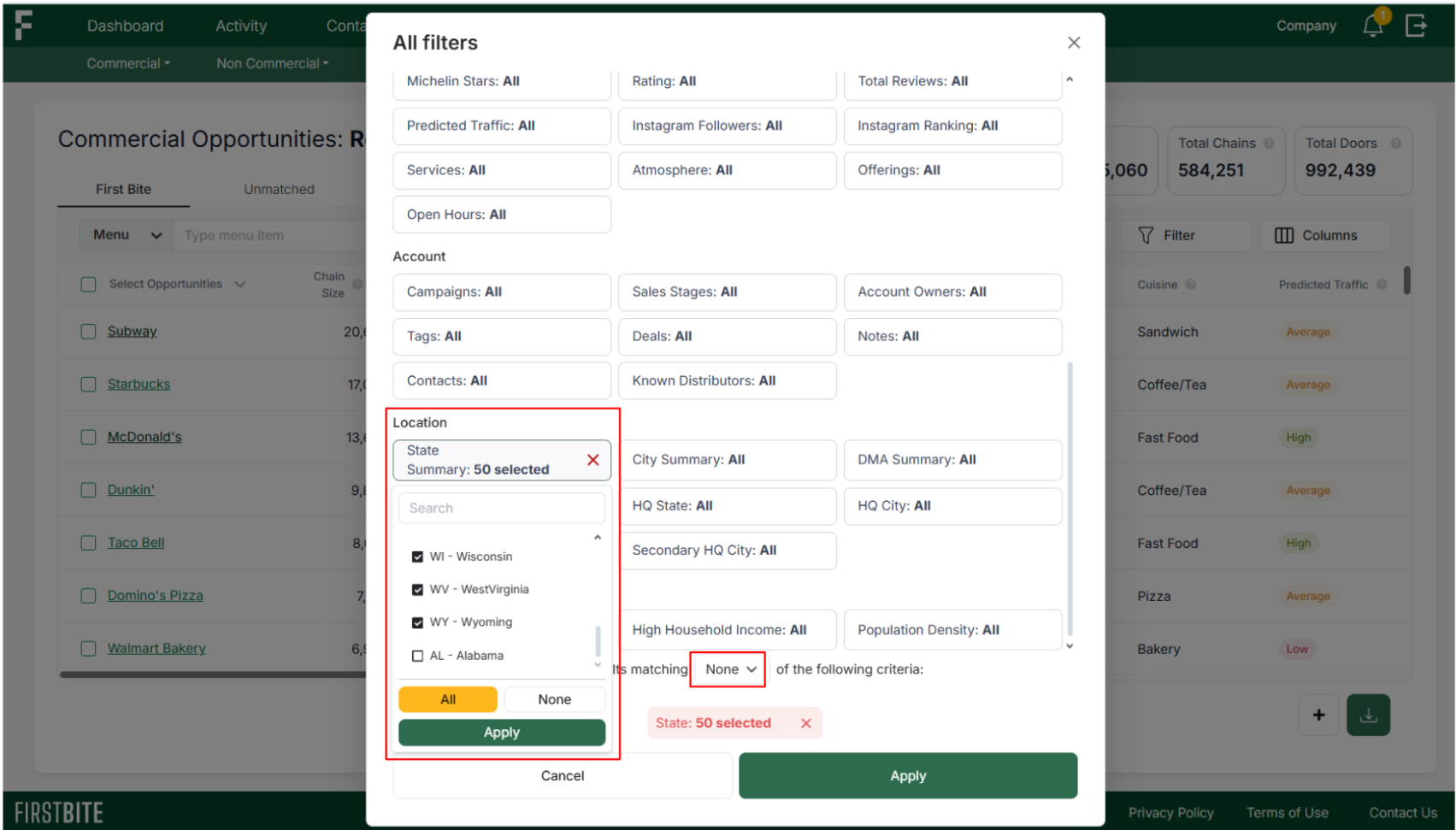
In the example above, we're targeting restaurants in Alabama. To isolate this group, all other states have been selected except AL. When paired with the “None” filter option (ie: “none of these states I’ve selected”), this ensures that only locations in Alabama are identified.
To apply similar logic for other filters, select all items you wish to exclude.
For example: You can filter out Low Traffic areas or an in-progress campaign by selecting those values with the already applied “None” condition to remove them from your results.
From here you can search these results using the search bar or sort the data columns to further isolate your chosen Targets.
Ask Us!
If you have a specific use case, feel free to reach out—we're happy to assist with backend filtering.