Using Company Pages
Last updated: December 2, 2025
Overview
First Bite company pages brings all of your customer and prospect data into one organized, easy-to-navigate workspace. From here, you can explore door locations, review deals, access key account attributes, and track every interaction your team has had with the account. Each section (the Data Panel, Floating Toolbar, Account Attributes, Deals Overview, and Event History) is designed to give you quick visibility and fast actions so you can manage accounts with clarity and efficiency.
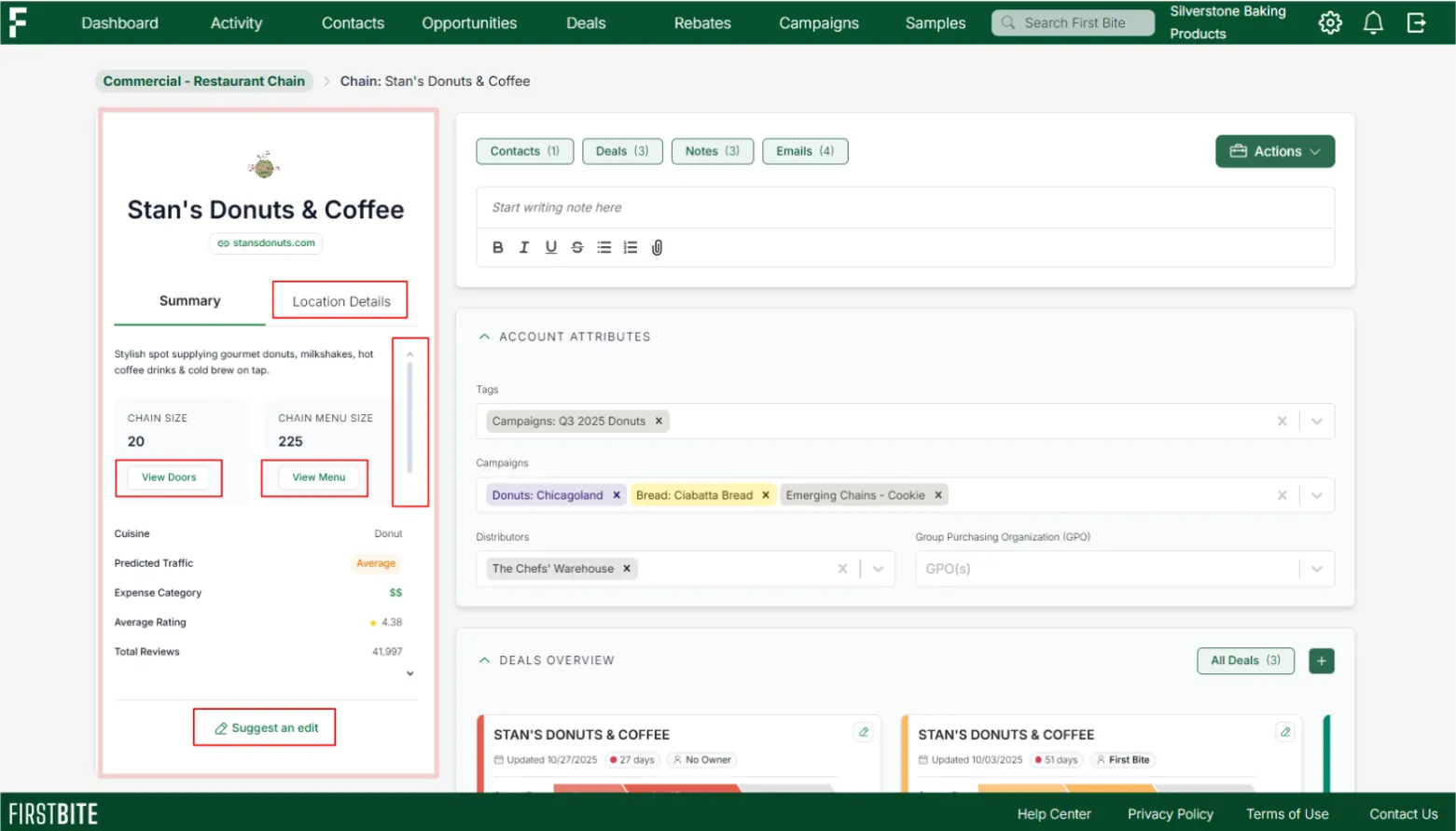
Data Panel
Located on the left side of the page, the data panel includes all information First Bite has on a company. This is also where you can view, search, and access company doors.
Actions you can take in the data panel:
View (and search) company doors
View (and search) company menu.
Individual location menus are accessible by navigating into the Company Doors table, selecting the door, and viewing the door page data panel.
Scroll to see information about their social media, revenue opportunity, and chain characteristics.
View the chain location information by toggling to the “Location Details” tab
Suggest an edit (to report if any data looks incorrect)
Floating Toolbar
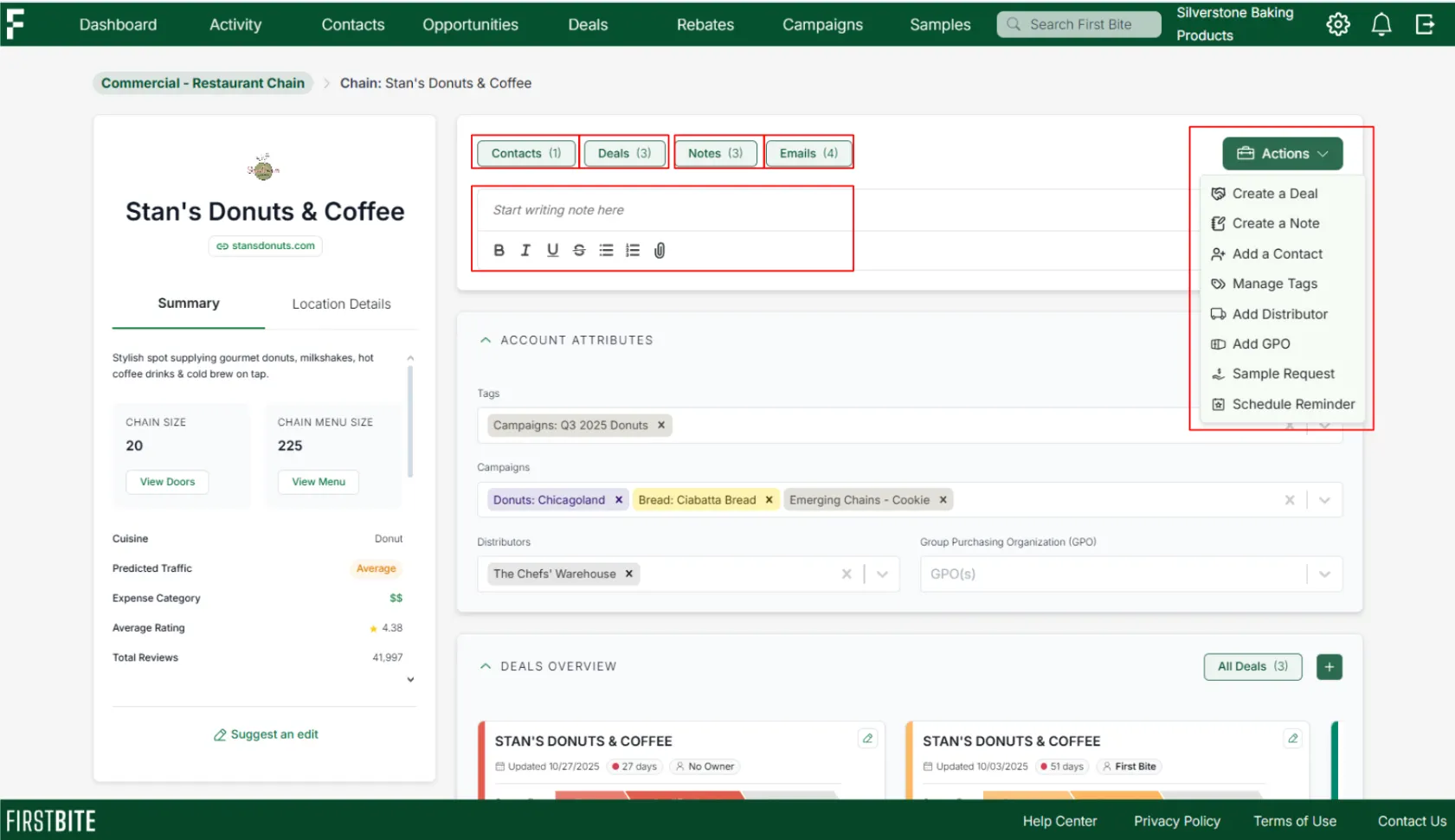
This toolbar sticks to the top of your screen, giving you access to company components and actions from anywhere on the company page.
Actions you can take within the Floating Toolbar:
Click for quick access to your company contacts, deals, notes, or emails (where you can also search)
Create a note or add an attachment - these will then be visible using the quick access button for Notes or within the Event History.
Use the Action button to manage your company information, including
Creating deals
Adding contacts
Managing tags
Scheduling reminders
Account Attributes
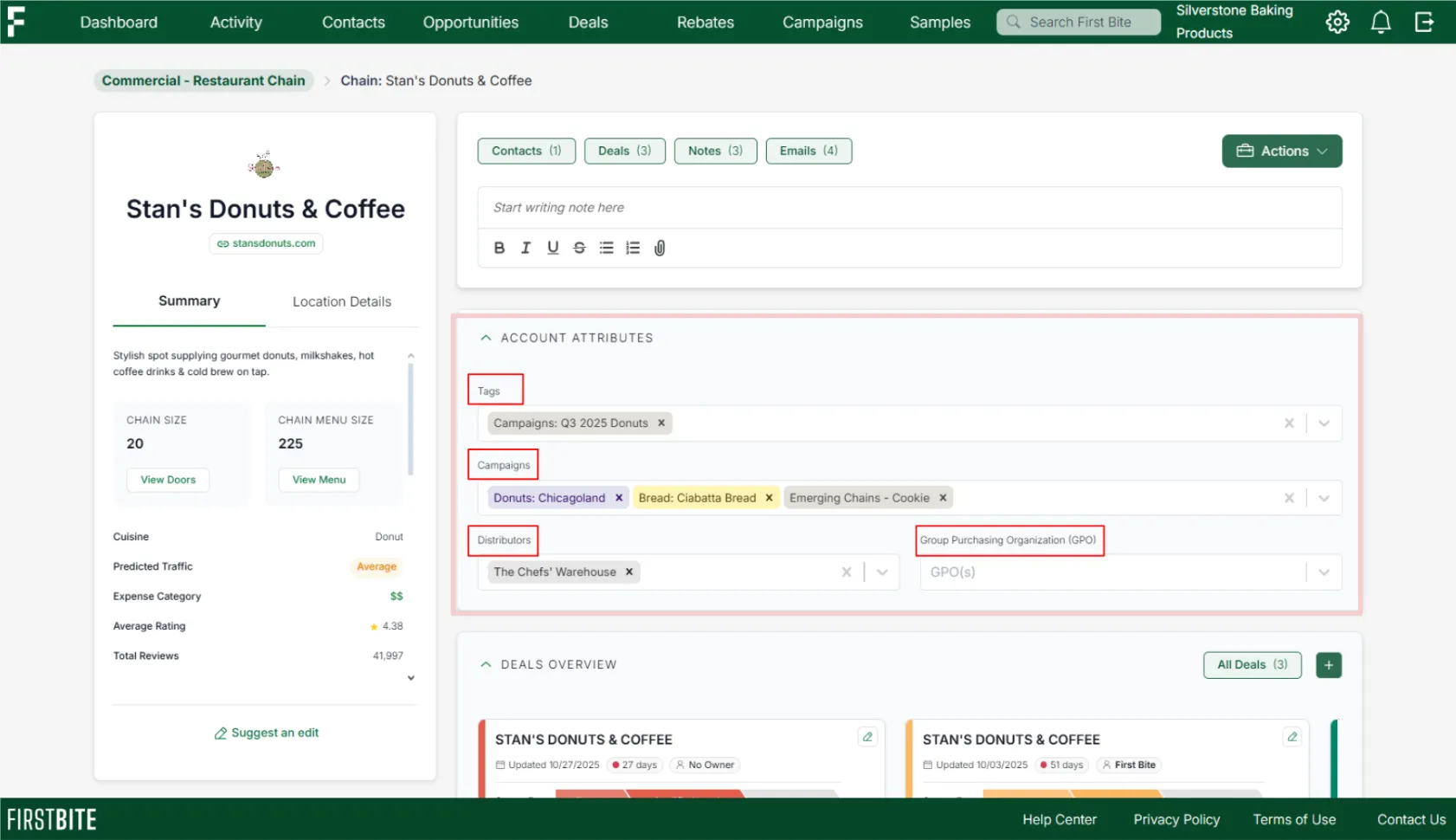
View and edit tags
View the campaign list this company has been part of
View and edit distributors and GPOs (Group Purchasing Organizations) if you know them.
Deals Overview
Actions you can take within the Deals Overview:
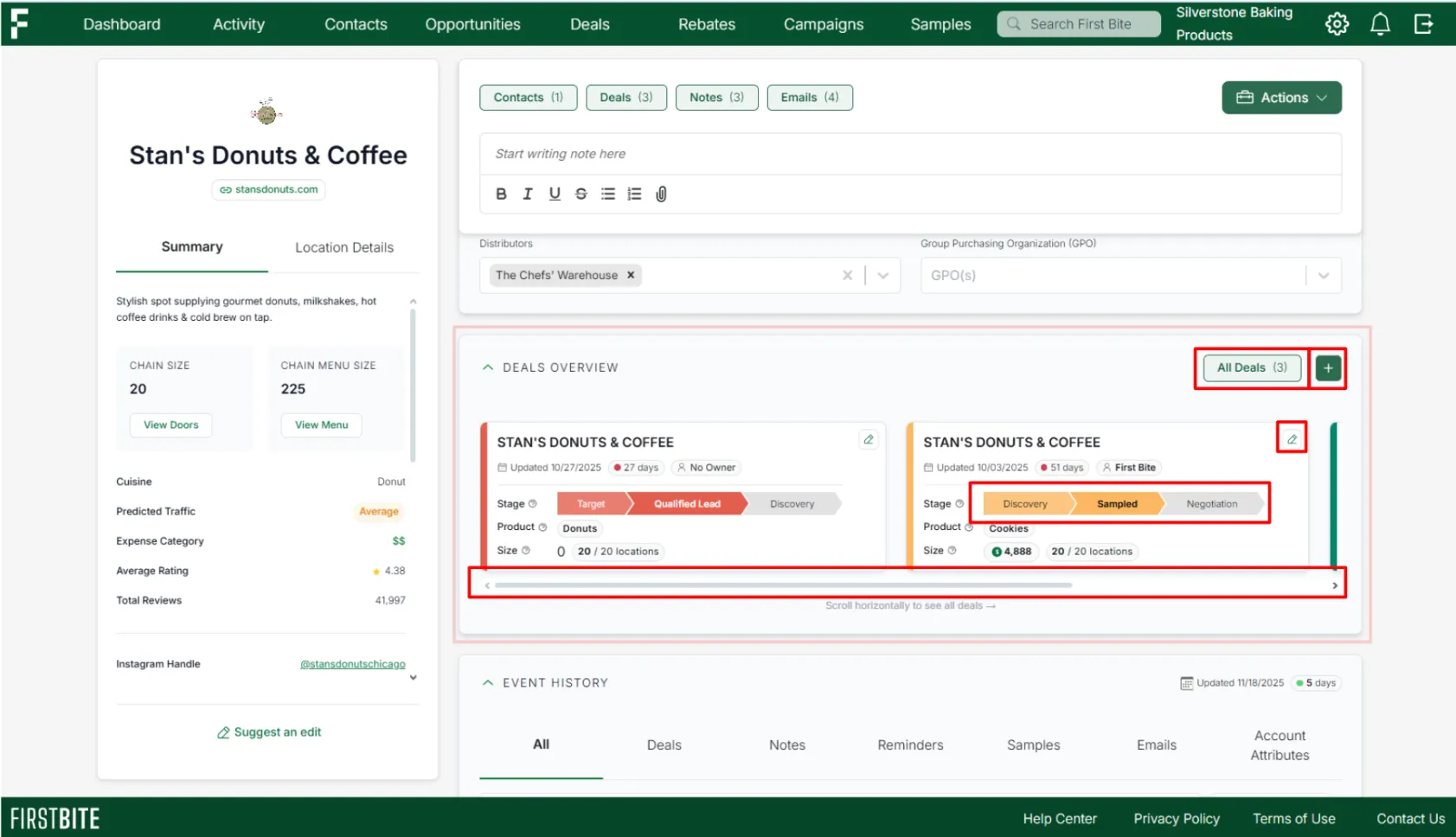
Scroll through all deals associated with the company (the horizontal scroll goes side to side)
Search all company deals within a table format by clicking on
All Dealsin the top right corner.Add a new deal by clicking the
+iconEdit a deal by clicking the pencil icon in the top right corner of the deal card
Edit a deal’s sales stage by clicking on the visible stage in the lineup.
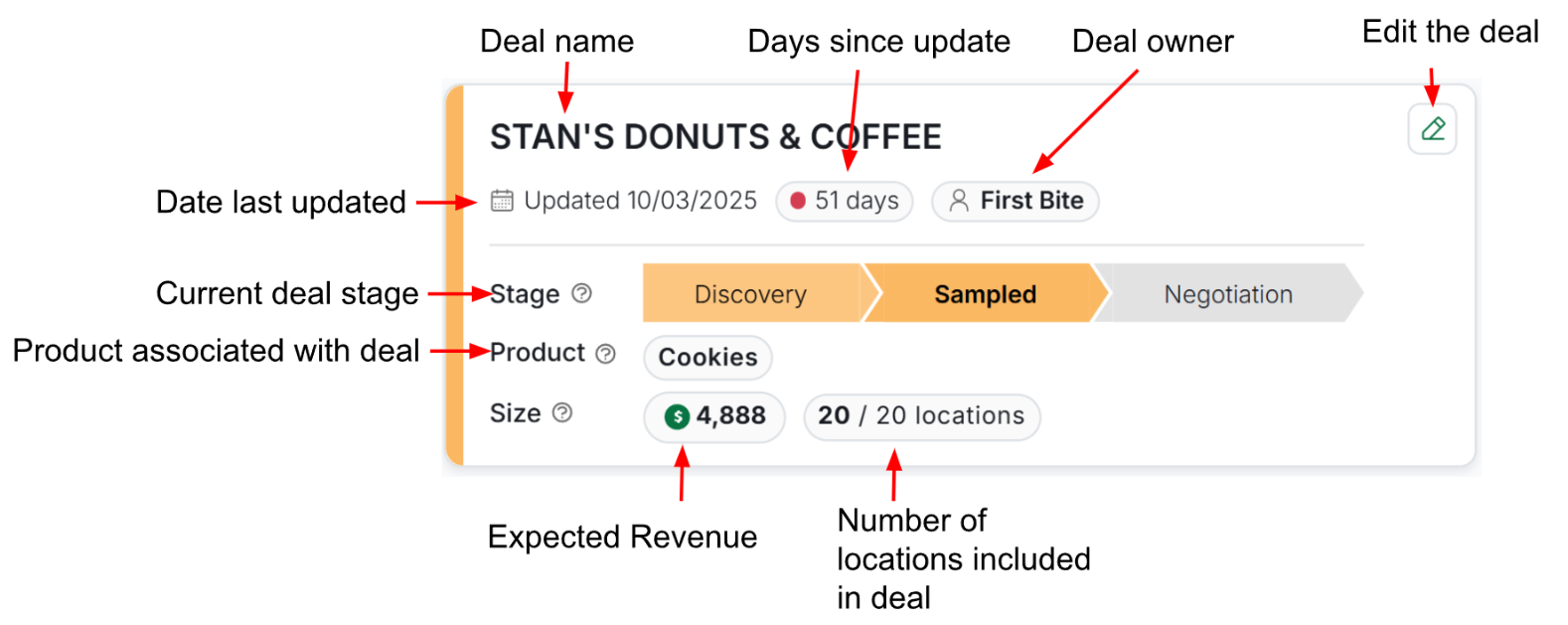
Each deal card organizes your core deal information.
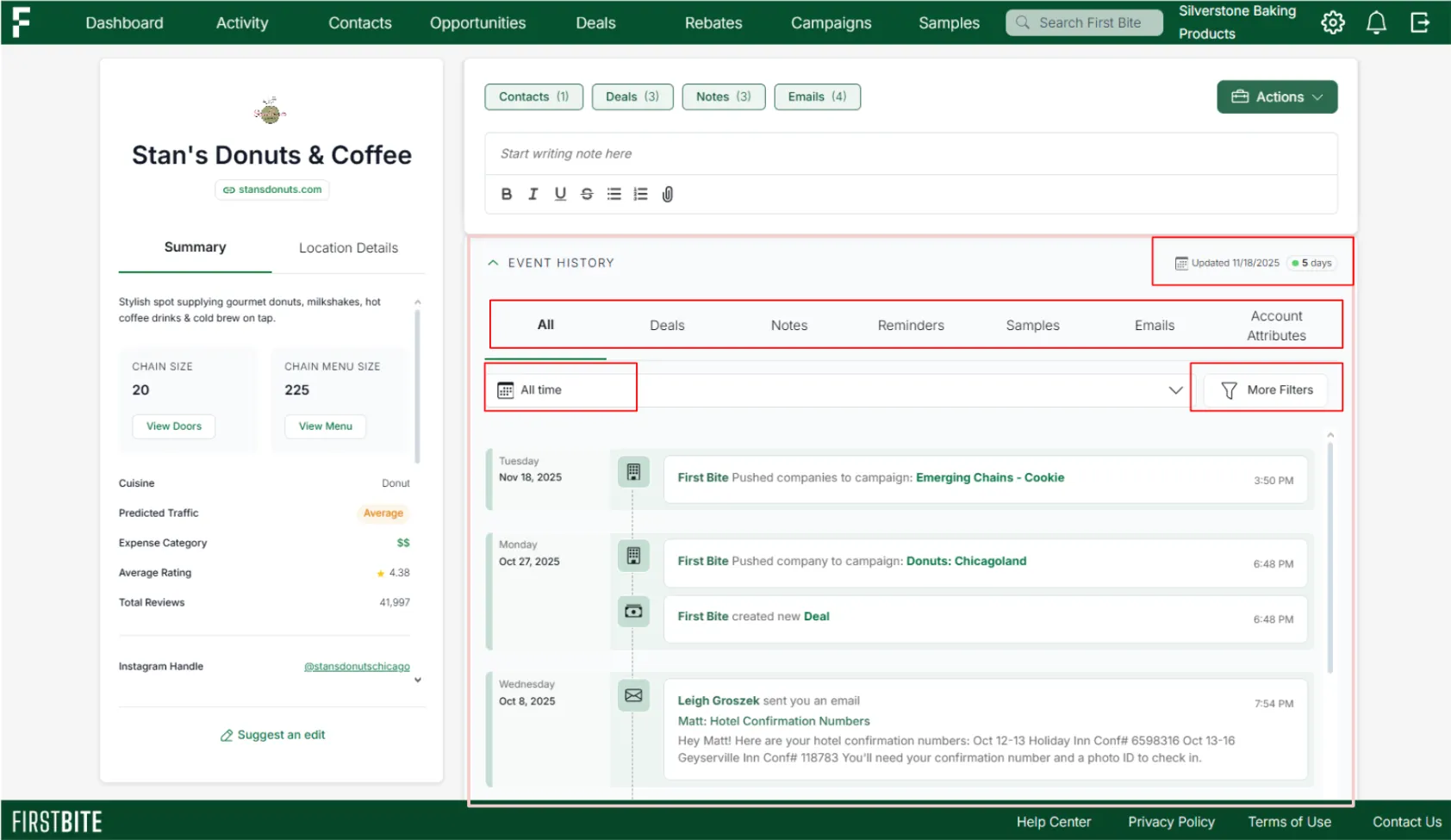
Event History
This section includes all actions taken that relate to the company chain or any locations within the company, organized chronologically.
In the top right corner you can see the number of days it has been since a company activity and the specific date the most recent activity was logged.
Filter activities by:
Event type (Deals, Notes, Reminders, Samples, Emails, Account Attributes)
Date (using the calendar function)
Team member (accessed via the
More Filtersbutton)