How to Create, Edit, & Delete Deals
Last updated: March 9, 2026
Creating a deal in First Bite is simple and flexible—you can start the process from the Targets section, within a Campaign, or directly from a Company page. This guide walks you through each option, along with step-by-step instructions to set up, edit, and manage your deals effectively.
Create Deals from 3 Different Locations
Targets Section
Select the company(ies) >
Actions> Create Deals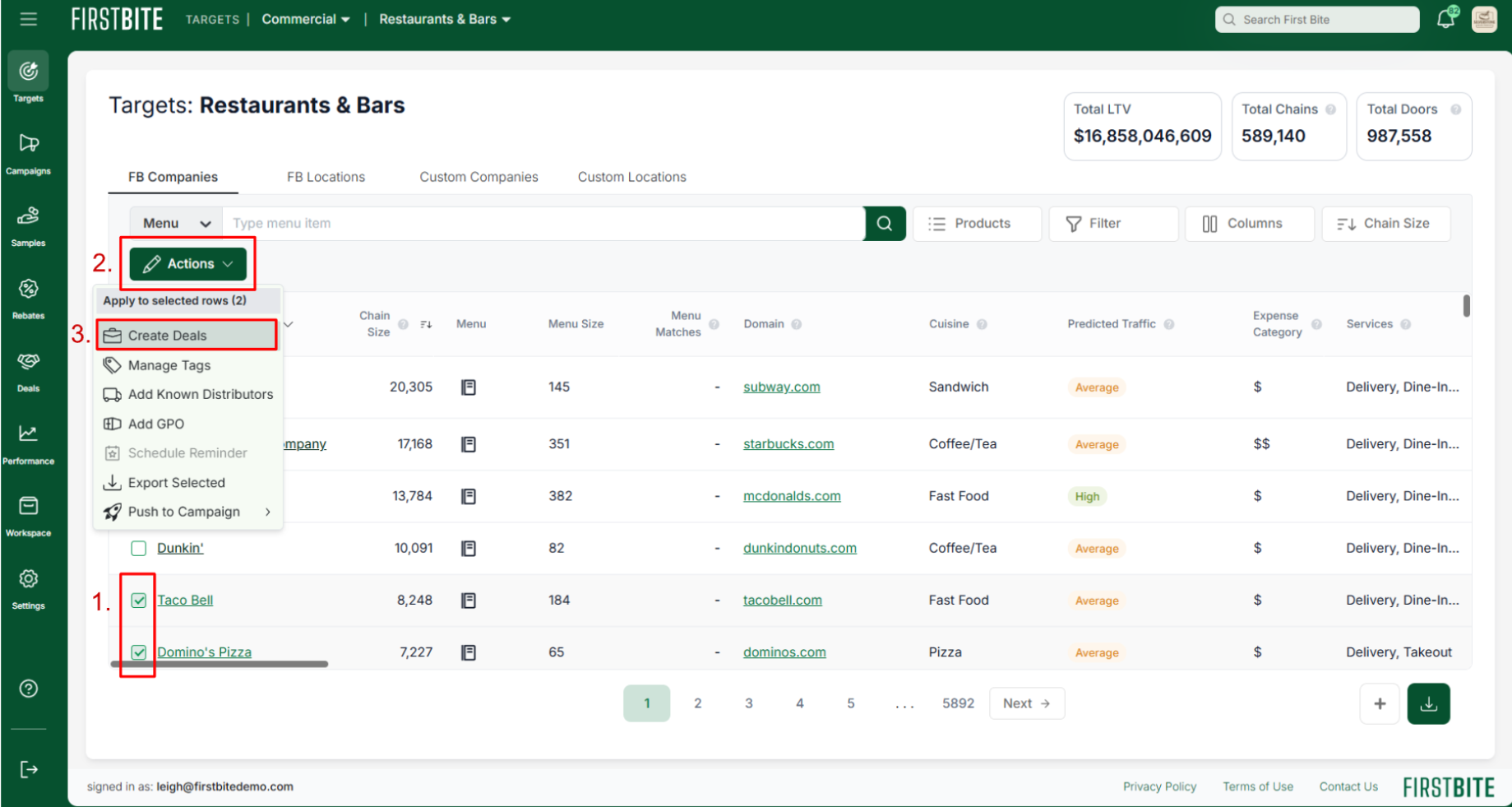
Campaign Page (within the specific campaign)
First, choose your campaign.
Then select the company >Actions> Create Deals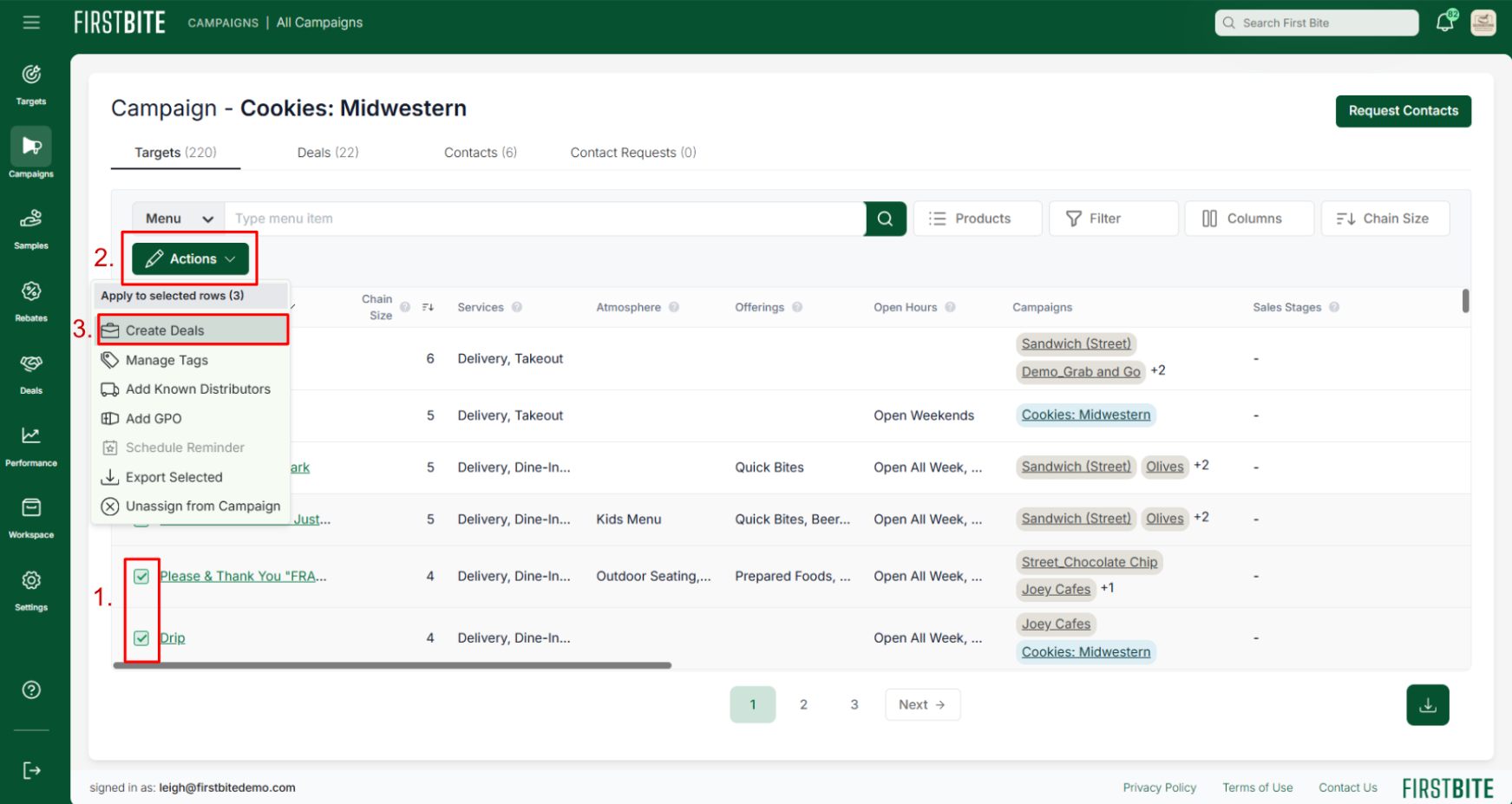
The Specific Company Page
Navigate to the Company’s Chain or Door page.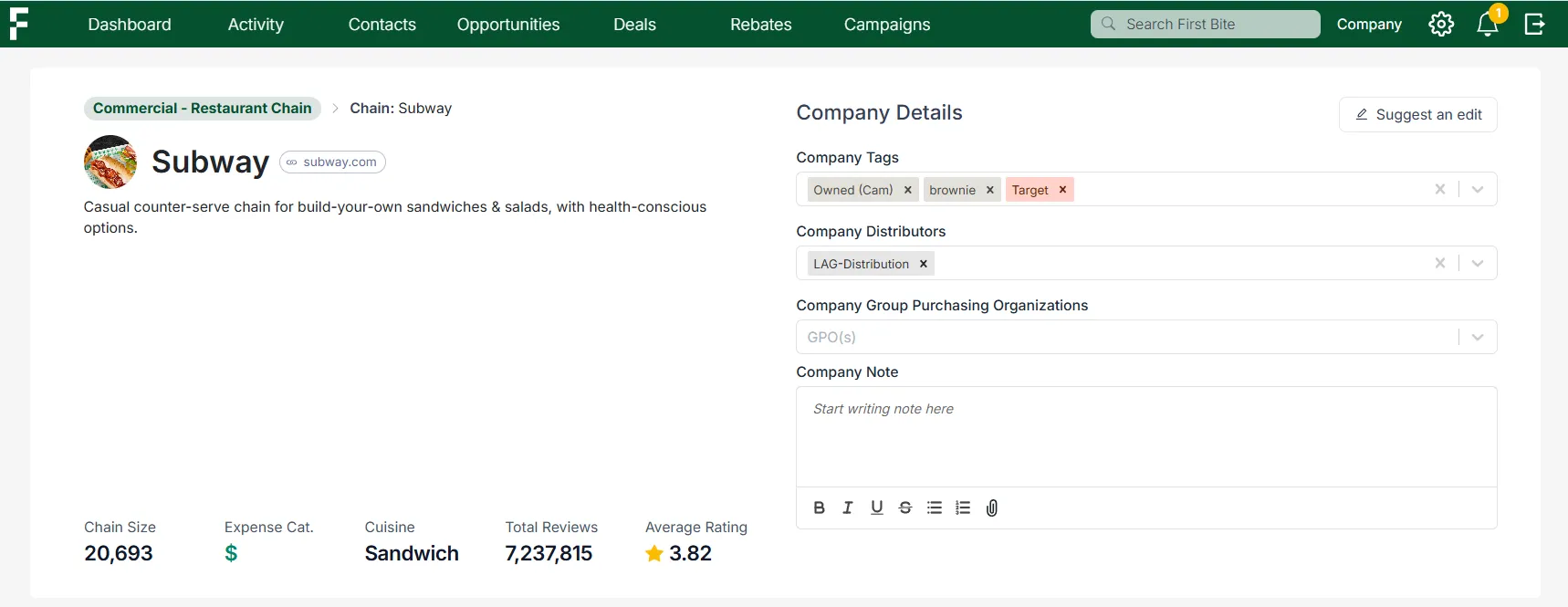
Click Actions > Create Deal
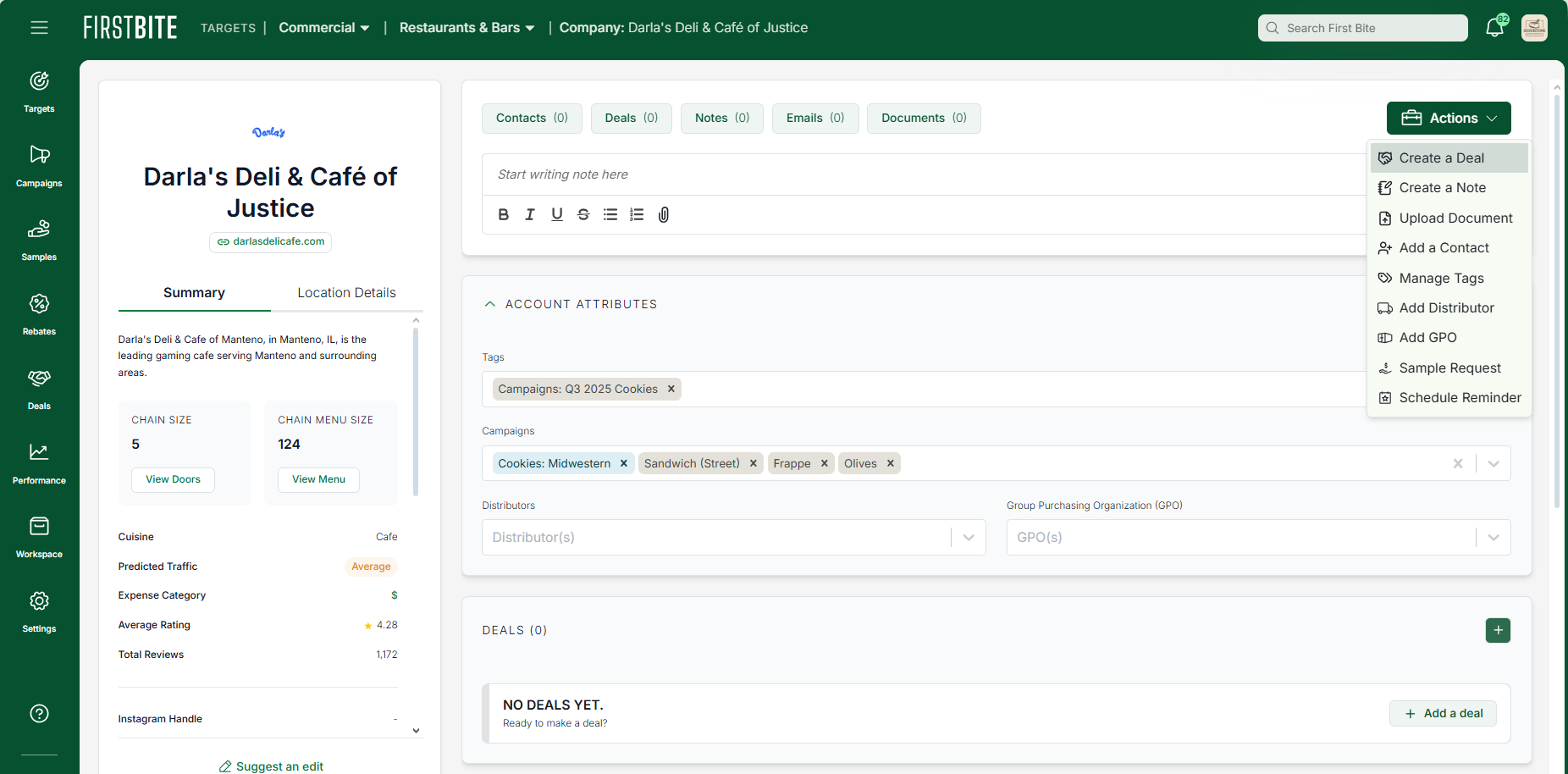
Create Your Deal
Check the box for the product associated with the deal.
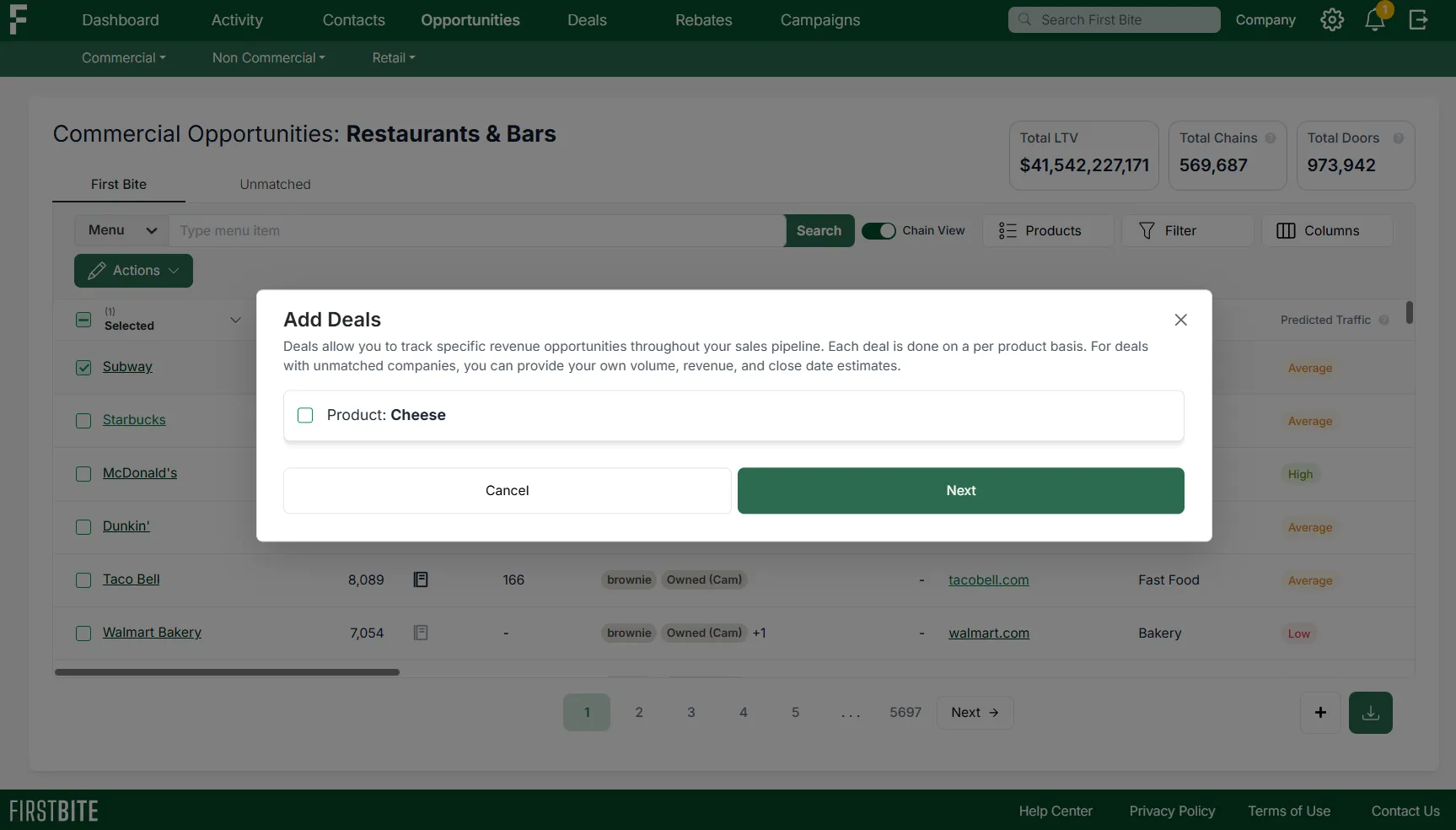
Fill in the following:
Deal Name - By default, a deal’s name will be the Company’s name (e.g., McDonald’s, Subway, Sunrise Cafe, etc). For deals with specific subsets of a company, you can edit the name for additional specificity (e.g.,
McDonald’s - NYC,University of Indiana - athletic department, etc).Product variant - if the deal is explicitly focused on specific product variant, rather than the broader product line, you can select that here
Sales Stage - where this deal will sit in your pipeline once created
Account Owner - who owns this deal
Origin Campaign - the campaign where outreach to the company was initiated
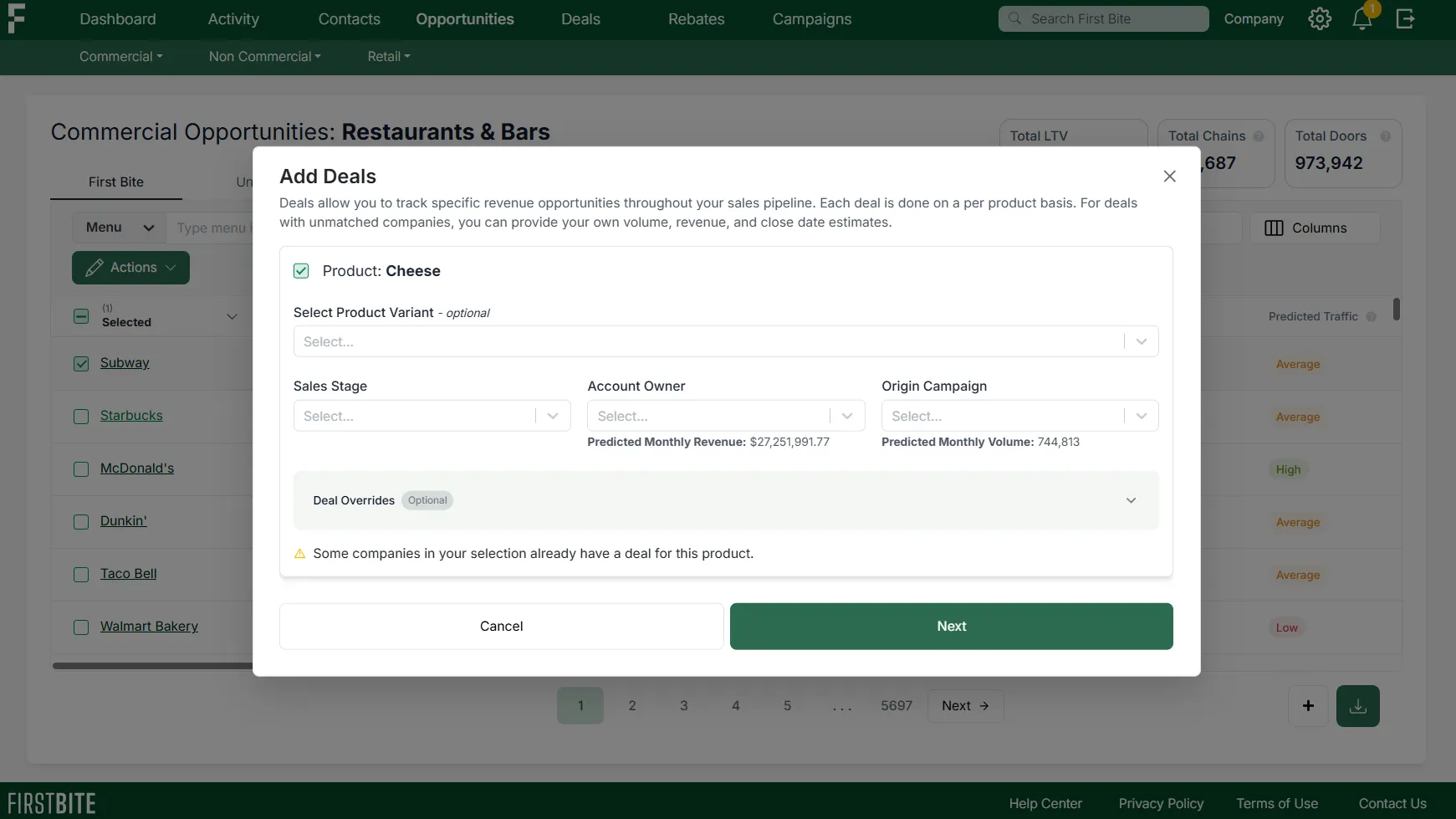
Add any Deal Overrides (optional) : If these boxes are left blank, the revenue and volume forecasting is calculated based on your product’s default data. However, you may choose to override these estimates once you know exact values from the operator.
Estimated Monthly Volume - The default estimate is pulled from the number of units sold per month (entered during product creation).
Estimated Monthly Revenue - The default estimate is pulled from the price of the units multiplied by the number of units sold per month (both values are entered during product creation).
Estimated Close Date - Calculated based on the deal’s chosen sales stage and the corresponding “Number of Days to Close” (entered during Sales Stage setup).
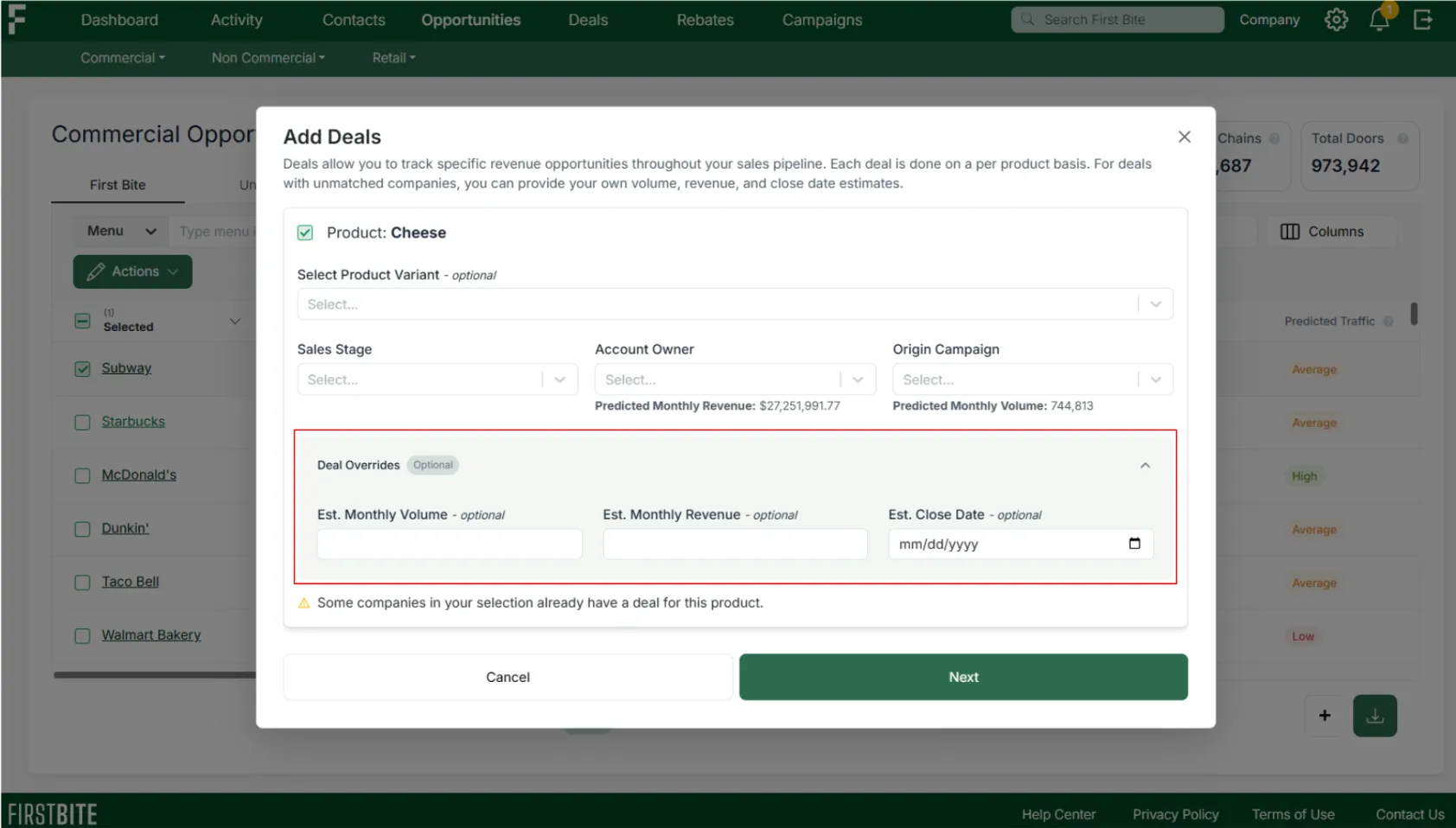
Click
Next.Choose whether the deal applies to the Entire Company or Select Locations. If Select Locations,
Navigate to the ‘Not Selected’ tab
Search for your locations
Check the box to select the door(s) of interest.
Click
+ Add Locations.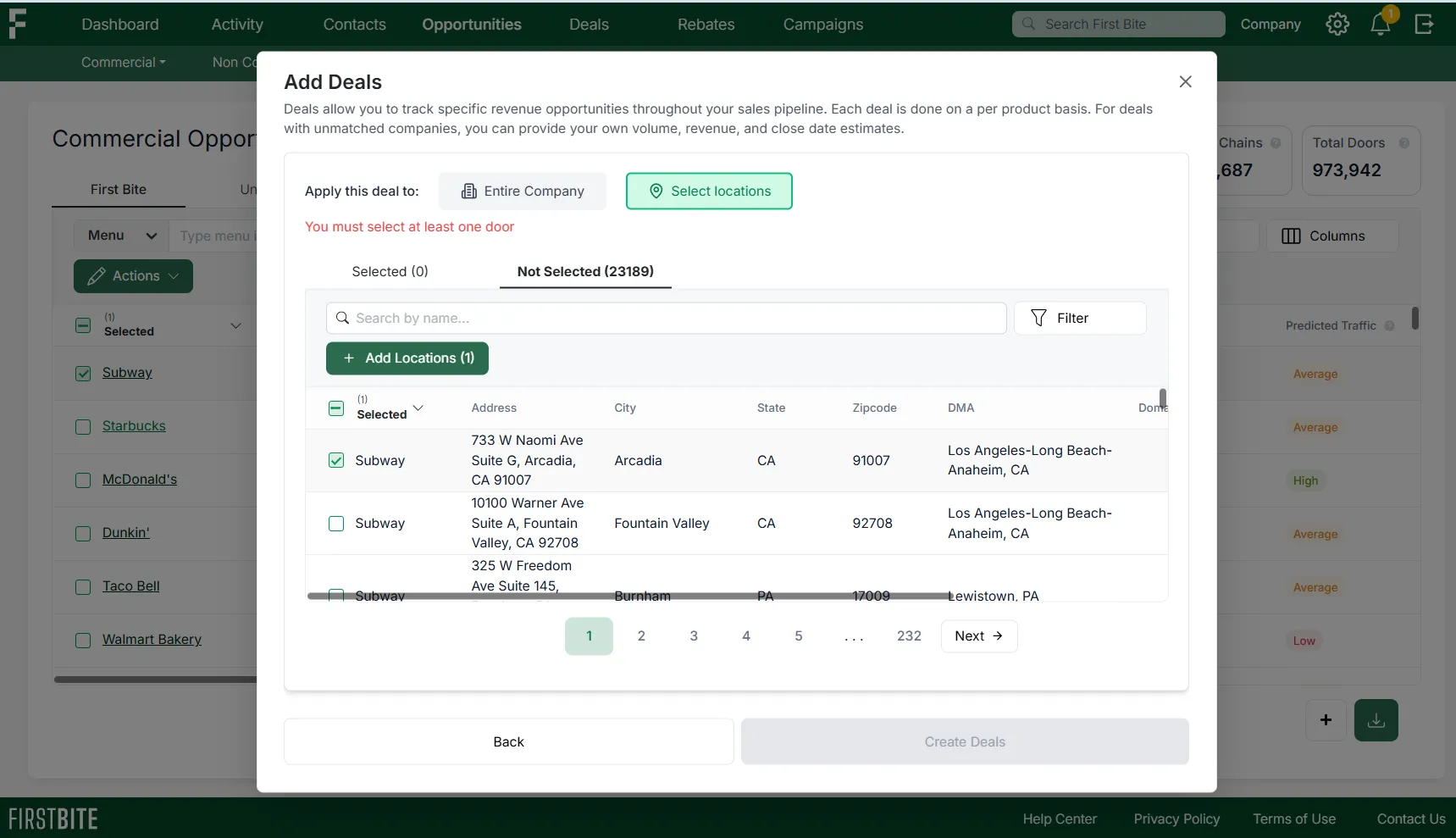
Return to the ‘Selected’ Tab.
Select the location(s) you want to apply the deal.
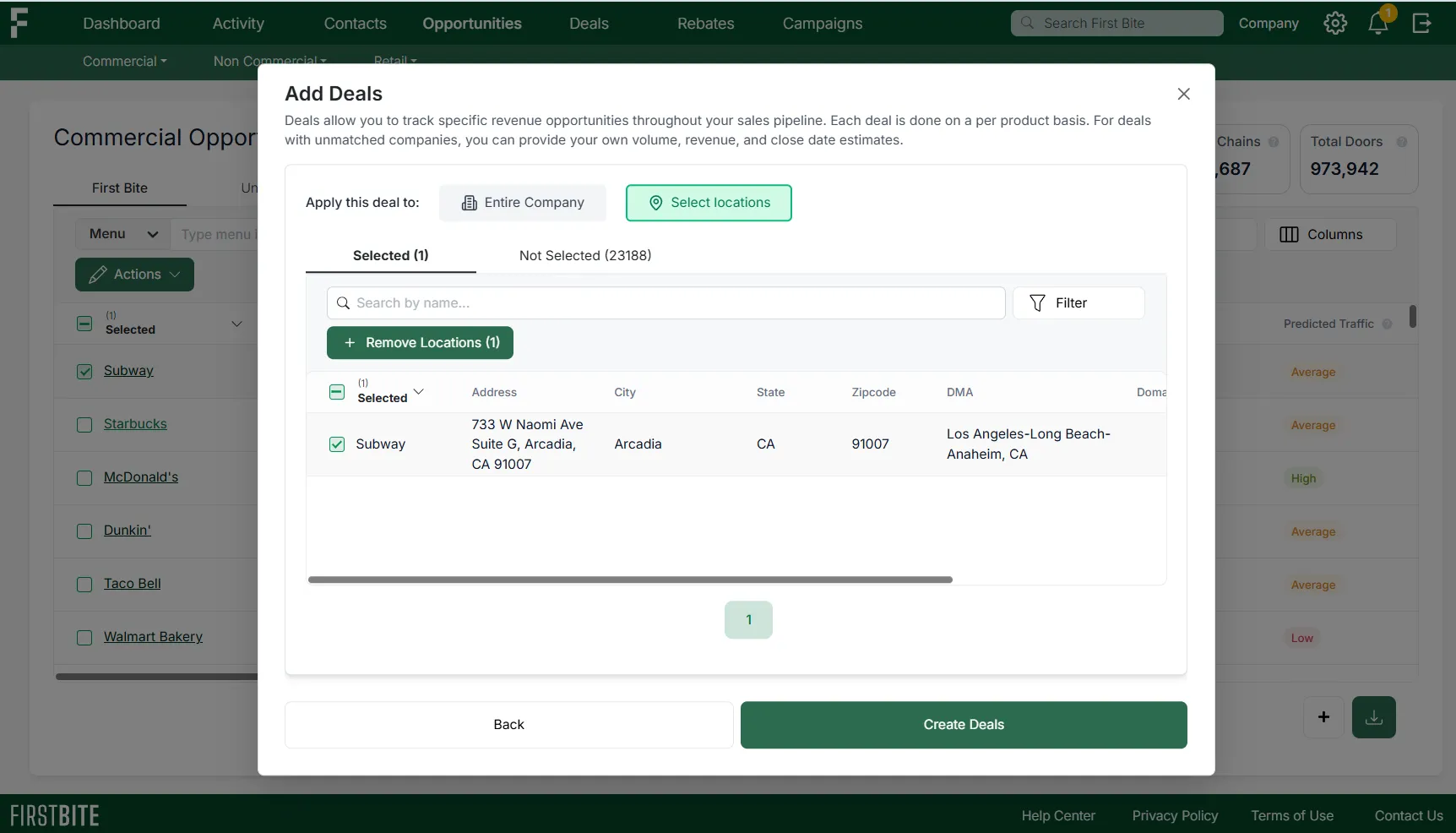
Note: ‘Deal Size’ is referenced on the Deals page based on whether you created a deal for the entire company (Chain Count) or for individual locations (number of locations).
Click
Create Dealsto complete the deal creation process.
Your deals can now be found on the corresponding company or door pages and the Deals page.
Editing & Deleting Deals
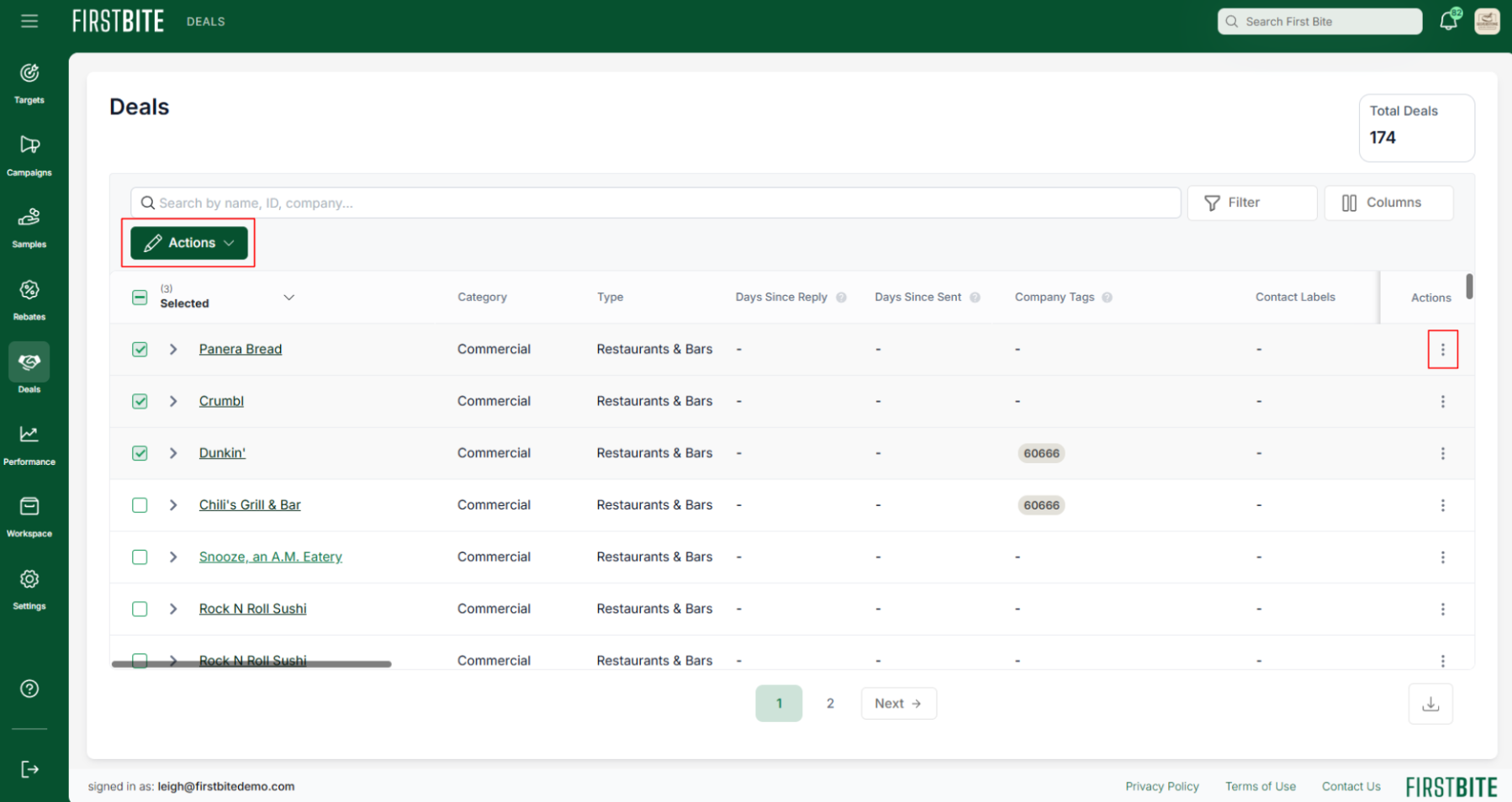
You can edit a deal at any time via the Deals section or on that account’s company or door page. In the Deals section, you can edit deals individually or in bulk. The most common edits you’ll make to a deal are updates to its sales stage as it moves across your pipeline.
appears.
From the Deals section
To Edit individual deals: use the three dots on the right side of the table.
To Edit deals in bulk: use the checkbox and corresponding Action button that
From the Company page
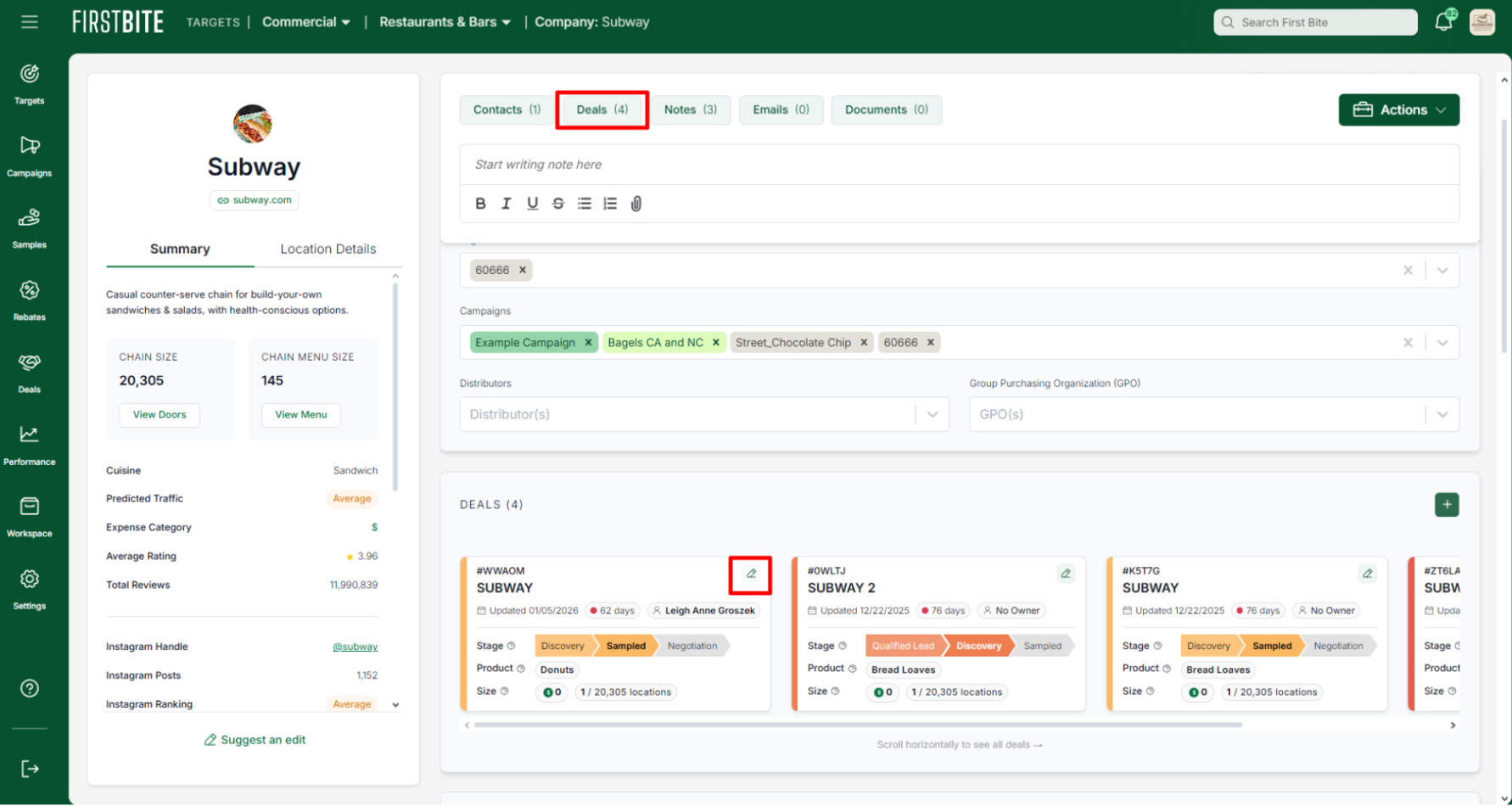
To Edit individual deals: Click on the pencil icon in the top right corner of the deal card.
To Edit deals in bulk: Click on the Deals table at the top of the page, where you can edit individually or in bulk similar to the Deals section.