Deals Dashboard: Board View
Last updated: July 16, 2026
Your Deals Dashboard page offers you the option to view your deals in table format or as a kanban board.
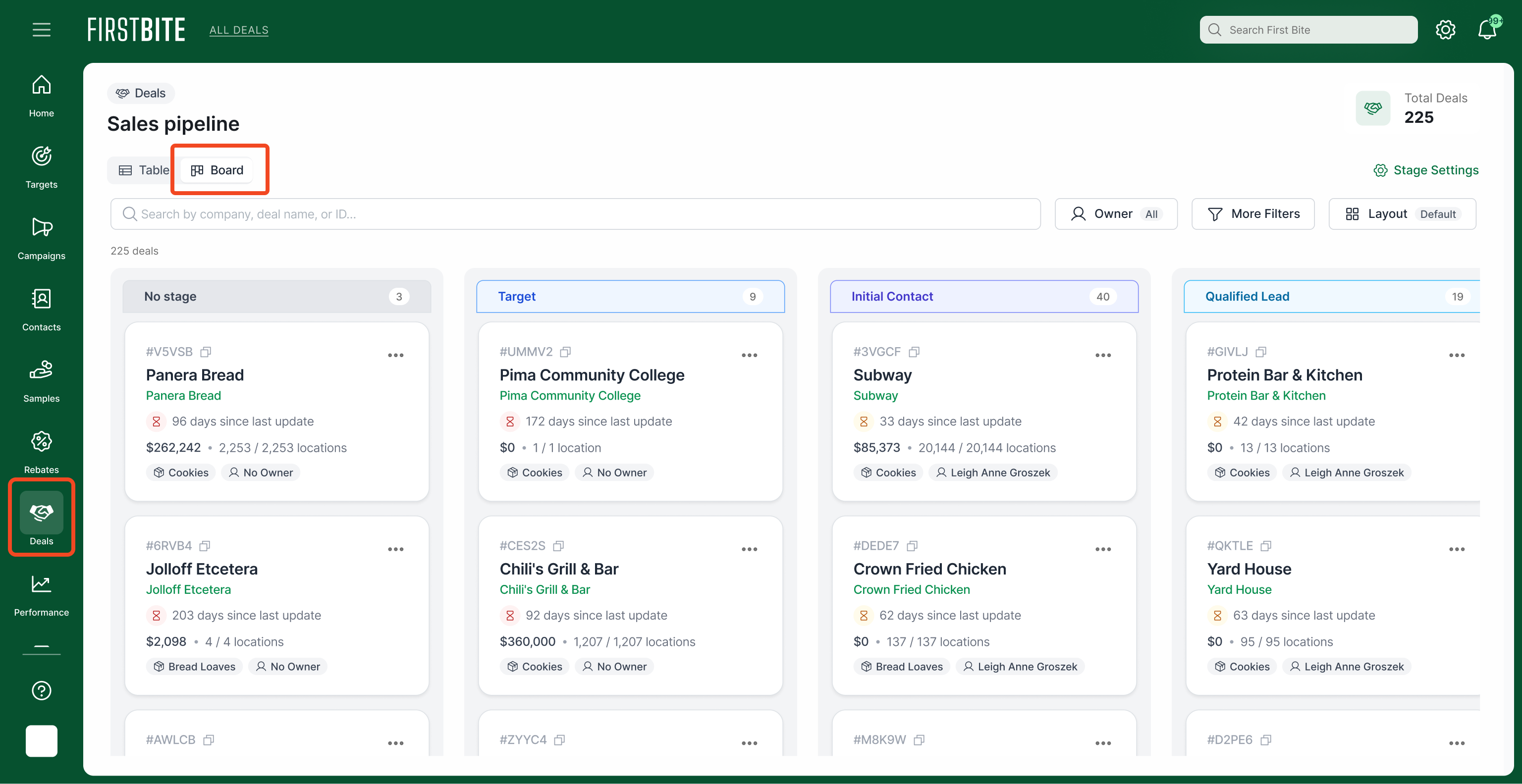
Kanban boards are project management tools that help you visualize your work. In the Board view, your deals will appear as cards beneath their respective Sales Stage columns. If you have multiple sales stage columns, you can scroll the board from left to right using the scroll bar at the bottom of the page.
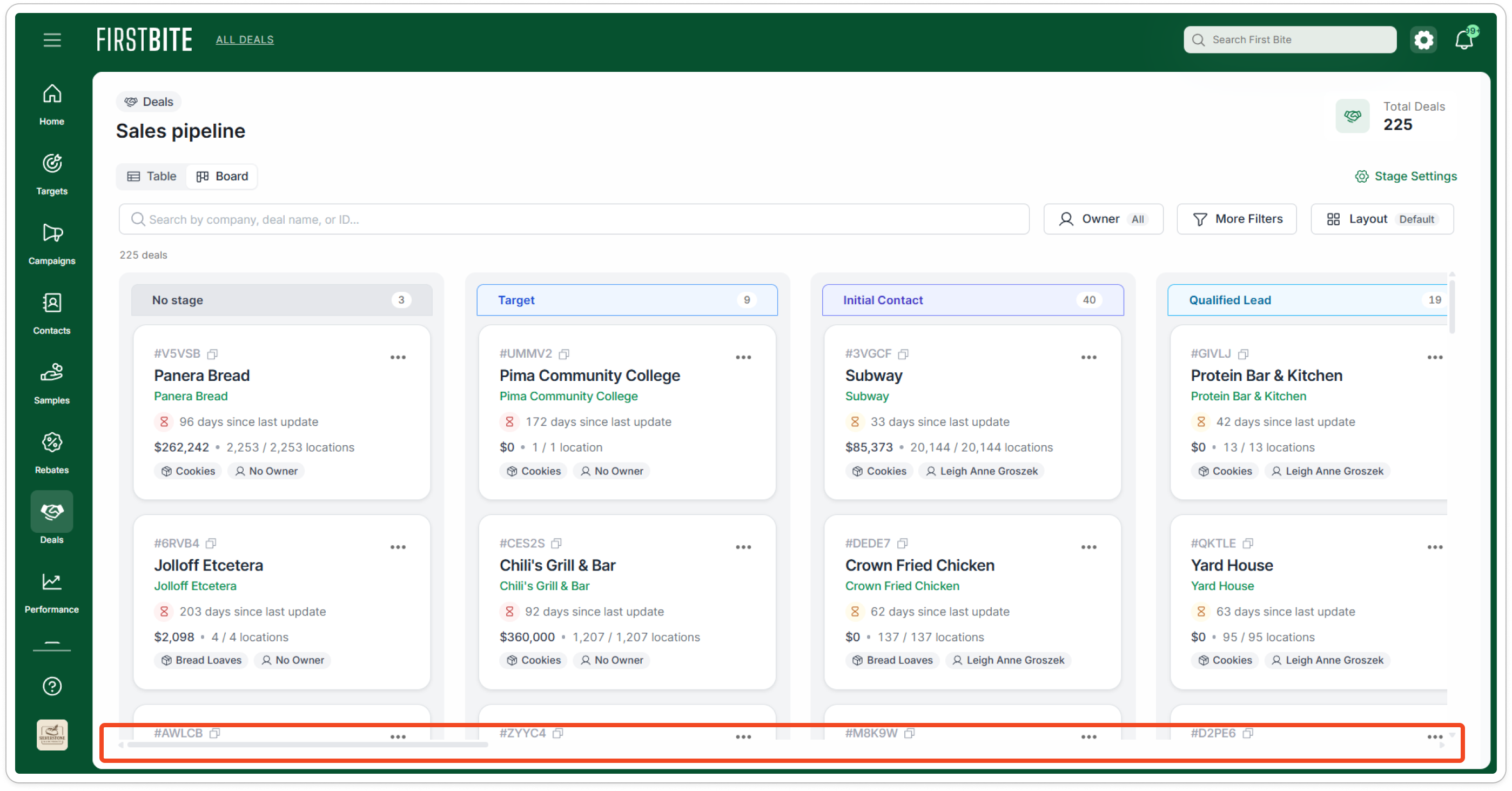
How the Board Works
Similar to the table view, you can search for deals by name or filter for specific deal characteristics.
To interact with the deal directly, you can:
Click on a card to go straight to the deal detail page
Click on the 3 dots in the top right corner of the deal card to adjust the deal.
Click and drag the card to a new column to change its sales stage.
Adjusting Board Settings
If you would prefer to limit which sales stages are visible, you can adjust the layout by clicking on Layout in the top right corner.
Select or deselect which sales stages you would like to see.
You can then click on Save as Default if this is the view you would like to see every time you open the Deals Dashboard.
Clicking Reset will reset any column organization back to the default column organization that you saved or, if you didn't save any, it will revert to First Bite's default column organization (shows all sales stages).
Updating Sales Stages
If you would like to update your sales stages, including their order, you can go to the Sales Stage settings, which is visible to company administrators. These settings will adjust the sales stages for the entire First Bite platform and will be reflected on your kanban board.
Here is additional information on how to setup Sales Stages.