Deal Detail Pages
Last updated: April 9, 2026
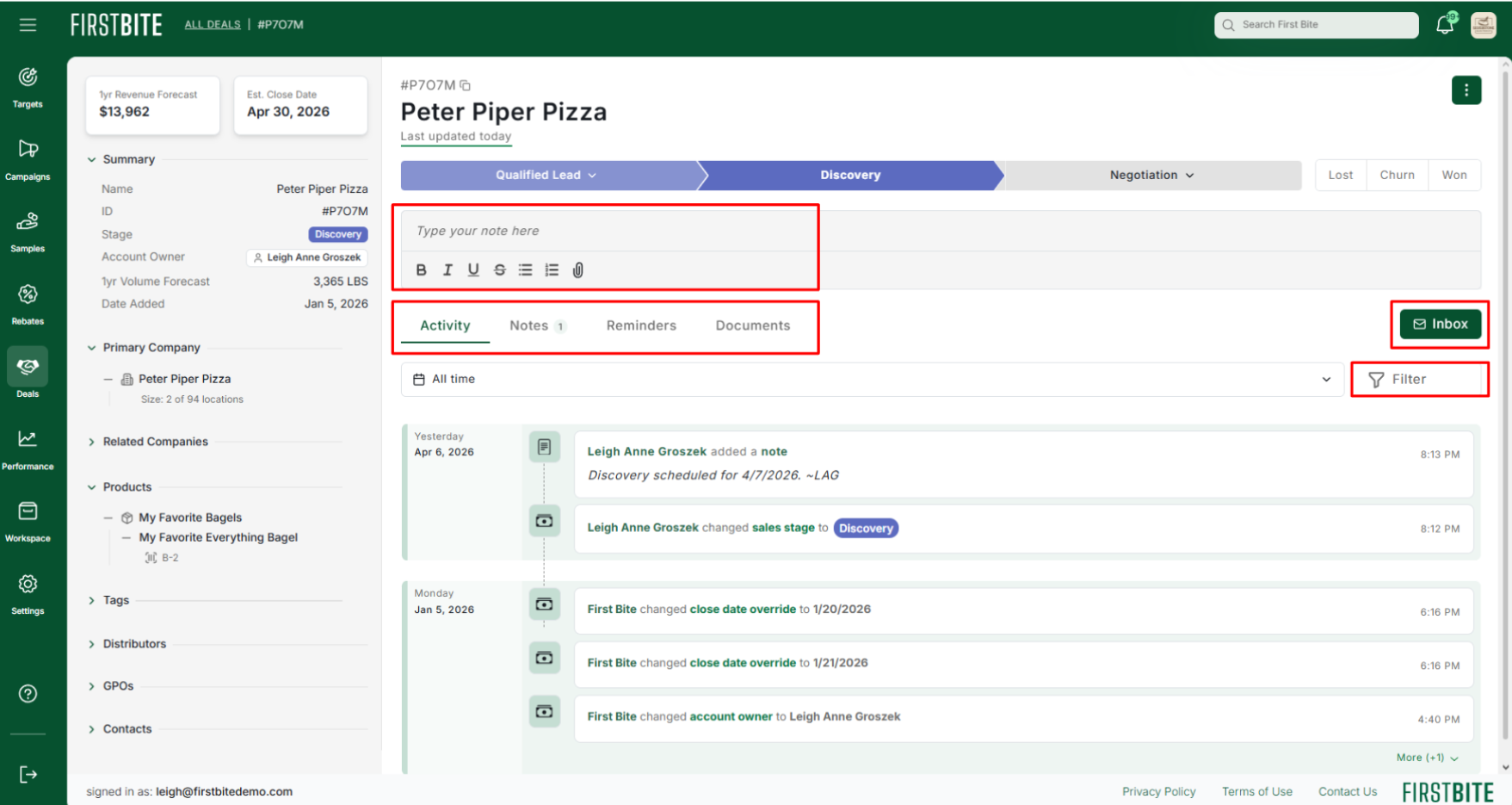
The Deal Detail Page brings together key information, updates, and actions so you can view the associated information and easily move deals forward.
Everything you need is centralized and easy to access, from updating sales stages to adding notes and viewing activity. Below, we’ll show you how you can navigate to the Deal Detail Pages and what you can do once you’re there.
Deal Detail Page
Accessing Deal Detail Pages
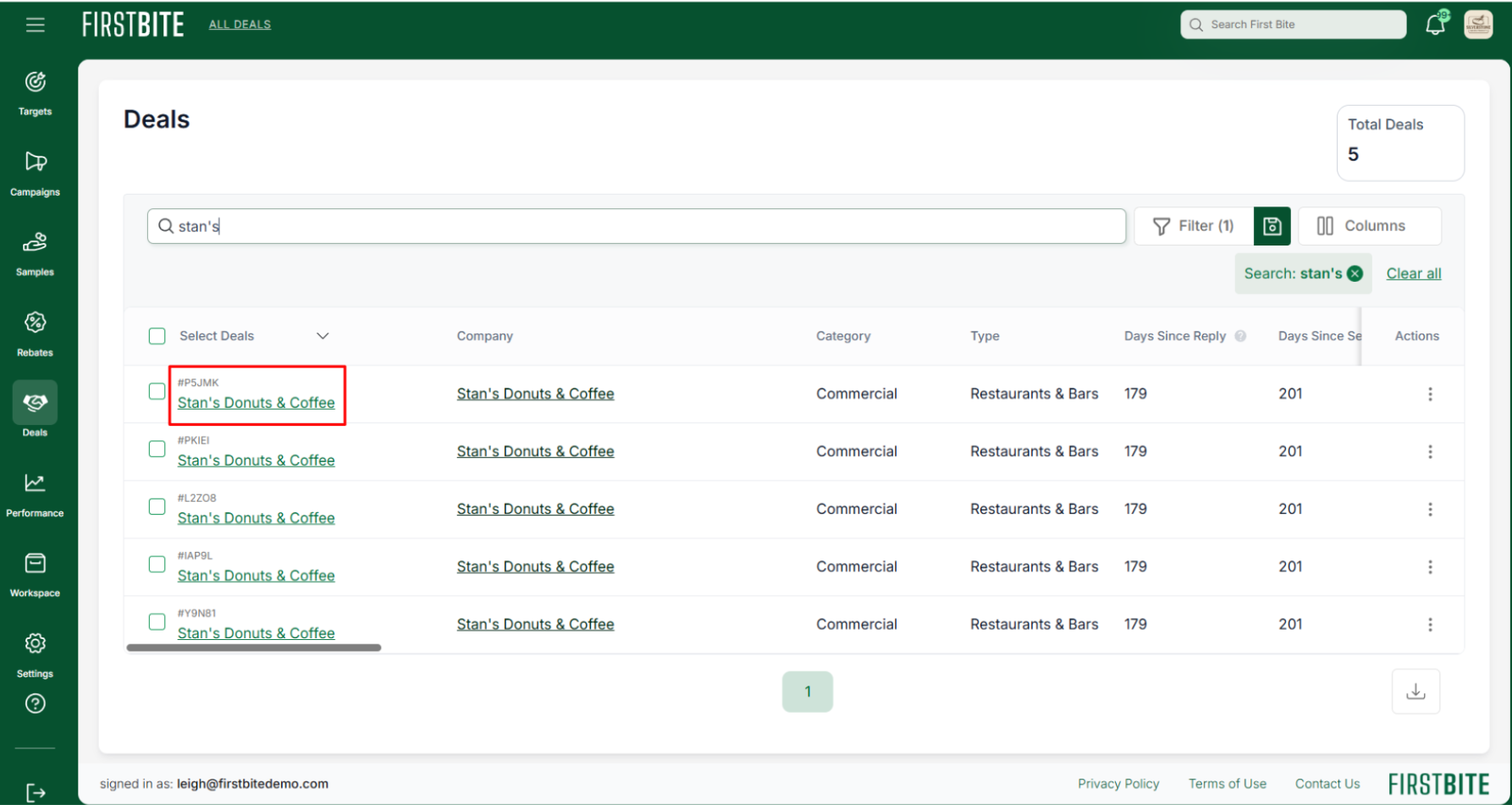
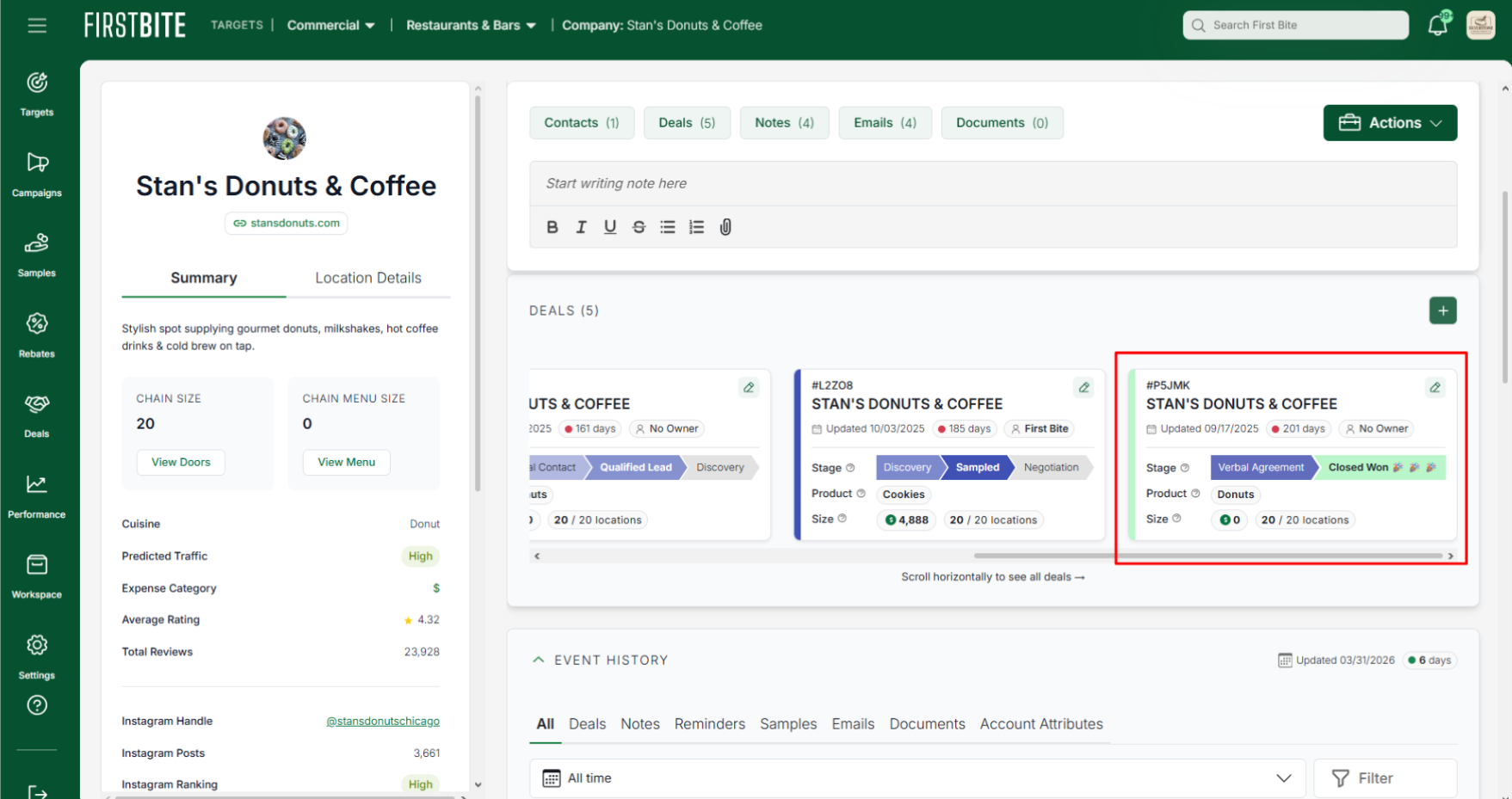
The way you create a deal remains unchanged. Once the deal is created, you can access the Deal Detail Page from two different pathways:
By clicking on the Deal Deals table by selecting the Deal Name
By clicking on the Deal Card on the Company Page
Deal Detail Page Features
Action Button (3 dots): Edit deal summary details, schedule deal-related reminders, upload documents, or delete the deal.
Note: The deal summary details can only be edited from the action button.
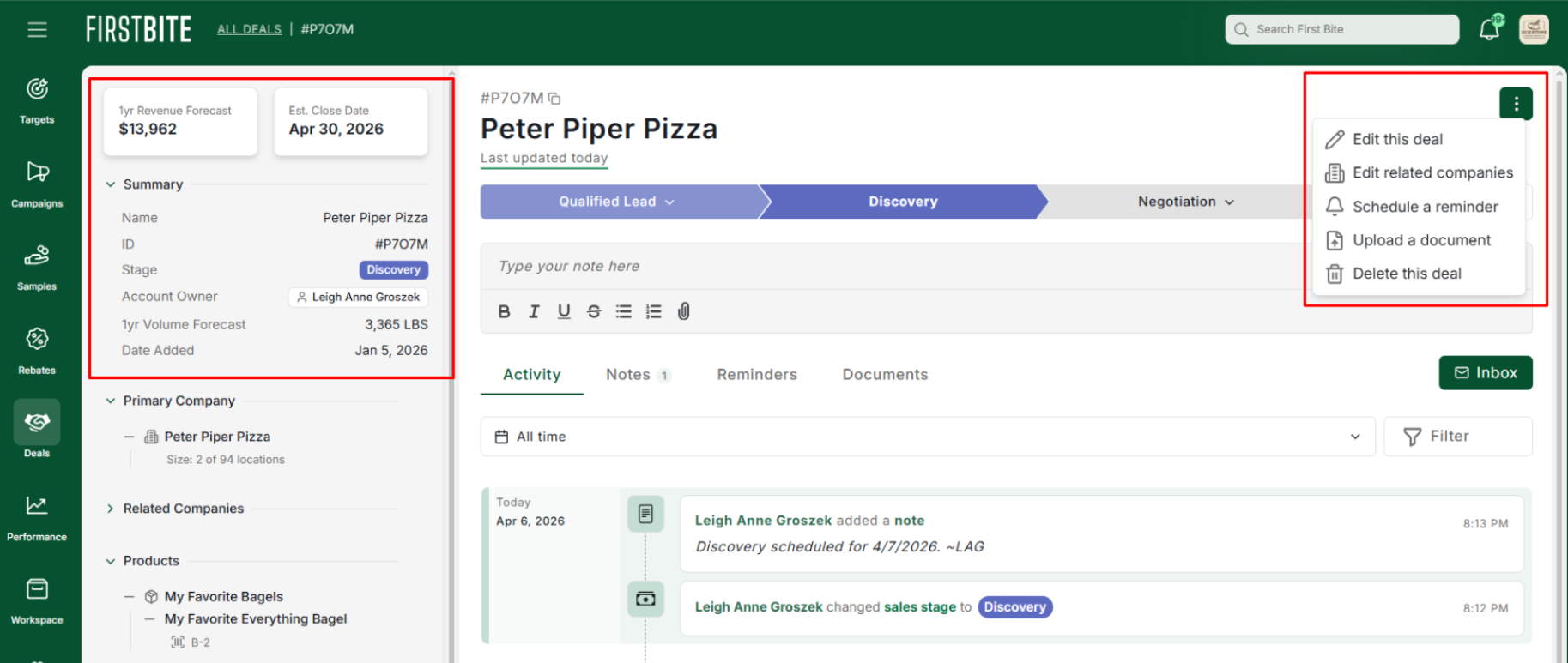
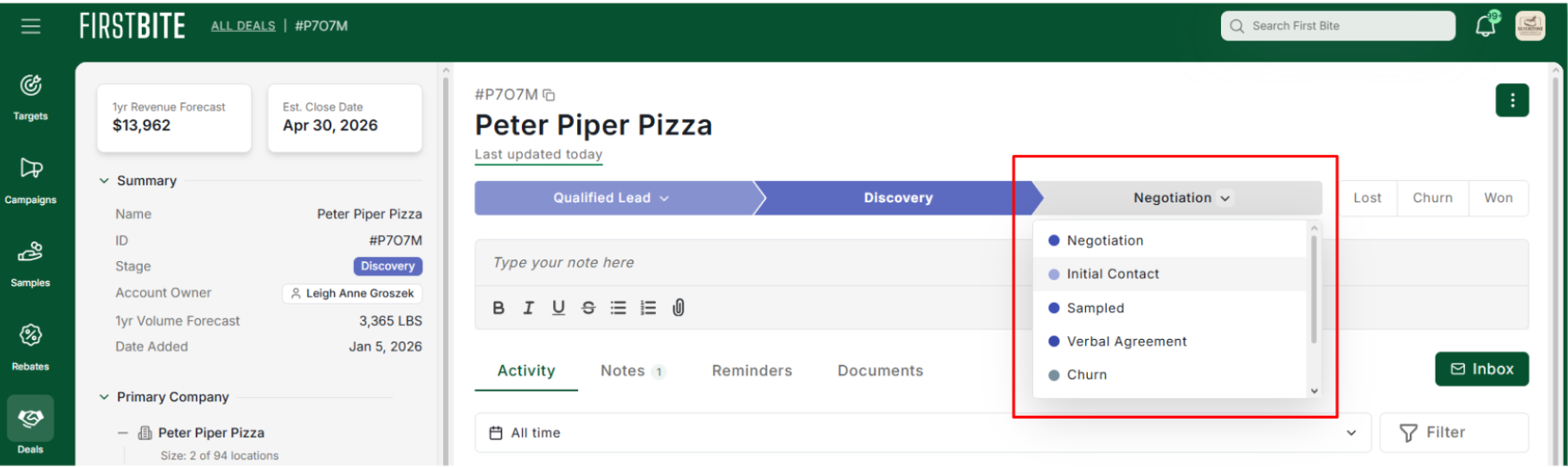
Sales Stages: Quick select your sales stage by clicking on the next (or previous) sales stage in the order to open a dropdown selection.
Left Panel:
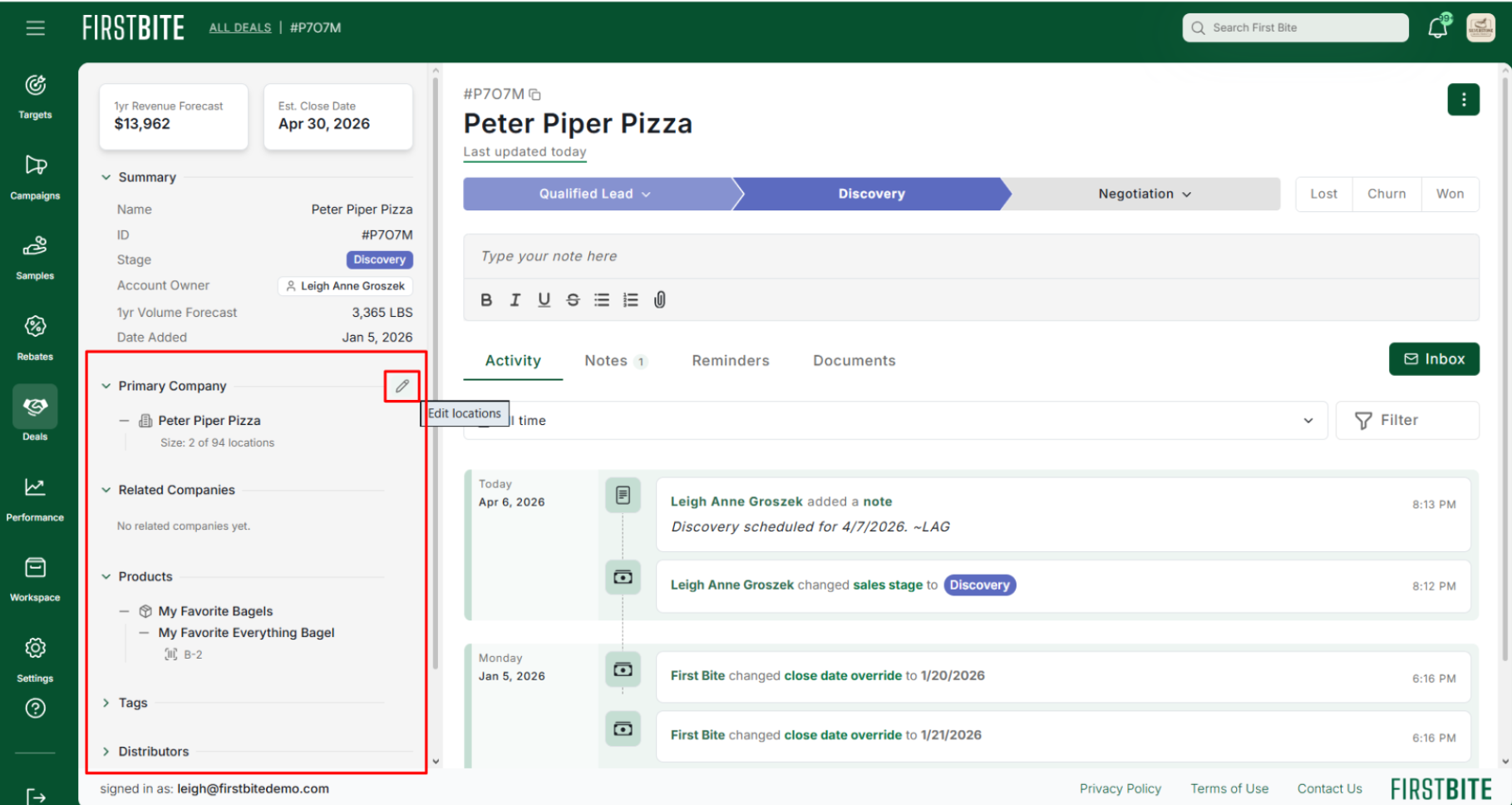
View and edit deal details from the Left Panel. Hover over the details and the edit icon will appear. If you use deal overrides, the overrides will appear in this left panel.
Add related (secondary) companies to your deal. (this deal-company connection is not available for forecasting)
Add deal-specific tags to your deal
Below tags, you can also view the Distributors and GPOs associated with that specific primary company.
Main Page
The deal detail page also includes the ability to quickly:
Access your inbox to see email threads that are associated with this deal (must first be connected to this deal via the company inbox).
Add notes
View your activity timeline
Create and filter your deal notes, deal reminders, and deal documents.