How do I manage bounced and unresponsive emails?
Last updated: March 10, 2026
Overview
Throughout your outreach campaign, you may encounter two common outcomes:
Bounced emails – The email cannot be delivered.
Non-responsive contacts – The contact received the message but did not reply.
Both scenarios are normal in foodservice outreach, and each should be handled differently to protect your sender reputation and improve future campaign performance.
1. Bounced Emails
A bounce happens when an email cannot be delivered to the recipient’s inbox. In foodservice cold outreach, a 5–20% bounce rate is normal due to high turnover.
When a bounce occurs in your email sending tool, the email address is automatically flagged and removed from the sequence—no further emails will be sent to that contact. There’s no need to manually send individual bounced emails to your First Bite team during the campaign.
We’ll review bounce rates after your campaign ends. If your bounce rate is over 20%, we’ll investigate further to check data sources and domain health.
Why Track Bounces?
Tracking bounces helps you:
Identify companies that need updated contact info
Maintain clean campaign lists
Reduce wasted outreach efforts
Request updated contacts in bulk instead of one at a time
How to Track Bounced Emails
Follow these steps to tag and manage bounced contacts so you can request replacements in bulk:
Copy the bounced email address.
Navigate to Campaigns > [Your Campaign] > Contacts tab.
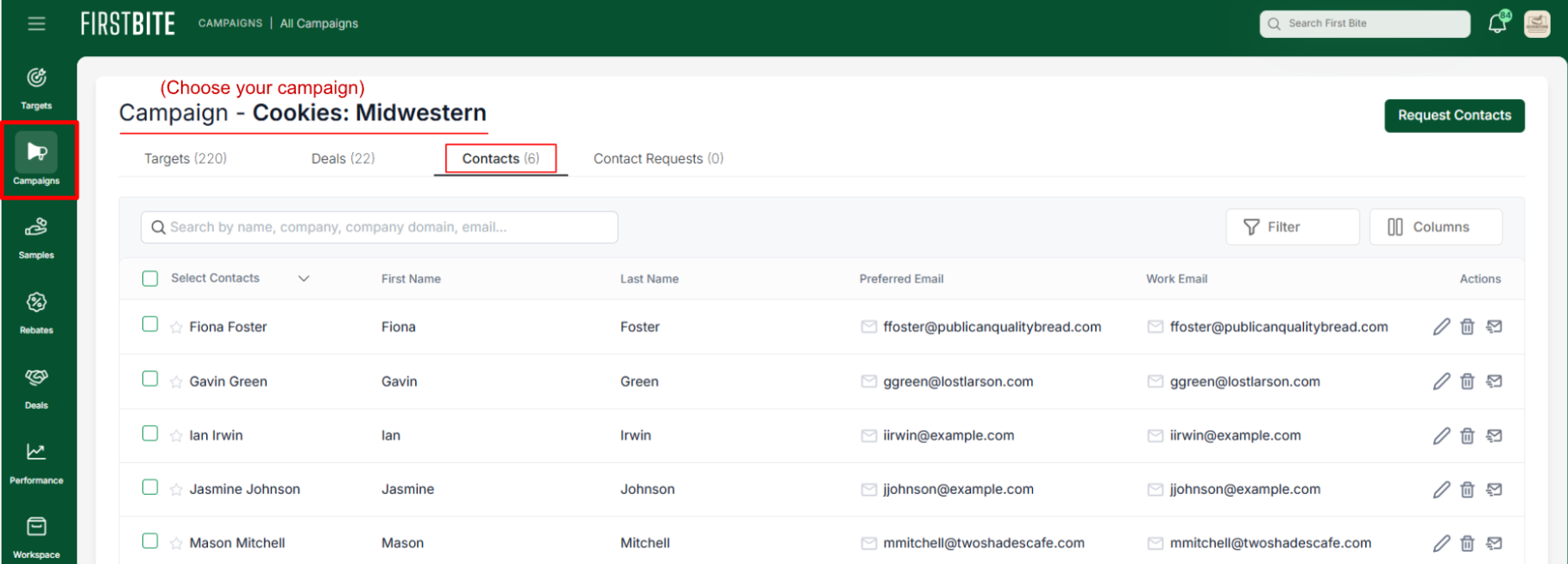
Paste the bounced email address into the search bar.
Check the box next to the matching contact.
Click
Actions→ add both:Company Tag (e.g.,
Bounced 7.30.25)Contact Label (same name as tag for consistency)
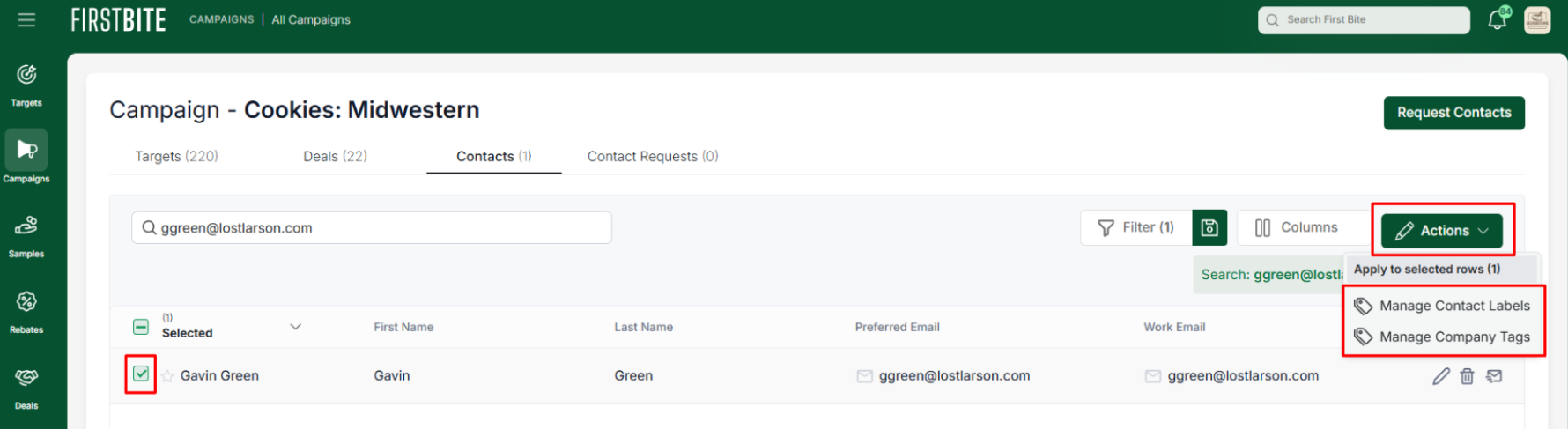
Learn more about Creating & Applying Tags within a Table)
Once the campaign has fully run, navigate to the Targets page for the relevant segment (e.g.,
Targets → Commercial → Restaurants & Bars).Filter by Tag → name of your bounce tag (e.g.,
Bounced 7.30.25).Select all filtered targets.
Push them into a new campaign, naming it after the original campaign + “(Contact Re-Request for Bounced Emails)” or similar.
In your new campaign, request updated contacts for those companies.
Be sure to check “Include” before confirming the request.
2. Non-Responsive Contacts
A non-responsive contact is someone who received your campaign emails but did not engage (e.g., reply).
Unlike bounces, non-responsiveness doesn’t indicate a bad email address—it may simply mean the timing, messaging, or offer wasn’t a fit.
Best Practices for Non-Responsive Contacts
Avoid immediate re-engagement – Placing unresponsive contacts into a new campaign too soon can trigger spam complaints.
Focus on net new targets first – Your best engagement rates come from fresh contacts who haven’t heard from you before.
Wait before re-attempting – If you’d still like to connect, wait 4–5 months after the original campaign closes. This reduces spam risk and allows circumstances to change.
Consider Re-Requesting – You may also want to consider re-requesting contacts to potentially find someone more likely to respond.
Summary Table: Handling Bounced vs. Non-Responsive Emails
Type | Cause | Action During Campaign | Action After Campaign |
Bounce | Invalid or undeliverable email address | Email sending tool automatically removed from sequence; tag & label in First Bite | Bulk request new contacts for tagged companies |
Non-Responsive | Contact received emails but didn’t engage | Leave in campaign; do not re-send immediately | Wait 4–5 months, then consider re-engagement |