First Bite Navigation Overview
Last updated: June 8, 2026
A quick overview of what each section in First Bite has to offer + some common terminology.
Overview
First Bite supports your go-to-market strategy by providing two key services:
An extensive operator database
The workflow, automations, and CRM functionality needed to operationalize that data.
This overview introduces you to the main sections in First Bite and their role. Click on each section to learn more about where key features live in the First Bite platform, and how to navigate the data tables First Bite is built upon.
First Bite buttons are defined below the table for reference.
First Bite Sections
Section Summary | ||
The main prospecting hub in First Bite — explore commercial and non-commercial companies, and take key actions like creating campaigns and deals. | ||
Create, organize, and manage all team campaigns—track associated targets, deals, contacts, and contact requests. | ||
Manage contacts, track requests, and monitor Contact Credit usage. (Note: Contact requests are initiated from your campaign's page) | ||
Samples | Place new sample requests for a company and manage active sample requests submitted by your team. | |
Rebates | Centralized view of your rebate activity — track rebate statistics, manage offers and claims, create new rebate offers, and monitor invoice statuses. This is only visible if you have joined our rebates program. | |
View, manage, and act on all deals created in First Bite. | ||
Performance | Overview of your entire sales pipeline, including revenue and volume forecasts for active deals. | |
Workspace | The central database for your Documents, Activity, Products, and Reminders. Activity: Visibility on all actions done across your team, including the creation and modification of deals, contacts, companies, and campaigns. | |
Settings | Customize First Bite — Invite users, create sales stages; manage filters, tags, contact labels, distributors, and email integrations. |
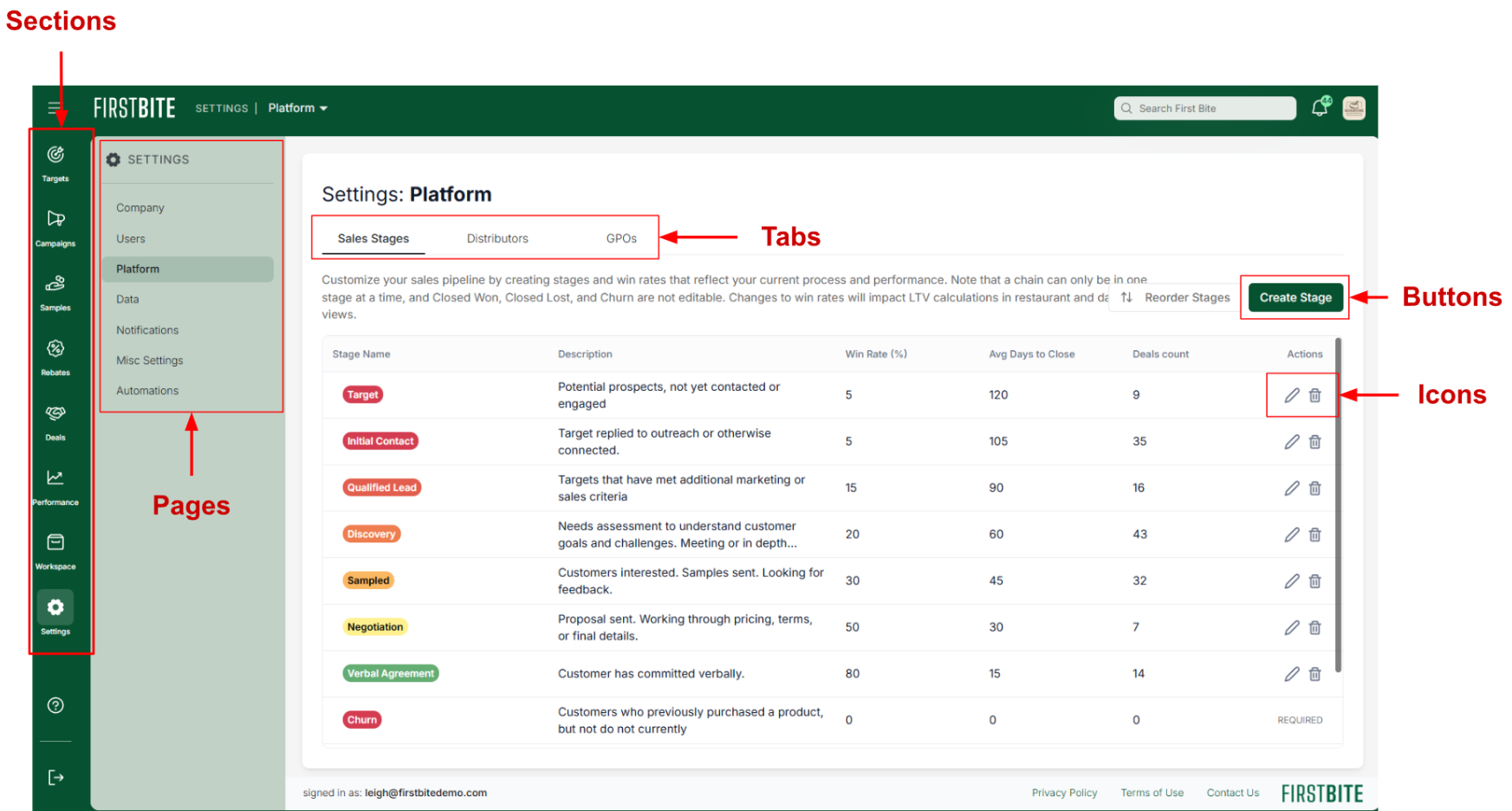
Navigation Terminology: Pages, Tabs, Buttons, and Icons
Sections: An organizational container that groups related information. Accessible from the far left side bar.
Pages: A specific interface inside a section where users view, manage, or interact with data.
Tabs: Toggle between data tables accessible on a page.
Buttons: Green, designate an action.
Icons: White, indicate an interaction with something on the page (generally a table).
If you’re noticing that items are getting cut off at the edge of your screen, check out our help article to troubleshoot your screen width.